Features
Updated:
The Heatmap is the core of DeepDom and the reason the platform exists in the first place. Every other tool — the DOM, Bubbles, CVD, VWAP — adds context and confirmation. But the Heatmap is where you see the full picture of market intent laid out visually across both price and time simultaneously.
Most traders look at a price chart and see what already happened. The Heatmap lets you see what the market is planning before it happens — every horizontal band of color is a concentration of limit orders sitting in the order book at that price level. Real money. Real positions. Real intentions. The thicker and more intense the color, the more committed the liquidity is at that zone.
What makes it uniquely powerful is that it combines two completely different data streams into one view — executed market order data from Time and Sales, and live limit order data from the DOM. This means you are not just seeing where price has been or where orders are waiting. You are seeing both at the same time, which allows you to understand how price is interacting with liquidity as it happens.
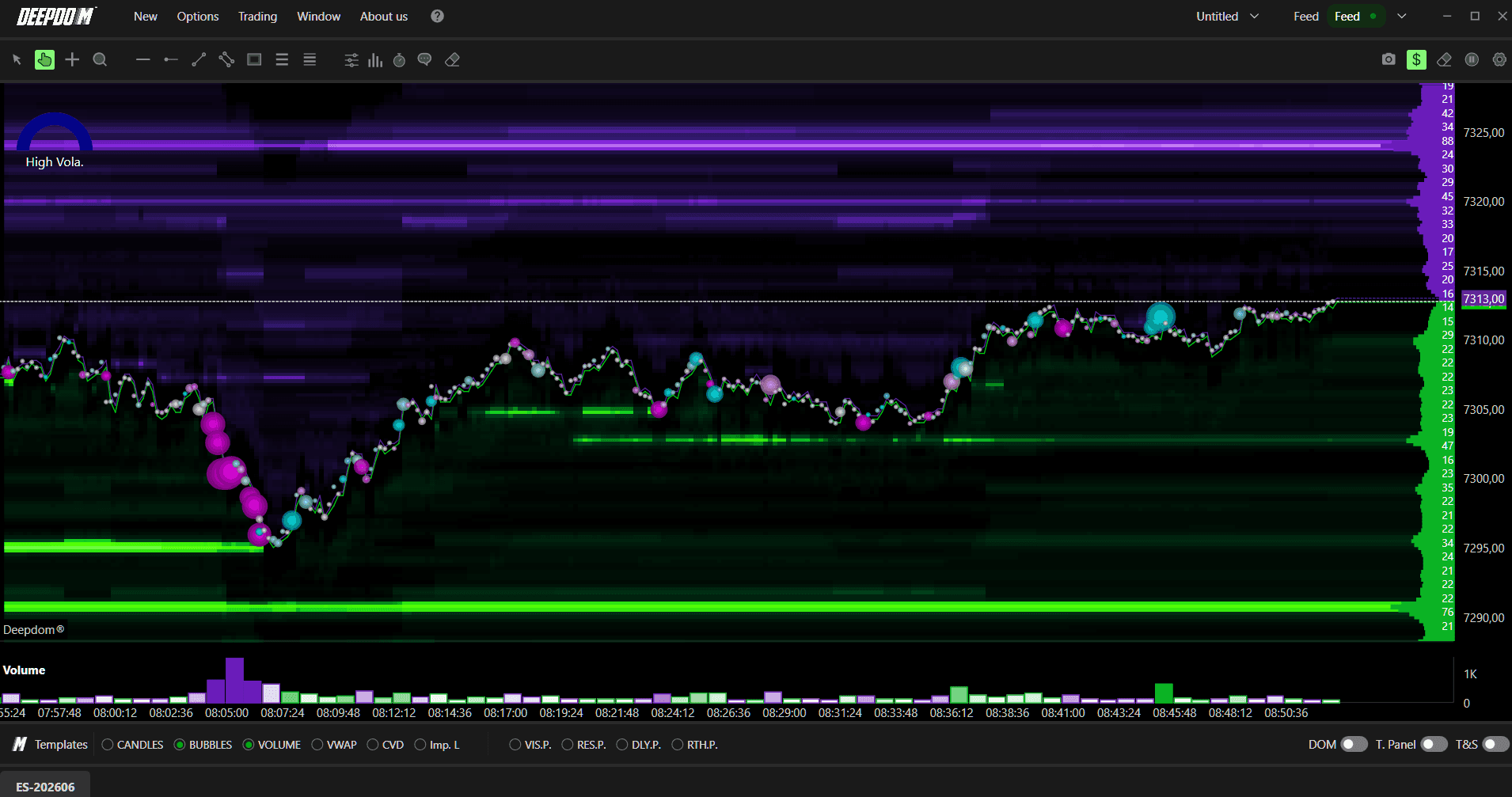
The color intensity is a direct measure of order concentration. Red means the heaviest liquidity, orange the second highest, and as colors move toward yellow, white, blue, and black, the liquidity becomes progressively thinner. When a thick red or orange band forms at a level, price will almost always react when it gets there. The Heatmap lets you see these zones forming in advance — often minutes before price even gets close.
Because DeepDom saves and records this data over time, you can also see exactly how a zone developed. Liquidity building gradually over 30 or 40 minutes tells a very different story from a large order that appeared suddenly just as price approached. The first is a deliberate, pre-planned position. The second is a reactive one. Understanding how the liquidity formed — not just where it is — is what separates a trader who reads the Heatmap at a surface level from one who truly understands order flow.

Opening a Heatmap
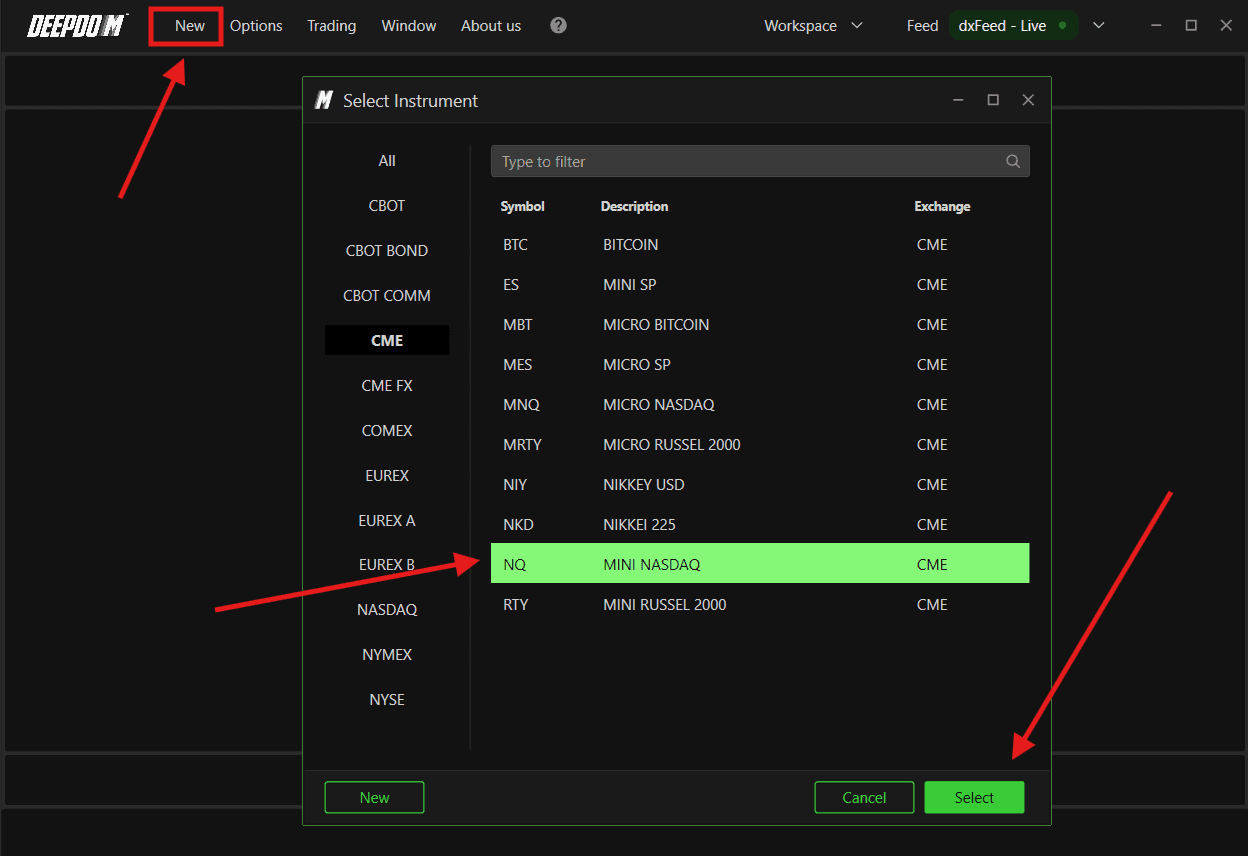
After connecting your data feed, follow these steps to open a new chart:
Connect the datafeed first, make sure its green (connect), If the connection - Yellow (Still Looking for the connections), and Red (Connection is disconnected)

Click New in DeepDom
Select the financial instrument you want to display from your list of subscribed symbols (Make sure you have setup your Symbol Manager setting correctly)
Click Select at the bottom right to confirm
Configuring MBO / MBP Data Source
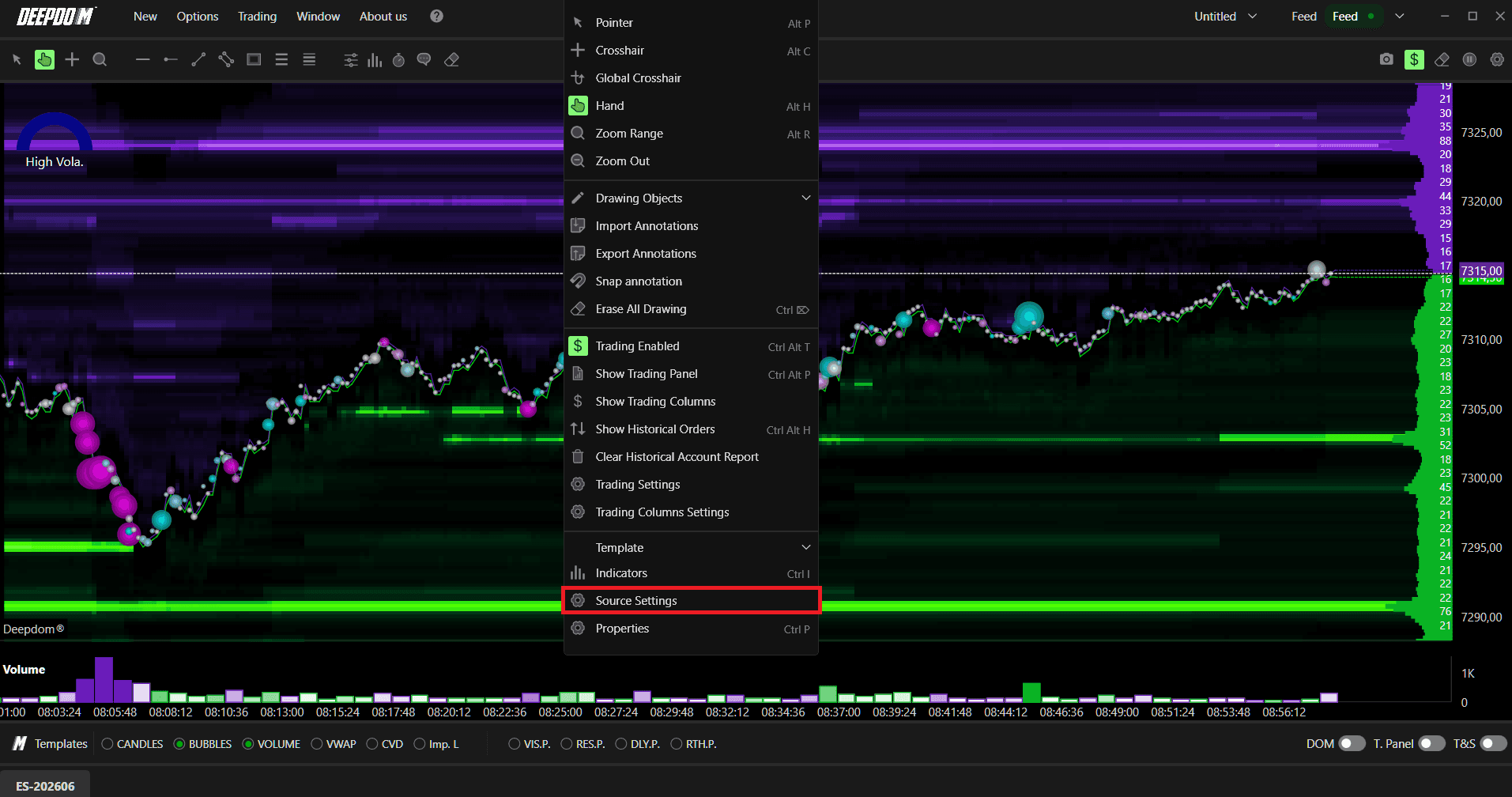
Source Settings allows you to configure the data source for each individual chart. This is where you define whether the chart uses MBP or MBO data — which directly affects which DeepDom features are available to you.
To access Source Settings, right-click anywhere on the chart and select Source Settings from the menu.
What is MBP and MBO?
MBP (Market By Price) MBP shows you the total volume available at each price level in the order book — combining all individual orders at that price into a single number. This is the standard market depth view that most traders are familiar with. It shows you what is at each price level but does not tell you anything about the individual orders behind that number.
MBO (Market By Order) MBO goes one level deeper. Instead of showing combined totals at each price level, MBO shows you the data for each individual order in the book — including its size, status, and how it changes over time. This is what makes it possible for DeepDom to identify Iceberg orders, Stop orders, and other advanced order flow features.
In simple terms — MBP tells you how much is at a price level. MBO tells you who is at that price level and how they are behaving.
Which Data Feeds Support MBO?
MBO data is only available on specific data feeds. Currently in DeepDom:
dxFeed Market Depth — supports MBO
Rithmic Market Depth — supports MBO
If your data feed supports MBO, switching to it will unlock the full power of DeepDom’s advanced order flow tools.
General
Source Type Defines the data source type used for the chart. You can choose between:
MBP — uses Market By Price data. Standard market depth showing combined volume at each price level
MBO — uses Market By Order data. Granular order-level data that enables advanced features like Iceberg order detection
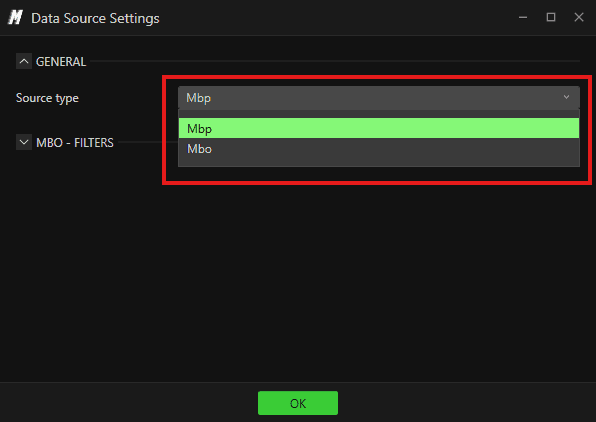
Switch to MBO if your data feed supports it and you want to use DeepDom’s full suite of order flow tools.
Notes - If you select MBO but your data feed does not support it: Some information may not be available or may not display correctly on the chart. Indicators that rely on MBO data, so it may not show the data or behave unexpectedly. If this happens, switch the Source Type back to MBP or contact your data provider to confirm whether MBO is included in your subscription.
MBO Filters
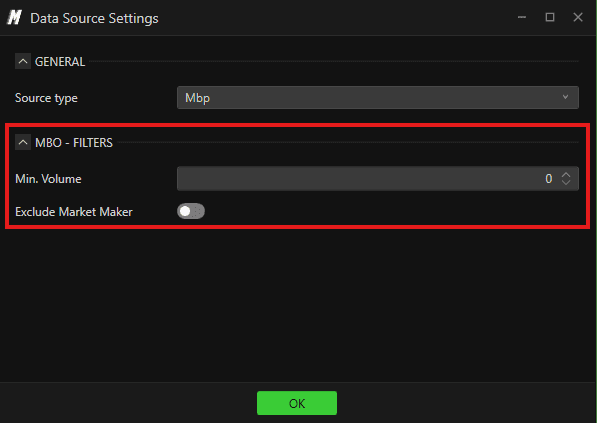
These filters apply when the chart is set to MBO mode and allow you to control which individual orders are included in the analysis:
Min. Volume Sets the minimum volume an individual order must have to be included in the MBO analysis. Setting this above zero filters out very small orders — keeping the focus on orders that are large enough to be meaningful. For example, setting this to 10 means only individual orders of 10 contracts or more will be tracked by the indicator.
Exclude Market Maker When enabled, orders identified as coming from market makers are excluded from the MBO analysis. Market makers constantly place and cancel orders as part of their normal activity — this can create a lot of noise in the data. Excluding them helps you focus on genuine institutional and trader activity rather than routine market making.
Notes - If you are unsure which to use: Start with MBP — it works with all data feeds and covers the majority of trading scenarios. Switch to MBO only when you specifically want to use the advanced order flow features that require it, and only if your data feed supports it.
Understanding Liquidity
Most traders only see what has already happened on a price chart. The Heatmap shows you something far more valuable — where the money is waiting before price even gets there. By default, the chart loads with one hour of liquidity history, meaning you are not just seeing where orders are sitting right now — you can see how that liquidity has been building, shifting, and disappearing over time. This gives you a forward-looking view that no standard price chart can offer.
Limit orders from the DOM are displayed directly on the chart:
Sell Limit orders - Purple
Buy Limit orders - Green
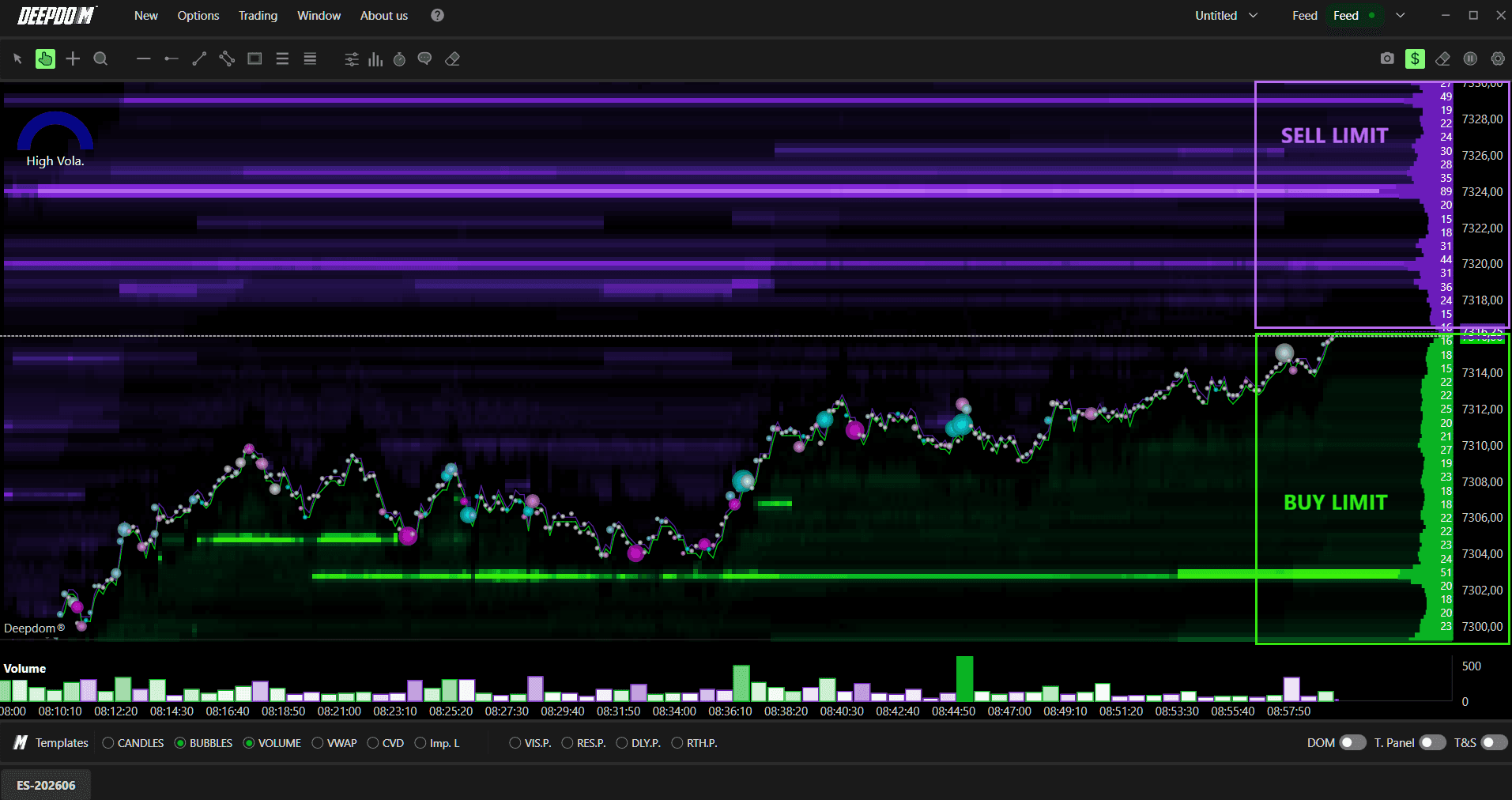
The Heatmap doesn’t just show current limit orders — it saves and plots this information over time, so you can see how liquidity has built up, increased, decreased, or been cleared at any price level. This matters because a limit order that has been sitting at a level for a long time is far more significant than one that just appeared — it tells you that someone is genuinely committed to that price.
How to read the Heatmap intensity:
DeepDom uses a visual intensity scale to show the concentration of limit orders at each price level:
The lighter and clearer the area appears, the higher the concentration of limit orders on the book.
The darker or less visible the area appears, the lower the concentration of limit orders on the book.
This intensity adjusts automatically to current market conditions. If a new large limit order appears, the entire scale shifts to reflect the new context. This instantly tells your eye where the heaviest orders are sitting without having to read a single number — and price almost always reacts when it reaches those zones.
How to read Buy and Sell limits:
The separation of green (Buy Limit) and violet (Sell Limit) orders is equally important. Green bands below price tell you where buyers have placed their limit orders and are waiting. Violet bands above price tell you where sellers are positioned. When price moves into a thick green band, you are watching it enter a zone of heavy passive buying interest — the buyers there will either defend that level and cause a bounce, or get overwhelmed, causing price to accelerate through.
Either outcome is tradeable information.
How to read Fresh vs. Persistent Liquidity:
Not all limit orders in the book carry the same weight — and this is one of the most important distinctions you can make when reading the Heatmap.
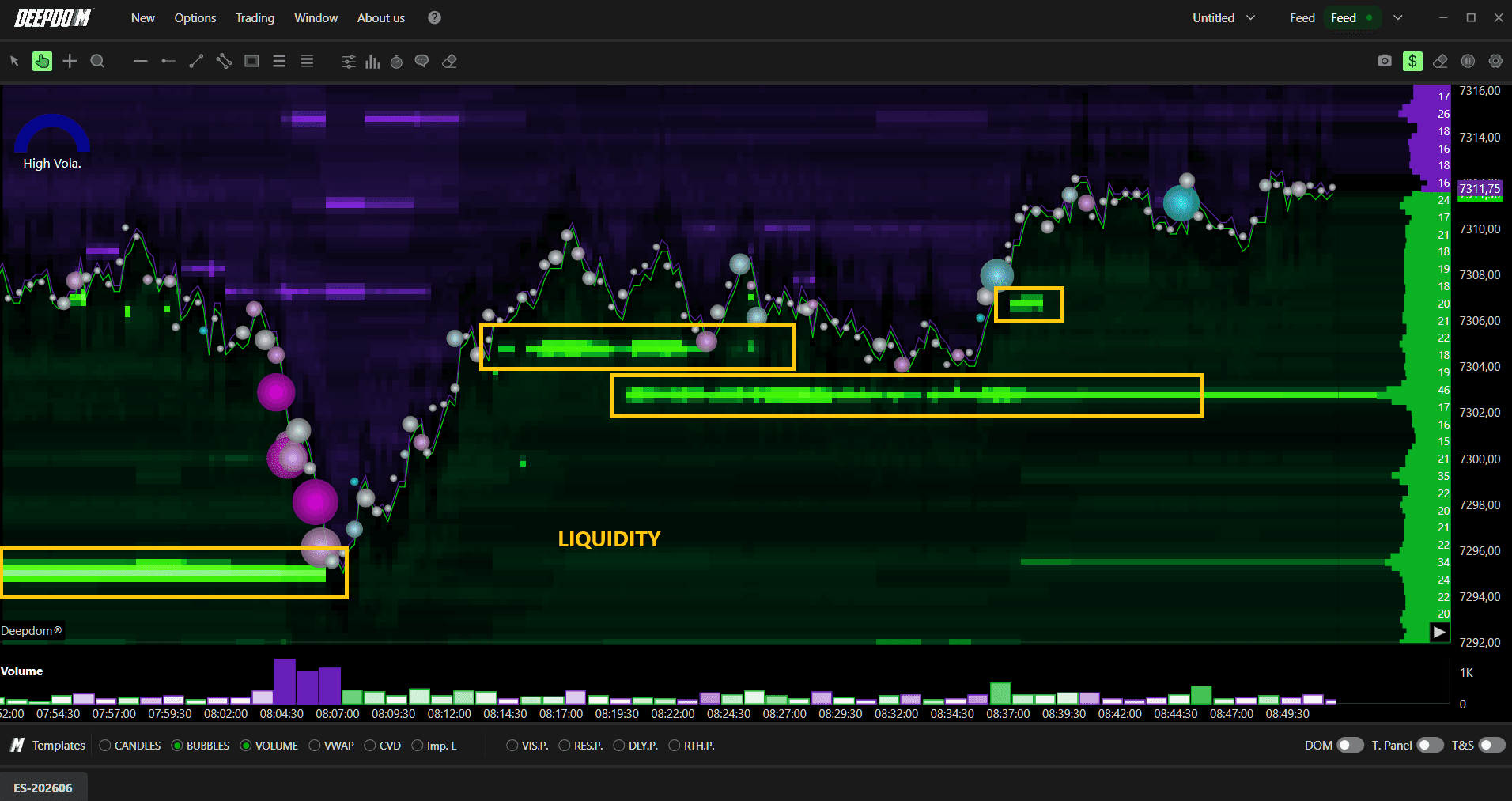
Fresh liquidity refers to limit orders that have just appeared in the book. These are newly placed orders — traders who have just decided to position themselves at a specific price. Fresh liquidity tells you about new intent entering the market right now. However, because these orders just appeared, they are also more likely to be cancelled or moved if price does not reach them quickly. A sudden appearance of fresh liquidity at a key level as price approaches can signal a reactive, defensive order — placed in response to what price is doing rather than as a pre-planned position.
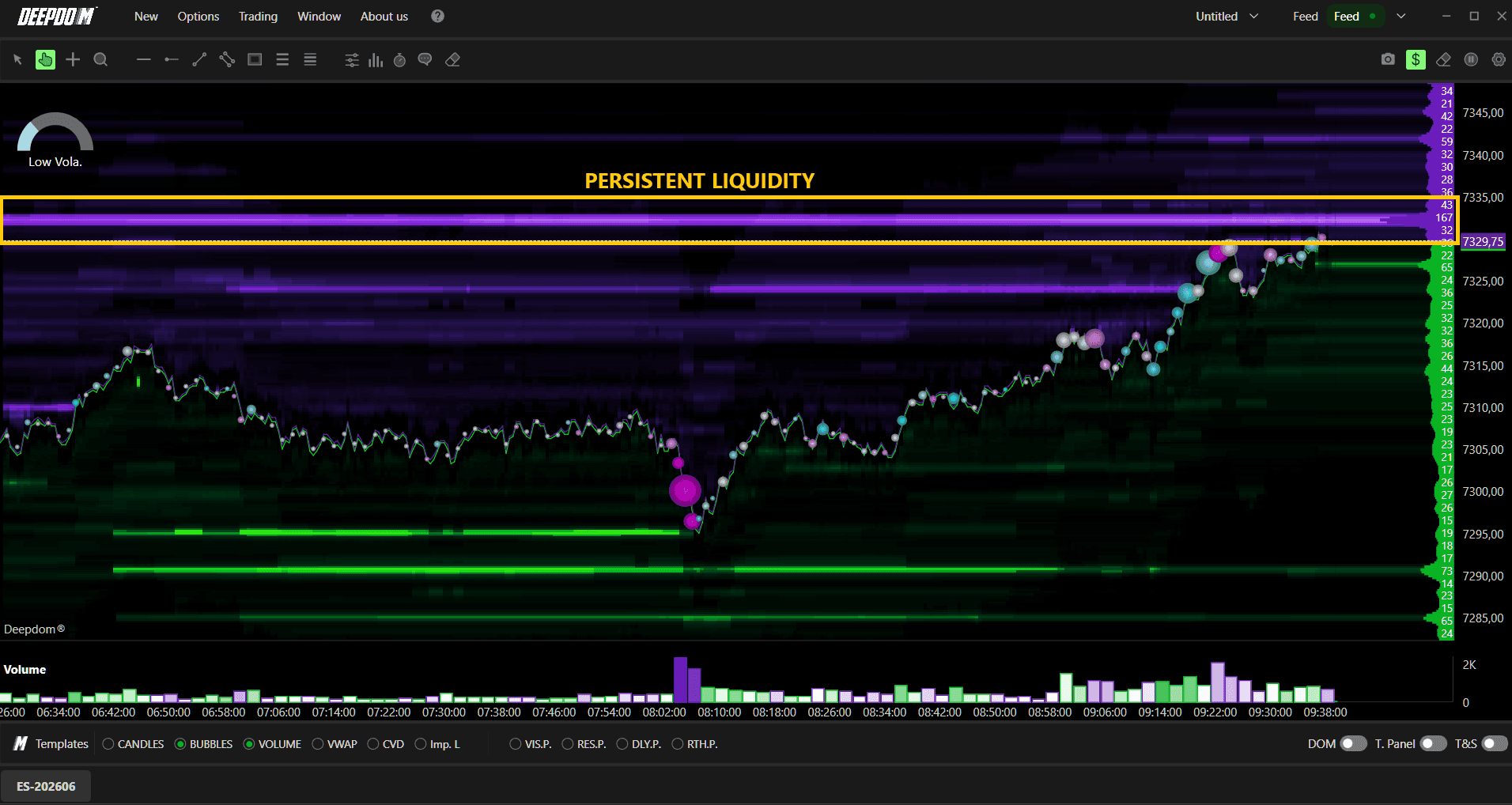
Persistent liquidity refers to limit orders that have been sitting in the book for a significant amount of time without being cancelled or filled. These are resting, committed orders — traders who placed their order at a specific price and have held it there through multiple price movements and market conditions. Persistent liquidity is far more significant because it tells you that someone genuinely believes that price level is worth defending. They have had multiple opportunities to cancel or move their order and have chosen not to. When price finally reaches a zone of persistent liquidity, the reaction is far more likely to be strong and sustained.
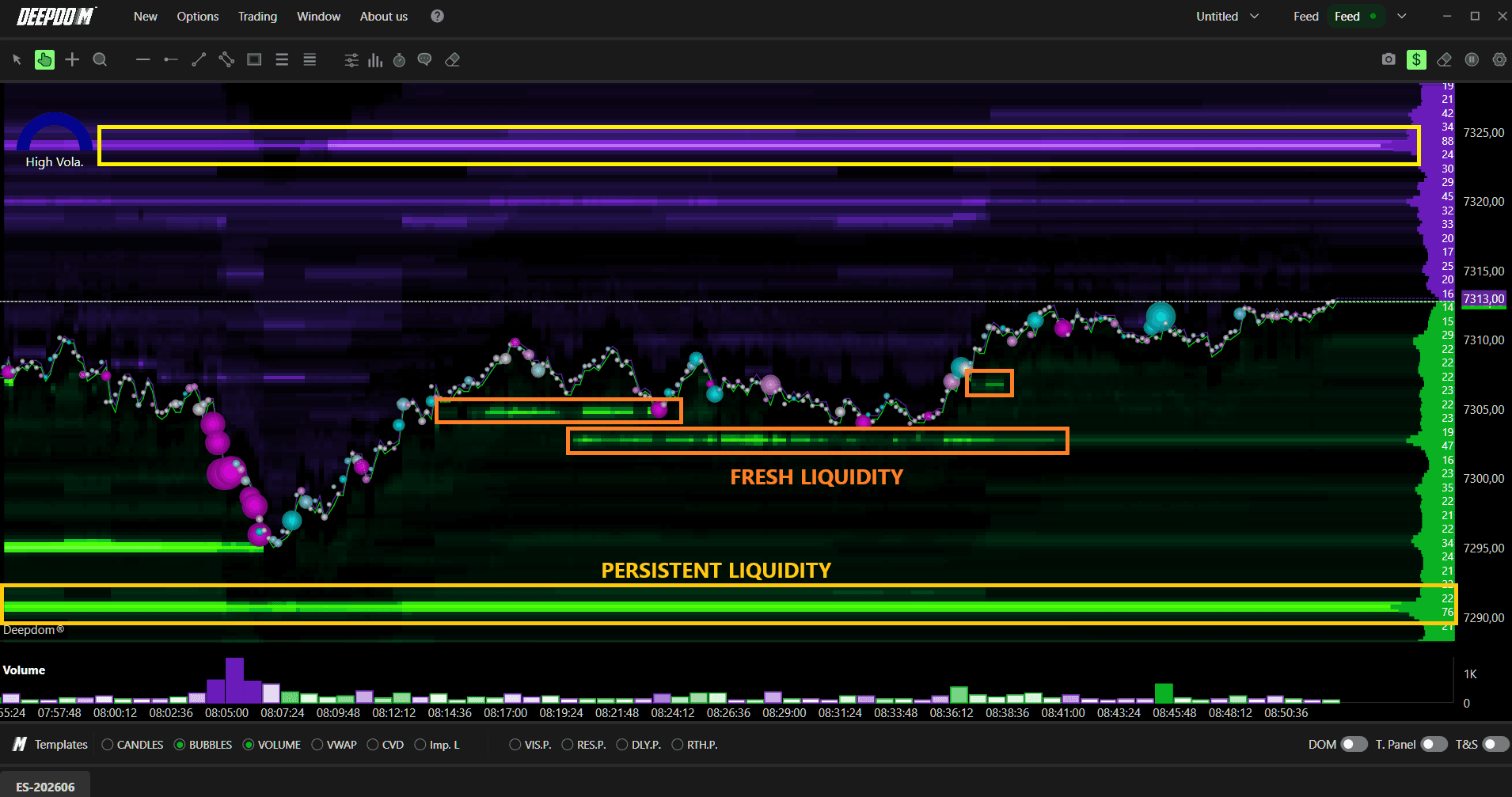
How to use both together:
When you see persistent liquidity at a level, that is a zone worth marking and watching. The longer it has been sitting there, the more committed the participant behind it.
When you see fresh liquidity appearing suddenly at a level as price approaches, be more cautious — it may be a reactive order that gets pulled before price even reaches it.
The most powerful setup is when persistent liquidity and fresh liquidity are both building at the same level — it means both committed, patient participants and new aggressive participants are positioning at that price simultaneously, significantly increasing the probability of a strong reaction.
How to read the history:
Because DeepDom saves and plots this data over time rather than just showing a current snapshot, you can look back and see exactly how a level developed. A thick band of liquidity that has been sitting at a level for a long time tells you that someone is committed and waiting. A large order that appeared suddenly just as price approached tells a very different story. Reading the history of how liquidity forms — not just where it is right now — is what gives you the full picture.
Note: To access Market Depth data, you need Level 2 from your data feed. DeepDom supports analysis of over 1,000 book levels.
