DeepGamma Web is the browser version of DeepGamma. You open it from your DeepCharts dashboard, and it needs no separate market data feed. It gives you the DeepGamma options indicators on a single chart, with tools for replaying past sessions, saving your layout and switching themes.
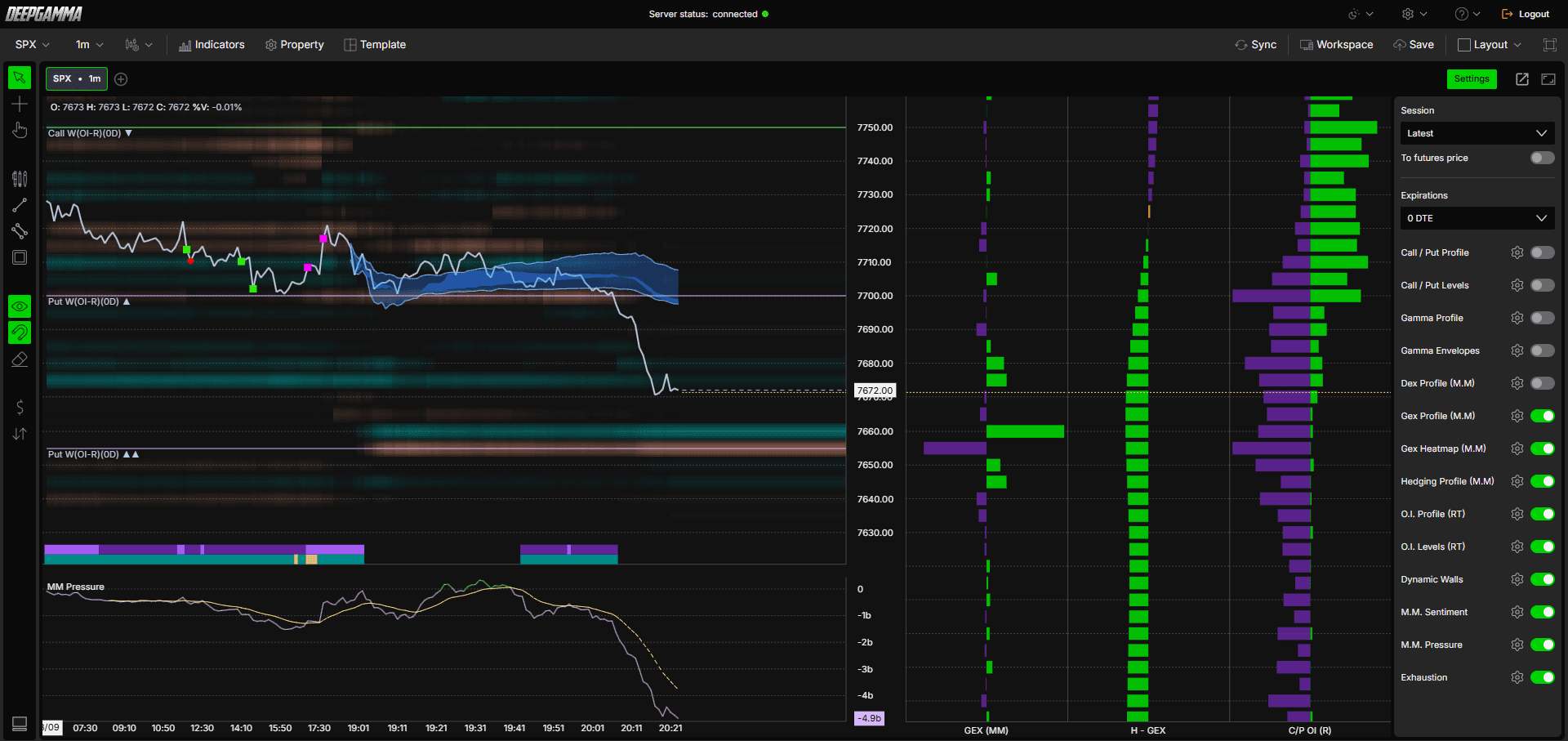
Note: DeepGamma Web is a separate subscription. Once it is active on your account, you can open it from the dashboard.

How to Access DeepGamma Web
Log in to your DeepCharts dashboard
In the left sidebar, click Deepgamma Web
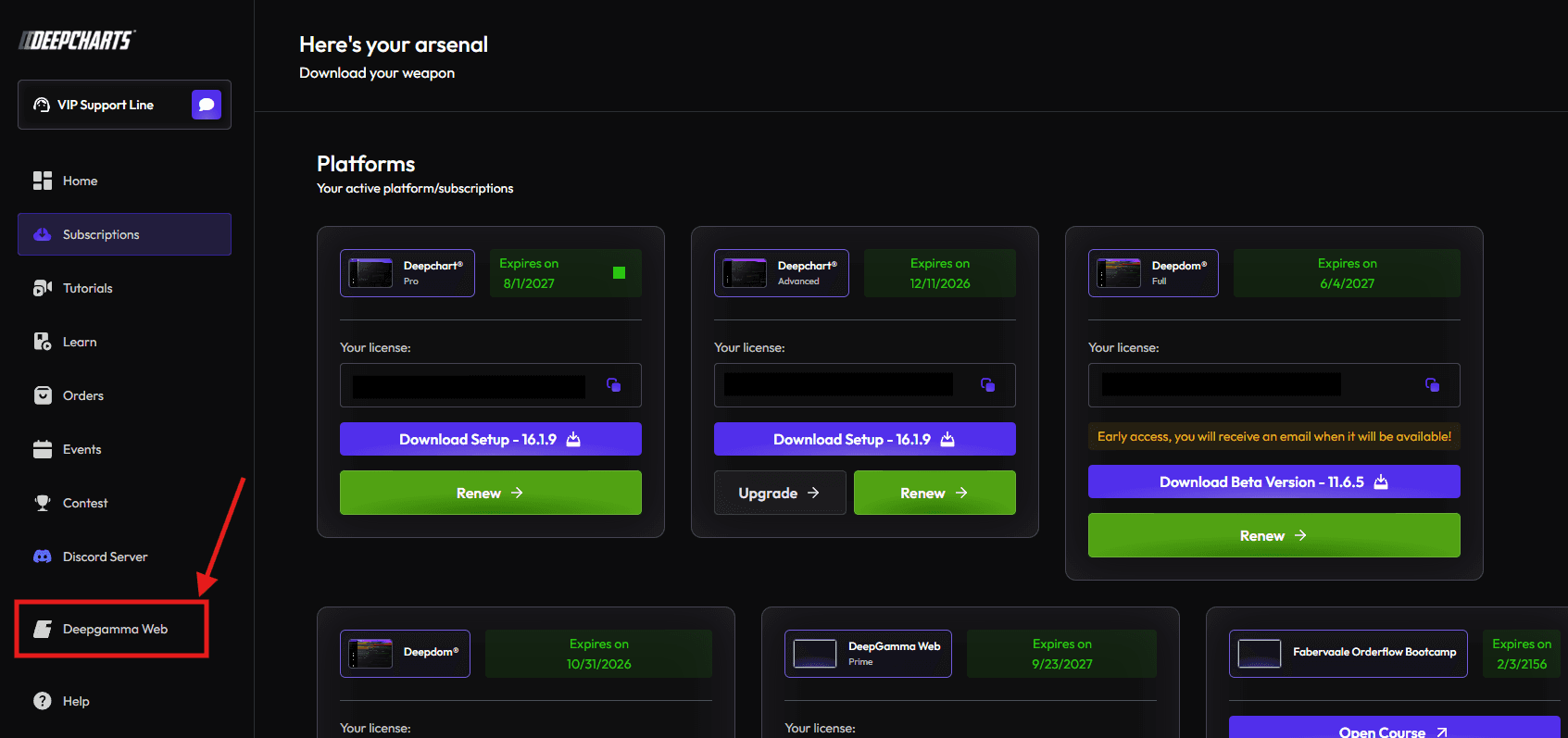
You will be taken to the DeepGamma Web platform automatically
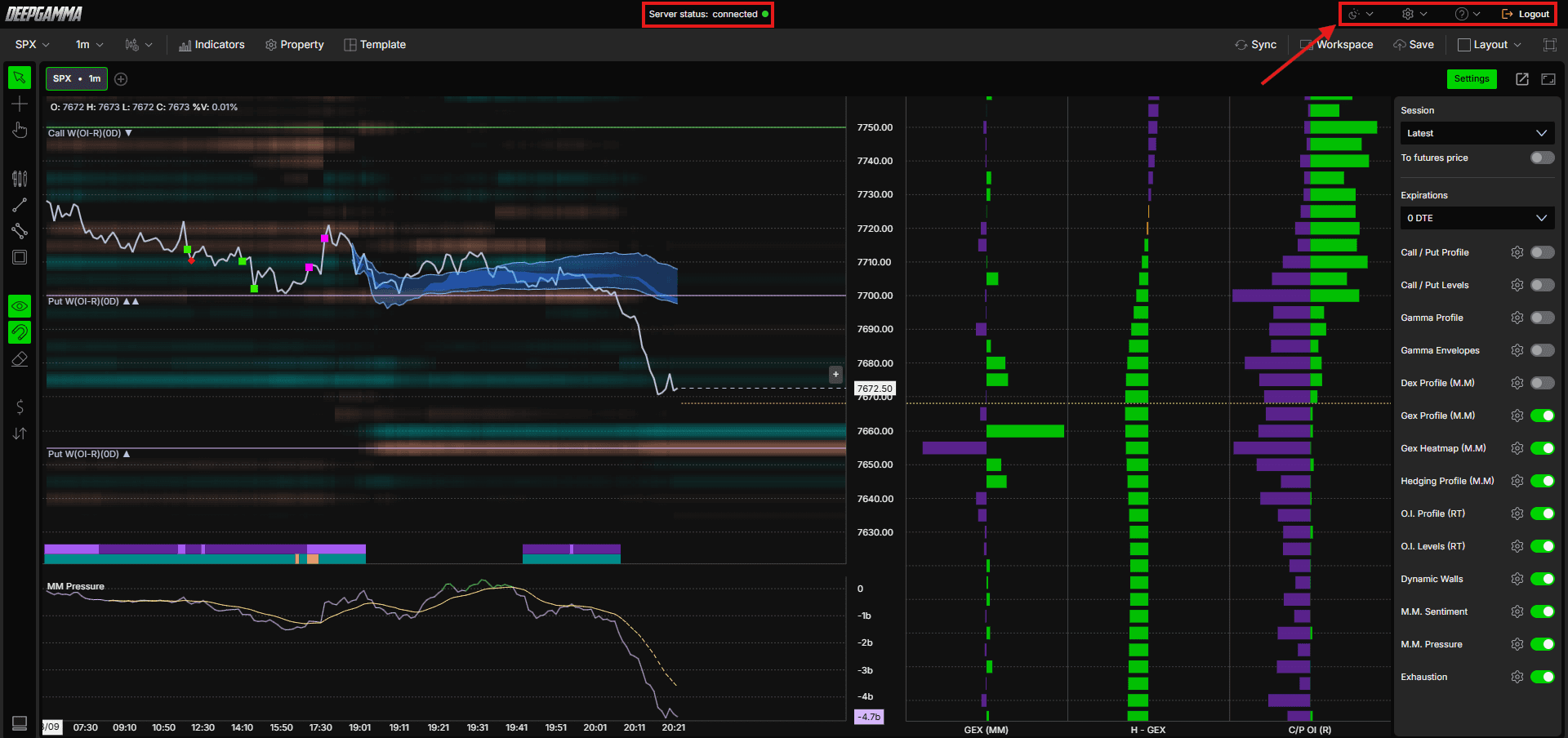
Check the top of the screen. When Server status: connected shows with a green dot, the platform is connected and receiving data

Platform Layout
The top of DeepGamma Web has two bars: the Top Bar and the Menu Bar. Here is what each item does, from left to right.
Top Bar
Server status - Shows connected with a green dot when the platform is connected to the server
Theme - Switch between dark and light mode
Platform settings (gear icon) - Opens a menu with General Settings and HotKey Settings. See the Platform Settings section below
Help (question mark icon) - Opens a menu with three options:
Guides - Opens the guides
Release notes - Opens the release notes
Calendar Events - Opens the calendar events
Logout - Signs you out of DeepGamma Web
Menu Bar
Symbol - Opens the Symbols window. Search for a symbol or pick one from the list: NDX, QQQ, SPX, SPY and VIX. DeepGamma Web opens on SPX by default
Timeframe - Opens the Time frame window, where you choose the timeframe in minutes. Pick 1, 5, 10, 15, 30 or 45, then click Apply
Chart type - Opens a menu where you choose how the chart is drawn and set a few chart options:
Candlesticks, Line or OHLC Bars - Choose how price is displayed. Line is the default because it gives a cleaner view
Countdown timer - Turns the bar countdown timer on or off
Auction filter - Turns the auction filter on or off
ETH - When ticked, the chart shows extended trading hours. Untick it to see only the regular trading hours (RTH)
Price settings - Opens the Price settings window
Indicators - Opens the indicators panel, where you can see the indicators on your chart and add new ones
Property - Opens Price settings, where you can change how the chart looks. It has two sections:
General - Back color, border color, text size, text color and last price color
Grid - Turn the grid on or off and set its line color and line style (dotted by default)
Template - Save your current chart setup as a custom template, including the indicators you have turned on and their settings. Next time, load the template to bring back the same setup in one step
Sync - When you have two or more charts open in your layout, turn Sync on and the symbol you load on one chart opens on all the other charts in the layout as well
Workspace - Save your charts, indicators and settings. Your setup is restored the next time you open the platform
Save - Saves your current workspace
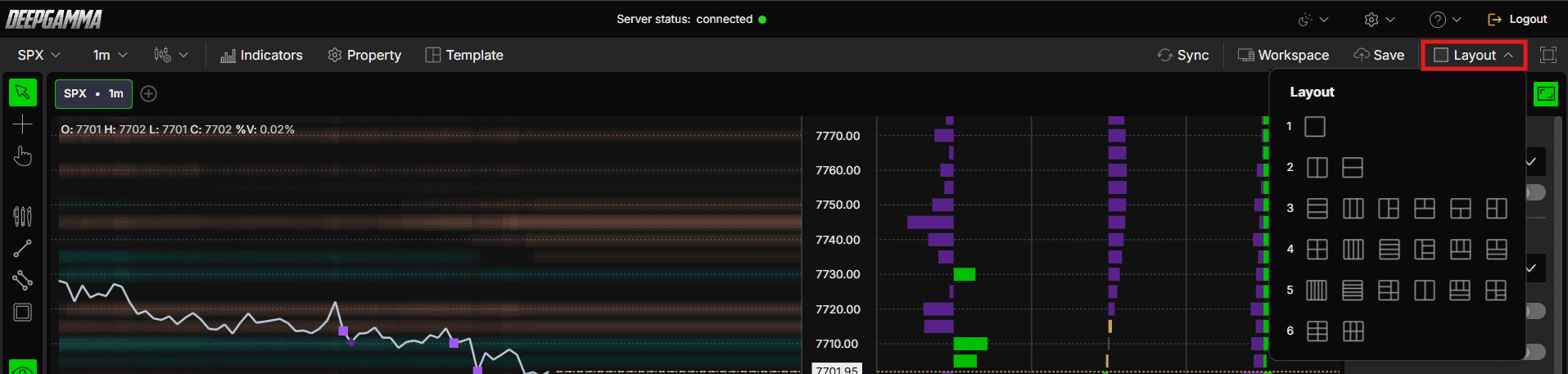
Layout - Choose how your charts are arranged, so you can view more than one chart at once. Use Sync to keep the symbol the same across all charts in the layout
Fullscreen - Expands DeepGamma Web to fill your whole screen. By default it stays inside your browser window, so click Fullscreen to fit the platform to your screen
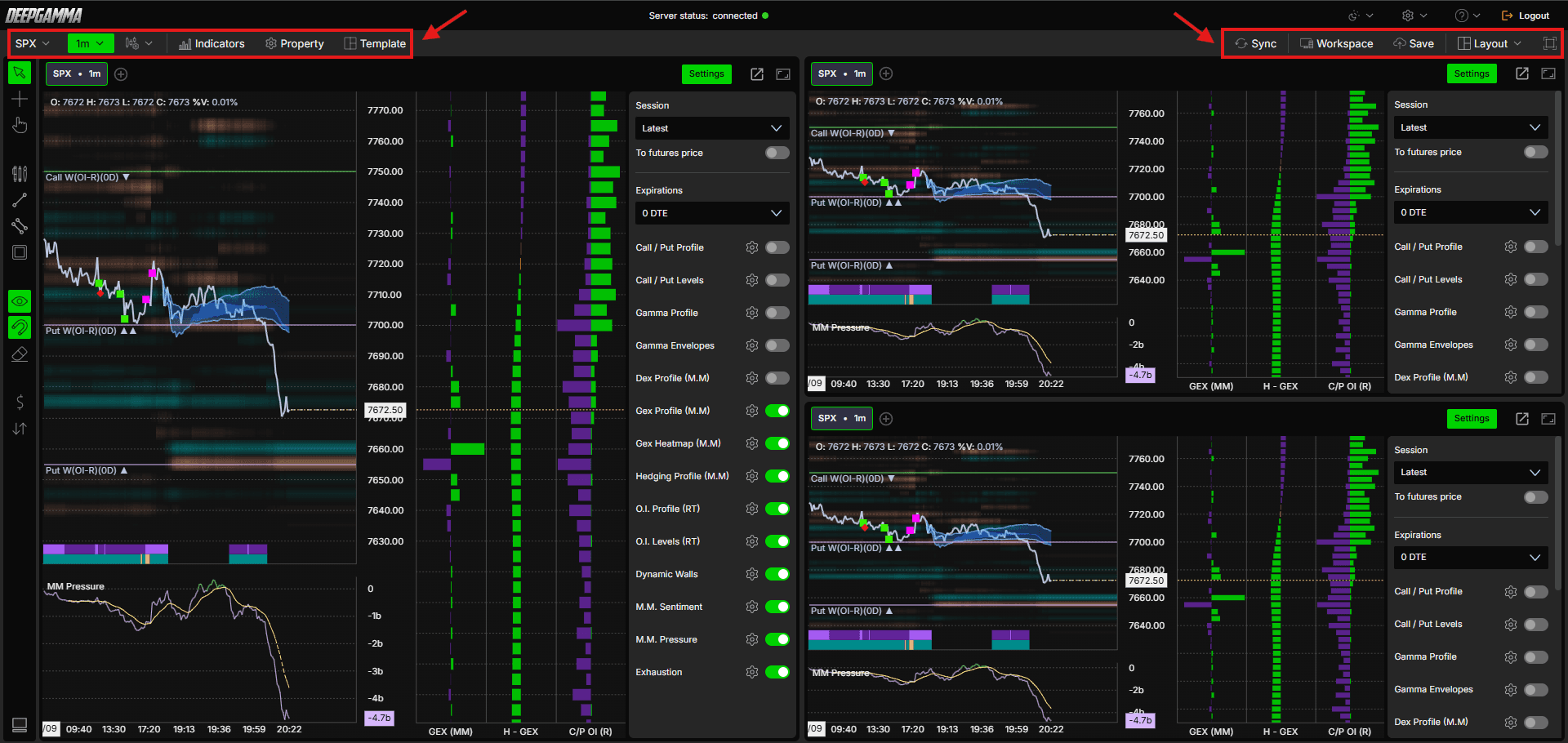
Chart Quick Bar Buttons
On the right side, just below the Menu Bar, you will find these buttons:
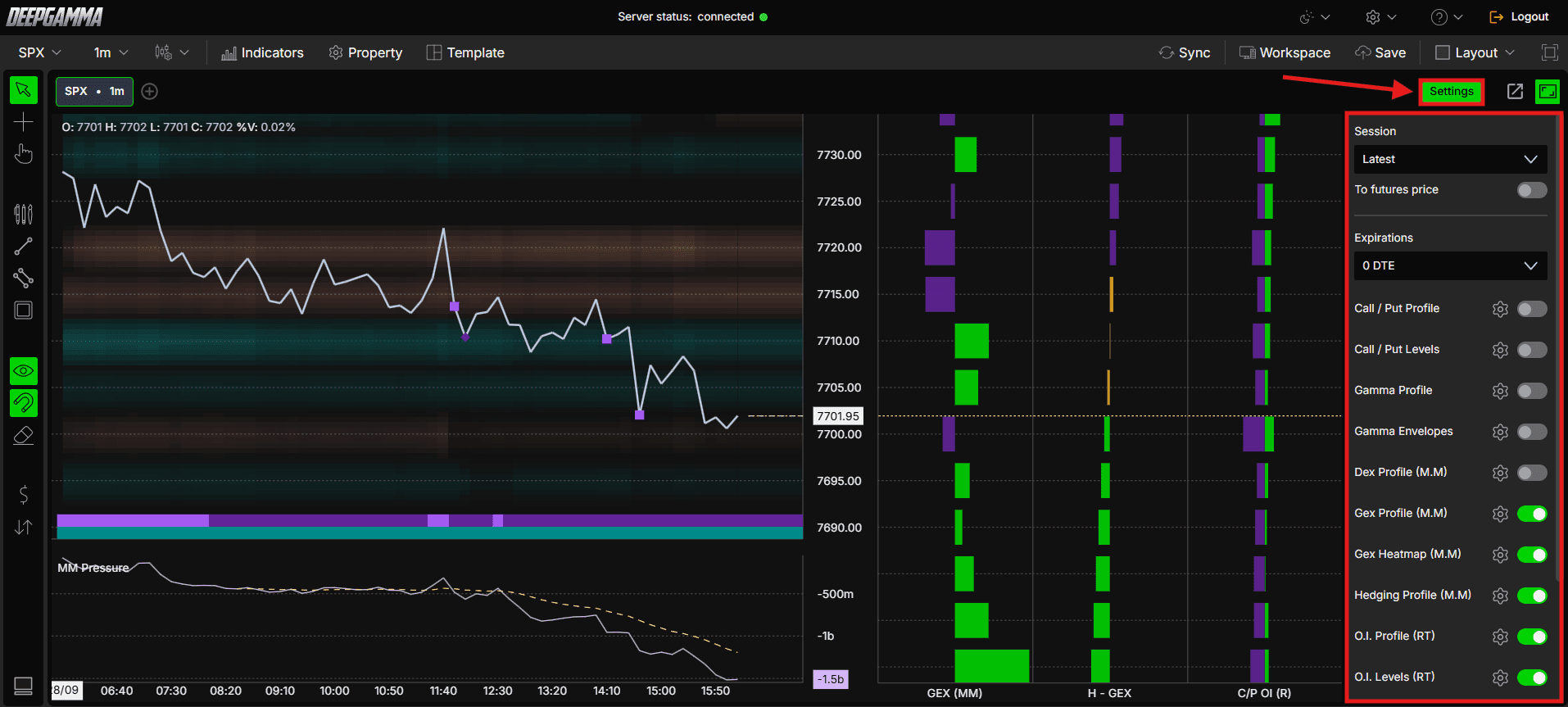
Settings (green button) - Opens the quick bar for the chart. Click it again to close the bar
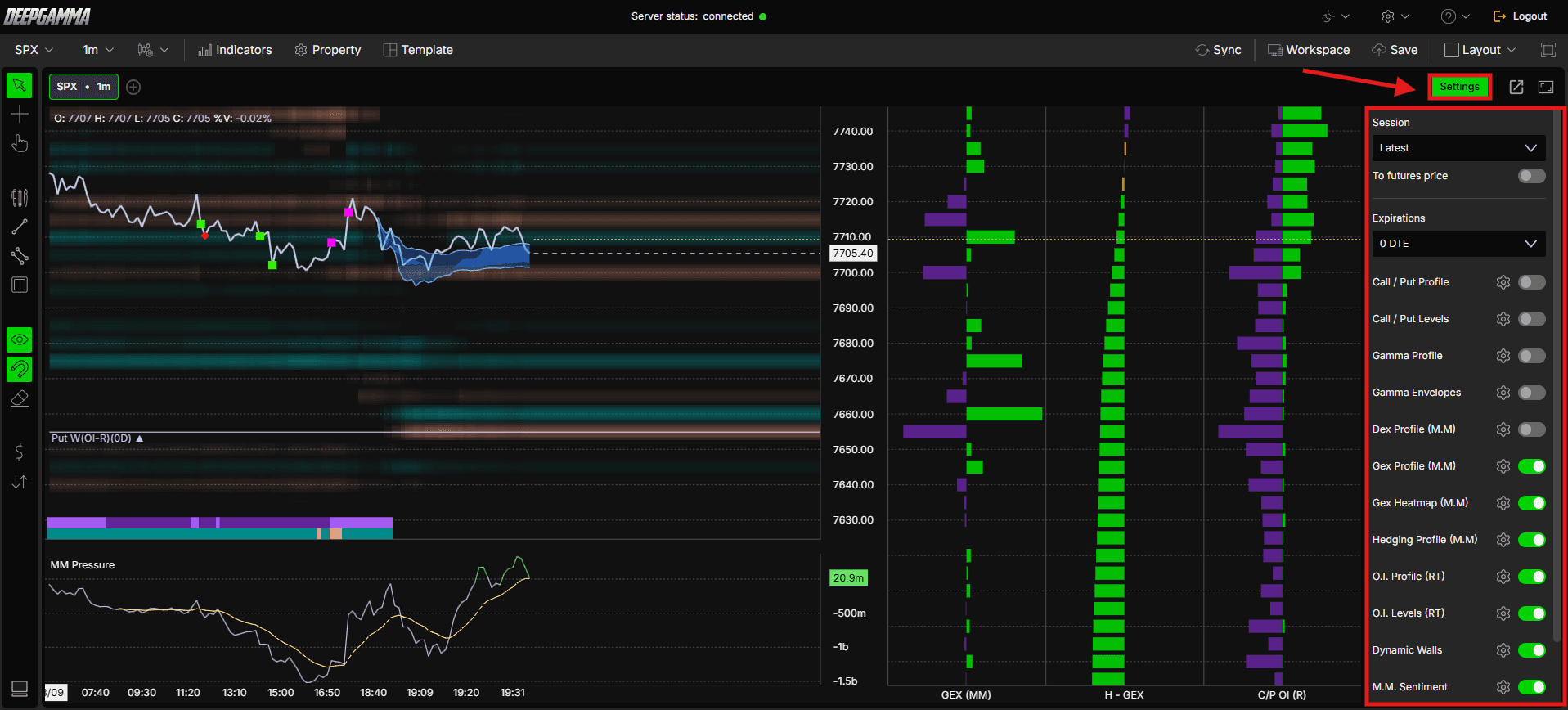
Detach window - Opens the symbol you currently have selected in its own separate window. Use it to keep a chart on another screen

Platform Settings
Click the gear icon in the Top Bar to open a menu with two options: General Settings and HotKey Settings.

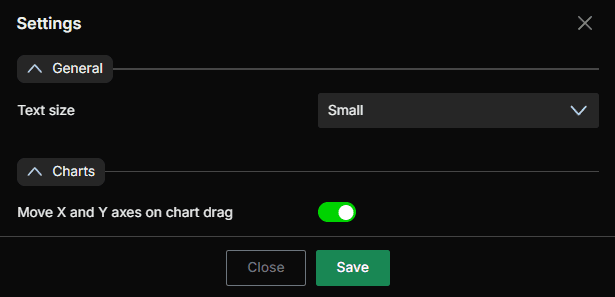
General Settings
Text size - Choose the text size. The default is Small
Move X and Y axes on chart drag - Turn this on to move the time and price axes when you drag the chart. It is on by default
HotKey Settings
Each action shows its shortcut. Click Record to set your own shortcut, and click Clear to remove it.
Pointer - Alt + P
Crosshair - Alt + C
Hand - Alt + H
Zoom range - Alt + R
Line - Shift + L
Horizontal line - Shift + H
Parallel line - Shift + P
Rectangle - Shift + R
Text - Shift + T

Adding More Charts
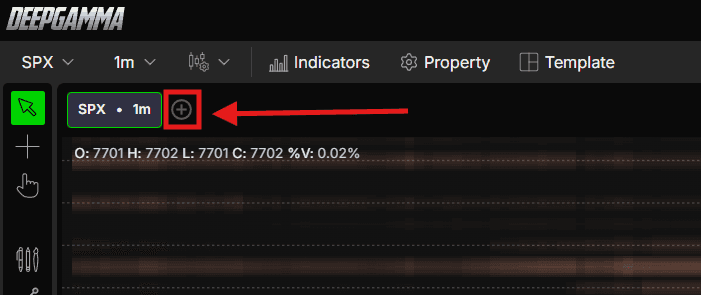
Click the + next to the chart tab, just below the Menu Bar
Choose the symbol you want to open
The new chart opens in its own tab. Each tab shows its symbol and timeframe, for example SPX 1m or QQQ 1m, and you can switch between tabs
To see several charts on screen at once, use Layout to choose the arrangement. Turn on Sync if you want the same symbol on every chart.
Annotations and Right-Click Menu
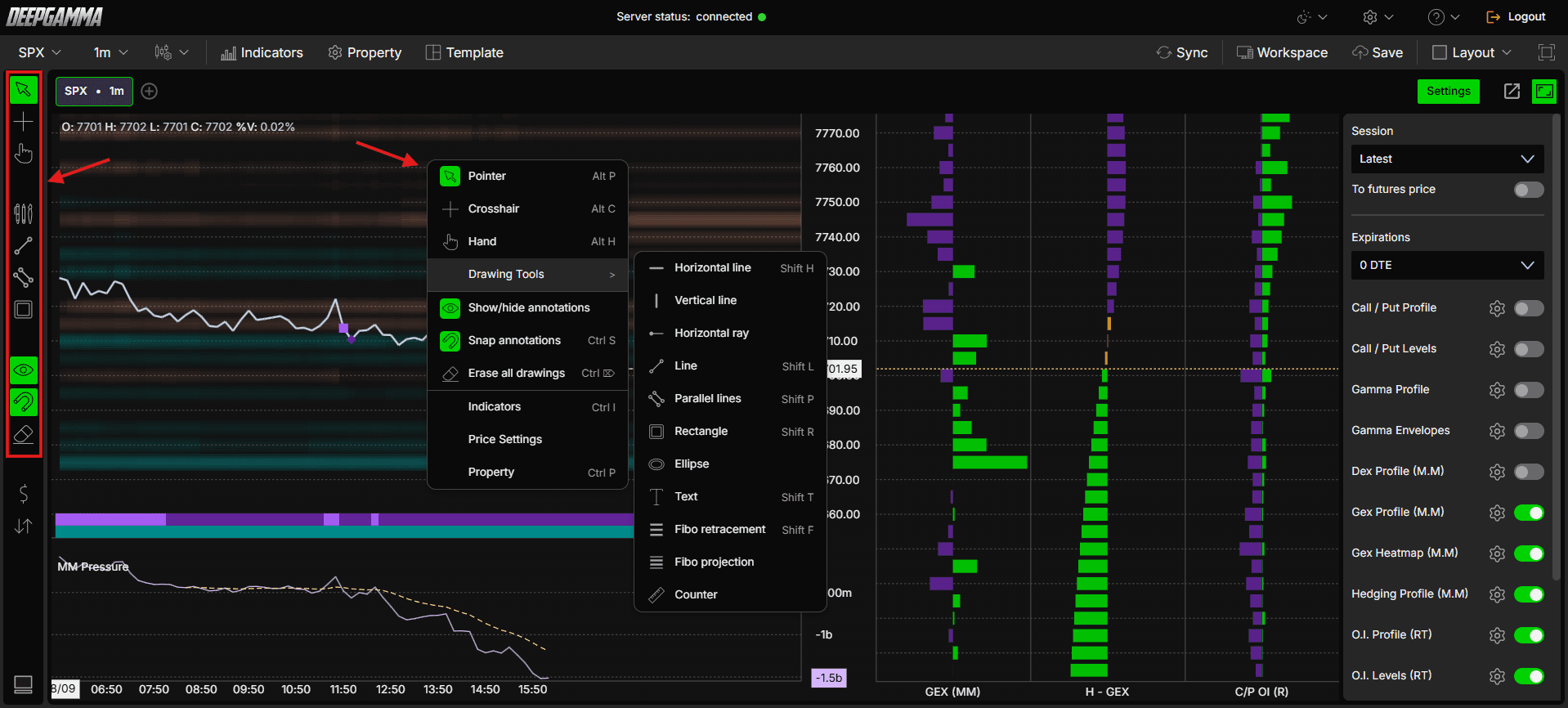
The annotation tools are in the vertical toolbar on the left side of the chart. You can also right-click anywhere on the chart to open the same tools:
Pointer (Alt + P)
Crosshair (Alt + C)
Hand (Alt + H)
Drawing Tools - Horizontal line, vertical line, horizontal ray, line, parallel lines, rectangle, ellipse, text, Fibo retracement, Fibo projection and counter
Show/hide annotations
Snap annotations (Ctrl + S)
Erase all drawings
Indicators (Ctrl + I) - Opens the indicators panel
Price Settings (also Property, Ctrl + P) - Both open the Price settings window
Settings Quick Bar
Click the green Settings button on the right side of the chart to open the quick bar. Click it again to close it. The quick bar gives you quick access to session and replay, the futures price toggle, expirations and the indicator toggles, without leaving the chart.
Session and Replay Tool
The Session dropdown controls which session the chart shows.
Latest (default) - Shows the live session, updating in real time
A past date - Choose an earlier date from the list to load that session. This starts the replay tool, so you can watch price and the indicators play back as they printed

To replay a past session:
Open the Session dropdown and choose a past date
Wait for the data to finish loading
Set your starting point on the timeline
Click Play
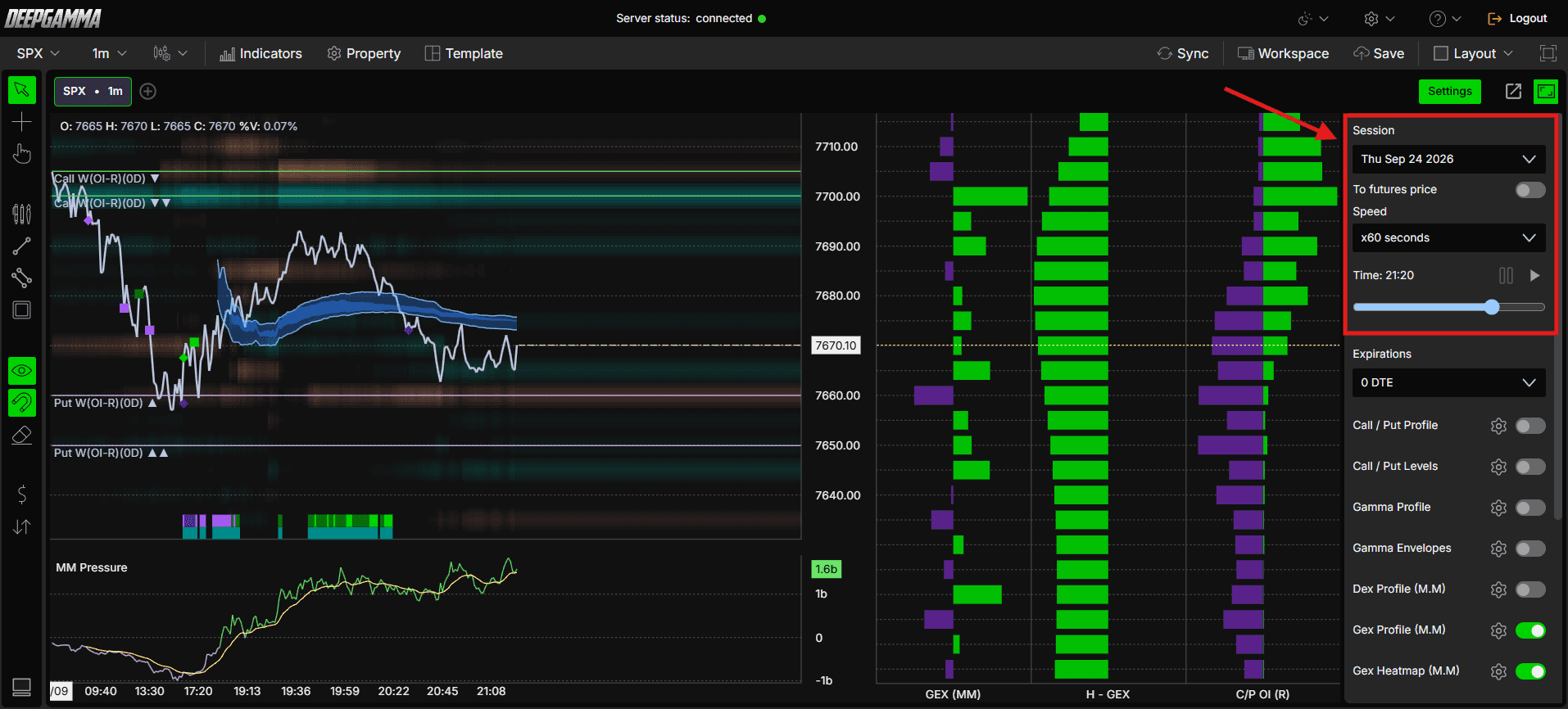
To go back to real time data, choose Latest again.
To Futures Price
Switch the chart price from the spot (index) price to the futures price. It is off by default, so on SPX you see the SPX price, not the ES price. When you turn it on, the chart price moves by an offset equal to the difference between the index and the futures contract.
Note: Around contract rollover, the futures price may not match your platform for a day or two. The expiration used for the conversion is selected automatically and cannot be changed, so it may briefly differ from the contract you are trading.

Expirations
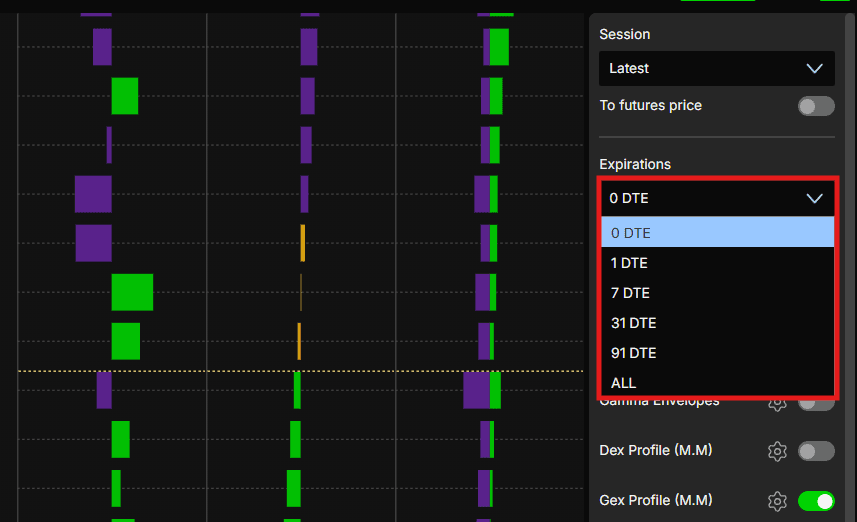
Choose which option expirations the indicators use. The default is 0 DTE.
Set one expiration here and every indicator follows it
Or override it on a single indicator in its own settings, so that indicator uses its own expiration
Indicator Quick Toggles
To turn indicators on or off without opening the indicators panel, click Settings on the right side of the chart to open the quick bar. The indicators are listed at the bottom, each with its own toggle. To change an indicator’s settings, or to add one that is not in the list, use Indicators in the Menu Bar.
Standard calculation - work on SPX, SPY, NDX and QQQ
Call / Put Profile - Shows call and put volume at each strike as a profile, so you can see where the call and put walls sit
Call / Put Levels - Plots the call and put wall levels as lines on your chart
Gamma Profile - Shows volume multiplied by gamma at each strike, using the standard assumption that market makers are long calls and short puts
Gamma Envelopes - Plots the Zero Gamma line with the Major and Minor Gamma levels, to help you read the gamma regime
CBOE - work on SPX charts only
Dex Profile (M.M) - Shows the real market maker delta exposure at each strike
Gex Profile (M.M) - Shows the real market maker gamma exposure at each strike
Gex Heatmap (M.M) - Plots colored blocks on the chart where market maker gamma exposure is concentrated
Hedging Profile (M.M) - The same as Option Gex Profile Hedging. Shows whether market maker hedging at each strike is likely to amplify or attenuate a move
O.I. Profile (RT) - Shows open interest at each strike, calculated in real time from live buy and sell flow
O.I. Levels (RT) - The same as Option Levels Advanced, using the real time open interest data source. Plots levels on the chart from real time open interest
Dynamic Walls - Plots a dynamic range on the chart, with no settings beyond its appearance
M.M. Sentiment - Shows a strip at the bottom of the chart with three parts you can turn on: regime, direction and volatility
M.M. Pressure - Plots an overlay line, similar to a cumulative volume delta but built from options data, with optional moving averages
Exhaustion - Plots markers where price may be showing signs of exhaustion, with separate colors for call side and put side activity
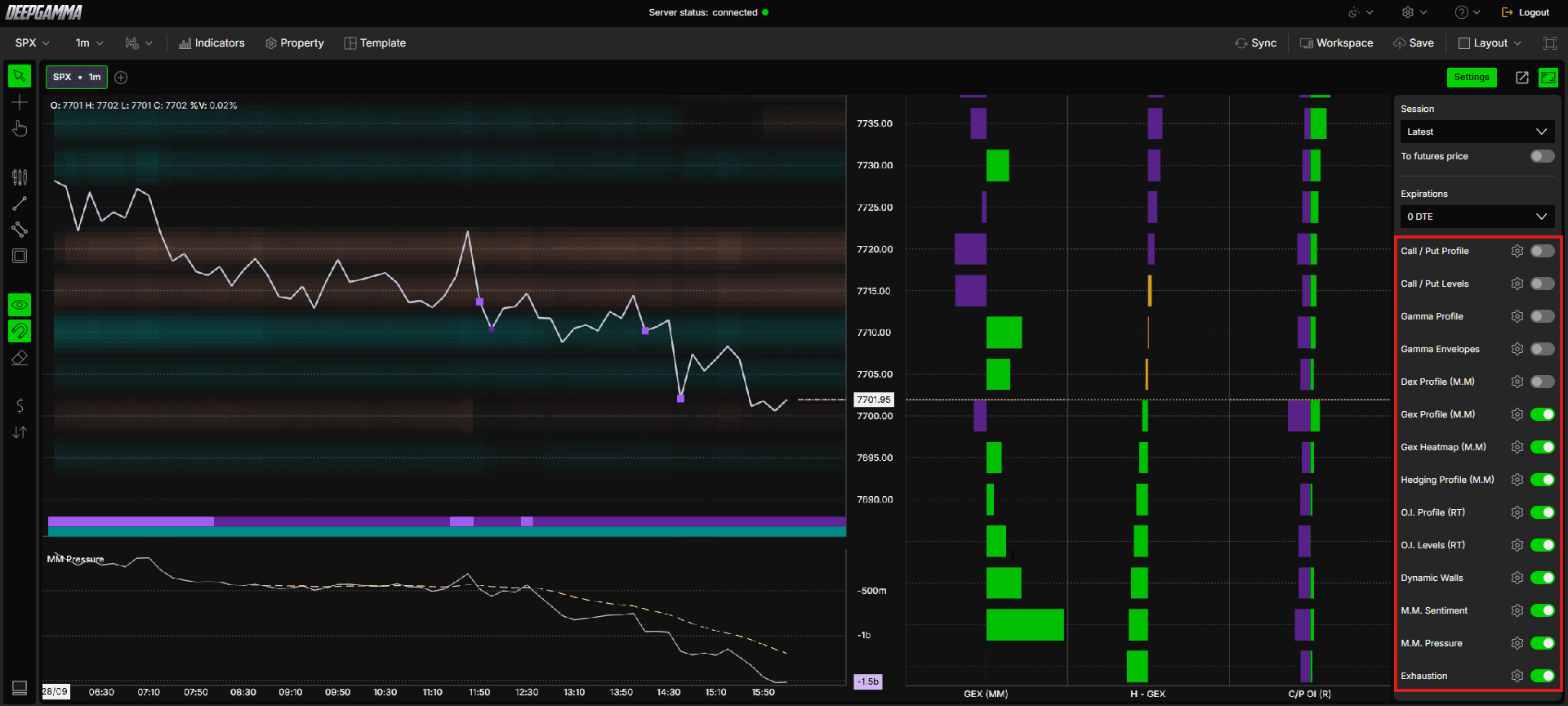
Note: CBOE sourced indicators only work when an SPX chart is open. If you switch to NDX, SPY or QQQ, their toggles are disabled and you cannot edit them. When you switch back to SPX, the toggles are available again, and the settings you had before stay the same.
Indicators
Click Indicators in the Menu Bar to see the indicators on your chart and add new ones.
Adding an Indicator
Click Indicators in the Menu Bar
Click the green Add indicator button at the bottom of the panel
Choose a tab: Options, Options (Cboe) or Technical analysis
Search for the indicator or pick it from the list
The indicator is added to your chart and appears in the panel

The three tabs are:
Options - Indicators that use the standard calculation and work on SPX, SPY, NDX and QQQ
Options (Cboe) - Indicators that use CBOE data and show values on SPX charts only
Technical analysis - Standard technical indicators, such as ATR and Bollinger bands
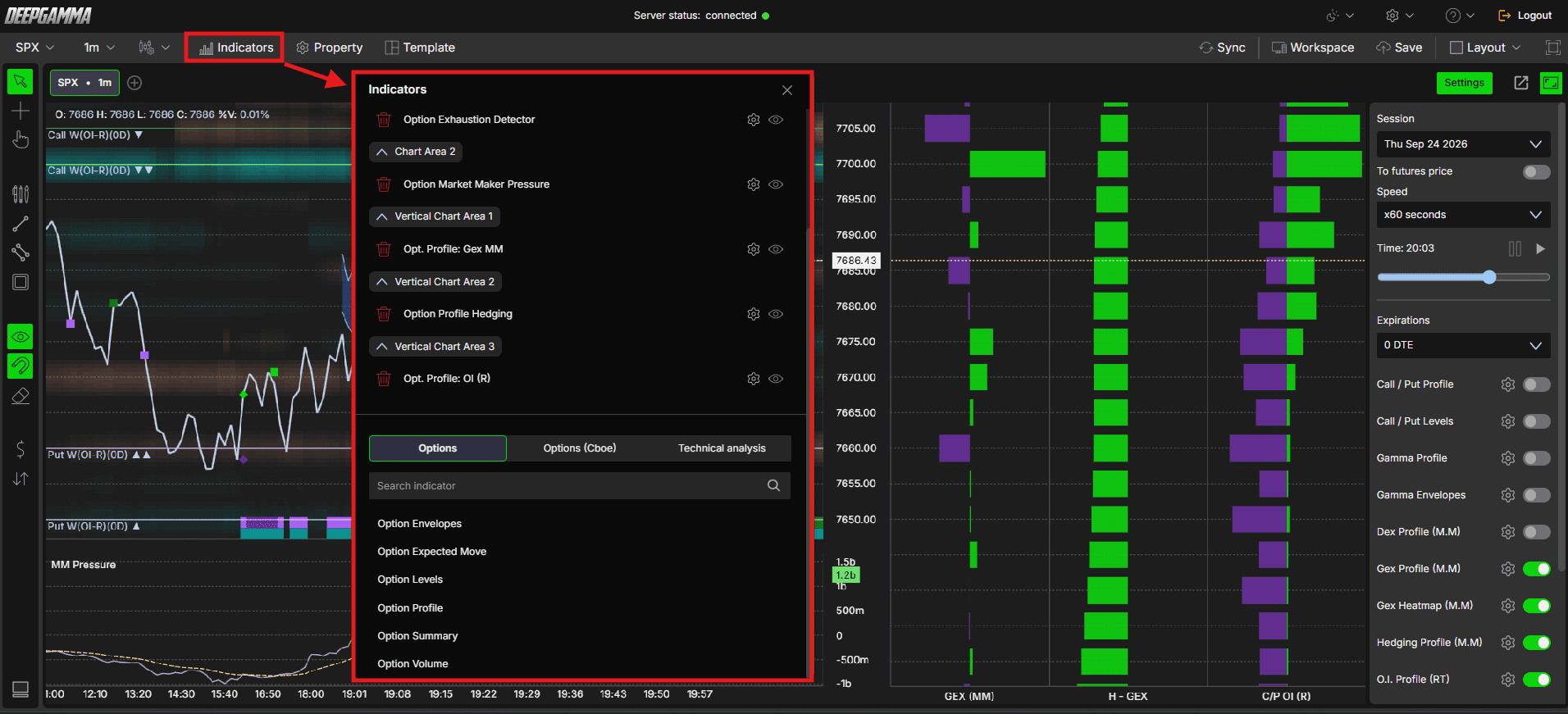
Note: Only CBOE sourced indicators work on SPX. If you add an Options (Cboe) indicator on another symbol, it shows no values.
Note: DeepGamma Web is not a tick by tick feed. Indicator data refreshes about once per minute, in line with other platforms that use CBOE data.
Any Questions?
Our support team is available 24/7 and ready to help you with any question.
When reaching out, please include:
Screenshot (if any)
Briefly describe the assistance or support you require
DeepCharts Live Support - Chat with our agents directly using the live chat box on www.deepcharts.com, or click here for 24/7 Live Chat for immediate access.
Email Support - Reach us at support@deepcharts.com - please note that email responses may take a little longer than a live support chat.
