Option Levels Advanced plots key strike levels directly on your price chart as horizontal lines, using real CBOE market maker data rather than the standard volume or gamma assumptions. These levels highlight where the most significant dealer positioning is concentrated, giving you a more accurate structural view of potential support, resistance, and hedging pressure than the standard Option Levels indicator.

Note: Option Levels Advanced uses CBOE data and shows values on SPX charts only.

How to Add Option Levels Advanced
Open an SPX chart in DeepGamma Web
Click Indicators in the Menu Bar
Click the green Add indicator button at the bottom of the panel
Open the Options (Cboe) tab and search for Option Levels Advanced
The indicator is added to your chart and appears in the Indicators panel
Click the gear icon next to Option Levels Advanced to open its settings
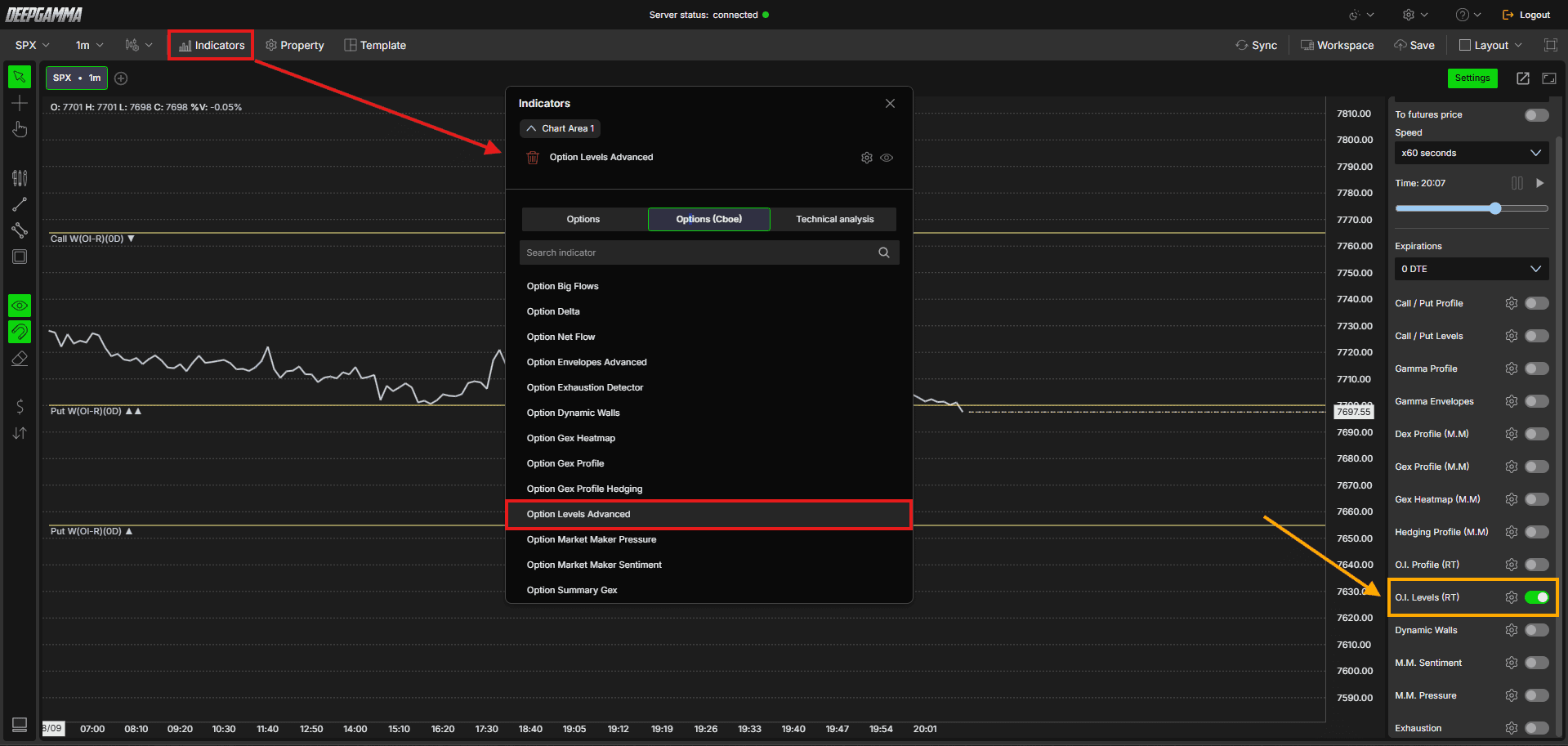
You can also turn it on or off from O.I. Levels (RT) in the Settings quick bar. The gear icon next to the toggle opens the same settings.
Note: When added from the Indicators panel, Option Levels Advanced uses Gex (market maker) as the default data source. When added from the O.I. Levels (RT) toggle in the quick bar, it uses OI (R.T.) as the data source.
Understanding the Indicator
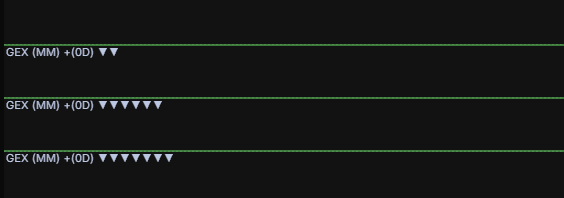
Option Levels Advanced plots horizontal lines directly on your price chart, based on your selected data source. The number of levels shown depends on your Number of levels setting. Each level is ranked by strength using triangle markers, and more triangles indicate a stronger concentration at that strike.
Each level is labeled based on your selected data source and expiration filter. Green levels with downward triangles represent positive values, while purple levels with upward triangles represent negative values.
In addition to the ranked strike levels, Option Levels Advanced also plots the Zero Gamma level as a static horizontal line, shown in yellow by default. Unlike the ranked levels, this line is not tied to the Number of levels setting. It always represents the single price point where dealer gamma exposure flips from positive to negative, calculated here using real CBOE market maker data.
Understanding Key Terms
Before choosing a data source, it helps to understand a few core options concepts:
Call - An option that gives the buyer the right to buy the underlying at a set price. Traders buy calls when they expect price to go up
Put - An option that gives the buyer the right to sell the underlying at a set price. Traders buy puts when they expect price to go down
Gamma - A measure of how much an option’s delta changes as price moves. High gamma means dealers need to hedge more aggressively as price approaches a strike
GEX (Gamma Exposure) - An estimate of the gamma exposure dealers are carrying at a given strike, combining volume with the gamma greek
DEX (Delta Exposure) - An estimate of the delta exposure dealers are carrying at a given strike, showing directional hedging pressure rather than gamma sensitivity
OI (Open Interest) - The total number of option contracts currently open and not yet closed or expired
OI-R (Real-Time Open Interest) - Since official exchange open interest is only released at end of day, DeepChart calculates open interest in real time from live CBOE buy and sell flow. For example, if there are 2 sells and 1 buy, there is a net open position of 1
Market Maker Net Flow - The net delta flow generated specifically by market maker buy and sell activity, isolating dealer side positioning from overall market activity
Settings
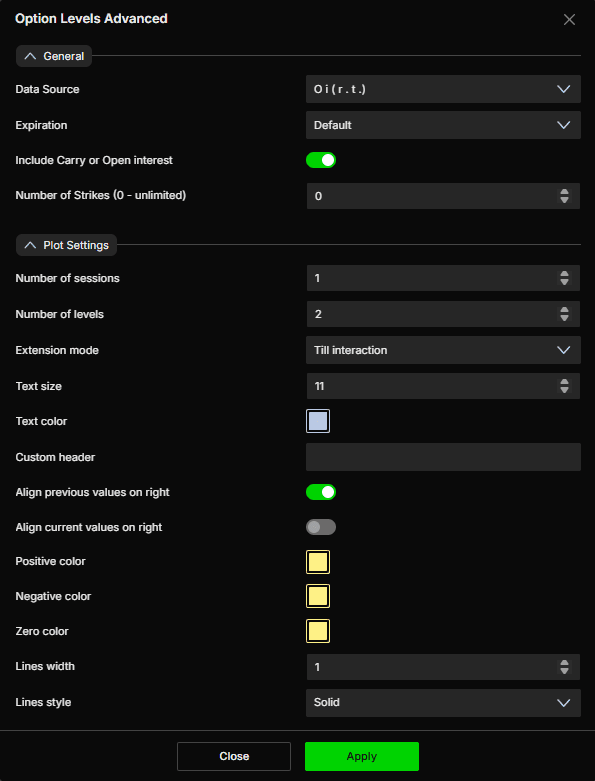
The settings window has two sections: General and Plot Settings. After making changes, click Apply to update the chart.
General
Data Source - Choose how the levels are calculated. Options available:
Gex (market maker) (default) - Uses real CBOE reported market maker gamma exposure to calculate levels.
Use this when : you want the most reliable read on where real dealer gamma hedging pressure existsMarket maker net flow - Uses the net delta flow generated by market maker buy and sell activity.
Use this when : you want to isolate dealer side flow specifically, separate from overall market activityOI (R.T.) - Uses DeepChart’s real time open interest calculation.
Use this when : you want levels based on live standing positions rather than session volumeDex (market maker) - Uses real CBOE reported market maker delta exposure.
Use this when : you want to see dealer directional hedging pressure rather than gamma sensitivityGamma (call OI-R - put OI-R) - Calculates gamma exposure using real time open interest as the base instead of session volume.
Use this when : you want a structural view of gamma exposure based on live positioning, rather than one driven by today’s volume
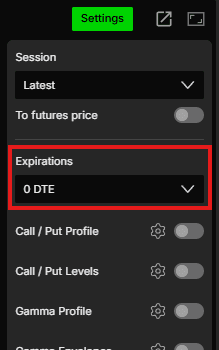
Expiration - Filter levels by expiration. Options available: Default, 0 DTE, <= 1d, <= 7d, <= 31d, <= 91d, All expirations
Note: When Expiration is set to Default, it uses the expiration selected under Expirations in the Settings quick bar.
Include Carry or Open interest - When enabled, includes open interest carried over from previous sessions in the calculation, giving you a broader view of total positioning. When disabled, only current session data is considered. Default is enabled
Number of Strikes (0 - unlimited) - Sets how many strikes out from the current price to include in the calculation. A value of 0 includes an unlimited number of strikes. Default is 0
Plot Settings
Number of sessions - Set how many previous sessions the levels are extended across. Default is 1
Number of levels - Set how many levels are plotted on the chart. Default is 2. Each level is ranked by strength using triangle markers. Showing more levels means more strikes are ranked and compared against each other
Extension mode - Choose how the level lines are extended. Options available:
None - No extension, levels are plotted only for the current session
Till interaction (default) - Extends the line until price interacts with it
Till end window - Extends the line to the end of the visible chart window
Text size - Set the font size for the level labels. Default is 11
Text color - Set the color of the level labels. Default is light gray-blue
Custom header - Add a custom label text to the levels if needed
Align previous values on right - When enabled, aligns labels for previous session values to the right side of the chart. Default is enabled
Align current values on right - When enabled, aligns labels for current session values to the right side of the chart. Default is disabled
Positive color - Set the color for positive levels. Default is green
Negative color - Set the color for negative levels. Default is purple
Zero color - Set the color for the Zero Gamma static line. Default is yellow
Lines width - Set the thickness of the lines. Default is 1
Lines style - Choose the line style. Options available: Solid, Dash, Dot, Dash dot, Dash dot dot. Default is Solid
Example - How to Use Option Levels Advanced
Once added to your chart, you will see horizontal lines plotted at key strike levels, each ranked by strength using the triangle markers, along with the Zero Gamma static line, based on real market maker data. Here is a simple way to use them:
The number of triangles tells you how significant that level is relative to the others on your chart. A level with more triangles represents a stronger concentration than one with fewer
The Zero Gamma line gives you the broader regime context. Price above it tends to mean a calmer, more compressed market, while price below it tends to mean a more volatile, directional one
How price reacts at a level depends on the direction it is approaching from and which side of the market that level represents. Watch for a slowdown, reversal, or acceleration as price reaches the level, rather than assuming a fixed outcome
Since this version uses real CBOE market maker data instead of an assumption, levels here can be more reliable than the standard Option Levels indicator, particularly around 0DTE and OPEX when naive GEX calculations tend to break down
Building a fuller picture with other indicators
Option Levels Advanced works well as an anchor for a broader options based setup, since it gives you clean, specific price levels to react to. Combine it with:
Option Summary to check the overall market regime (positive or negative gamma) before trading off a level, since levels behave differently depending on which regime the market is in
Option Gex Profile to see the full distribution of market maker gamma exposure around each level, giving you context on how significant that level is relative to surrounding strikes
Option Gex Heatmap to see the same market maker exposure visualized directly on the price chart as colored zones, useful for spotting confluence between a level and a wider area of dealer positioning
Option Gex Profile Hedging to check whether dealer hedging at that level is likely to amplify or attenuate a move, adding another layer of context before reacting to the level
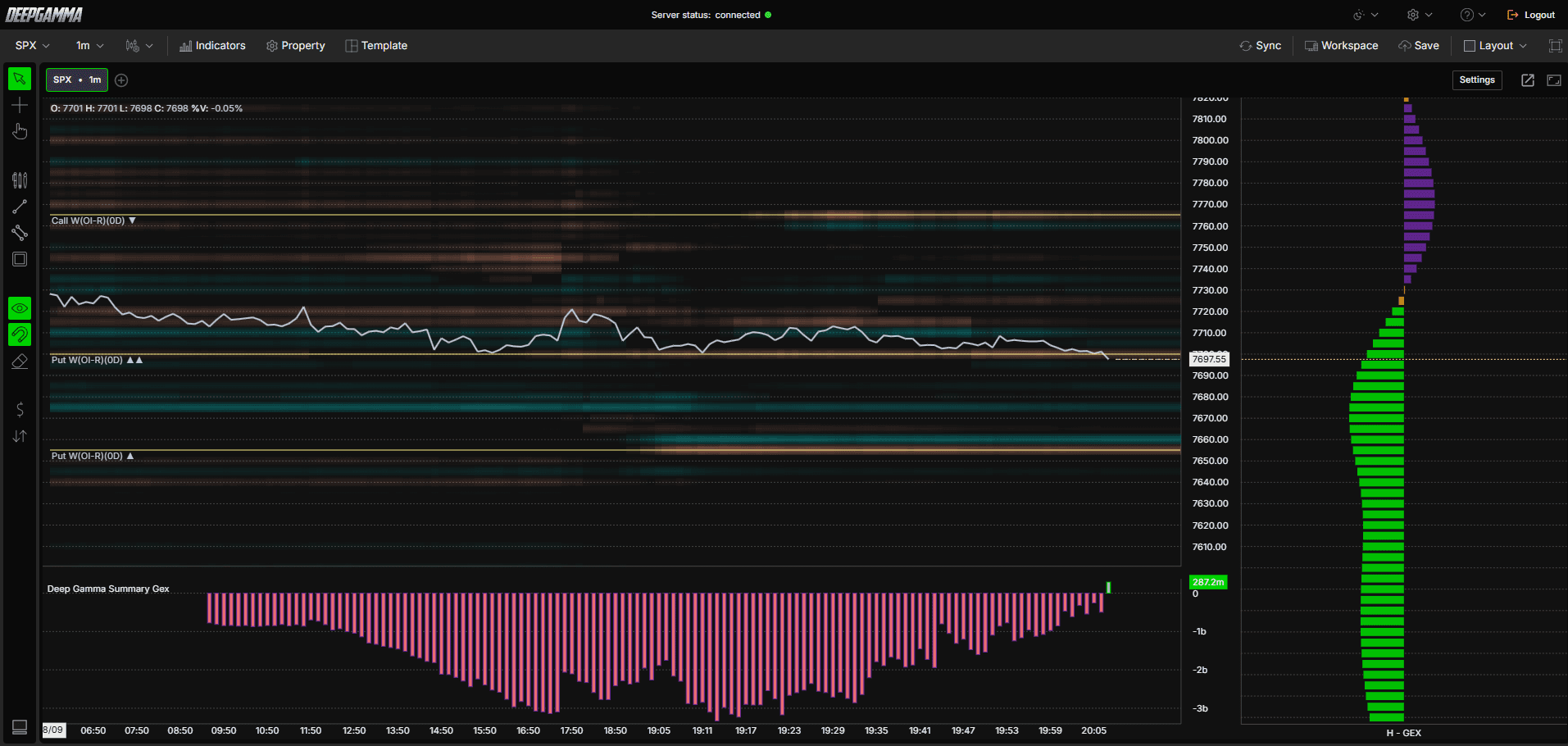
Used together, these indicators let you move from the big picture (market regime) down to a specific level (Option Levels Advanced) and then confirm it with dealer positioning and hedging behavior (Gex Profile, Heatmap, Hedging), rather than relying on a single line on the chart in isolation.
Any Questions?
Our support team is available 24/7 and ready to help you with any question.
When reaching out, please include:
Screenshot (if any)
Briefly describe the assistance or support you require
DeepCharts Live Support - Chat with our agents directly using the live chat box on www.deepcharts.com, or click here for 24/7 Live Chat for immediate access.
Email Support - Reach us at support@deepcharts.com - please note that email responses may take a little longer than a live support chat.
