Updated:
If your broker uses CQG for live trading, you can use this guide to connect your account to DeepChart. This method works for any broker that provides CQG credentials.
Important: Some brokers provide CQG for trade execution only and not as a datafeed. Before following this guide, confirm with your broker whether your CQG connection includes a datafeed or is for execution only. If it is execution only, you will still connect CQG the same way but you will need a separate datafeed - either dxFeed or Rithmic - for charting.
Once you have your credentials, follow the steps below to get connected.

1. Get Your CQG Credentials
Your broker will provide you with your CQG credentials after you open your account. Check your:
Email from your broker
Broker Dashboard - log in to your account and look for your account credentials
You will need:
CQG Username
CQG Password
Important: Do not use your broker login credentials for the CQG connection. Your broker will provide you with separate CQG credentials via email or your broker dashboard. Always use those credentials.
2. Connect CQG to DeepChart
Once you have your credentials, you can add the connection inside DeepChart.
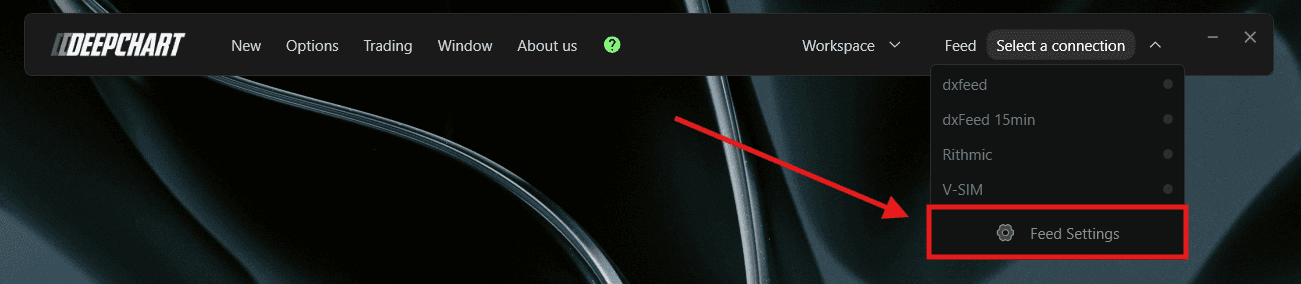
Open DeepChart and go to Feed Settings
Click Add Connection
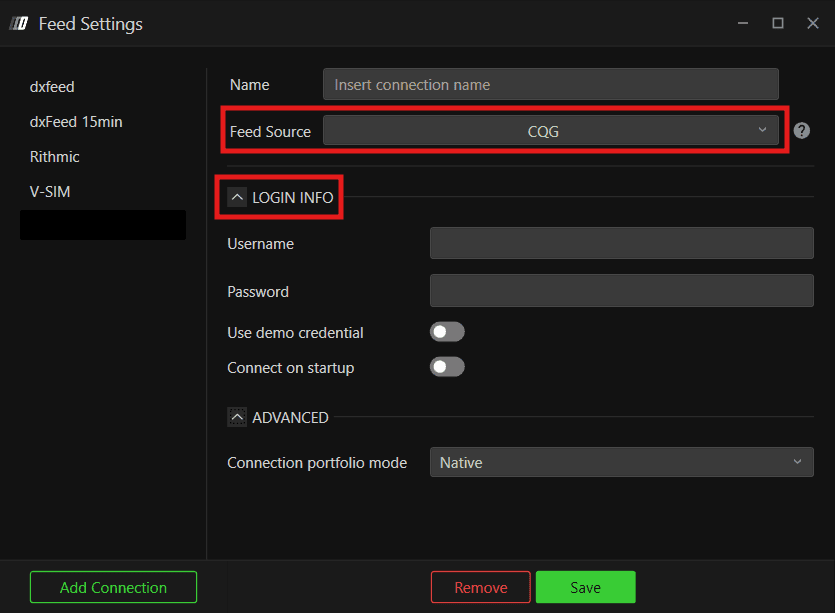
Fill in the following fields:
Basic Connection Fields
Name - Set this to a label that clearly identifies the connection
Feed Source - Select CQG from the dropdown list
Login Info
Username - Enter your CQG username provided by your broker
Password - Enter your CQG password. Make sure there are no leading or trailing spaces
Use Demo Credential - Enable this toggle if you want to connect using a demo account instead of your live account. This is useful if you want to test the connection before going live
Connect on Startup - Enable this toggle if you want DeepChart to automatically connect this feed every time the platform starts. This way you do not need to manually connect each time you open DeepChart
Advanced (Optional)
Connection Portfolio Mode - Choose between:
Native (default) - positions are sourced directly from the broker
Avg Price - positions are calculated by DeepChart based on average price
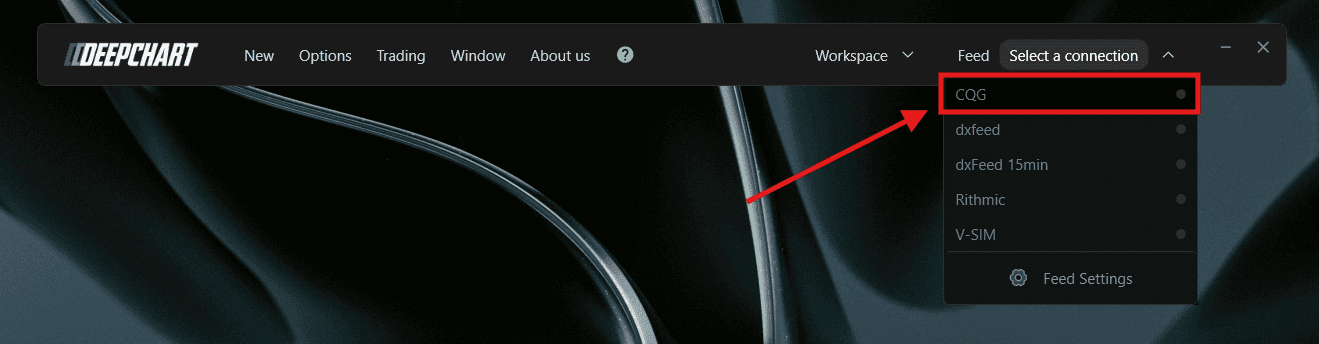
Click Save and then Connect
3. Configure Symbol Manager
If your CQG connection includes a datafeed, follow these steps to link it to your charts.
Note: If your broker provides CQG for execution only, there is no need to configure Symbol Manager for this connection. You will need an active datafeed from dxFeed or Rithmic for charting. Your CQG connection will only be used for trade execution.
Go to Options in the top menu
Click on Symbol Manager
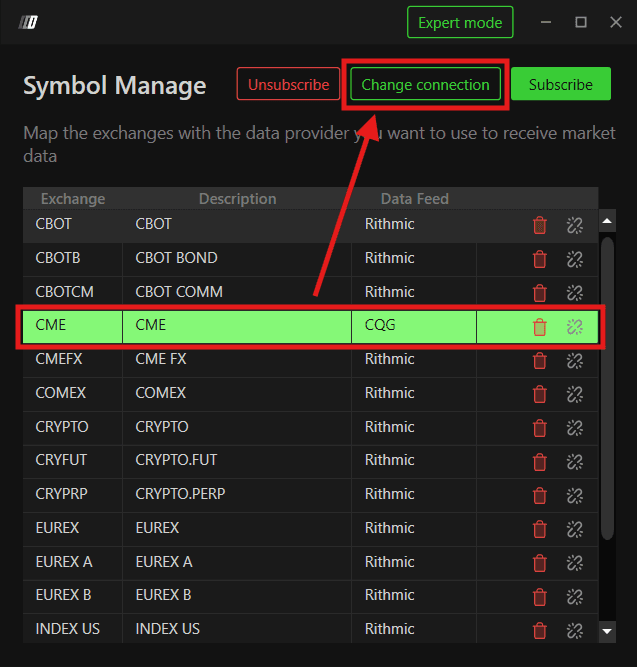
Check that your preferred exchange is listed and connected to your CQG data feed
If your exchange is already listed - right-click on the row under the Data Feed column, change the data feed source to your CQG connection and press Set
If your exchange is not listed - click Add, search for your exchange, set the Data Feed Source to your CQG connection and press Set
Close the Symbol Manager
4. Open a Price Chart
Once the Symbol Manager confirms your feed is active, you can open a chart.
Go to New in the top menu
Click on Price Chart
A dialog will appear - select your instrument (e.g. ES or NQ)
Click OK or Open - the chart will load with live data
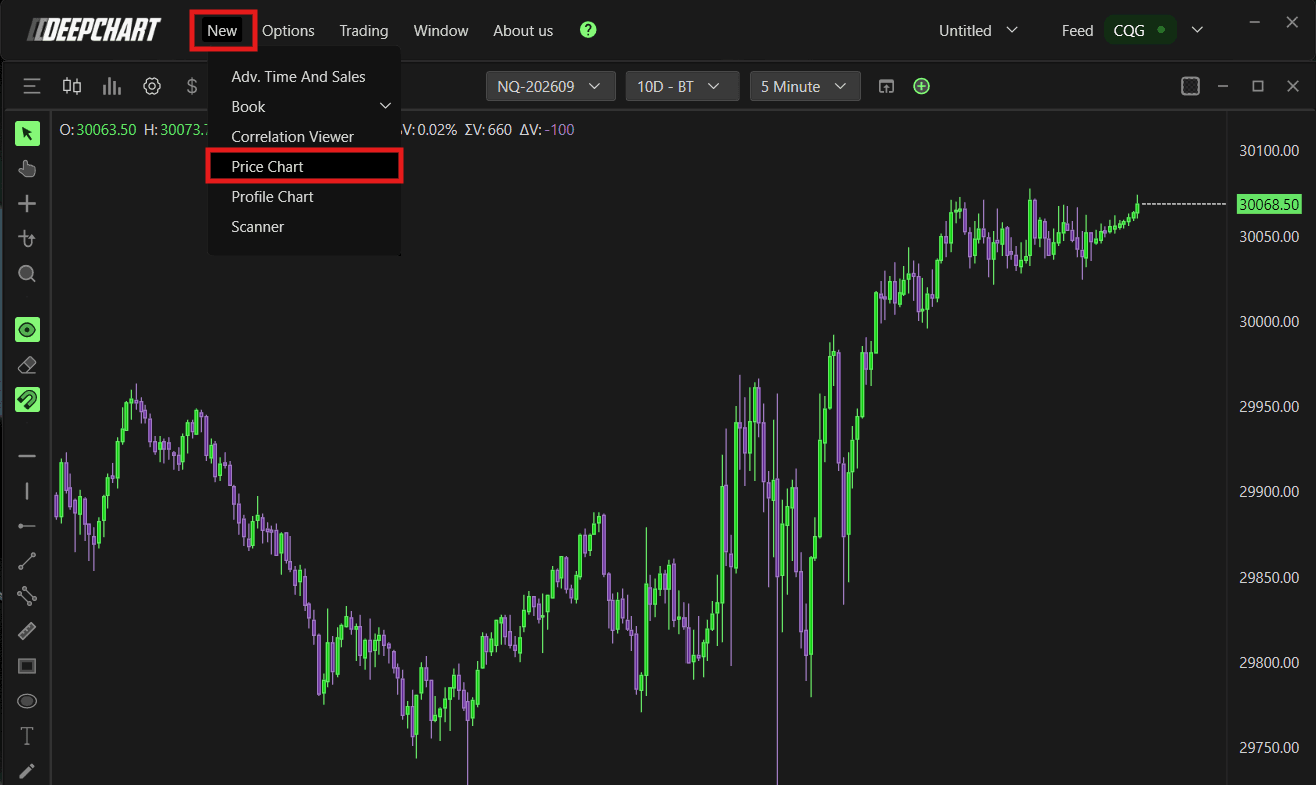
You are now live on DeepChart with your CQG data feed.
5. Using the Same Feed on DeepChart & DeepDom
If you have access to both DeepChart and DeepDom, you do not need separate credentials. Both platforms share the same bridge for CQG data feed connectivity.
Important: DeepDom only supports Level 2 data. If your broker provides Level 2 data, you can use the same CQG feed on both platforms. If your broker only provides Level 1 data, you will need to purchase a separate datafeed from DeepChart - either dxFeed or Rithmic Market Depth (Level 2) - to use DeepDom.
Simply use the following on both platforms:
The same CQG credentials
Steps to Connect DeepDom
Open DeepDom and go to Feed Settings
Click Add Connection
Under Feed Source, select CQG
Enter the same credentials used in DeepChart
Click Save and then Connect
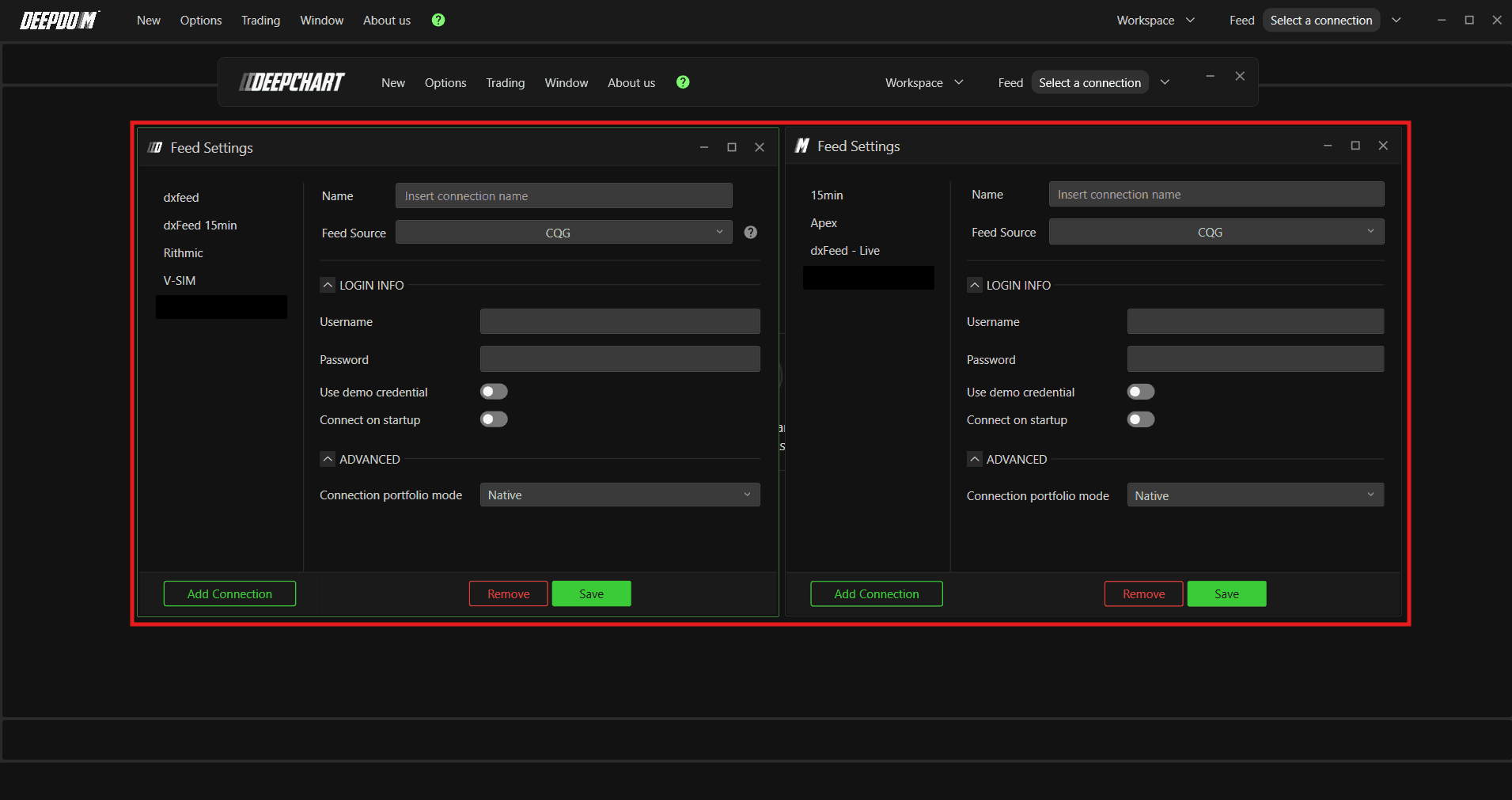
Both platforms will now run simultaneously on the same CQG data feed without any conflicts.
Still Having Trouble?
Our support team is available 24/7 and ready to help you with any issue you encounter.
When reaching out, please include:
A screenshot of the issue
A brief description of what you were trying to do
Support Ticket (Fastest Response) - Visit www.deepcharts.com and create a support ticket directly on our website.
Email Support - Reach us at support@deepcharts.com - please note that email responses may take a little longer than a support ticket.
