Updated:
This guide covers how to connect any Rithmic prop firm account to DeepChart.

1. Get Your Rithmic Credentials
Your Prop Firm will provide you with your Rithmic credentials after you purchase or get funded. Check your:
Email from Your Prop Firm
Broker Dashboard - log in to Your Prop Firm account and look for your account credentials
You will need:
Rithmic Username
Rithmic Password
Important: Do not use your Your Prop Firm login credentials for the Rithmic connection. Your Prop Firm will provide you with separate Rithmic credentials via email or your broker dashboard. Always use those credentials.
2. Sign the Agreements in RTrader Pro
Before connecting to DeepChart, you need to make sure your Rithmic agreements are signed. Some prop firms sign the agreements on your behalf - you can verify this by logging into RTrader Pro.
Why This Step Is Required
Rithmic requires you to review and sign several electronic agreements (risk disclosures, data usage, and routing agreements) before any third-party platform can establish a live data or trading connection. If these agreements are not accepted, the connection from DeepChart will either fail or remain in a "not authorized" state - even if your credentials are correct.
Professional vs. Non-Professional Status
During the agreement signing process, Rithmic will ask you to declare your market data status. It is important to understand the difference before selecting:
Professional
Applies to licensed financial advisors, analysts, or anyone using market data for business or institutional purposes
Subject to higher exchange fees
Non-Professional
Applies to individual retail traders using data for personal trading only
Subject to lower exchange fees
Recommended for most DeepChart users
For most retail traders, select Non-Professional. If you are unsure, consult your broker or a financial advisor before selecting Professional status.
Steps to Verify / Sign the Agreements
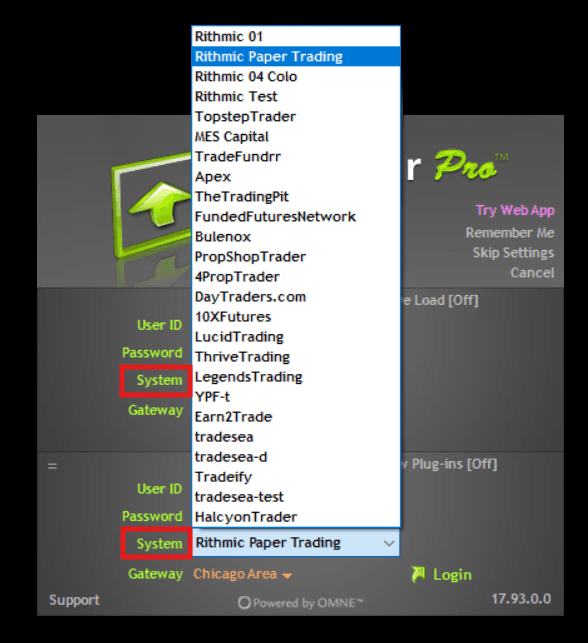
Download and install RTrader Pro using the link provided by Your Prop Firm
On the login screen, enter the Rithmic credentials received from Your Prop Firm
Select the correct System - You can view all available prop firms in the dropdown list. Look for Your Prop Firm name and select it. If your prop firm is not listed in the dropdown, select Rithmic Paper Trading and proceed.
Note: If you are a Bluenox user, kindly select Rithmic Paper Trading and proceed - do not select the Bluenox server
For Gateway, select the one nearest to your location or choose Chicago Area (Global Server)
Click Login - if any agreements are pending, the platform will present them automatically
When prompted for your market data status, select Non-Professional (unless you qualify as a professional)
Carefully read each agreement and click Accept until no further agreement windows appear
Once you reach the main RTrader Pro interface with no more prompts, you can close the platform
The agreements are now stored on Rithmic's servers. You do not need to keep RTrader Pro open while using DeepChart.
You only need to repeat this process if your account is reset or if Rithmic introduces new mandatory agreements in the future.
3. Connect Rithmic to DeepChart
Once your agreements are signed, you can now add the Rithmic connection inside DeepChart.
Open DeepChart and go to the connection/datafeed settings

Click Add Connection
Fill in the following fields:
Basic Connection Fields
Name - Set this to a label that clearly identifies the connection
Feed Source - Choose Rithmic RAPI from the dropdown list
Login Info
Username - Enter your Rithmic username provided by Your Prop Firm
Password - Type the matching Rithmic password. Make sure there are no leading or trailing spaces
Server - You can view all available prop firms in the dropdown list. Look for Your Prop Firm name and select it. If your prop firm is not listed in the dropdown, select Rithmic Paper Trading and proceed.
Note: If you are a Bluenox user, kindly select Rithmic Paper Trading and proceed - do not select the Bluenox server
Gateway - Choose the gateway closest to your location, or select Automatic and DeepChart will select the closest one for you
Tip: Not sure which gateway to choose? Select Automatic and DeepChart will handle it for you
Tip: Want to manually select? Run the Diagnostic Report first to check your ping to EU and US servers and choose the closest region
Include Commissions - Enable if you want DeepChart to include broker commission information in P&L calculations
Show Only Active Accounts - Enable if you only want active accounts to be displayed
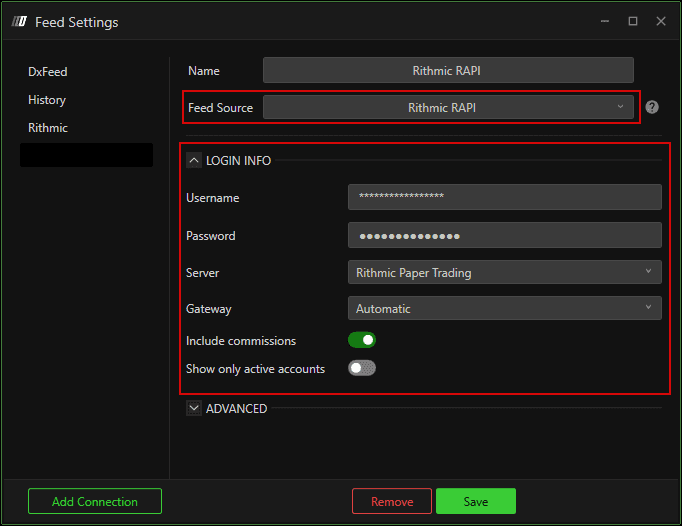
Note: Once you have filled in your login credentials, click Save and then Connect to proceed.
Advanced (Optional)
Connect Only Trading - Enable this toggle if you want to use this connection strictly for routing and executing trades, without pulling any live or historical market data.
Critical Note: Do not enable this if this connection is set as your main data feed in Symbol Manage. Doing so will block the connection from fetching market data and your charts will fail to load. Only turn this on if you are using a completely separate data feed for charting and want this specific connection solely for trade execution.
Use RTrader Pro Plugin - Enable if you are connecting through RTrader Pro Plugin
Note: Follow our guide here - Connecting RTrader Pro with DeepChart
Connection Portfolio Mode - Choose between:
Native - positions sourced directly from the broker
Avg Price - positions calculated by DeepChart based on average price
Click Save and then Connect
4. Configure Symbol Manage
If you want to use your Your Prop Firm Rithmic connection for charting, follow these steps to link the data feed to your charts.
Go to Options in the top menu
Click on Symbol Manage
Check that your preferred exchange is listed and connected to your Rithmic data feed
If your exchange is already listed - right-click on the row under the Data Feed column, change the data feed source to your Rithmic connection and press Set
If your exchange is not listed - click Subscribe, search for your exchange, set the Data Feed Source to your Rithmic connection and press Select
Close the Symbol Manage

5. Open a Price Chart
Once the Symbol Manage confirms your feed is active, you can open a chart.
Go to New in the top menu
Click on Price Chart
A dialog will appear - select your instrument (e.g. ES or NQ)
Click OK or Open - the chart will load with live Rithmic data
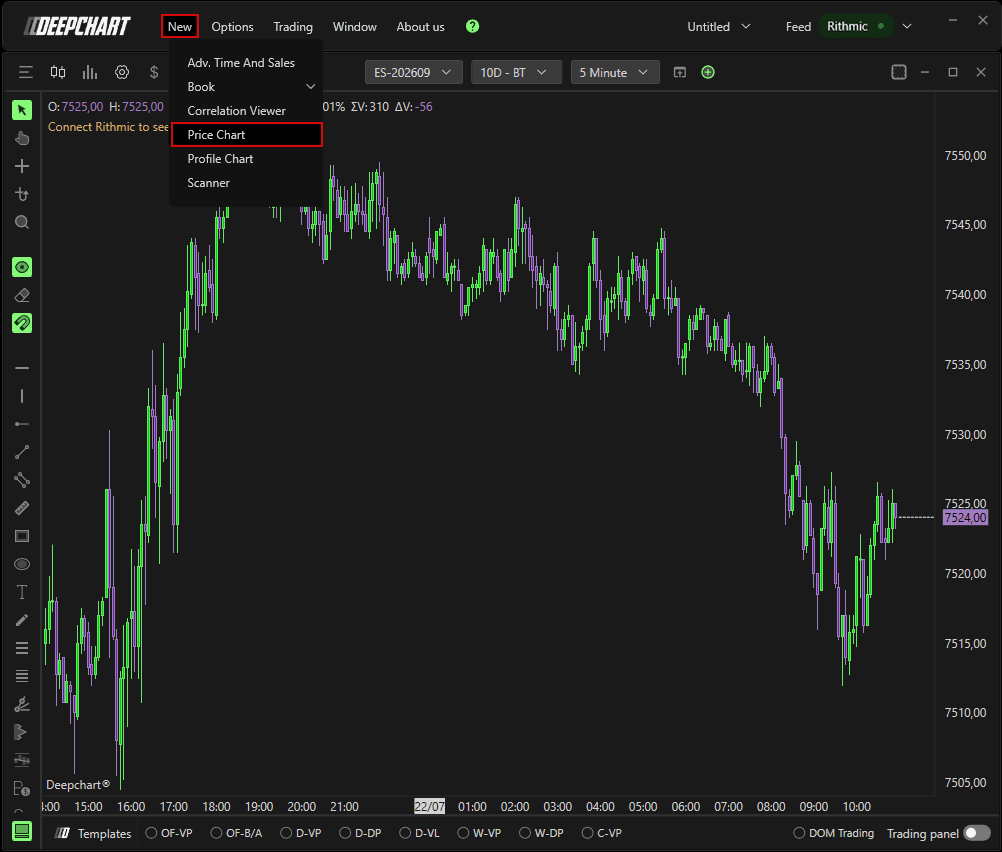
You are now live on DeepChart with your Your Prop Firm Rithmic data feed.
6. Using the Same Feed on DeepChart & DeepDom
If you have access to both DeepChart and DeepDom, you do not need separate credentials. Both platforms share the same bridge for Rithmic data feed connectivity.
Simply use the following on both platforms:
The same Rithmic credentials
The same Gateway
The same Server
Steps to Connect DeepDom
Open DeepDom
Go to the connection/datafeed settings
Enter the same Rithmic credentials used in DeepChart
Select the same Server and the same Gateway
Click Connect
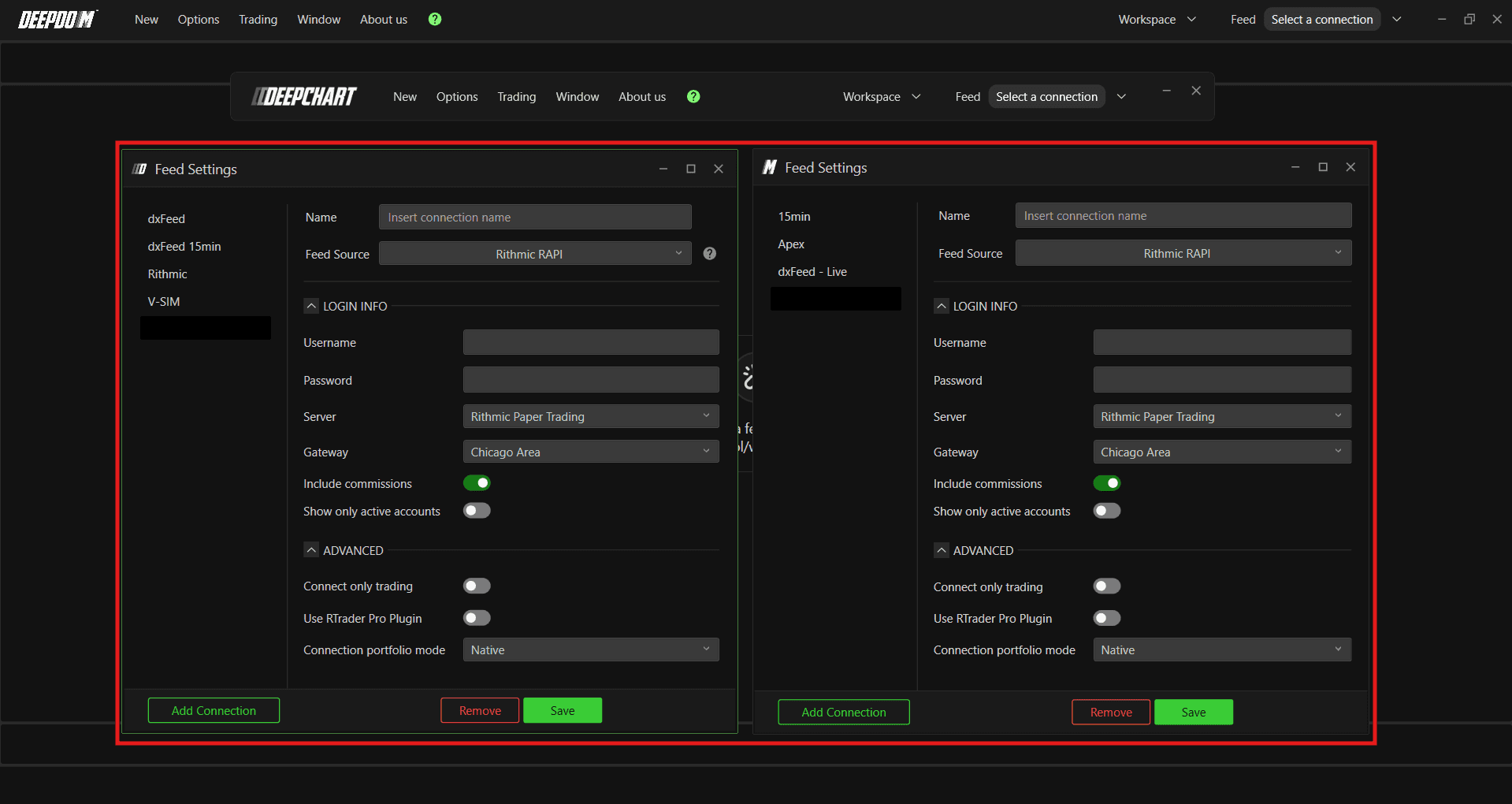
Both platforms will now run simultaneously on the same Rithmic data feed without any conflicts.
Still Having Trouble?
Our support team is available 24/7 and ready to help you with any issue you encounter.
When reaching out, please include:
A screenshot of the issue
A brief description of what you were trying to do
Support Ticket (Fastest Response) Visit www.deepcharts.com and create a support ticket directly on our website.
Email Support Reach us at support@deepcharts.com - please note that email responses may take a little longer than a support ticket.
