Updated:
1. Sign the dxFeed Agreement
Once you have purchased dxFeed, your credentials will be available in your dashboard after signing the agreement. Your username and password will be hidden until the agreement is signed - simply click the Sign the Agreement link, complete it, and your credentials will become visible.
Note down your credentials - you will need them in the next steps.

2. Connect dxFeed to DeepCharts
Once you have your credentials, you can now add the dxFeed connection inside DeepCharts.
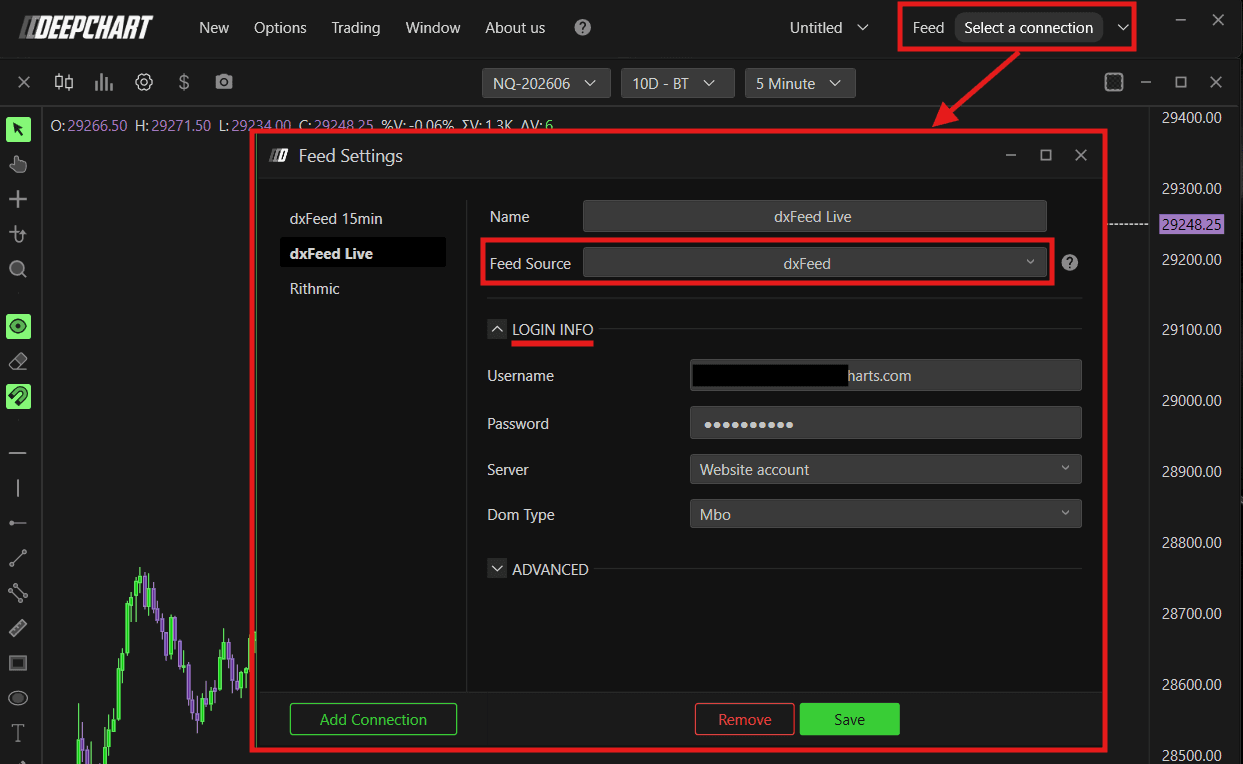
Open DeepCharts
Click on Select a Connection & Feed Settings
In the Feed Settings window, click Add Connection
Fill in the following details:
Name — Enter a name for your data feed profile (you can name this anything)
Feed Source — Select dxFeed
Username — Enter the username from your DeepCharts dashboard
Password — Enter the password from your DeepCharts dashboard
Server — Select Website Account
Dom Type — Select MBO if you have a Market Depth (Level 2) feed, otherwise select MBP
Click Save and close the Feed Settings window
Click on Select a Connection again, find your newly created data feed profile, and connect to it
Make sure the circle turns green - this confirms a successful connection

3. Configure Symbol Manager
Once dxFeed is connected, verify that the data feed is linked to the correct exchanges before opening any chart.
Click on your connection to disconnect first
Go to Options in the top menu
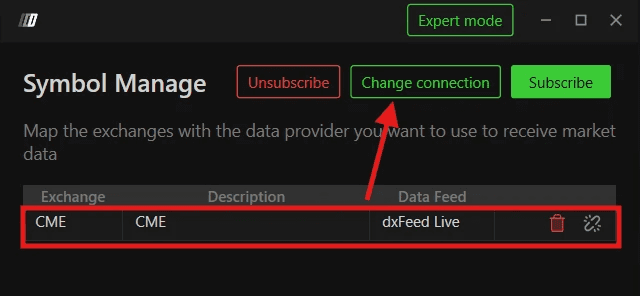
Click on Symbol Manager
Check that your preferred exchange is listed and set to your dxFeed profile:
If your exchange is already listed — Right-click on the row of your exchange under the Data Feed column, change the data feed source to your dxFeed profile, and press Set
If your exchange is not listed — Click Subscribe, search for your exchange, set the Data Feed Source to your dxFeed profile, and press Set
Close the Symbol Manager
Reconnect to your dxFeed profile and make sure the circle turns green
4. Open a Price Chart
Once the Symbol Manager confirms your feed is active, you can open a chart.
Go to New in the top menu
Click on Price Chart
A dialog will appear - select your instrument (e.g. ES, NQ and etc.)
Click OK or Open - the chart will load with live dxFeed data
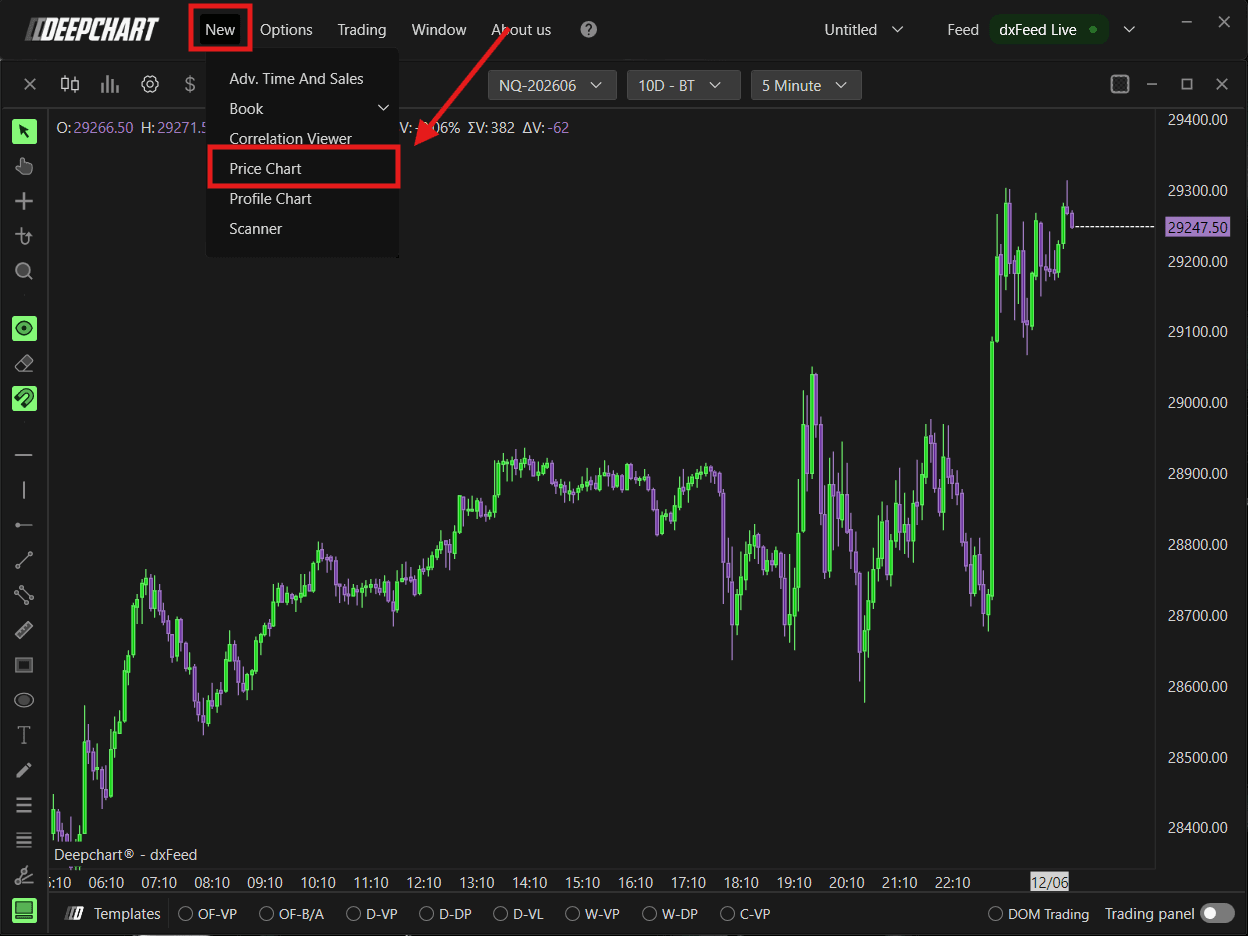
You are now live on DeepCharts with dxFeed data feed.
5. Using the Same Feed on DeepCharts & DeepDom
If you have access to both DeepCharts and DeepDom, you do not need a separate subscription or separate credentials. Both platforms share the same bridge for dxFeed connectivity.
Simply use the following on both platforms:
The same dxFeed credentials
The same Server (Website Account)
The same Dom Type setting
Steps to Connect DeepDom
Open DeepDom
Go to the connection/datafeed settings
Enter the same dxFeed credentials used in DeepCharts
Select Website Account as the Server and match the Dom Type setting
Click Connect
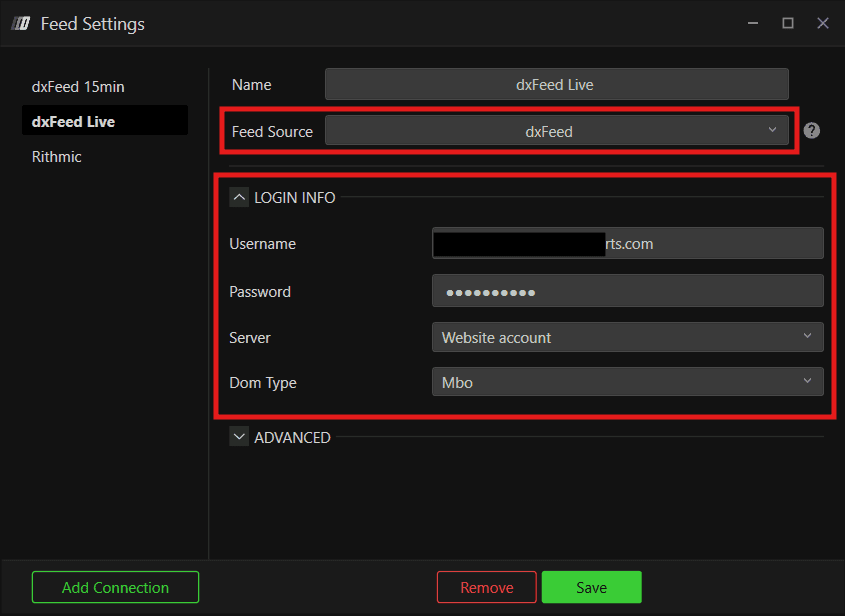
Both platforms will now run simultaneously on the same dxFeed data feed without any conflicts.
Still Having Trouble?
Our support team is available 24/7 and ready to help you with any issue you encounter.
When reaching out, please include:
A screenshot of the issue
A brief description of what you were trying to do
Support Ticket (Fastest Response) Visit www.deepcharts.com and create a support chat directly on our website.
Email Support Reach us at support@deepcharts.com — please note that email responses may take a little longer than a support chat.
