Trading

Updated:

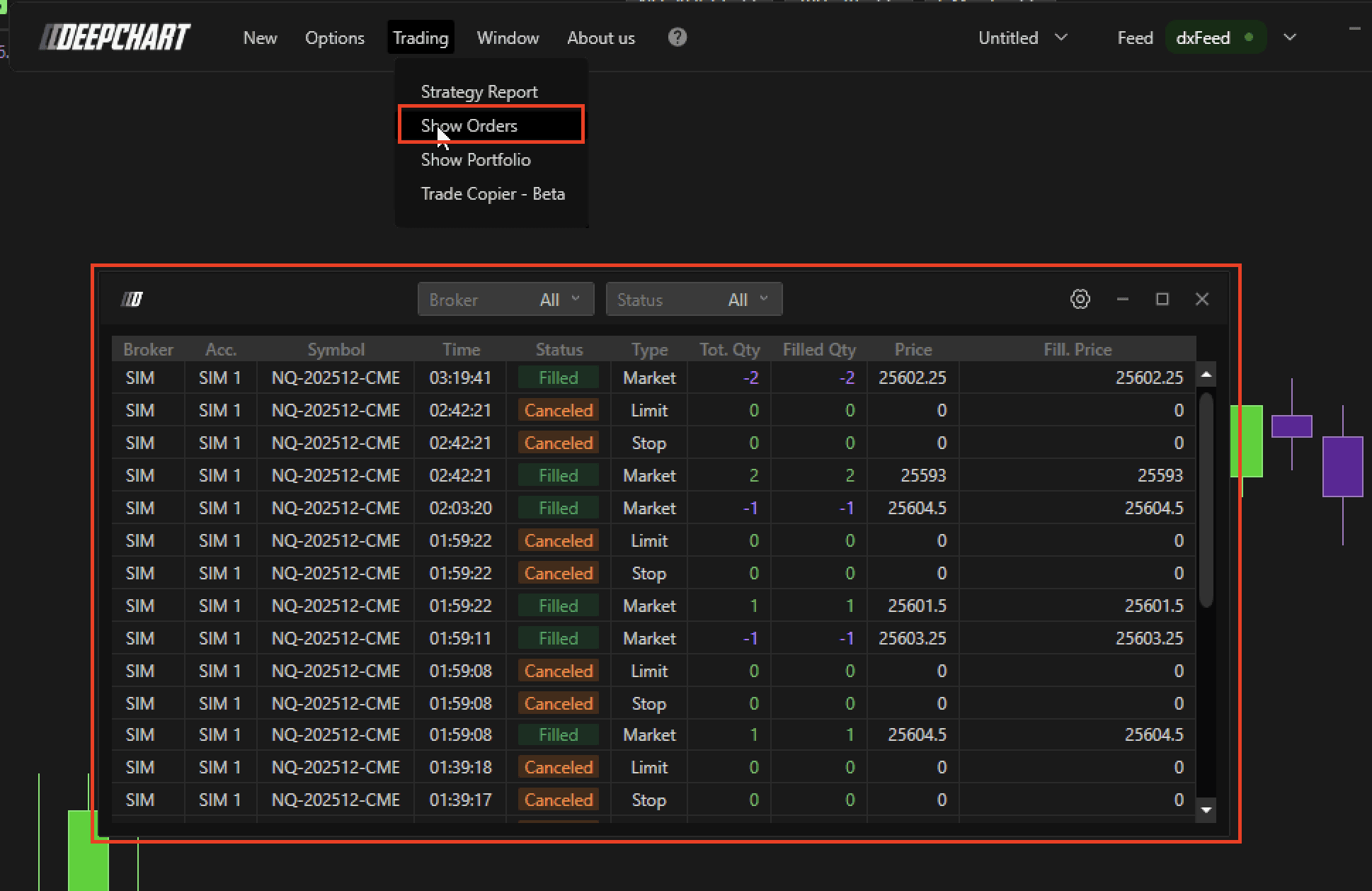
Orders-Fenster

Orders-Fenster

Verwalten und nachverfolgen Sie aktive Orders, Positionen und die Ausführungshistorie im dedizierten Orders-Fenster.

Verwalten und nachverfolgen Sie aktive Orders, Positionen und die Ausführungshistorie im dedizierten Orders-Fenster.

No headings found on page

Um das Orders Window zu öffnen:

  1. Klicken Sie im Trading-Menü in DeepChart.

  2. Wählen Sie Show Orders.

Übersicht

Im Orders Window können Sie:

  • Den Broker wählen

  • Orders nach Typ filtern: Placed, Executed oder Cancelled

  • All wählen, um jede Order anzuzeigen

Zusätzlicher Hinweis

Damit am Ende Ihrer Trading-Session keine pending orders offen sind:

  • Wählen Sie im Status-Bereich Submitted

  • Dadurch werden alle Orders angezeigt, die noch aktiv und noch nicht gefüllt oder cancelled sind

Dieser Bereich hilft Ihnen, alle Ihre Orders zu überwachen und unbeabsichtigte offene Orders zu vermeiden.

Tools for futures, currency & options involves substantial risk & is not appropriate for everyone. Only risk capital should be used for trading.

Testimonials appearing on this website may not be representative of other clients or customers and is not a guarantee of future performance or success.

Tools for futures, currency & options involves substantial risk & is not appropriate for everyone. Only risk capital should be used for trading. Testimonials appearing on this website may not be representative of other clients or customers and is not a guarantee of future performance or success.

Deepcharts © 2026 All right reserved

Tools for futures, currency & options involves substantial risk & is not appropriate for everyone. Only risk capital should be used for trading. Testimonials appearing on this website may not be representative of other clients or customers and is not a guarantee of future performance or success.

Deepcharts © 2026 All right reserved
