How to
Updated:
How to Open General Settings
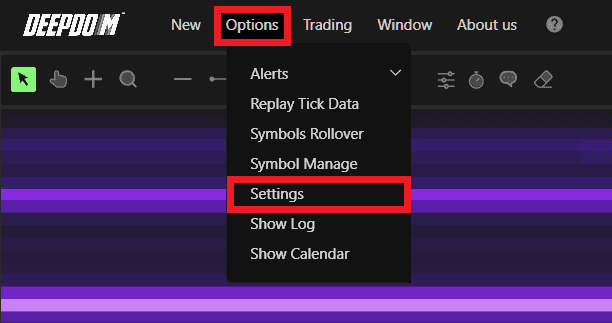
Click Options in the top menu bar.
Select Settings from the dropdown menu.
The General Settings window will open with five tabs — General, Alert, Sim Account, Trading Quantity, and Shortcuts.
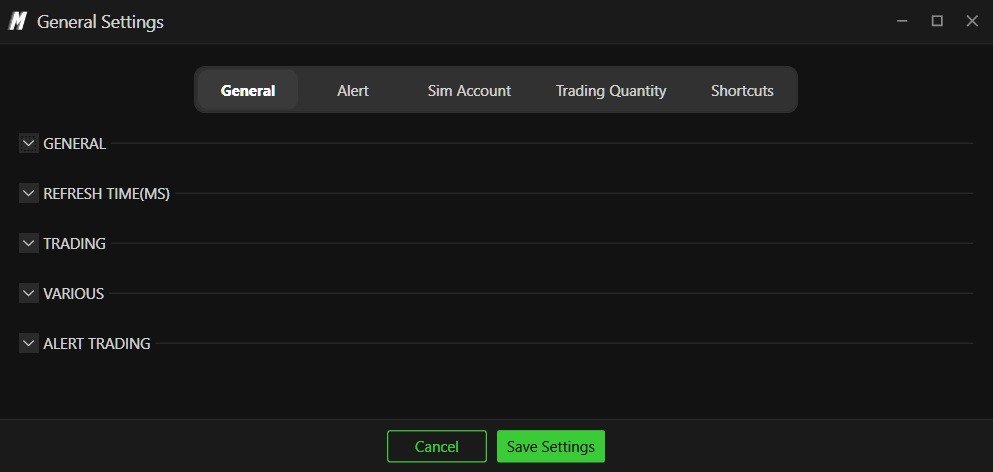

Tab 1 — General
This tab contains all the core platform-wide settings organized into four sections.

General
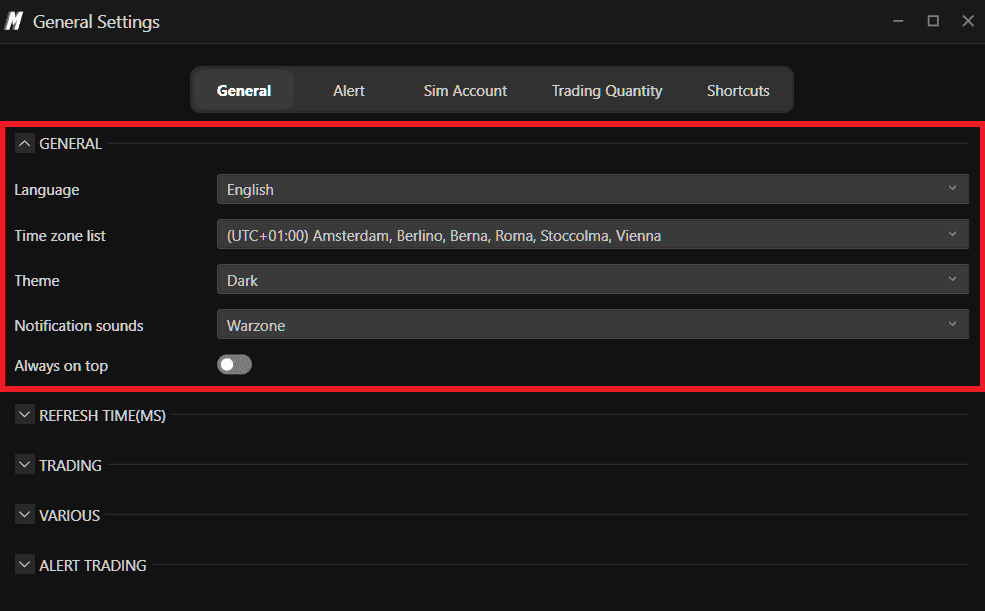
Language Sets the display language of the platform. Available options:
English
Italian
Spanish
German
Chinese
Time Zone List Sets the time zone used across the platform for all time-based displays including the chart, Time and Sales, and alerts. Always set this to the time zone of the exchange you are trading to ensure all session times and timestamps are accurate.
Theme Sets the visual theme of the platform. Available options:
Dark
Dark (Standard)
Blue
Light
Light (Standard)
Purple
Notification Sounds Sets the default voice used for platform notifications. Available options:
Warzone
Female - Emily
Female - Daniela
Male
Always on Top When enabled, the DeepDom window will always remain on top of all other open windows on your screen. Useful if you are running multiple applications and want DeepDom to stay visible at all times.
Refresh Time (MS)
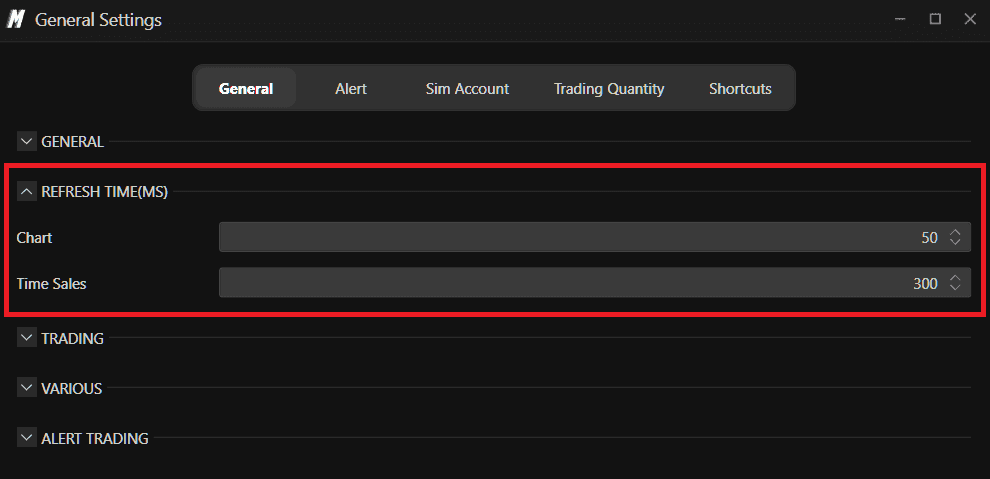
This section controls how frequently the platform refreshes its data displays. The values are in milliseconds — the lower the number, the faster the refresh rate.
Chart Sets how frequently the chart updates its display. The default is 50ms, which means the chart refreshes 20 times per second. Lowering this value makes the chart more responsive to real-time changes. Raising it reduces CPU usage if you are experiencing performance issues.
Time Sales Sets how frequently the Time and Sales panel refreshes. The default is 300ms. A lower value gives you a faster, more live feed of executions. A higher value is easier to read in slower markets.
Note: Lowering refresh times increases platform responsiveness but also increases CPU and memory usage. If your system is running slowly, try raising these values slightly.
Trading
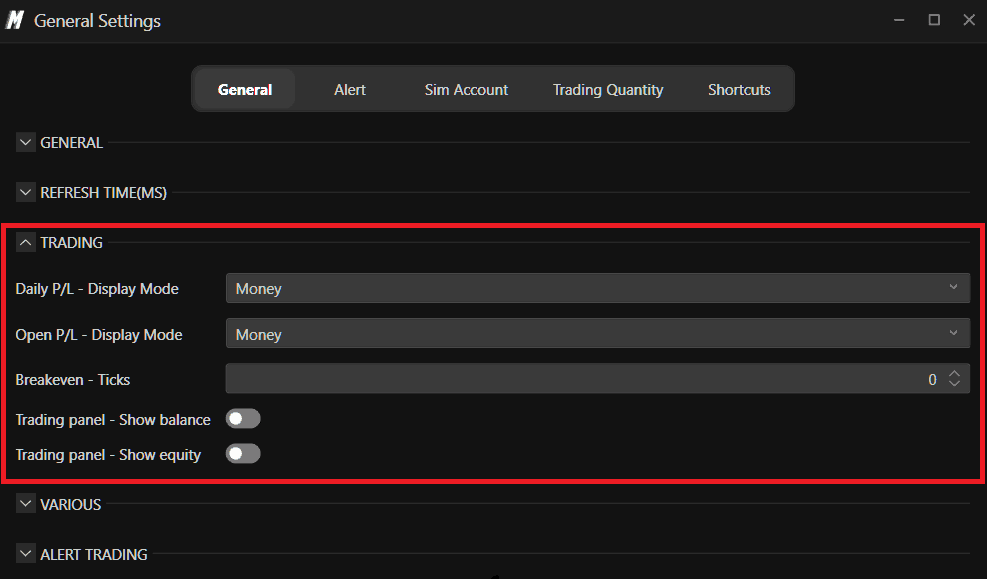
Daily P/L — Display Mode Sets how your daily profit and loss is displayed on the trading panel. Available options:
Money — displays P/L in currency value.
Ticks — displays P/L in ticks.
Open P/L — Display Mode Sets how your open position profit and loss is displayed. This updates in real time as your open position moves. Available options:
Money — displays P/L in currency value.
Ticks — displays P/L in ticks.
Ticks per Contract — displays P/L in ticks calculated per individual contract.
Breakeven — Ticks Sets the number of ticks used to calculate your breakeven level. When set to 0, the breakeven is calculated at the exact entry price. Increasing this value adds a buffer of ticks to account for commissions or slippage when calculating your breakeven.
Trading Panel — Show Balance When enabled, your account balance is displayed on the trading panel. Turn this off if you prefer not to see your balance while trading.
Trading Panel — Show Equity When enabled, your account equity is displayed on the trading panel. Turn this off if you prefer not to see your equity while trading.
Various
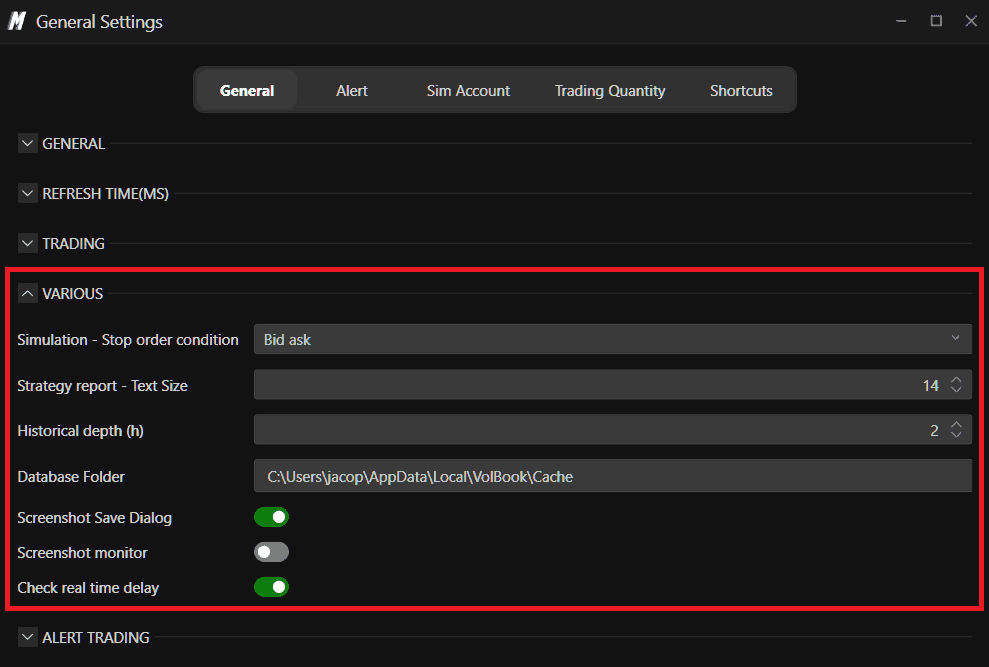
Simulation — Stop Order Condition Defines how stop orders are triggered in simulation mode. This setting exists because some data feeds may have issues with historical Bid/Ask data — having two options allows you to avoid incorrect order fills depending on the quality of your data feed. Available options:
Last — the stop order triggers based on the last traded price. This is the default setting and is recommended if you are experiencing issues with your historical Bid/Ask data, as it avoids any dependency on Bid/Ask feed accuracy.
Bid Ask — the stop order triggers based on the Bid or Ask price. Buy stop orders trigger on the Ask price and sell stop orders trigger on the Bid price, which more closely mirrors how stop orders behave in live market conditions.
Note: If you notice incorrect or unexpected order fills during simulation, try switching to Last mode. This is often caused by gaps or inconsistencies in the historical Bid/Ask data from your data feed.
Strategy Report — Text Size Sets the font size used in the strategy report display.
Database Folder Shows the local path where DeepDom stores its application data. It is important to understand that the Heatmap data is not saved to your hard drive — it runs entirely on your computer's RAM. This means every time you open a chart and load the Heatmap for a symbol, DeepDom downloads the data fresh and loads it directly into memory. The amount of data loaded into RAM depends on your Historical Depth setting — the more hours of history you load, the more RAM is used.
When you close the Heatmap or the chart, the cached data is cleared from RAM automatically. Nothing is stored permanently on your hard drive. This is why every time you reopen a chart, the Heatmap takes a moment to reload — it is always starting fresh from a clean state.
Tip: If you are experiencing slow load times or high memory usage, try reducing the Historical Depth setting to load less data into RAM.
Note: If you are experiencing cache-related issues with DeepDom, refer to the dedicated article: Cache Issues - DeepDom
Screenshot Save Dialog When enabled, DeepDom will prompt you to choose a save location each time you take a screenshot. When disabled, screenshots are saved automatically to the default location.
Screenshot Monitor When enabled, DeepDom captures the entire monitor in screenshots rather than just the application window.
Check Real Time Delay When enabled, DeepDom monitors the delay between your data feed and real time and will alert you if the feed falls behind. Useful for detecting connection or latency issues during live trading.
Alert Trading
This section controls which trading events trigger audio alerts and which sound is used for each.
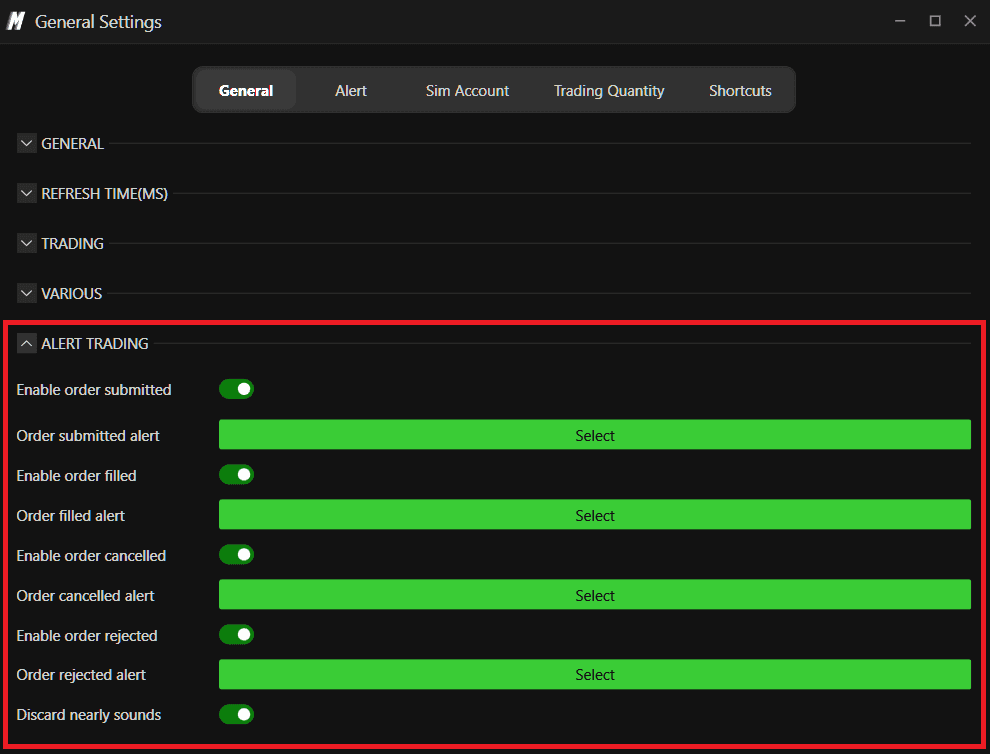
Enable Order Submitted: When enabled, an audio alert plays every time an order is successfully submitted to the market.
Order Submitted Alert: Click Select to choose the sound file that plays when an order is submitted.
Enable Order Filled: When enabled, an audio alert plays every time one of your orders is filled.
Order Filled Alert: Click Select to choose the sound file that plays when an order is filled.
Enable Order Cancelled: When enabled, an audio alert plays every time one of your orders is cancelled.
Order Cancelled Alert: Click Select to choose the sound file that plays when an order is cancelled.
Enable Order Rejected: When enabled, an audio alert plays every time one of your orders is rejected by the broker or exchange.
Order Rejected Alert: Click Select to choose the sound file that plays when an order is rejected.
Discard Nearly Sounds: When enabled, duplicate alert sounds that trigger in very rapid succession are discarded so you do not hear the same alert fire multiple times within milliseconds of each other. Useful in fast markets where multiple order events can fire almost simultaneously.
Tab 2 — Alert
This tab manages the custom alert sounds available across the platform. Before you can assign a sound to any indicator alert or annotation alert, you must first add the sound here in the Alert tab. Once a sound is added here, it will become available to select in the sound options of any indicator or annotation across the platform. If no sounds are added here, the sound selection in your indicators and annotations will appear empty.
DeepDom comes with a set of default pre-loaded alert sounds ready to use. You can also add your own custom sounds at any time.

Each alert in the list shows itsNameand thefile pathof the sound file on your computer.
Click the Play button (green arrow) to preview the sound before assigning it.
Click the Settings icon to rename or reconfigure the alert.
Click the Delete icon (red trash) to remove the alert from the list.
Click Add to add a new custom sound file from your computer.
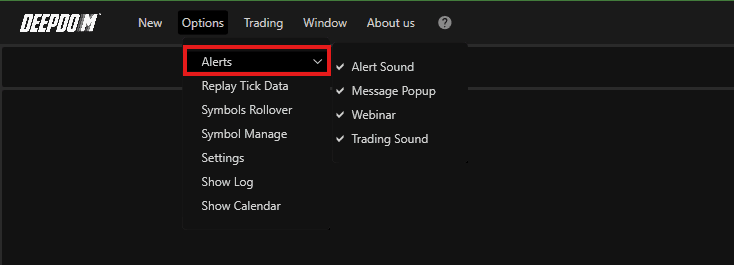
Note: DeepDom supports .wav audio files. If you want to use a custom sound for any alert in the platform, add it here first — it will then appear as an option wherever sounds can be assigned. To receive any alerts, make sure alert types are enabled by going to Options → Alerts and ensuring that Alert Sound, Message Popup, Webinar, and Trading Sound are checked. For a full step-by-step guide on setting up sound notifications, refer to the dedicated article: How to Insert Sound Notifications
Tab 3 — Sim Account
The Sim Account tab allows you to create and manage paper trading simulation accounts. Simulation accounts let you practice trading in DeepDom using real live market data without risking any real money.
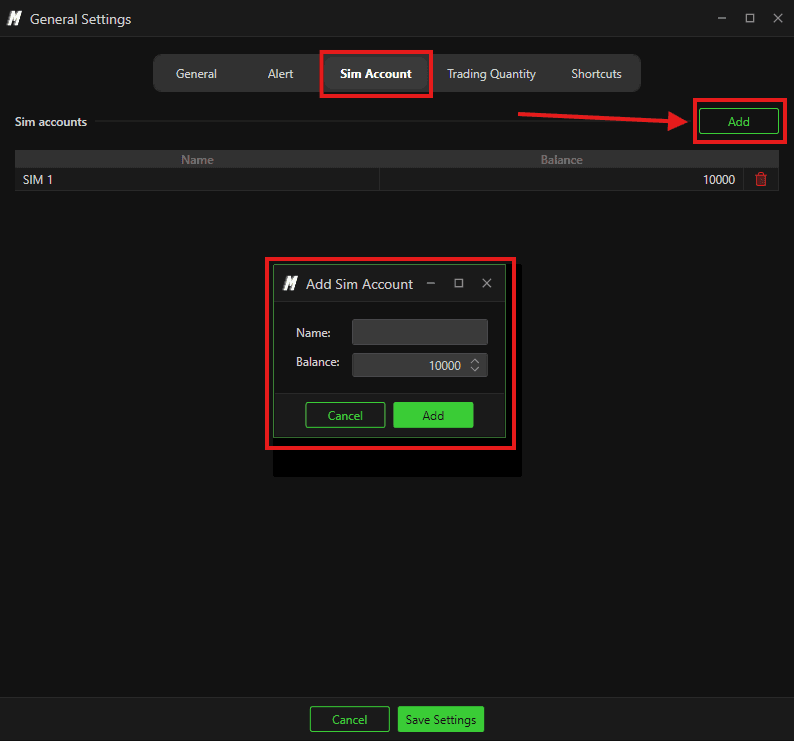
How to add a Sim Account:
Click the Add button.
Enter a Name for the account.
Set the Balance — the starting virtual capital for the account.
Click Add to confirm.
You can create multiple simulation accounts with different balances to test different strategies or position sizes. Your simulation accounts appear in the account selector on the trading panel, allowing you to switch between live and sim trading at any time.
Note: For a full guide on using the simulation environment in DeepDom, refer to the dedicated article: Simulation Environment
Tab 4 — Trading Quantity
The Trading Quantity tab allows you to set default order quantities for each instrument you trade. This saves time during live trading by pre-filling your order size automatically when you switch to a specific symbol.
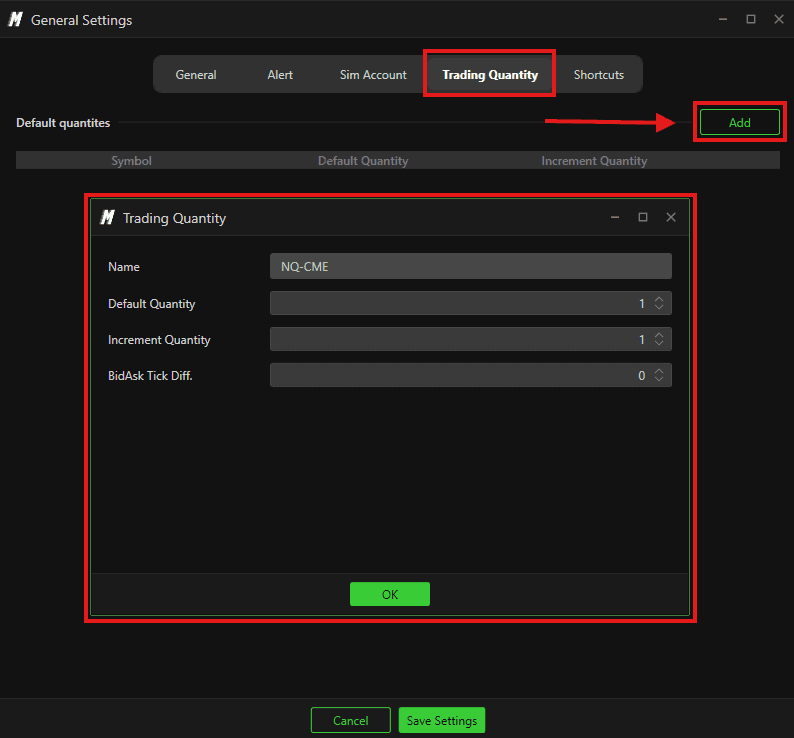
How to add a Trading Quantity:
Click the Add button.
A window will appear prompting you to select the instrument. Once you select the symbol, the Trading Quantity configuration settings will open.
Set the Default Quantity — the number of contracts that will be pre-filled by default when you trade this instrument.
Set the Increment Quantity — the amount by which the quantity increases or decreases each time you click the quantity arrows on the trading panel.
Set the BidAsk Tick Diff — defines the tick difference between the Bid and Ask used for order placement calculations on this instrument.
Click OK to save.
Once you have saved your settings, you will need to restart the platform for the changes to take effect.
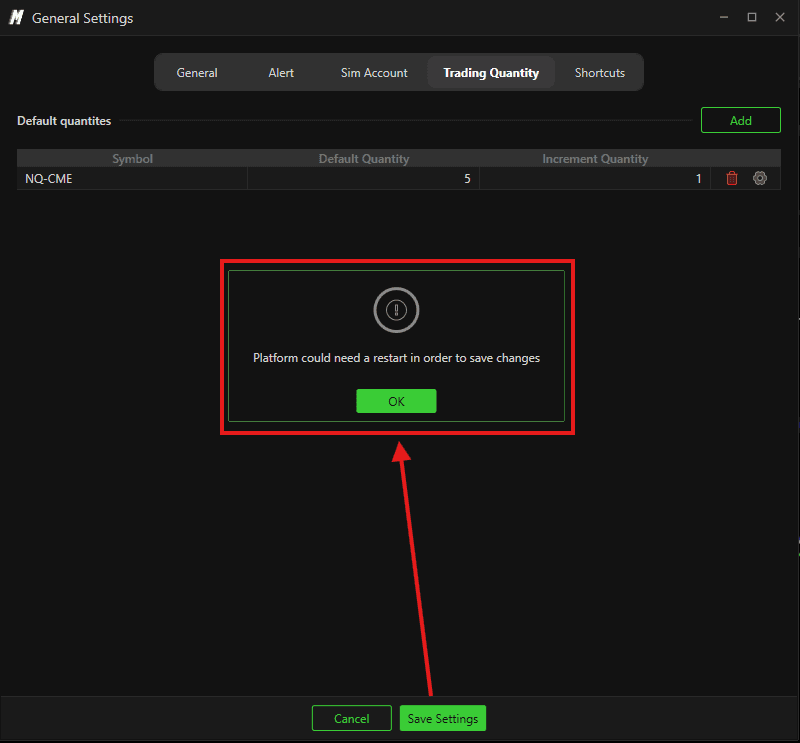
This is especially useful for traders who switch between multiple instruments with different default sizes — instead of manually adjusting the quantity every time, it is set automatically when you select the symbol.
Tab 5 — Shortcuts
The Shortcuts tab gives you a full list of all keyboard shortcuts available in DeepDom, organized by category and type. You can record new combinations or remove existing ones to match your personal workflow.
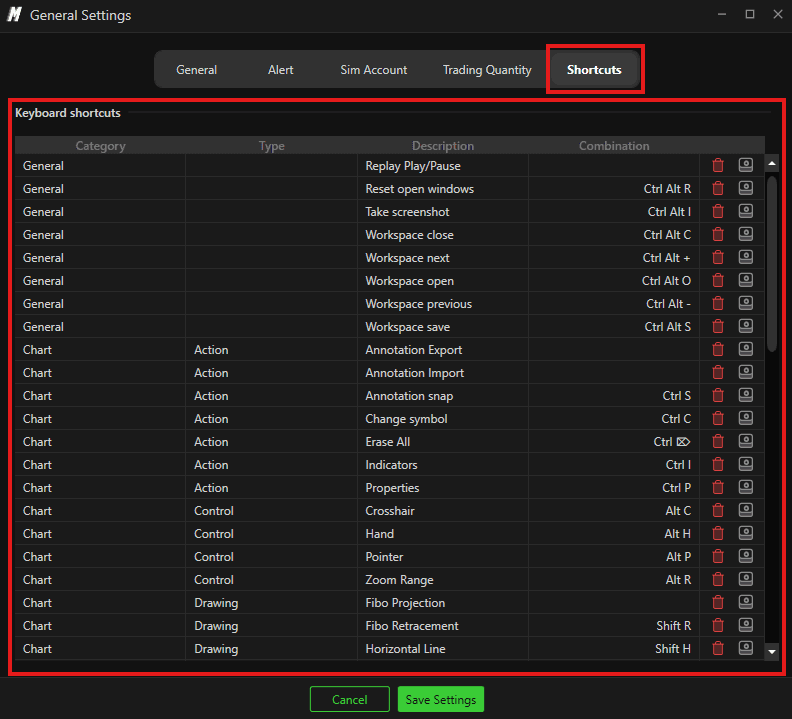
General
Replay Play/Pause
Reset open windows — Ctrl Alt R
Take screenshot — Ctrl Alt I
Workspace close — Ctrl Alt C
Workspace next — Ctrl Alt +
Workspace open — Ctrl Alt O
Workspace previous — Ctrl Alt -
Workspace save — Ctrl Alt S
Chart — Actions
Annotation Export
Annotation Import
Annotation snap — Ctrl S
Change symbol — Ctrl C
Erase All — Ctrl Backspace
Indicators — Ctrl I
Properties — Ctrl P
Chart — Controls
Crosshair — Alt C
Hand — Alt H
Pointer — Alt P
Zoom Range — Alt R
Chart — Drawing Tools
Fibo Projection
Fibo Retracement — Shift R
Horizontal Line — Shift H
Line — Shift L
Parallel Line — Shift P
Ray
Rectangle — Shift R
Chart — Scroll
Move last — Ctrl Z
Move left — Ctrl ←
Move right — Ctrl →
Zoom — Ctrl -
Zoom + — Ctrl +
Chart — Tool Config
TC1 (Default) — F1
TC2 — F2
TC3 — F3
TC4 — F4
TC5 — F5
TC6 — F6
TC7 — F7
TC8 — F8
TC9 — F9
Chart — Trading
B/E — Add or Move orders
B/E — Move existing orders
Enable/Disable — Ctrl Alt T
Enable/Disable OCO
Order Buy Bid
Order Buy Limit
Order Buy Market
Order Buy Stop
Order Buy Stop Limit
Order Cancel and Flat
Order Cancel All
Order Sell Ask
Order Sell Limit
Order Sell Market
Order Sell Stop
Order Sell Stop Limit
Show/Hide Historical — Ctrl Alt H
Show/Hide Panel — Ctrl Alt P
Note: Some shortcuts do not have a key combination assigned by default. You can record and assign your own combination to any unassigned shortcut at any time.
For each shortcut in the list:
Click the Record icon to assign or change the key combination for that shortcut.
Click the Delete icon to remove the assigned combination from that shortcut.

Note: For a full step-by-step guide on setting up and customizing keyboard shortcuts, refer to the dedicated article: How to Set Up Keyboard Shortcuts
Conclusion
The General Settings panel gives you full control over how DeepDom behaves as a platform. Taking a few minutes to configure these settings correctly — especially your time zone, refresh rates, trading defaults, and keyboard shortcuts — will make your workflow significantly faster and more reliable during live trading sessions.
Still Having Trouble?
Our support team is available 24/7 and ready to help you with any issue you encounter. When you reach out, please include:
A screenshot of the issue.
A brief description of what you were trying to do.
Support Ticket (fastest response): visit www.deepcharts.com and create a support ticket directly on our website.
Email Support: you can also reach us at support@deepcharts.com. Please note that email responses may take a little longer than a support ticket.
