How to
Updated:
What Is Rollover?
In futures markets, rollover is the process of transferring an open position from an expiring contract to a contract with a later expiration date. Traders roll positions forward to avoid the automatic liquidation or delivery that occurs at expiration.
Technical Rollover
The technical rollover occurs at or very near the official expiration date defined by the exchange. It is tied to the last trading day of the contract.
Volume Rollover
The volume rollover happens earlier, when trading volume on the next contract exceeds volume on the expiring contract. Many traders switch at this point to benefit from better liquidity and tighter spreads.

Procedure to Perform Rollover in DeepDom
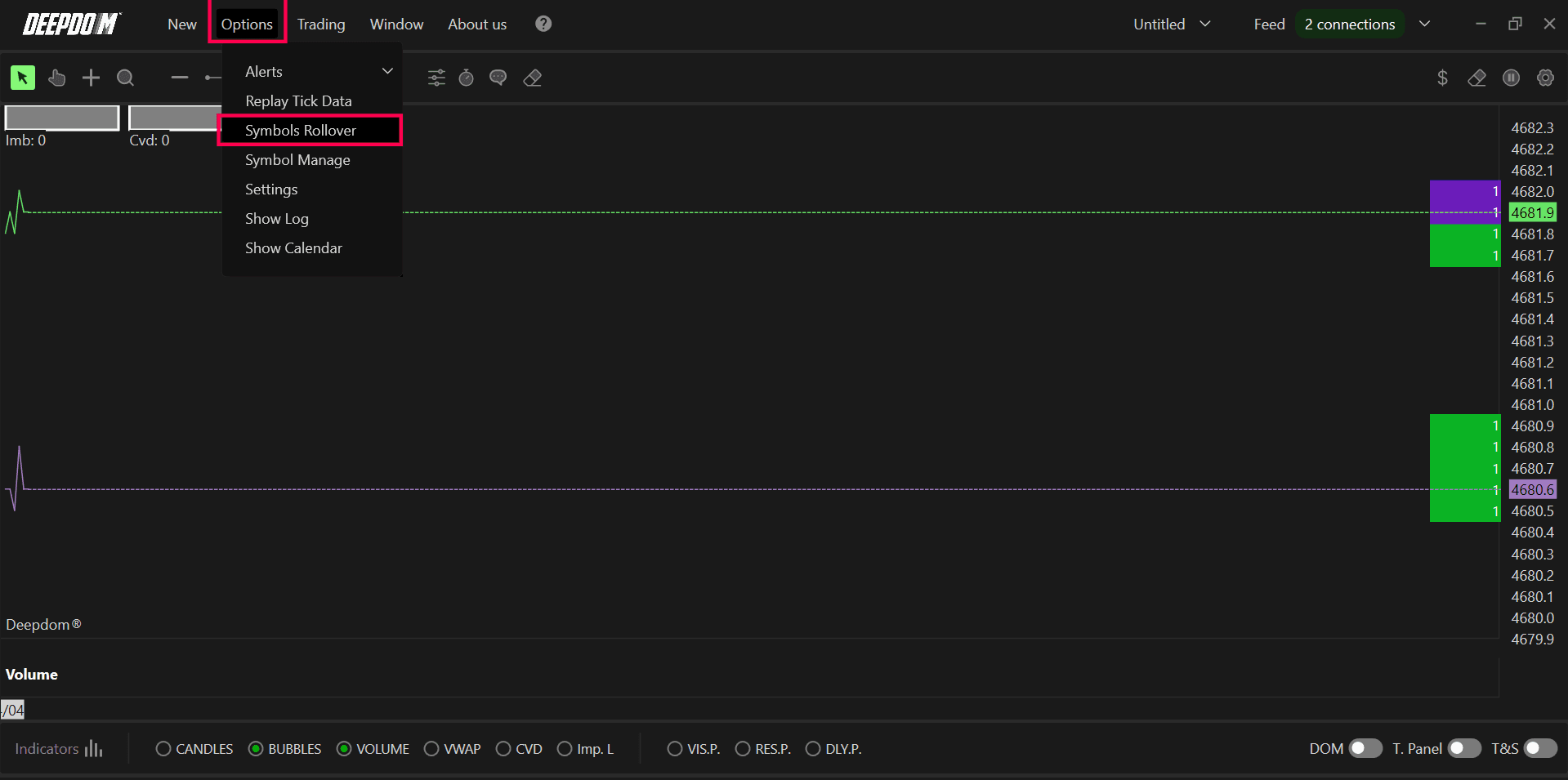
Go to Options > Symbol Rollover.
Perform the rollover only for markets highlighted in the Symbol Rollover
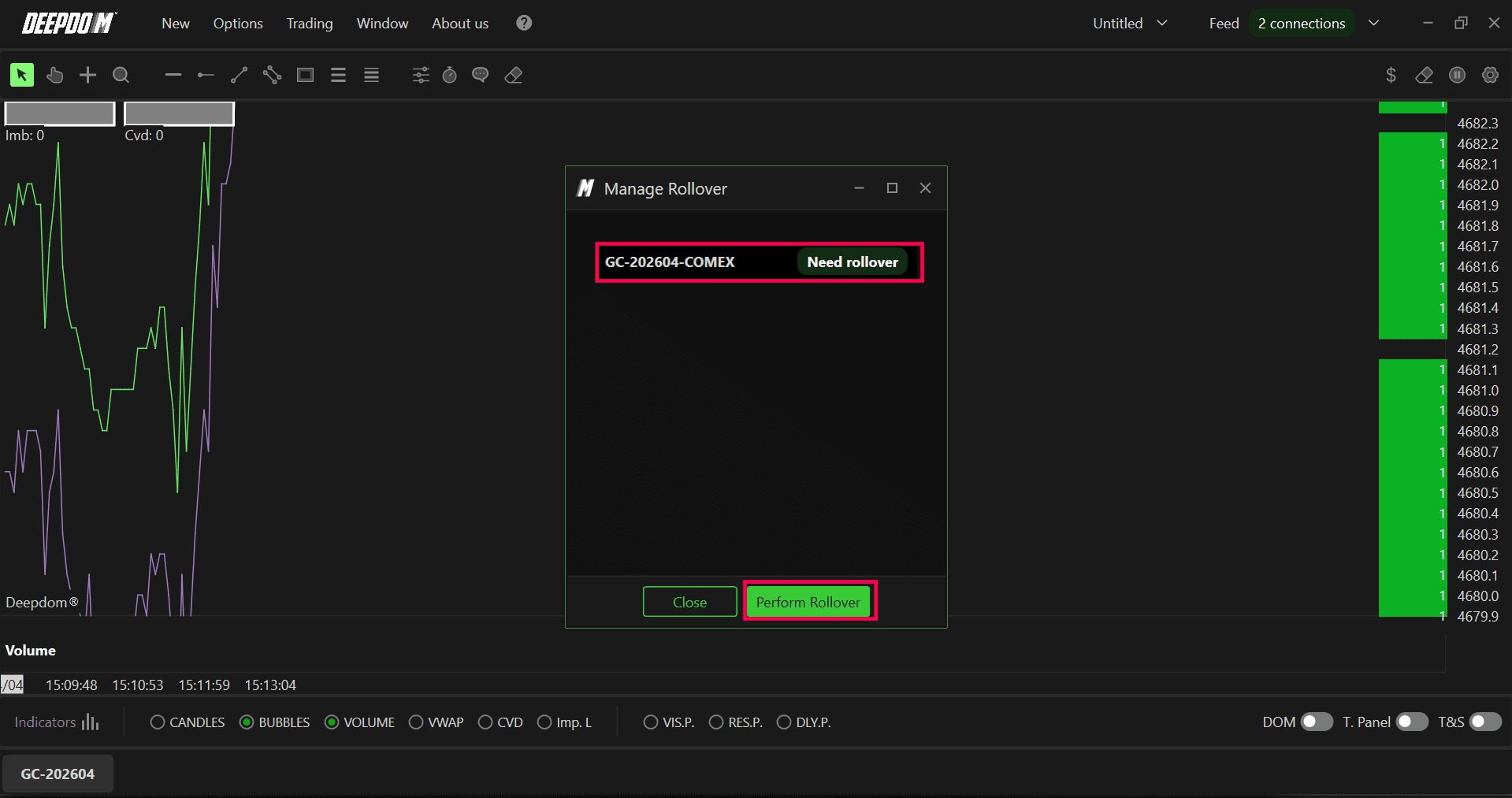
Execute rollover for all related markets, including minor contracts such as MINI and MICRO.
If a MICRO contract is not automatically listed, open a Heatmap or other DeepDom window for that instrument and recheck the Symbol Rollover window.
After these steps, the contract expiration used by DeepDom for the selected symbols is updated correctly.
Restoring a Previous Expiration
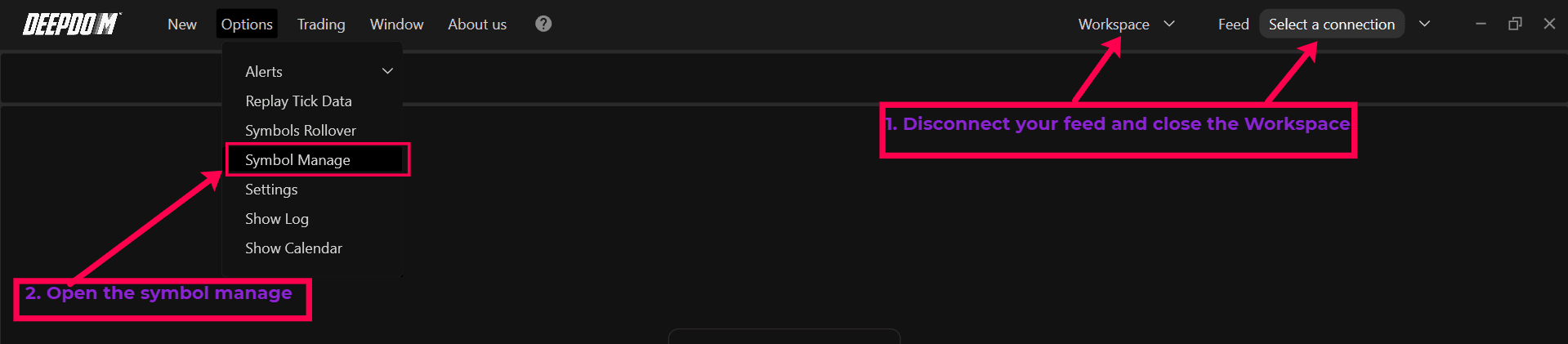
Disconnect your Feed and Close the Workspace
Go to Options > Symbol Management.
Click the Expert Mode.
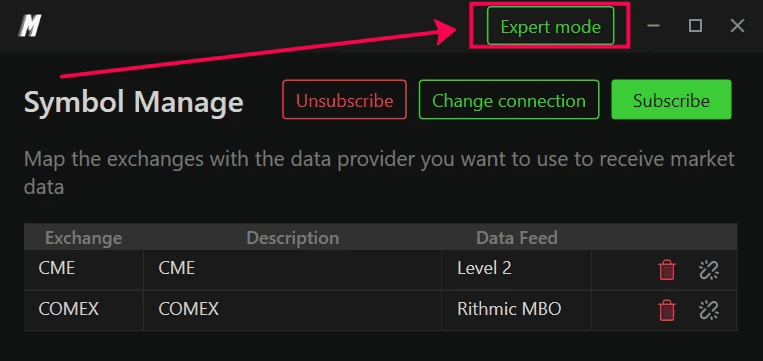
In the Symbol List (middle column), locate the markets with the incorrect expiration (MAJOR, MINI, MICRO).
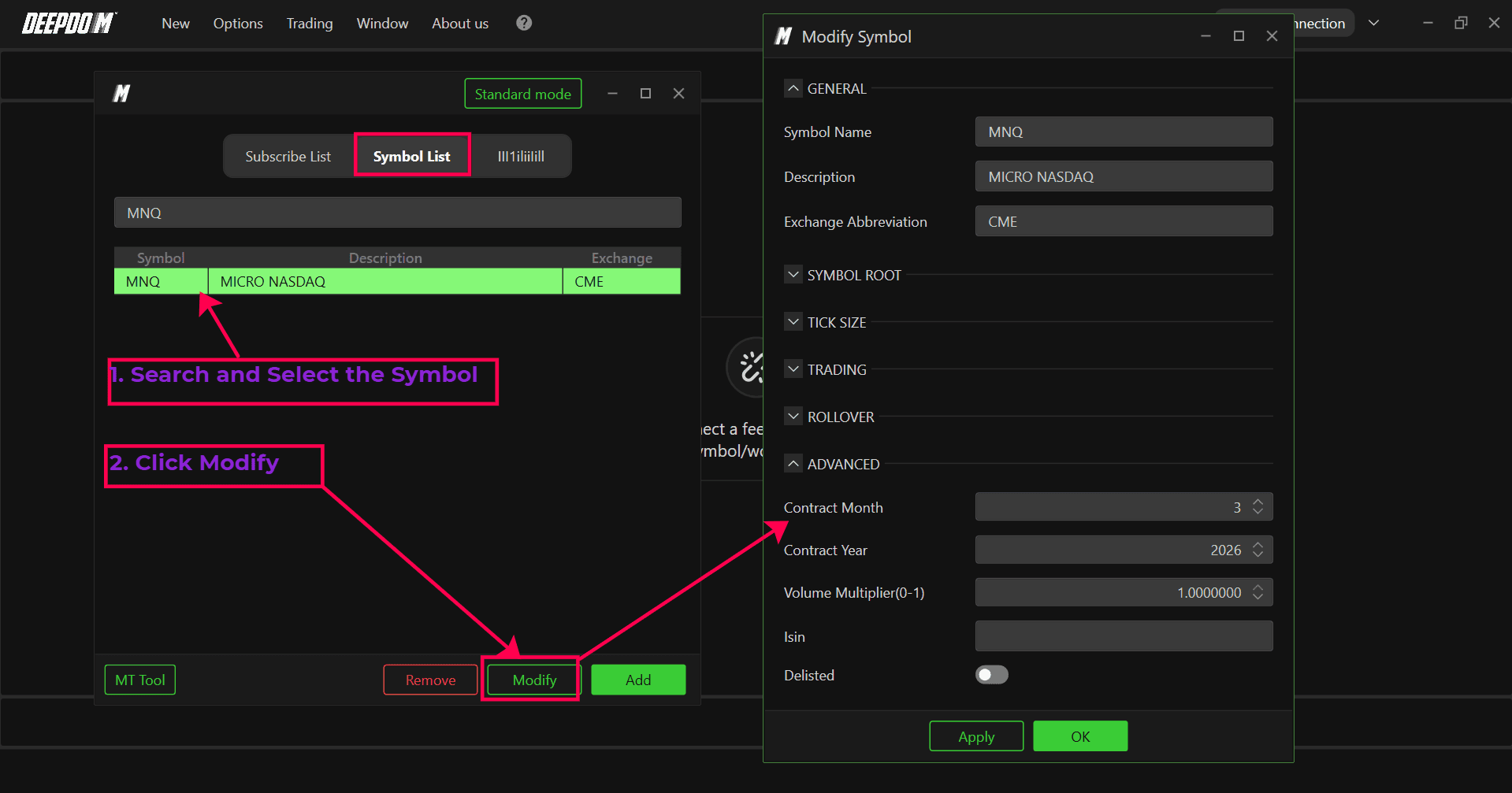
Select the instrument with the wrong expiration and click Modify.
In the Advanced section, change the expiration month back to the previous contract.
Close the Symbol Management window.
Restart DeepDom without connecting any data streams.
When you reconnect the data feeds after restart, DeepDom will use the restored expiration month for those symbols.
Still Having Trouble?
Our support team is available 24/7 and ready to help you with any issue you encounter. When you reach out, please include:
A screenshot of the issue.
A brief description of what you were trying to do.
Support Ticket (fastest response): visit www.deepcharts.com and create a support ticket directly on our website.
Email Support: you can also reach us at support@deepcharts.com. Please note that email responses may take a little longer than a support ticket.
