Trading
Updated:
Risk Manager
The Deepdom Risk Manager enables traders to apply professional, automated risk controls directly within the platform.
By defining strict risk management rules, traders can enforce discipline in real time. If any predefined rule is breached, the account is automatically locked for the day (or for a specified duration), ensuring adherence to the trading plan and preventing emotional decision-making.

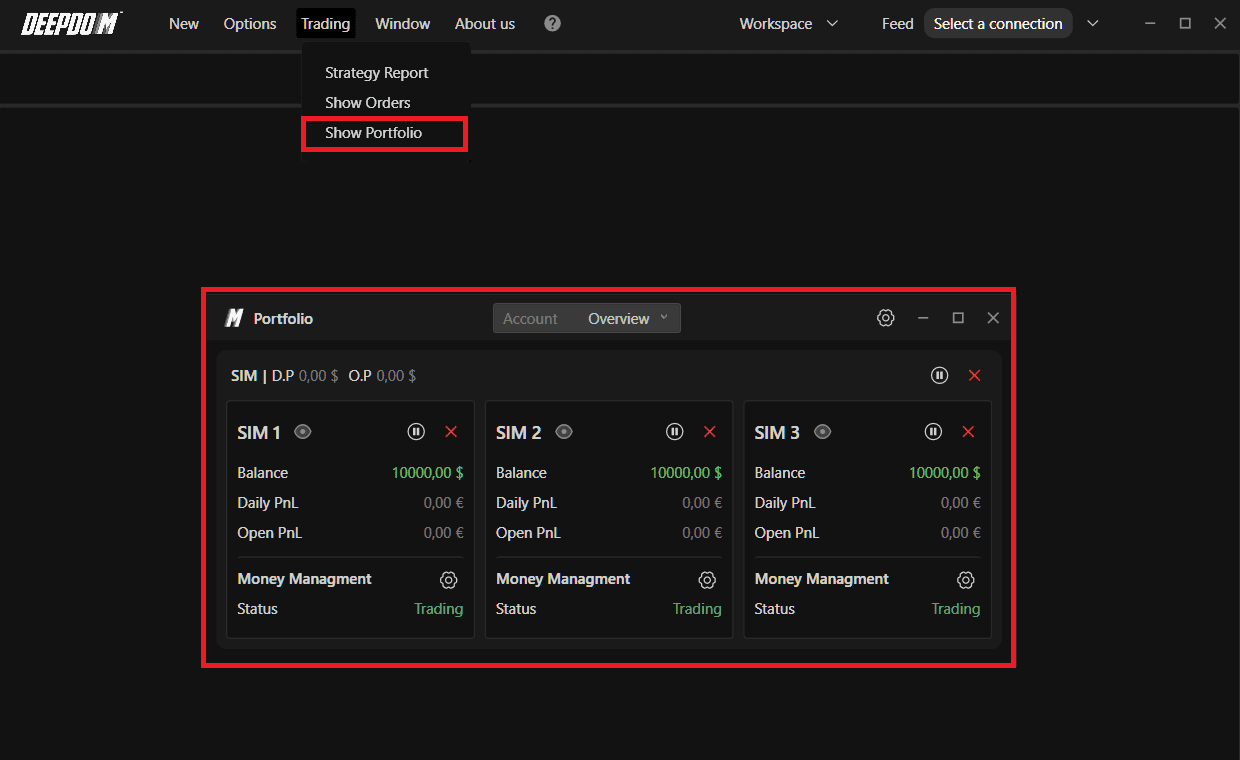
1. How to Access Risk Manager
1. Go to Trading in the main navigation bar.
2. Click Show Portfolio.
2. Overview Section
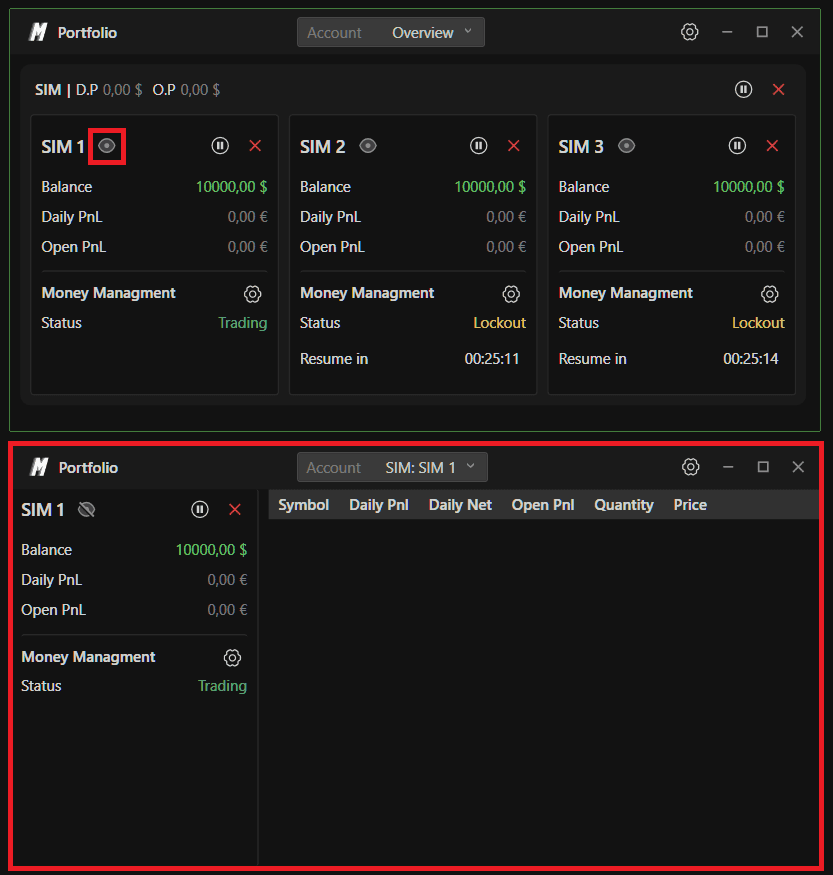
In the Overview tab, you can see all accounts connected to Deepdom.
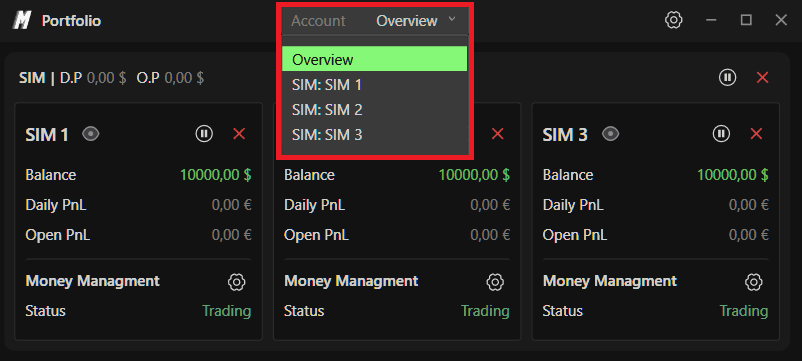
You will see one main card per connection (for example: SIM, Rithmic, Dxfeed).
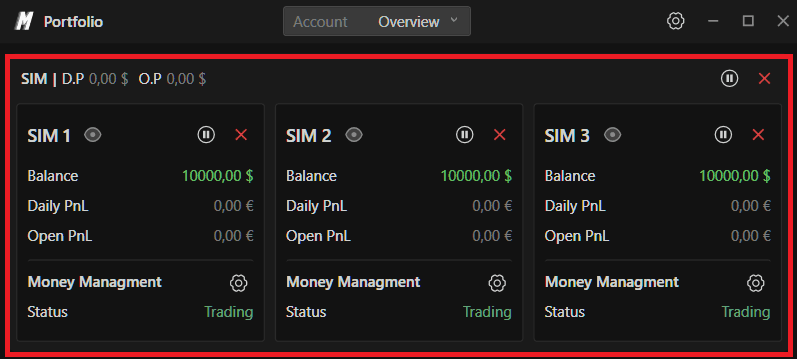
Connection Card Information
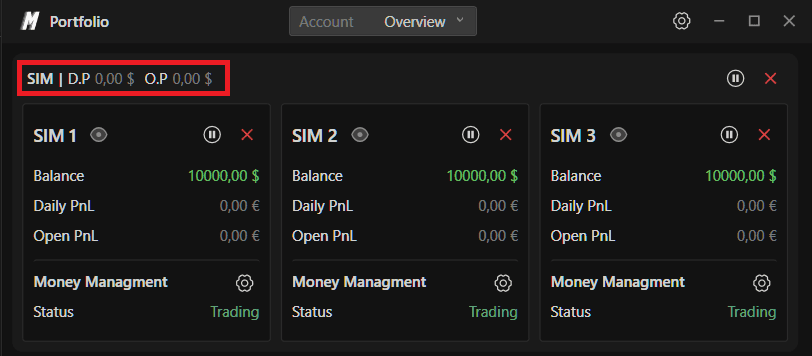
Connection Name (top-left, e.g., SIM)
Daily Profit – Total daily PnL across all accounts under that connection
Open Profit – Current unrealized PnL
Connection-Level Controls
On the right side of the connection card:
Pause Button
Allows you to pause trading for:
1 minute
10 minutes
30 minutes
60 minutes
Entire session
When paused:
All accounts under the connection are locked
"Lockout" status appears
A countdown timer shows when trading will resume
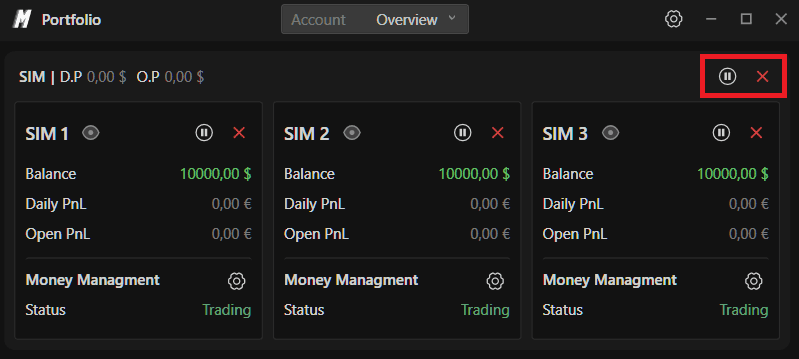
Close Button
Closes (flattens) all open positions across every account under that connection instantly.
3. Individual Account Cards
Each account under a connection has its own control panel.
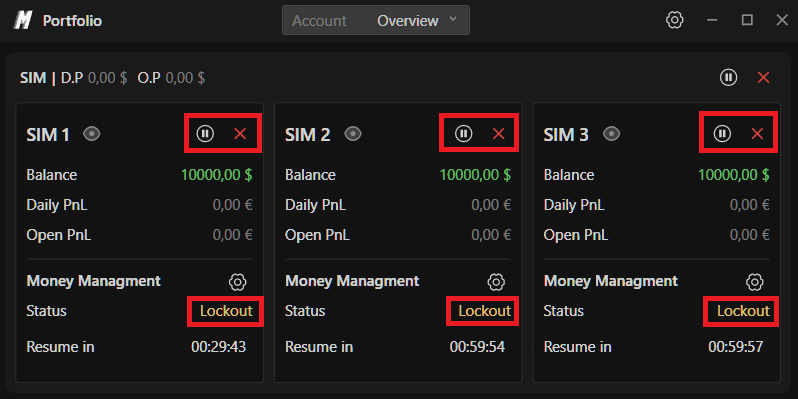
Account-Level Buttons
• Eye Button – Opens detailed risk management view of that account
• Pause Button – Pauses only that specific account
• Close Button – Flattens only that account
Account Information
• Balance
• Daily PnL
• Open PnL
4. Money Management Settings (Client Side)
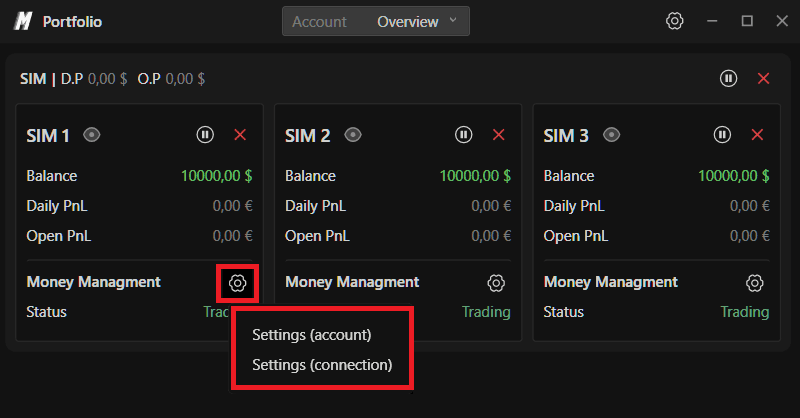
Click the Settings button to configure risk rules.
You will be prompted to choose:
• Account-level settings
• Connection-level settings
Important: The Risk Manager operates on the client side. If the platform is closed, the money manager will not function.
5. General Settings
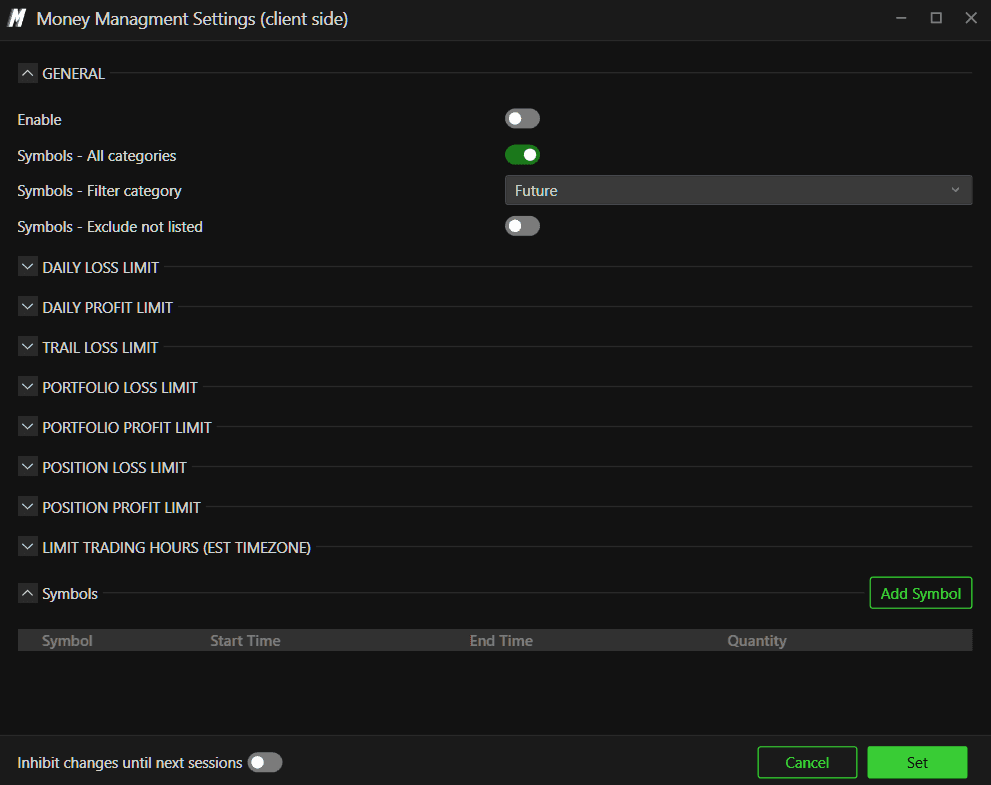
Enable
Activate or deactivate the money manager.
Symbol – Exclude Not Listed
If enabled, you can only trade symbols that you manually add.
Example: If you want to avoid accidentally trading the Mini instead of the Micro contract, add only the Micro symbol. All other symbols will be blocked.
6. Daily Loss Limit
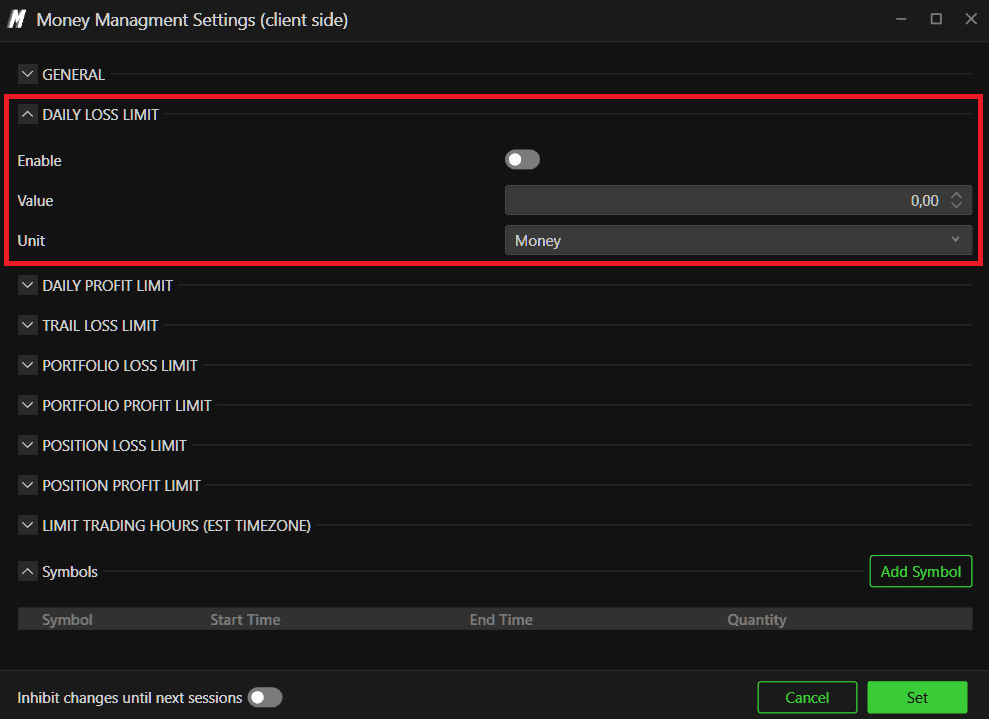
• Enable – Activate daily loss protection
• Value – Maximum loss allowed
• Unit – Money ($) or Percentage (%)
Once breached, the selected action will be triggered.
7. Daily Profit Limit
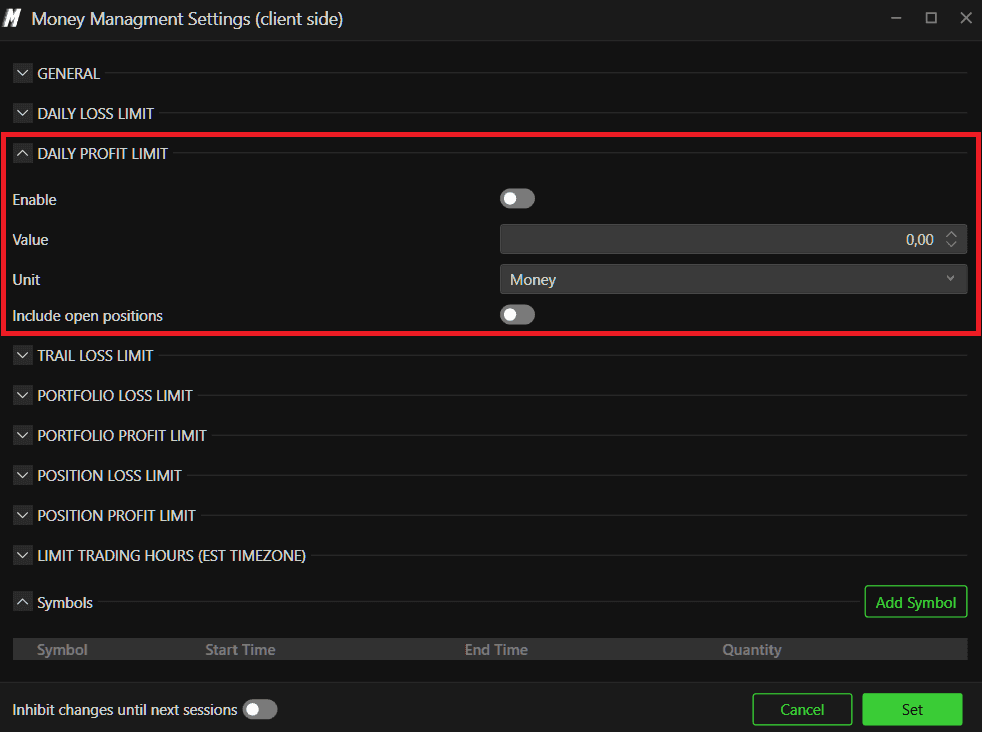
• Enable: Activate daily Profit protection
• Value: Maximum Profit allowed
• Unit – Money ($) or Percentage (%)
• Include Open Position – If enabled, open trades will be closed once the limit is reached.
8. Trailing Stop (Daily Trailing Drawdown)
Enable
Activate trailing limit.
Action Options:

• Daily Pause – Lock account for the session
• Time Pause – Lock account for selected minutes
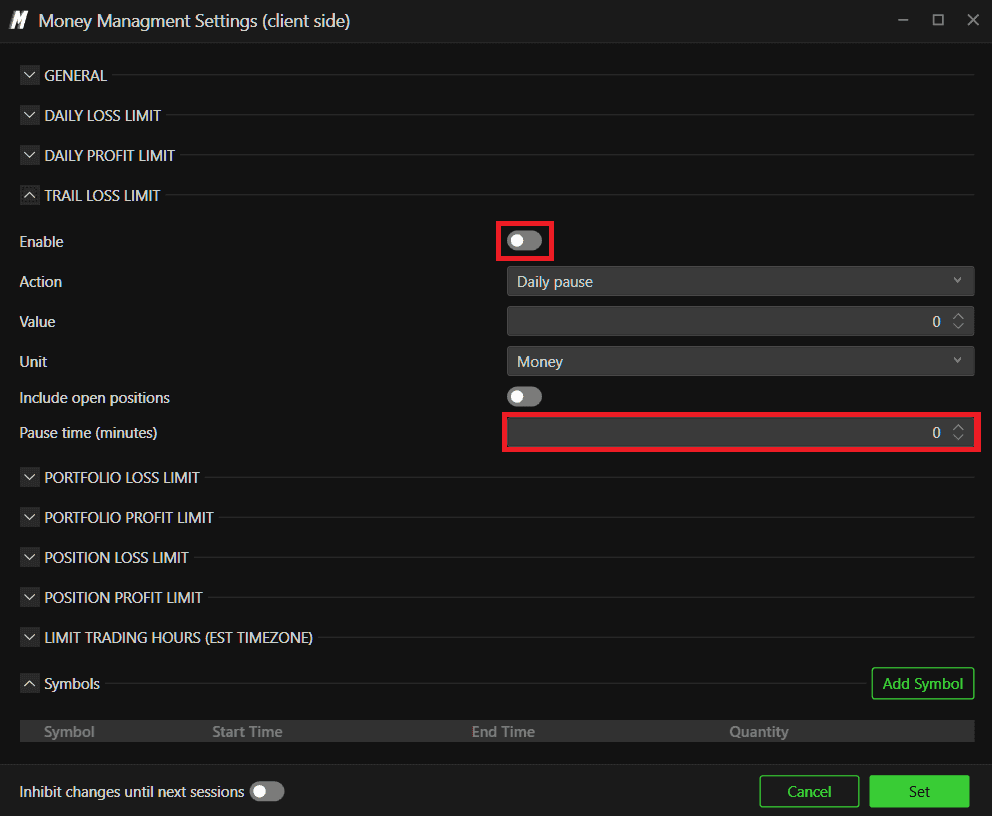
• Flat – Close positions but do not lock
Value & Unit
Set in money or percentage.
Include Open Position
If enabled, trailing stop applies to unrealized PnL as well.
Example: If open profit retraces more than the trailing limit, the system triggers the selected action.
9. Portfolio-Based Limits
Portfolio Loss Limit
Controls total loss across all open positions (e.g., ES + NQ combined).
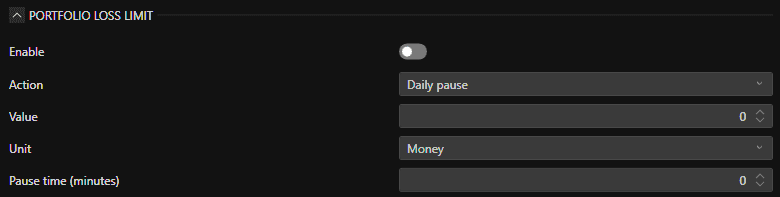
Same configuration options:
• Enable
• Action
• Value
• Unit
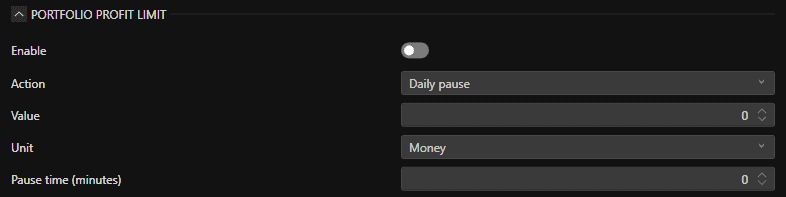
Portfolio Profit Limit
Same logic as Daily Profit Limit but applied across the entire portfolio.
10. Position-Based Limits
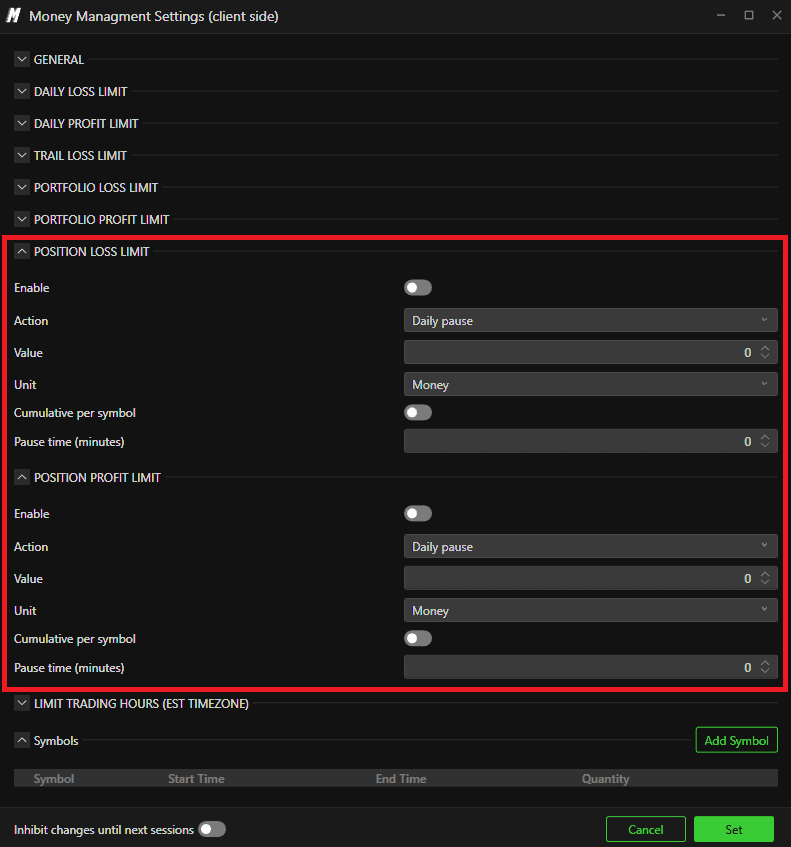
Position Loss Limit
Applies to individual trades. If exceeded, the position is automatically flattened and action triggered.
Position Profit Limit
Same logic but for profit targets on individual positions.
11. Limit Trading Hours (EST Timezone)

You can restrict trading to specific time windows.
Important:
• Time is based on EST timezone
• Independent of your PC timezone or chart timezone
Set:
• Begin Time
• End Time
12. Add Symbol
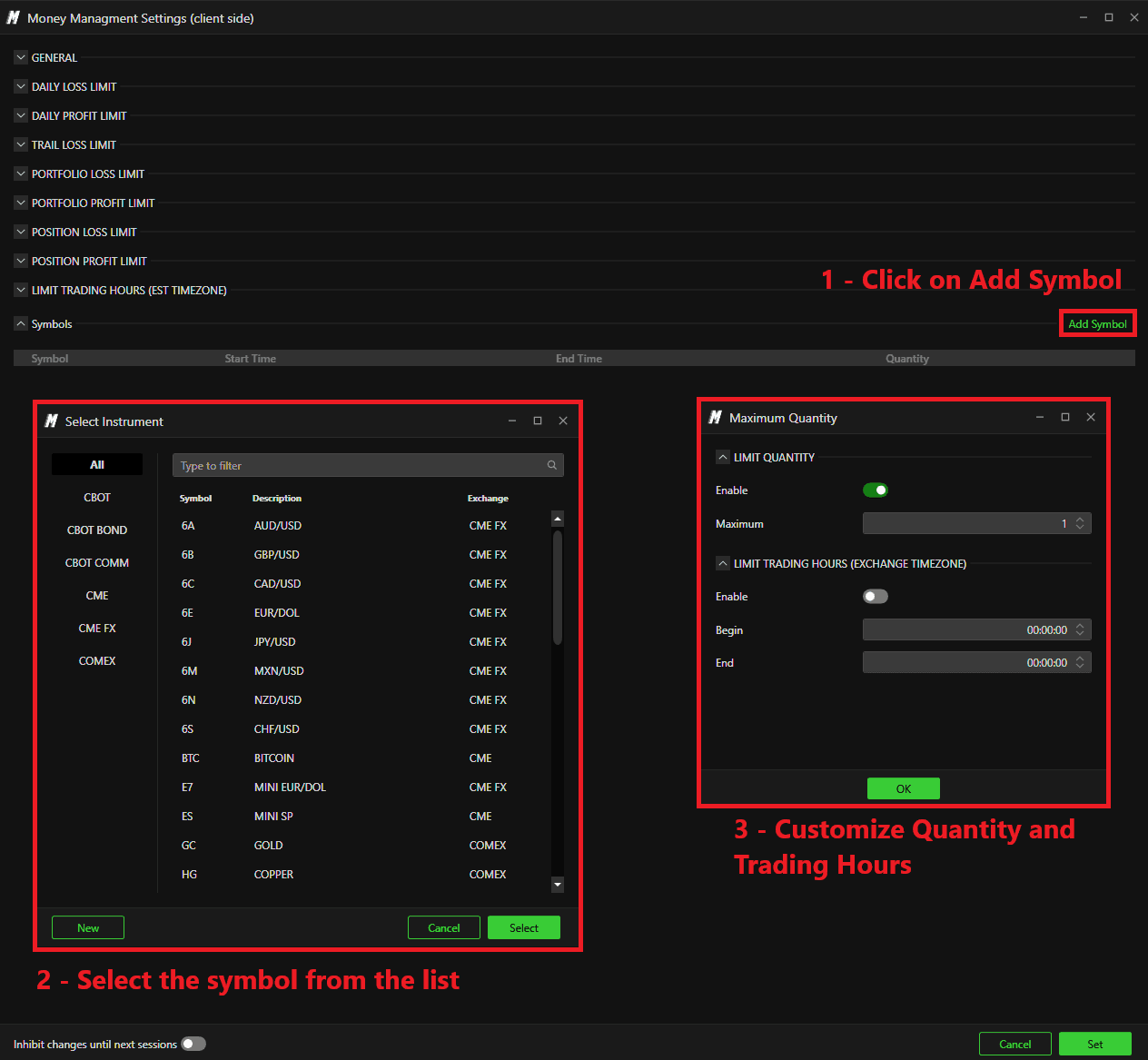
Add or remove symbols allowed for trading.
If Symbol – Exclude Not Listed is enabled, only added symbols can be traded.
13. Inhibit Changes Until Next Session

If enabled:
• Any changes made to risk settings will only apply on the next trading day.
14. Status
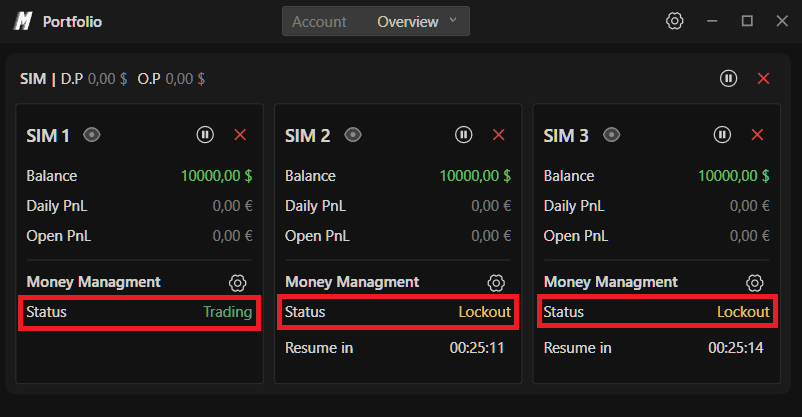
Status may show:
Lockout – The account is locked due to rule violation. A countdown timer shows when trading will resume.
15. Detailed Account View
Click the Eye button to see detailed positions and account risk information.
Important Note
The Risk Manager follows CME timezone (EST) for daily resets.
If locked for the day:
• The account automatically unlocks at 18:00 EST.
• The only way to unlock the account after the timeout of Risk Manager is triggered is to ask the Deepdom Support team to unlock it from the backend, and it can take some time.
Summary
The Deepdom Risk Manager provides:
• Daily loss & profit limits
• Trailing drawdown protection
• Portfolio-level risk controls
• Position-based limits
• Time-restricted trading
• Symbol-based protection
• Automatic lockout enforcement
It transforms risk management from a discretionary decision into an automated discipline system—ensuring traders strictly follow their predefined risk plan.
Still Having Trouble?
Our support team is available 24/7 and ready to help you with any issue you encounter. When you reach out, please include:
A screenshot of the issue.
A brief description of what you were trying to do.
Support Ticket (fastest response): visit www.deepcharts.com and create a support ticket directly on our website.
Email Support: you can also reach us at support@deepcharts.com. Please note that email responses may take a little longer than a support ticket.
