Option Envelopes Advanced plots three key gamma levels directly on your price chart as horizontal lines: Zero Gamma, Major Gamma, and Minor Gamma. They are calculated using real time open interest sourced from CBOE market maker data. It works the same way as Option Envelopes, but instead of using volume to estimate dealer positioning, it uses DeepChart’s real time CBOE open interest calculation for a more accurate read on where dealer hedging activity is likely to be concentrated.
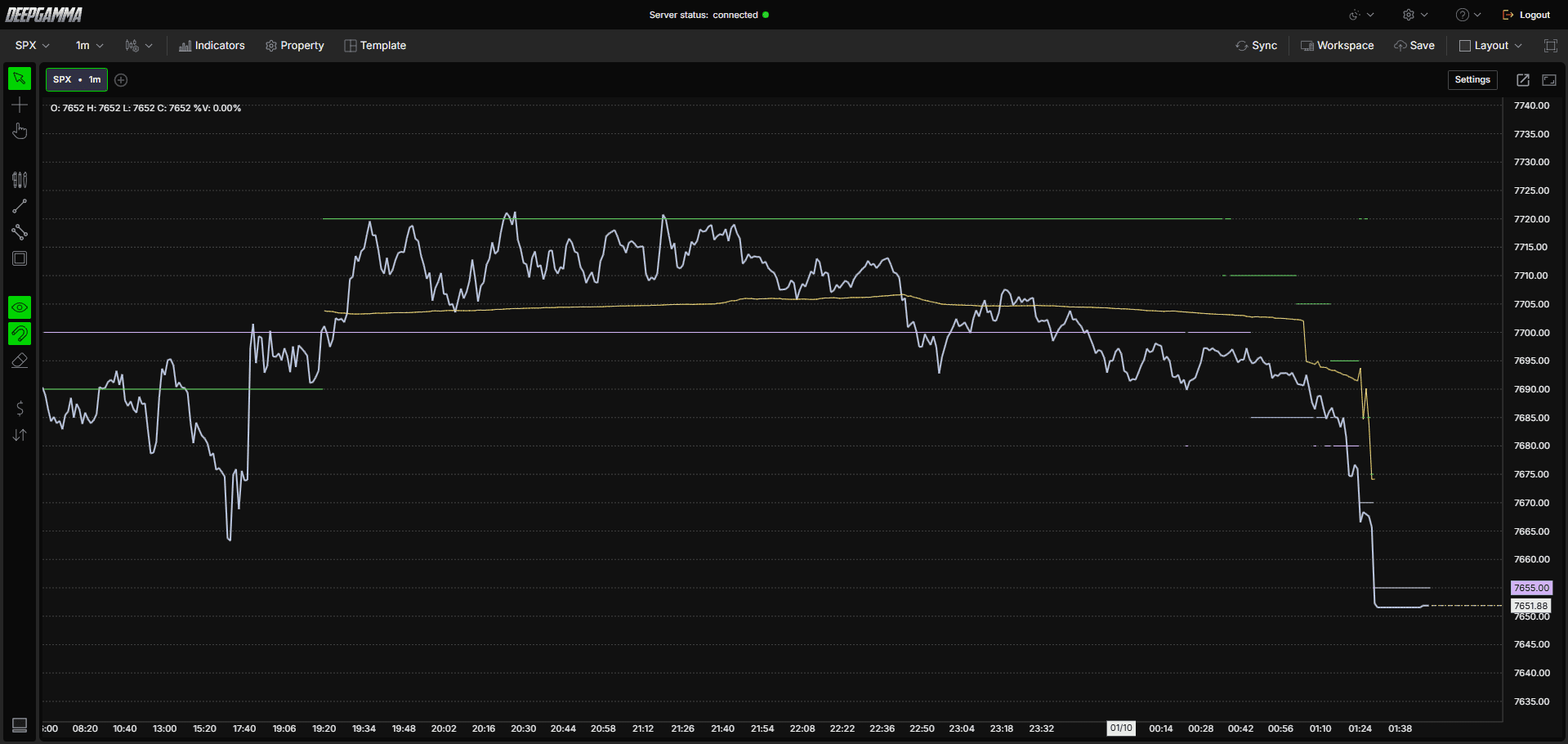
Note: Option Envelopes Advanced uses CBOE data and shows values on SPX charts only.

How to Add Option Envelopes Advanced
Open an SPX chart in DeepGamma Web
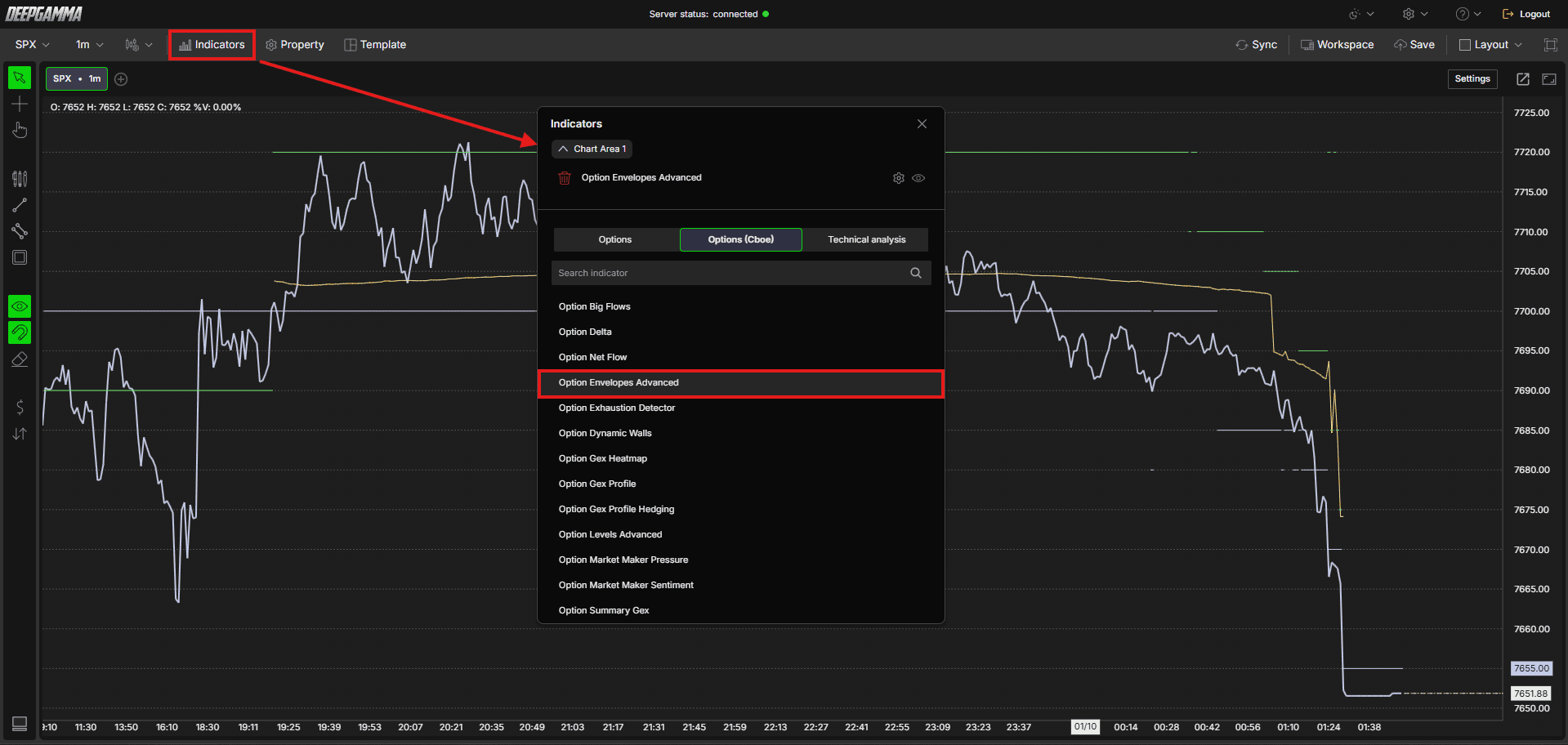
Click Indicators in the Menu Bar
Click the green Add indicator button at the bottom of the panel
Open the Options (Cboe) tab and search for Option Envelopes Advanced
The indicator is added to your chart and appears in the Indicators panel
Click the gear icon next to Option Envelopes Advanced to open its settings
Understanding Key Terms
Before choosing a data source, it helps to understand a few core options concepts:
Call - An option that gives the buyer the right to buy the underlying at a set price. Traders buy calls when they expect price to go up
Put - An option that gives the buyer the right to sell the underlying at a set price. Traders buy puts when they expect price to go down
OI (Open Interest) - The total number of option contracts currently open and not yet closed or expired
OI (R.T.) - Real time open interest calculated from live CBOE buy and sell flow, rather than end of day figures
Gamma (Call OI-R - Put OI-R) - Net gamma exposure calculated using real time open interest for calls and puts, combined with the gamma greek
Settings
The settings window has two tabs: Parameters and Series. After making changes, click Apply to update the chart.
Parameters
General
Data Source - Choose how the gamma levels are calculated. Options available:
Gamma (call OI-R - put OI-R) (default) - Calculates levels based on real time open interest multiplied by the gamma greek, giving a gamma-weighted read on standing positions using live CBOE data rather than volume.
Use this when : you want the most accurate real time read on dealer positioning and market regime, upgraded from the volume based calculation used in Option EnvelopesOI (R.T.) - Calculates levels using real time open interest alone, without gamma weighting, showing where standing positions are concentrated live.
Use this when : you want to see live standing positions without any gamma weighting
Expiration - Filter levels by expiration. Options available: 0 DTE, <= 1d, <= 7d, <= 31d, <= 91d, All expirations. Default is 0 DTE
Include Carry or Open interest - When enabled, includes open interest carried over from previous sessions in the calculation, giving you a broader view of total positioning. When disabled, only current session data is considered. Default is enabled
Number of Strikes (0 - unlimited) - Sets how many strikes out from the current price to include in the calculation. A value of 0 includes an unlimited number of strikes. Default is 0

Series
Select a series on the left (Zero Gamma, Major Gamma or Minor Gamma) to set up how it looks on the chart.
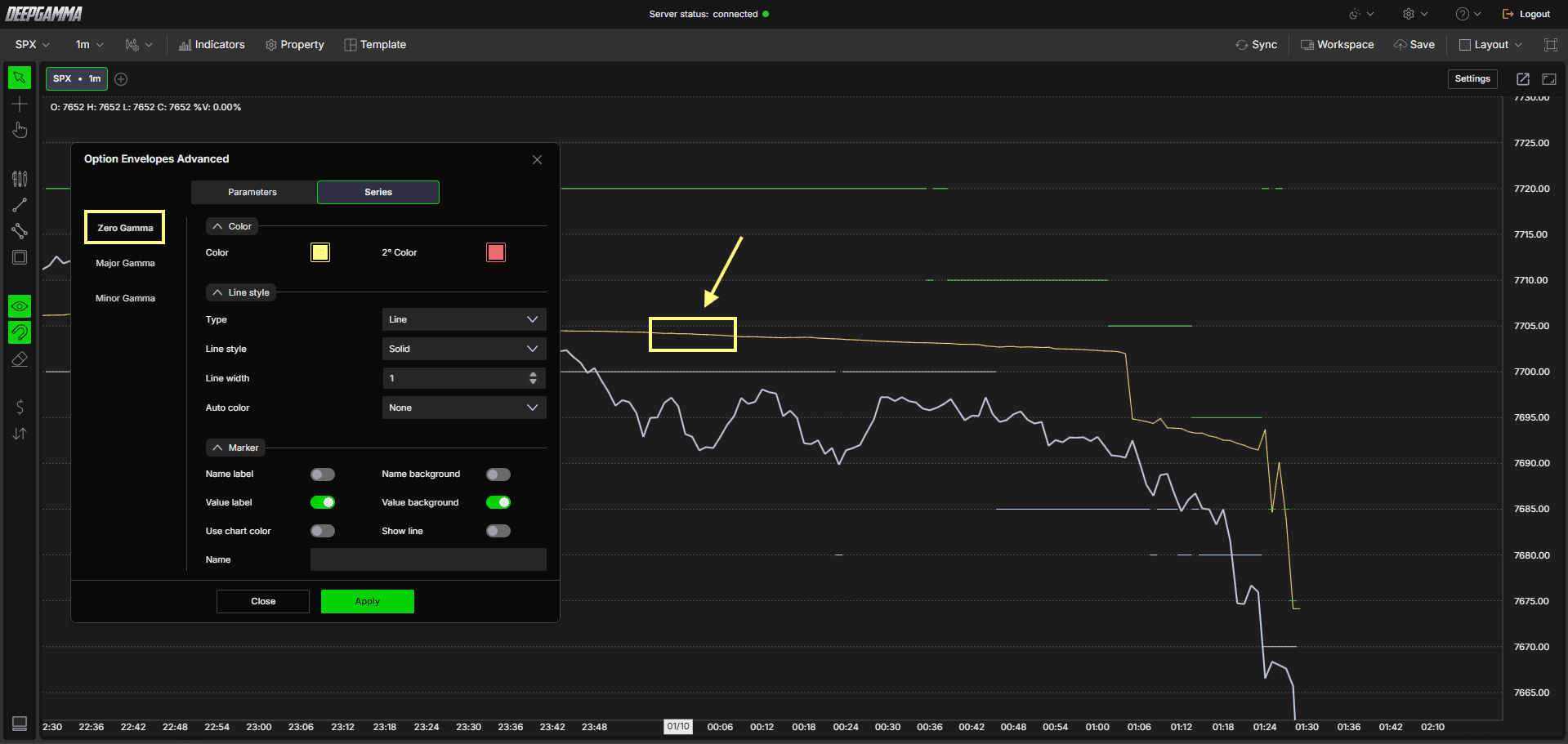
Zero Gamma
Zero Gamma is the most important level. It represents the price point where dealer gamma exposure flips from positive to negative, calculated here from real time CBOE open interest rather than volume. Above this level, dealers are long gamma and tend to dampen price moves. Below it, dealers are short gamma and tend to amplify price moves.
Color
Color - Set the main color of the line. Default is yellow
2° Color - Set a secondary color. Default is red
Line style
Type - Choose between Line or Hidden. Default is Line
Line style - Choose between Solid or Dash. Default is Solid
Line width - Set the thickness of the line. Default is 1
Auto color - Options available: None, Slope, +/-. Default is None
Marker
Name label - Show or hide the series name label. Default is disabled
Name background - Show or hide the background behind the name label. Default is disabled
Value label - Show or hide the value label. Default is enabled
Value background - Show or hide the background behind the value label. Default is enabled
Use chart color - When enabled, the marker uses the chart color. Default is disabled
Show line - When enabled, the current level is extended as a line to the right edge of the chart, so you can see where the level sits ahead of price. Default is disabled
Name - Set a custom label for this series
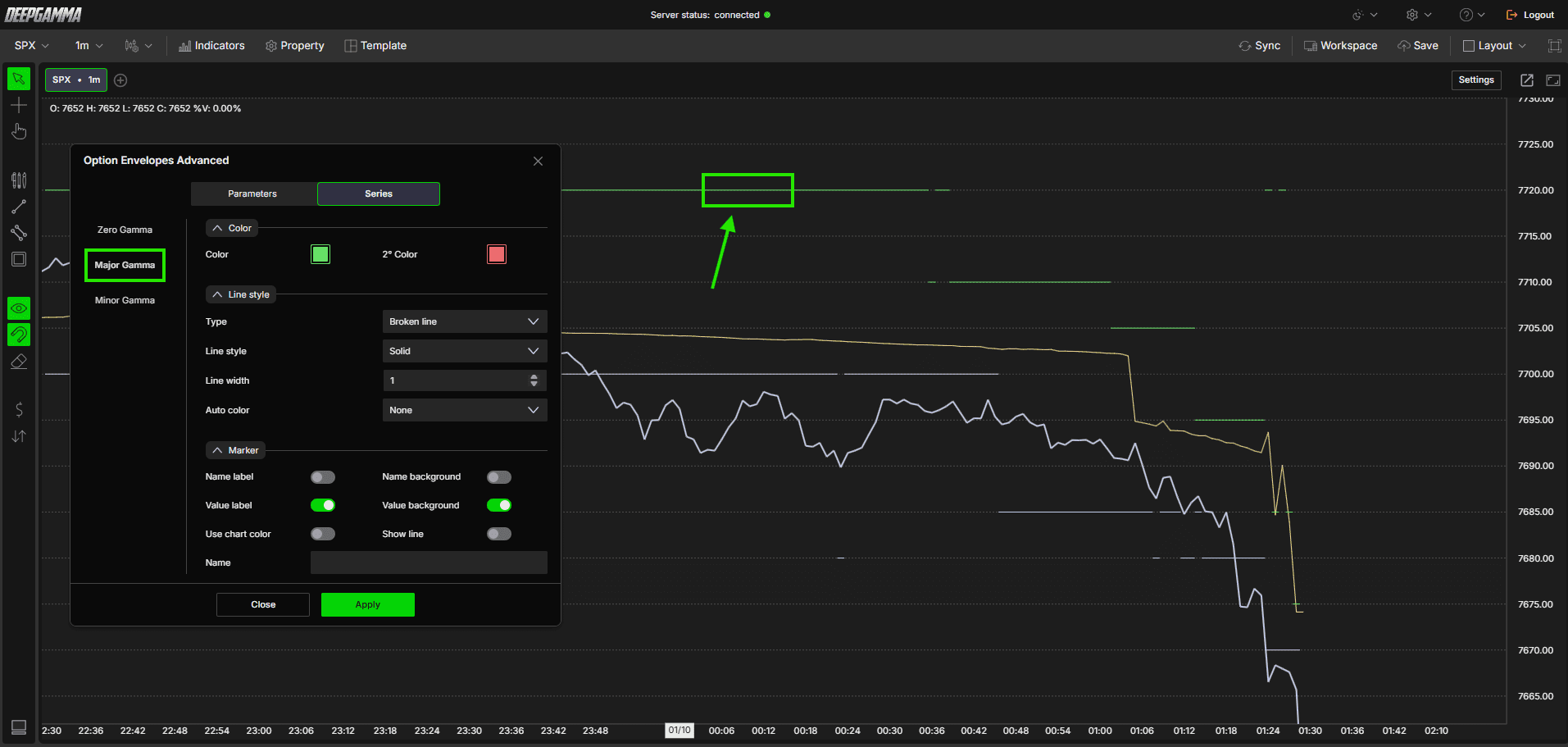
Major Gamma
Major Gamma represents the highest concentration of dealer gamma exposure, based on real time open interest. This is where the most significant support or resistance from dealer hedging is likely to appear.
Color
Color - Set the main color of the line. Default is green
2° Color - Set a secondary color. Default is red
Line style
Type - Choose between Line, Hidden, or Broken line. Default is Broken line
Line style - Choose between Solid or Dash. Default is Solid
Line width - Set the thickness of the line. Default is 1
Auto color - Options available: None, Slope, +/-. Default is None
Marker
Name label - Show or hide the series name label. Default is disabled
Name background - Show or hide the background behind the name label. Default is disabled
Value label - Show or hide the value label. Default is enabled
Value background - Show or hide the background behind the value label. Default is enabled
Use chart color - When enabled, the marker uses the chart color. Default is disabled
Show line - When enabled, the current level is extended as a line to the right edge of the chart, so you can see where the level sits ahead of price. Default is disabled
Name - Set a custom label for this series
Minor Gamma
Minor Gamma represents the secondary concentration of dealer gamma exposure, based on real time open interest. It acts as a softer level than Major Gamma and is useful for identifying intermediate reaction zones.
Color
Color - Set the main color of the line. Default is purple
2° Color - Set a secondary color. Default is red
Line style
Type - Choose between Line, Hidden, or Broken line. Default is Broken line
Line style - Choose between Solid or Dash. Default is Solid
Line width - Set the thickness of the line. Default is 1
Auto color - Options available: None, Slope, +/-. Default is None
Marker
Name label - Show or hide the series name label. Default is disabled
Name background - Show or hide the background behind the name label. Default is disabled
Value label - Show or hide the value label. Default is enabled
Value background - Show or hide the background behind the value label. Default is enabled
Use chart color - When enabled, the marker uses the chart color. Default is disabled
Show line - When enabled, the current level is extended as a line to the right edge of the chart, so you can see where the level sits ahead of price. Default is disabled
Name - Set a custom label for this series
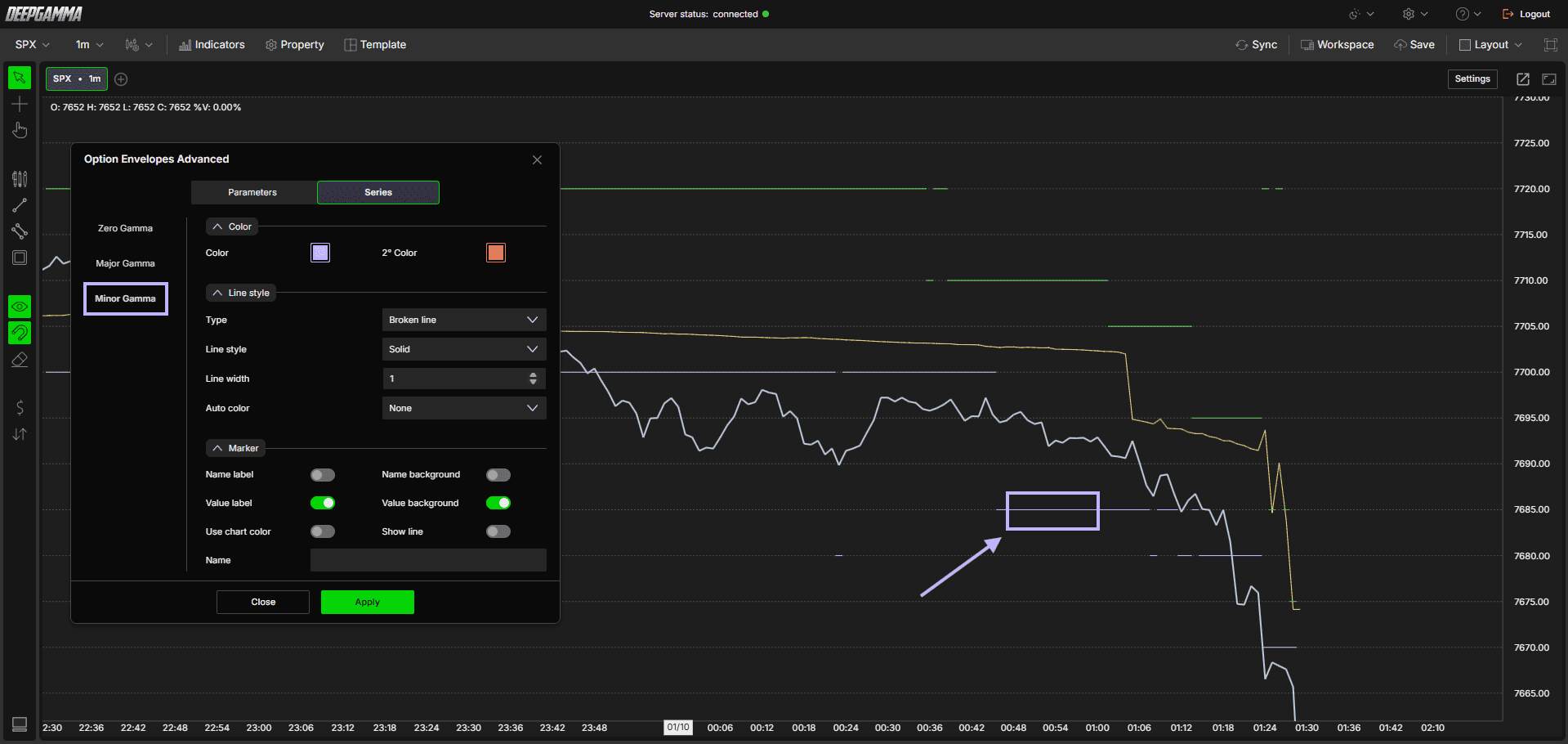
Example - How to Use Option Envelopes Advanced
Once added to your chart, you will see three types of lines plotted directly on your price chart, working the same way as Option Envelopes but with a real time edge:
The yellow line is the Zero Gamma level, the most important level on the chart. Since it’s calculated from real time CBOE open interest instead of volume, it reflects actual standing dealer positioning rather than an estimate based on trading activity. When price is above it, dealers tend to be long gamma and the market tends to be calmer. When price breaks below it, dealers tend to be short gamma and the market can become more volatile
The green lines are the Major Gamma levels, zones where real dealer positioning is most concentrated. How price reacts here depends on the direction it is approaching from and the current gamma regime
The purple line is the Minor Gamma level, a softer secondary reference zone with the same significance as Major Gamma, just to a lesser degree

Tip: Use Option Envelopes Advanced alongside the standard Option Envelopes to compare the volume based read against the real time CBOE positioning read. Significant divergence between the two can be a useful signal on its own.
Any Questions?
Our support team is available 24/7 and ready to help you with any question.
When reaching out, please include:
Screenshot (if any)
Briefly describe the assistance or support you require
DeepCharts Live Support - Chat with our agents directly using the live chat box on www.deepcharts.com, or click here for 24/7 Live Chat for immediate access.
Email Support - Reach us at support@deepcharts.com - please note that email responses may take a little longer than a live support chat.
