Updated:
1. How to Get started with DeepCharts Rithmic Feed
To get started with your Rithmic connection with Deepchart Or Deepdom follow these steps.
Log in to your DeepCharts Dashboard - my.deepcharts.com
Navigate to Subscriptions
Here you will find your Rithmic credentials (username and password)
Keep your credentials saved — you will need them in the next steps.

2. Sign the Agreements in Rithmic Trader Pro (RTrader Pro)
Why This Step Is Required
Rithmic requires you to review and sign several electronic agreements (risk disclosures, data usage, and routing agreements) before any third-party platform can establish a live data or trading connection. If these agreements are not accepted, the connection from DeepCharts will either fail or remain in a "not authorized" state — even if your credentials are correct.
Professional vs. Non-Professional Status
During the agreement signing process, Rithmic will ask you to declare your market data status. It is important to understand the difference before selecting:
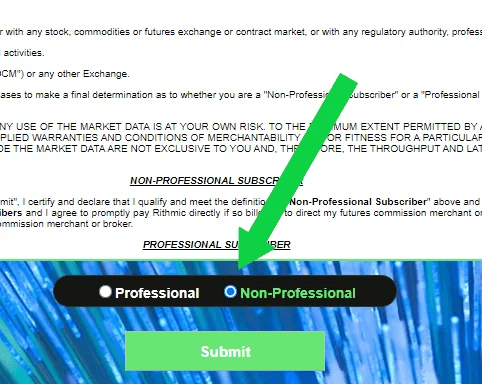
Professional
Applies to licensed financial advisors, analysts, or anyone using market data for business or institutional purposes
Non-Professional
Applies to individual retail traders using data for personal trading
For retail traders, select Non-Professional.
Steps to Sign the Agreements
Download and install Rithmic Trader Pro (RTrader Pro) - https://www.rithmic.com/products/r-trader-pro
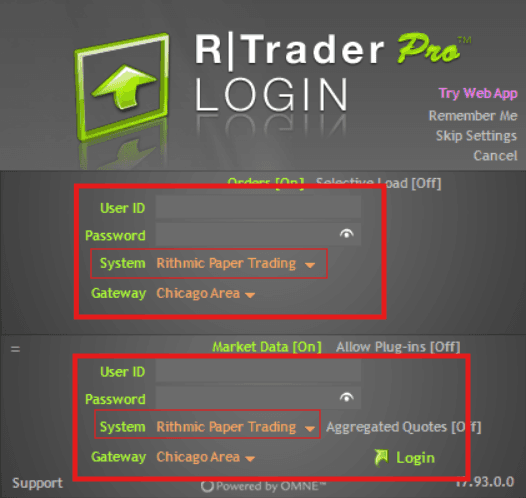
On the login screen, enter the Rithmic username and password received from your DeepCharts subscription
Select the correct System / Server — choose Rithmic Paper Trading
For Gateway, select the one nearest to your location, or choose Chicago
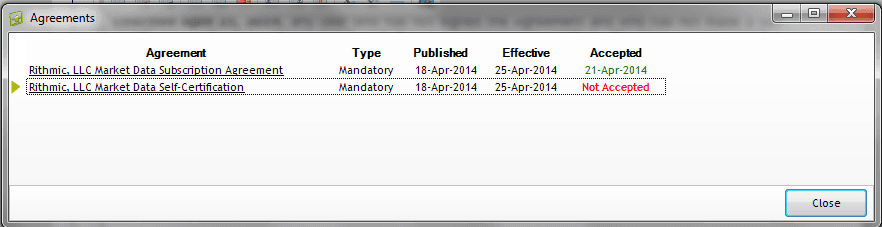
Click Login — the platform will automatically present any pending agreements and disclosures
When prompted for your market data status, select Non-Professional (unless you qualify as a professional)
Carefully read each agreement and click Accept until no further agreement windows appear
Once you reach the main RTrader Pro interface with no more prompts, you can close the platform
✅ The agreements are now stored on Rithmic's servers. You do not need to keep RTrader Pro open while using DeepCharts.
🔁 You only need to repeat this process if your account is reset or if Rithmic introduces new mandatory agreements in the future.
3. Connect Rithmic to DeepChart
Once your agreements are signed, you can now add the Rithmic connection inside DeepChart/DeepDom.
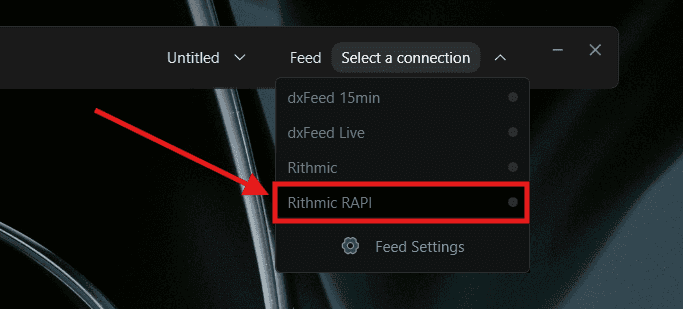
DeepChart/DeepDom supports two Rithmic connection protocols — Rithmic RAPI and Rithmic. We recommend starting with Rithmic RAPI as it is the more stable and widely compatible protocol.
3.1 Connecting via Rithmic RAPI (Recommended)
Rithmic RAPI is the older protocol that has been reintroduced in DeepChart/DeepDom due to its reliability and broader compatibility. If you are setting up Rithmic for the first time or have experienced connection issues, start here.
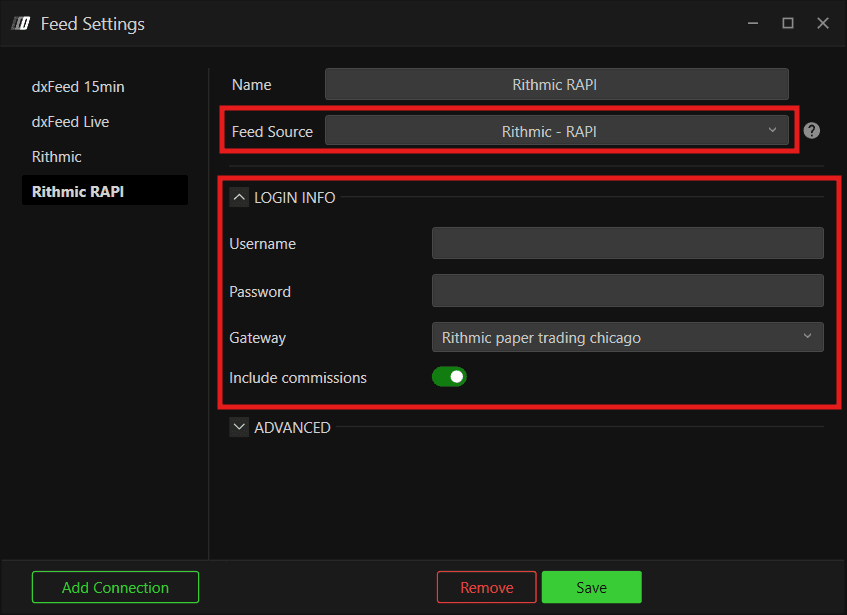
Open DeepChart/DeepDom and go to the datafeed settings
Click Add Connection
Under Feed Source, select Rithmic - RAPI
Enter your Username and Password (the credentials received after your subscription)
Under Gateway choose Rithmic Paper Trading Chicago
Click Save and then Connect
3.2 Connecting via Rithmic
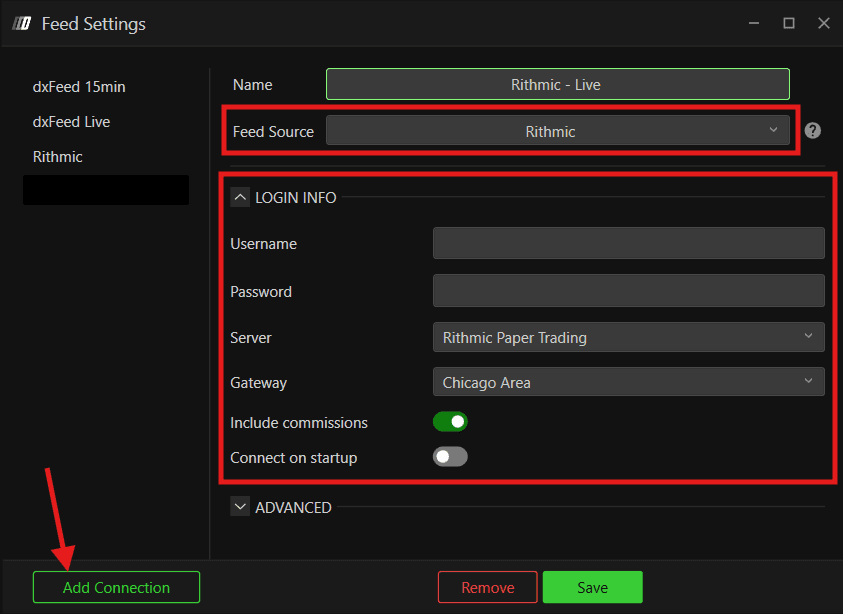
Rithmic is the current protocol available in DeepChart/DeepDom. The setup is similar to RAPI with one additional field — the Server selection.
Open DeepChart/DeepDom and go to the connection/datafeed settings
Click Add Connection
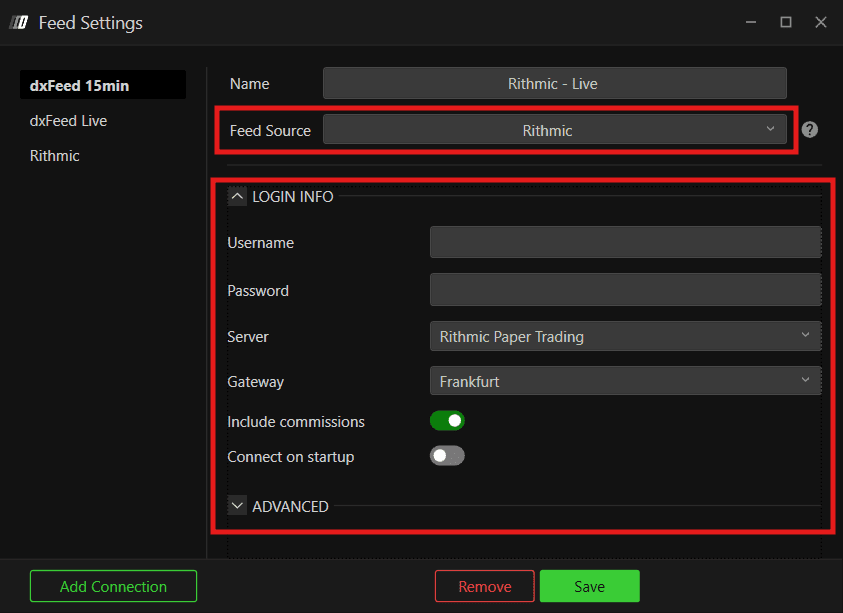
Under Feed Source, select Rithmic
Enter your Username and Password
Under Server, select Rithmic Paper Trading
Under Gateway, select the one nearest to your location, or choose Chicago Area
Click Save and then Connect
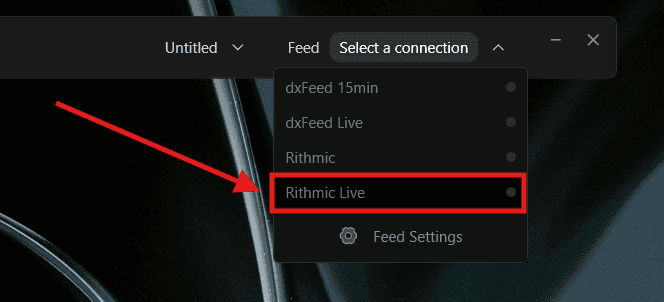
Note: If you are experiencing connection issues with Rithmic, switch to Rithmic RAPI and try again. Both protocols use the same credentials — no other changes are required.
4. Configure Symbol Manager
Once Rithmic is connected, verify that the data feed is active and linked to the correct exchanges before opening any chart.
Go to Options in the top menu
Click on Symbol Manager
You will see a list of exchanges — check that the exchanges you need are connected to your live Rithmic data feed
A connected exchange will reflect the Rithmic feed you added in the previous step
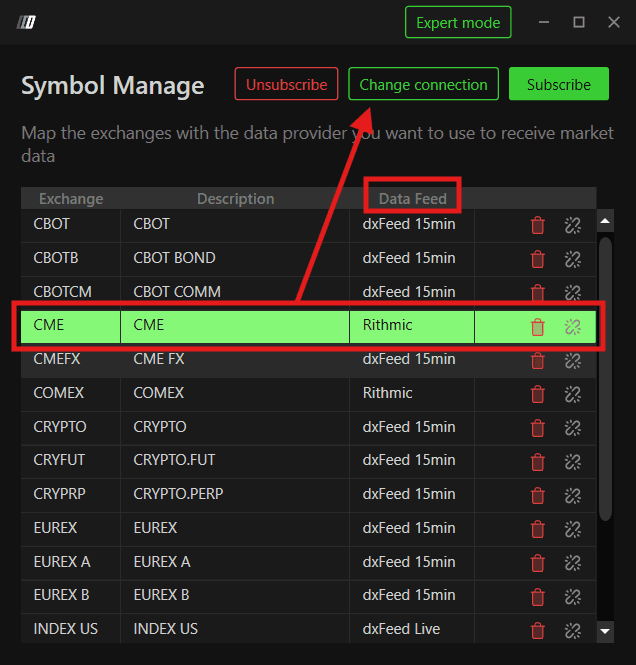
Tip: If an exchange appears disconnected or inactive, double-check your Rithmic connection settings in Step 3.
5. Open a Price Chart
Once the Symbol Manager confirms your feed is active, you can open a chart.
Go to New in the top menu
Click on Price Chart
A dialog will appear — select your instrument (e.g. ES or NQ)
Click OK or Open — the chart will load with live Rithmic data
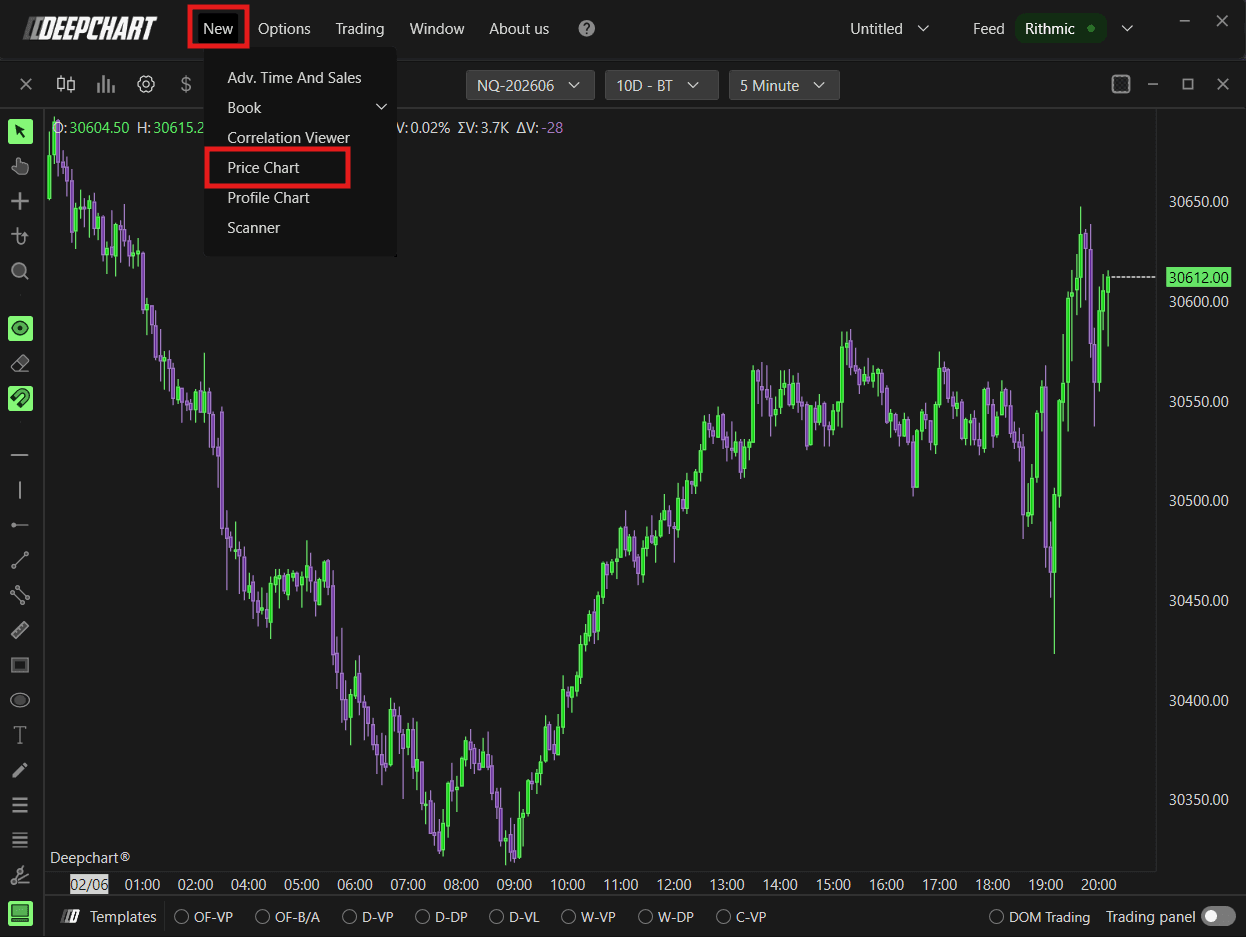
You are now live on DeepCharts with Rithmic data feed.
6. Using the Same Feed on DeepChart & DeepDom
If you have access to both DeepChart and DeepDom, you do not need a separate subscription or separate credentials. Both platforms share the same bridge for Rithmic data feed connectivity.
Simply use the following on both platforms:
The same Rithmic credentials
The same Gateway
The same Server
Steps to Connect DeepDom
Open DeepDom
Go to the connection/datafeed settings
Enter the same Rithmic credentials used in DeepCharts
Select the same Server and same Gateway
Click Connect
Both platforms will now run simultaneously on the same Rithmic data feed without any conflicts.
Still Having Trouble?
Our support team is available 24/7 and ready to help you with any issue you encounter.
When reaching out, please include:
A screenshot of the issue
A brief description of what you were trying to do
Support Ticket (Fastest Response) Visit www.deepcharts.com and create a support chat directly on our website.
Email Support Reach us at support@deepcharts.com — please note that email responses may take a little longer than a support chat.
