Updated:
Overview
If deleting data from the software does not fix the issue, the symbol’s data files may be fully corrupted. In this case, you must manually delete the data folder so DeepCharts can rebuild it.
⚠️ Use this method only if the software method fails.

When to Use This Method
Charts still not moving after software delete
Repeated data errors or file path errors
Missing or corrupted data files
Steps to Delete Data from Database Folders
Step 1: Find the Database Folder Path
Open DeepCharts
Go to:
Copy the Database Folder Path
Step 2: Delete the Symbol Folder
Open File Explorer
Paste the copied path into the address bar
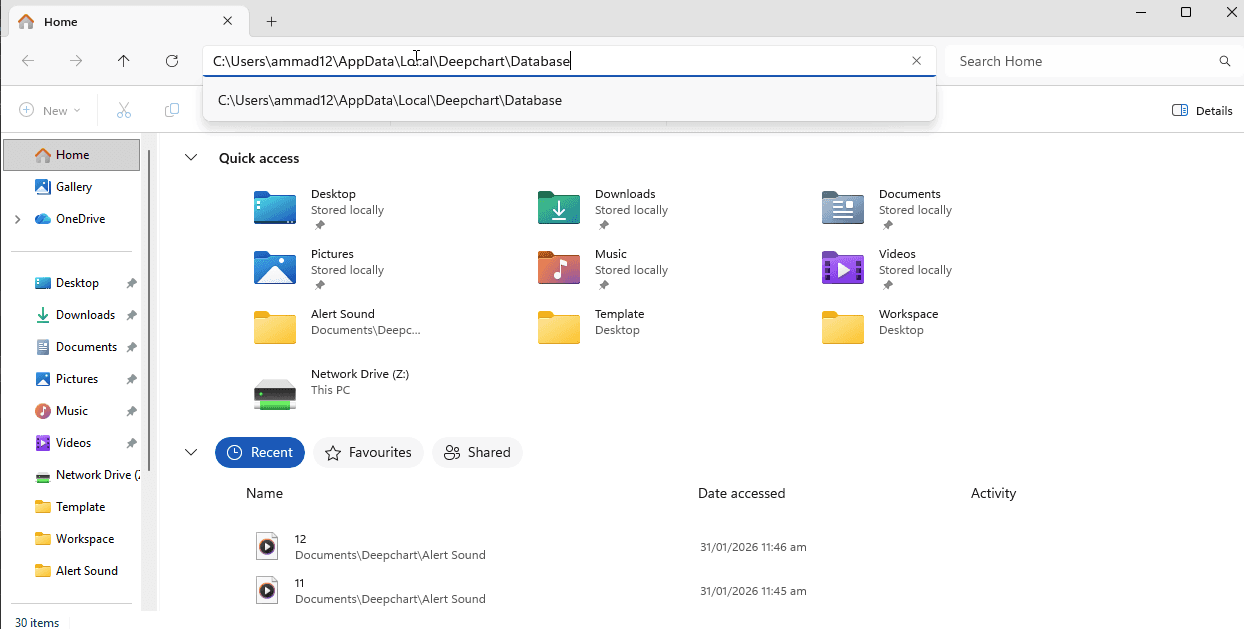
Locate the folder for the affected symbol
Delete only that symbol’s folder
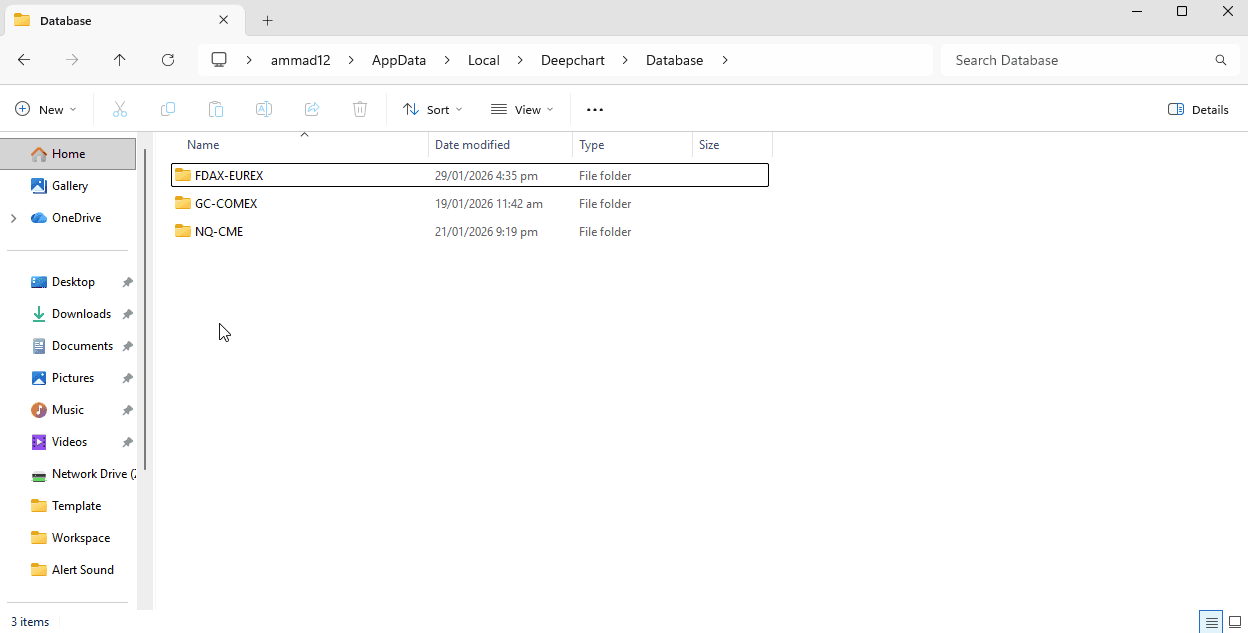
⚠️ Do not delete folders of other symbols unless necessary.
Step 3: Restart DeepCharts
Close DeepCharts if it is running
Restart the application
Open the chart again
DeepCharts will:
Recreate the folder
Download fresh data automatically
Important Notes
Always restart DeepCharts after deleting folders
Skipping restart may cause file path errors
This does not affect your account or data feed
