How To

Updated:

Feb 26, 2026

Connecting to Historical Data (End of Day Data)

Connecting to Historical Data (End of Day Data)

Instructions for setting up end-of-day data in Deepchart software.

Instructions for setting up end-of-day data in Deepchart software.

No headings found on page
  • Open the Deepchart Software

  • Open the Feed Settings (Select connection > Feed Settings)
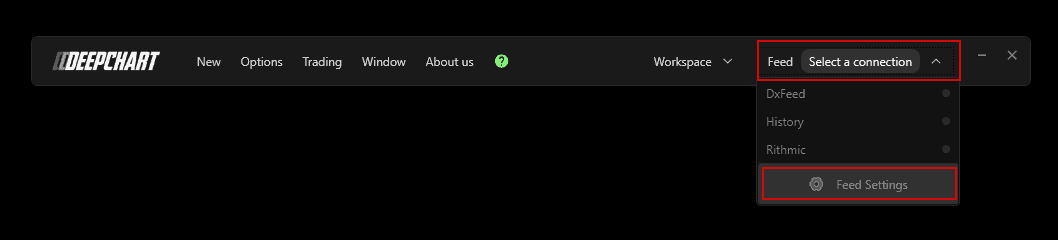
  • Click on Add Connection

  • Name the data feed profile (you may name this anything you prefer) and select Feed Source : Historical. 
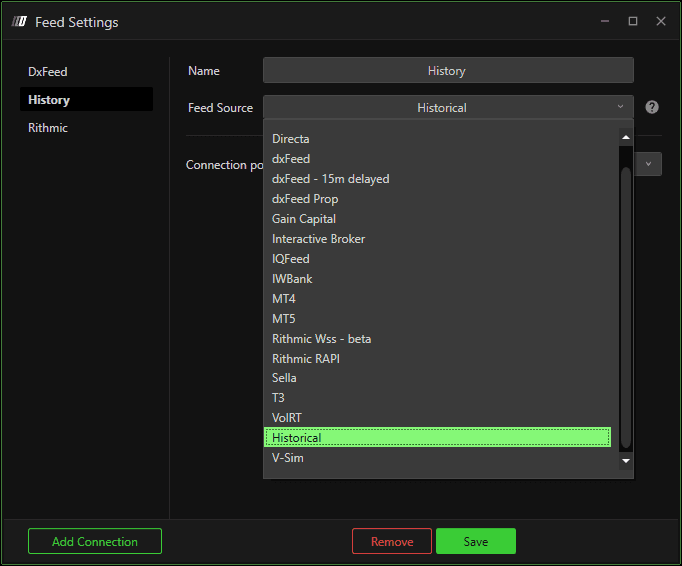

  • Click Save once done and close the Feed Settings.

  • Open the Symbol Manage (Options > Symbol Manage)
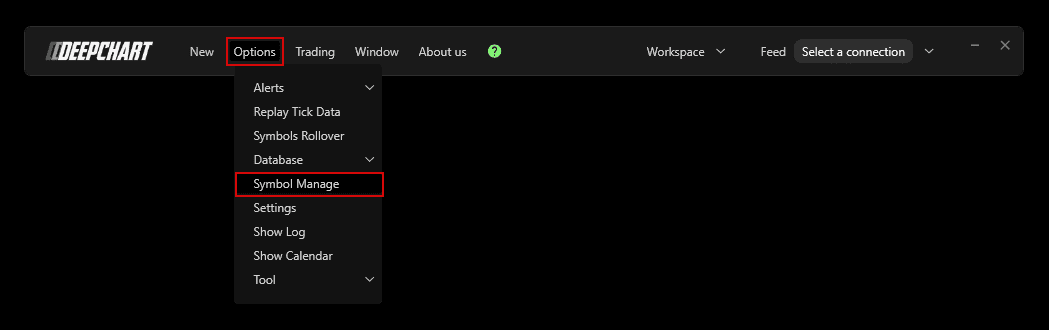
Make sure to set your exchange to the Feed Source. To do this, you can right click on the Data Feed column of your preferred exchange and set the data feed to your newly created data feed profile. You also may add an exchange and set the data feed. 
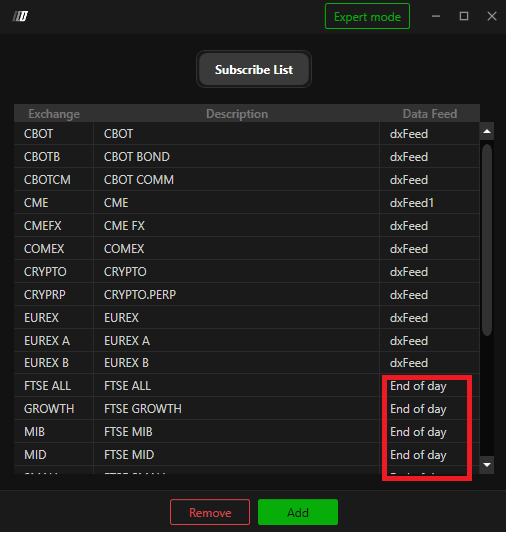
You can open new chart to see the historical data!

Tools for futures, currency & options involves substantial risk & is not appropriate for everyone. Only risk capital should be used for trading.

Testimonials appearing on this website may not be representative of other clients or customers and is not a guarantee of future performance or success.

Tools for futures, currency & options involves substantial risk & is not appropriate for everyone. Only risk capital should be used for trading. Testimonials appearing on this website may not be representative of other clients or customers and is not a guarantee of future performance or success.

Deepcharts © 2026 All right reserved

Tools for futures, currency & options involves substantial risk & is not appropriate for everyone. Only risk capital should be used for trading. Testimonials appearing on this website may not be representative of other clients or customers and is not a guarantee of future performance or success.

Deepcharts © 2026 All right reserved