Updated:
Overview
DeepChart connects to Interactive Brokers (IB) using the Trader Workstation (TWS) API. To establish a successful connection, Trader Workstation must be properly configured and kept running while DeepChart is in use.
⚠️ Important:
Interactive Brokers data is aggregated, so it is not suitable for order-flow tools. IB should be used only for trade execution, while charts must be built using a separate dxFeed or Rithmic data feed.

Step 1: Download and Log In to Trader Workstation (TWS)
Download Trader Workstation (TWS) from the official Interactive Brokers website.
Log in using your Interactive Brokers account credentials.
Keep TWS open during the entire setup process.
Step 2: Configure TWS API Settings
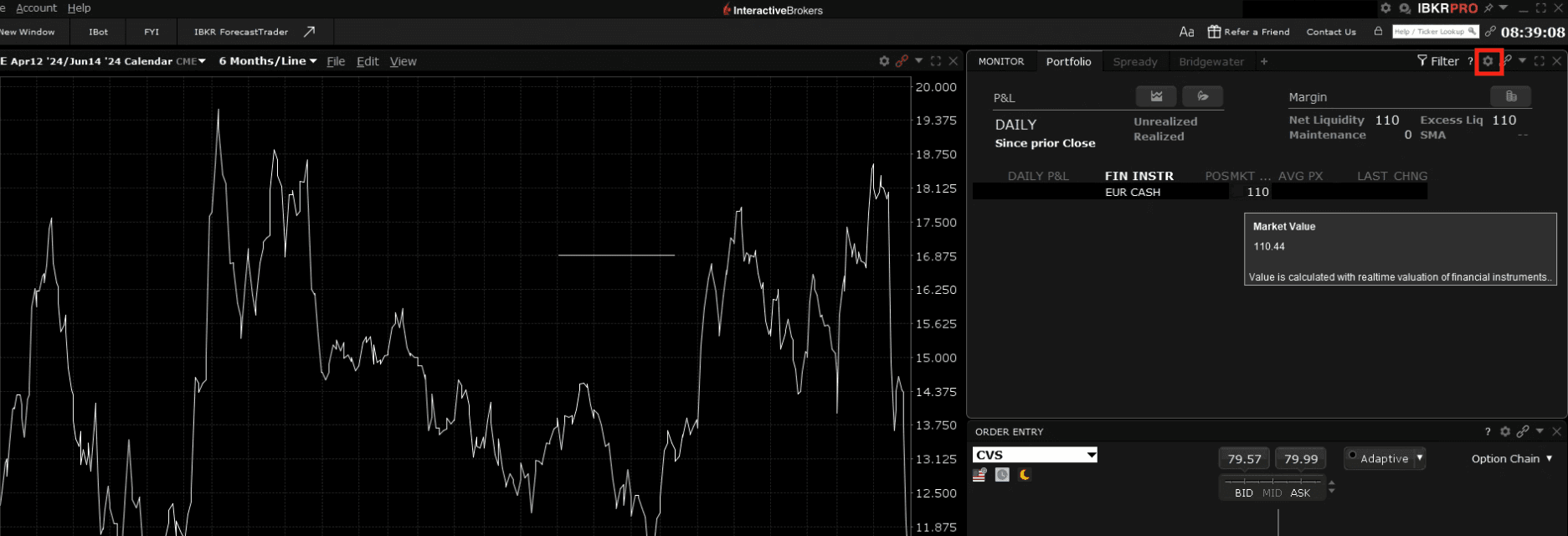
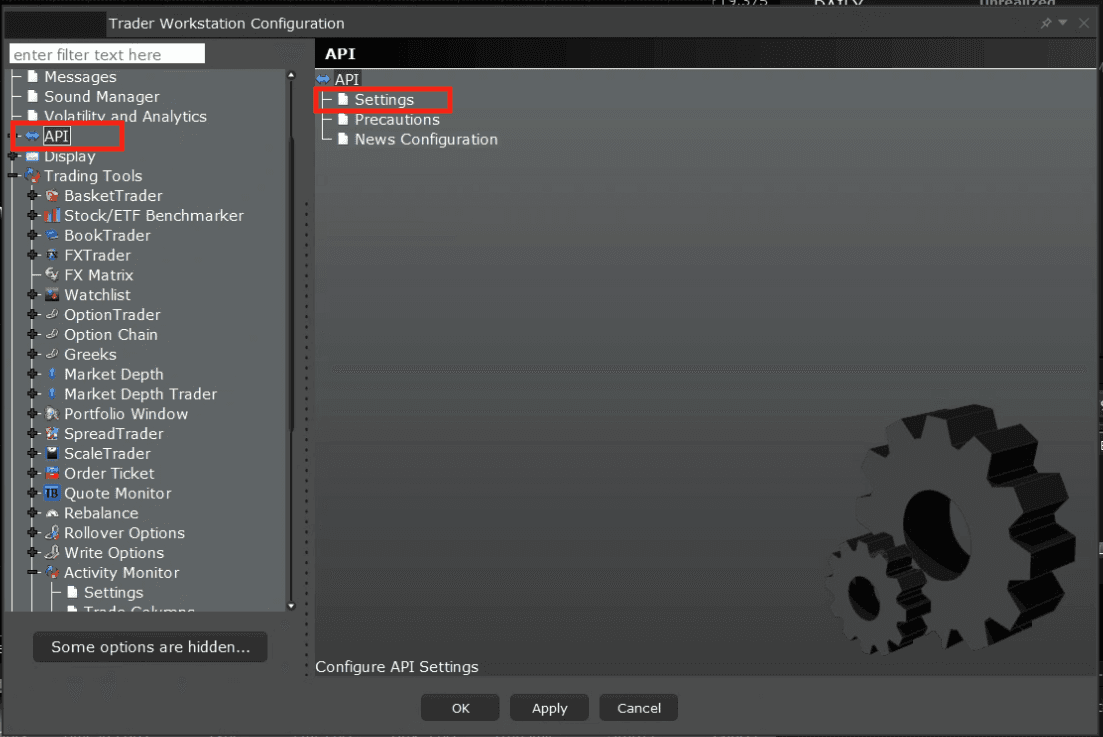
In Trader Workstation, go to:
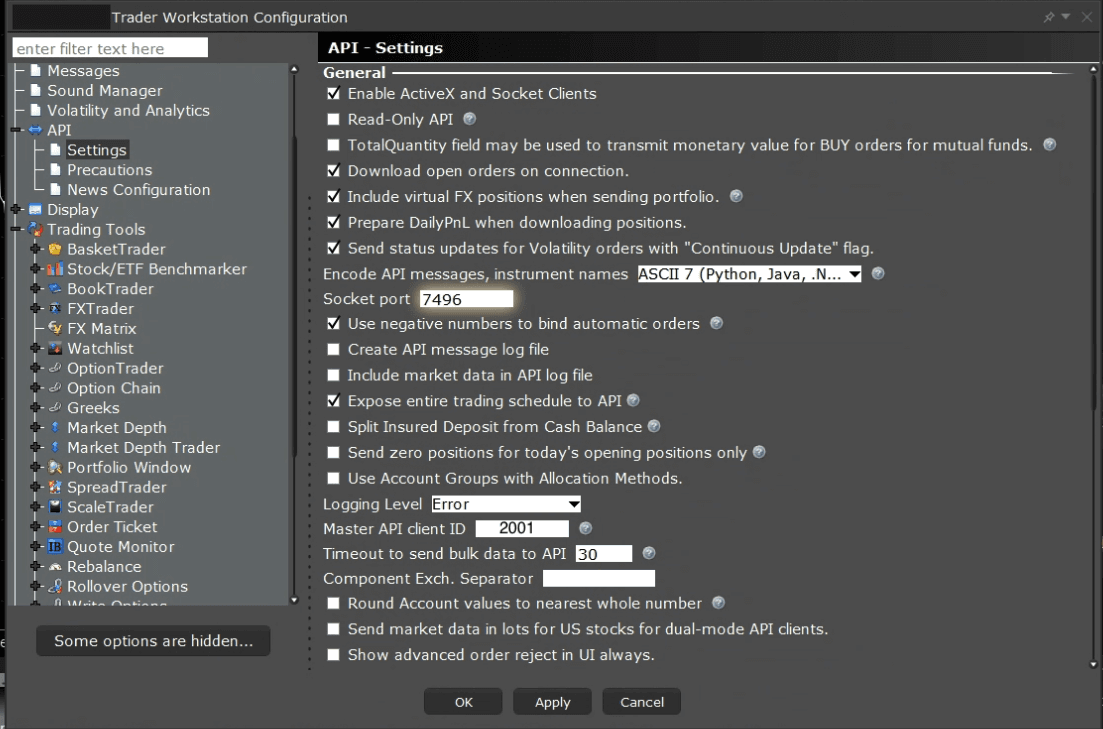
Edit → Global Configuration → API → SettingsEnable API access and configure the settings exactly as shown in the reference images, including:
Enable ActiveX and Socket Clients
Step 3: Configure Trusted IP Settings
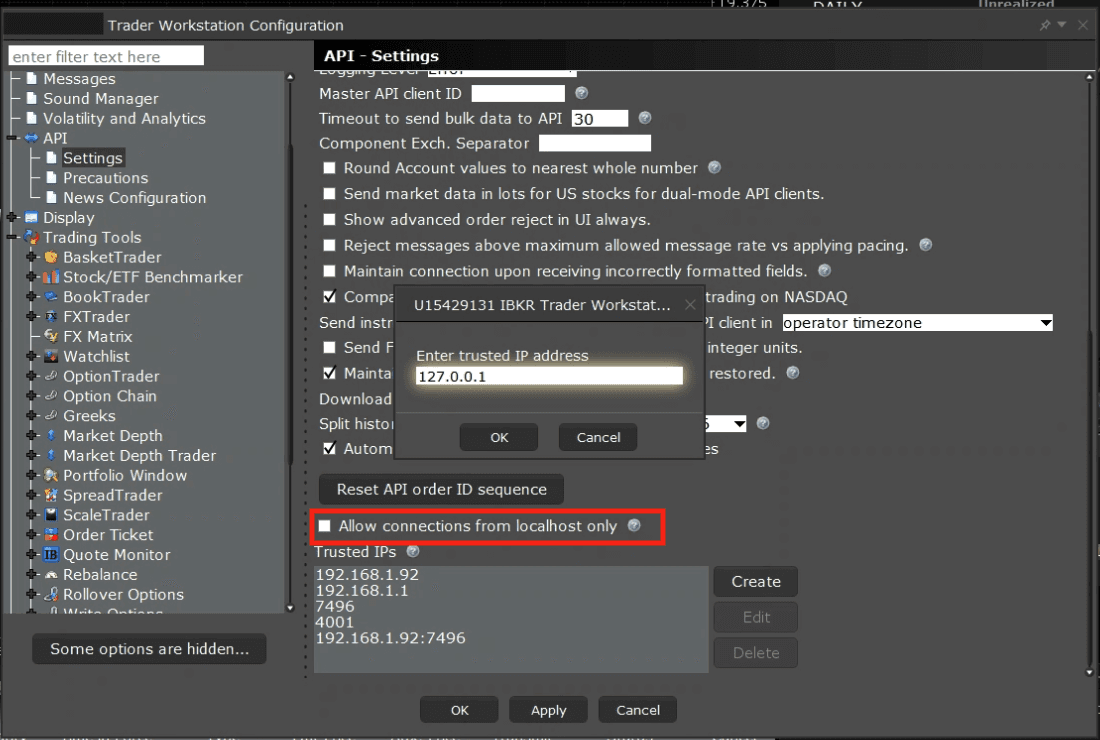
Uncheck the option:
“Allow connections from localhost only”Click Create and add the IP address:
127.0.0.1After adding the IP:
Re-check “Allow connections from localhost only”
Click Apply
Click Yes, then OK
✅ Your TWS API settings are now configured.
Important Requirement
🚨 Trader Workstation must remain open
If TWS is closed, DeepChart will not be able to connect to Interactive Brokers.
Step 4: Add Interactive Brokers in DeepChart
Open DeepChart
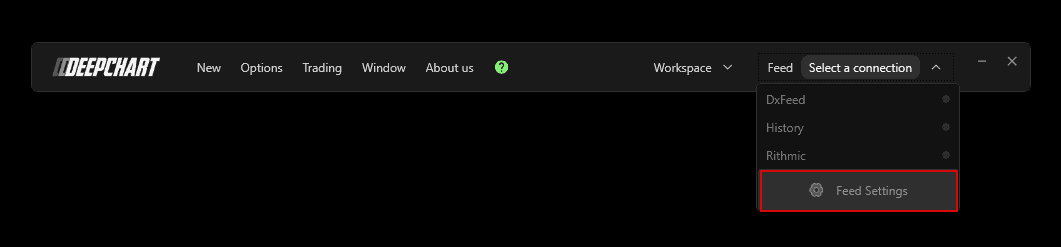
Go to Feed Settings
Click Add Connection

Enter a name for the feed
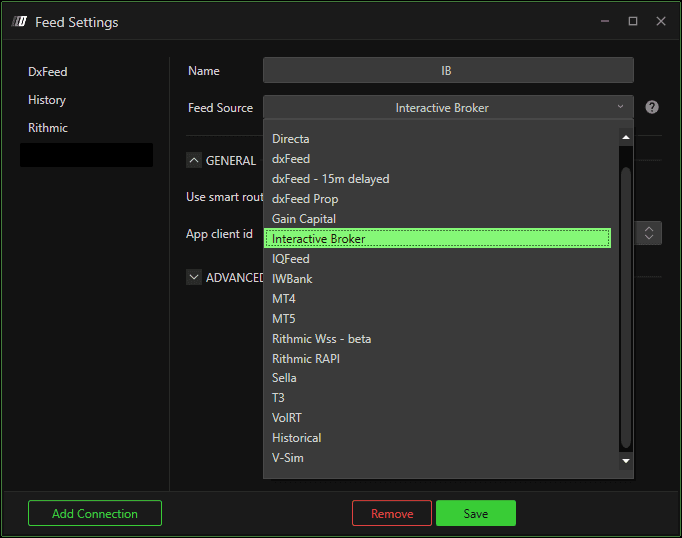
Select Interactive Brokers as the feed source
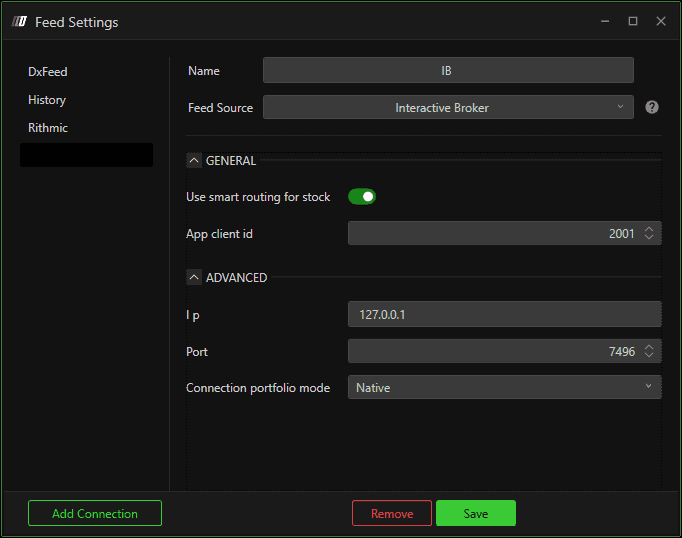
DeepChart will automatically populate the required settings.
✔️ Verify that the settings match the reference image.
Click Save
Step 5: Connect IB and Data Feed Together
After saving:
You will see Interactive Brokers in your feed list
Connect the IB feed
⚠️ Critical Step (Very Important)
You must also connect a separate market data feed:
dxFeed or
Rithmic
Why This Is Required
Interactive Brokers provides aggregated market data, which:
Cannot build accurate order-flow tools
Cannot be used for footprint, delta, or volume analysis
📌 IB is used only for trade execution, not chart construction.
Step 6: Select Exchange Data Feed for Charts
Go to:
Options → Symbol ManagerSet Exchange Data Feed to:
dxFeed or
Rithmic
This ensures charts are built from high-quality tick data
Step 7: Trade Using Interactive Brokers
Open a chart
In the Trading Panel:
Select Interactive Brokers as the broker
Select your IB trading account
Execute trades normally
Charts will be built from dxFeed or Rithmic, while orders will be sent through Interactive Brokers.
Summary
Component | Purpose |
|---|---|
Trader Workstation (TWS) | Required for IB API connection |
Interactive Brokers feed | Trade execution only |
dxFeed / Rithmic | Chart & order-flow data |
TWS running | Mandatory for connection |
