Updated:
Overview
If your data feed is connected but the price chart is not updating, this usually happens due to market conditions, incorrect settings, or corrupted local data. Follow the steps below to identify and resolve the issue.

Possible Causes & Solutions
1. Market Is Closed
Before troubleshooting further, confirm that:
The market is currently open
It is not a weekend or market holiday
If the market is closed, prices will not update even if the feed is connected.
2. First-Time Feed Connection Issue
If you connected the data feed for the first time and prices are not moving:
Close DeepCharts
Restart the application
Reconnect the data feed
In most cases, this immediately resolves the issue.
3. Incorrect Exchange Assigned to the Symbol
If your chart is not linked to the active data feed:
Open Symbol Manager
Make sure the symbol’s exchange data feed matches the currently connected feed
📌 If the exchange is set to a different or disconnected feed, prices will not update.
4. Corrupted Data (Most Common Cause)
If the above steps don’t work, your local market data may be corrupted. You can fix this using either of the methods below.
Method 1: Soft Data Delete (Recommended First)
Steps:
Close all charts and workspaces
Disconnect from all data feeds
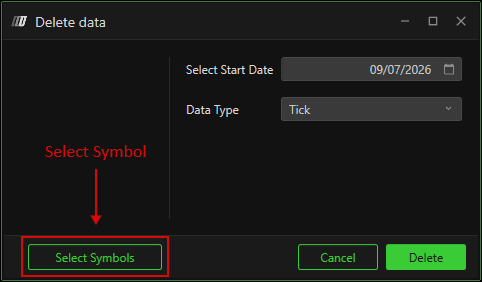
Go to:
Click Select Symbol
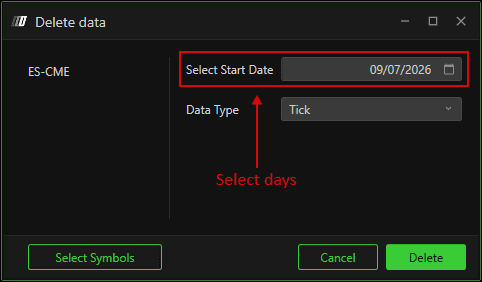
Choose the affected symbol
Select 2–3 days back from today
Click Delete
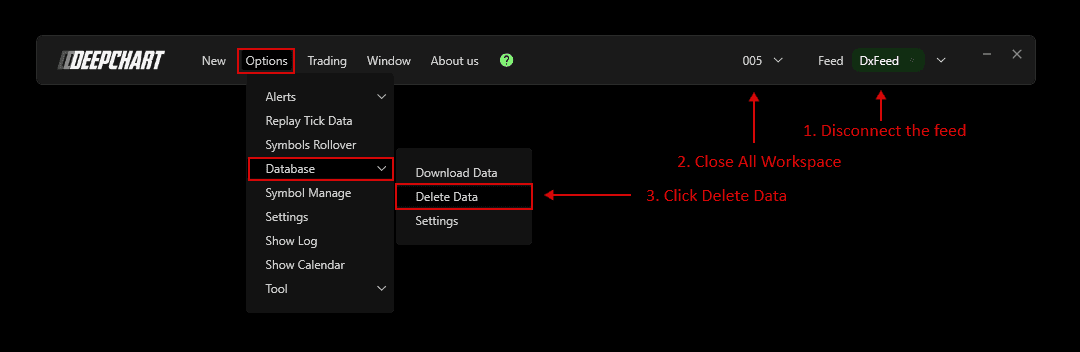
After deletion:
Reopen the chart
DeepCharts will automatically download fresh data
If the chart still does not move, proceed to Method 2.
Method 2: Manual Data Folder Deletion (Hard Reset)
Steps:
Go to:
Copy the Database Folder Path
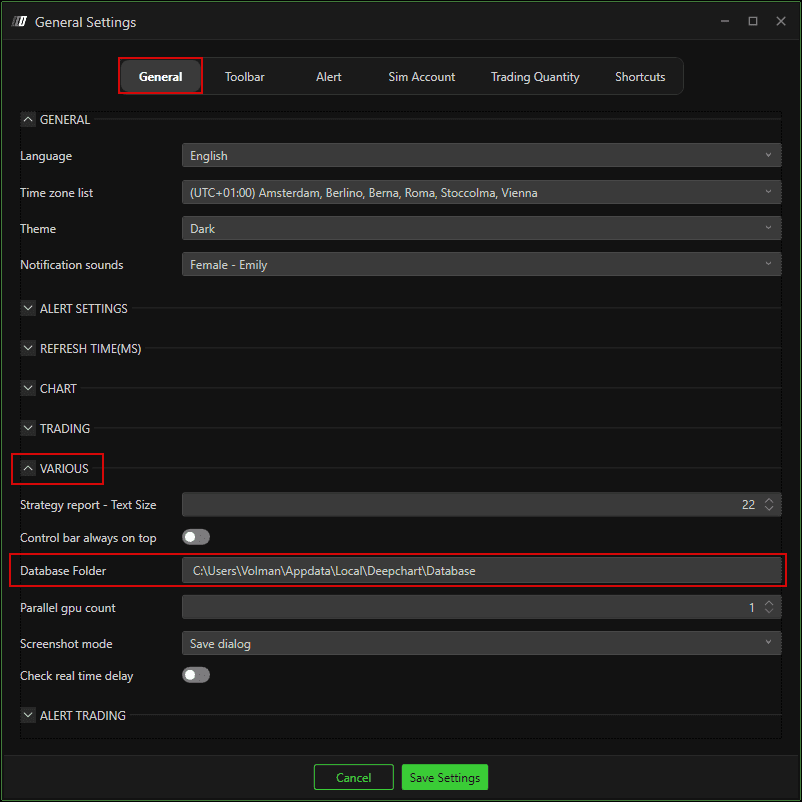
Open File Explorer
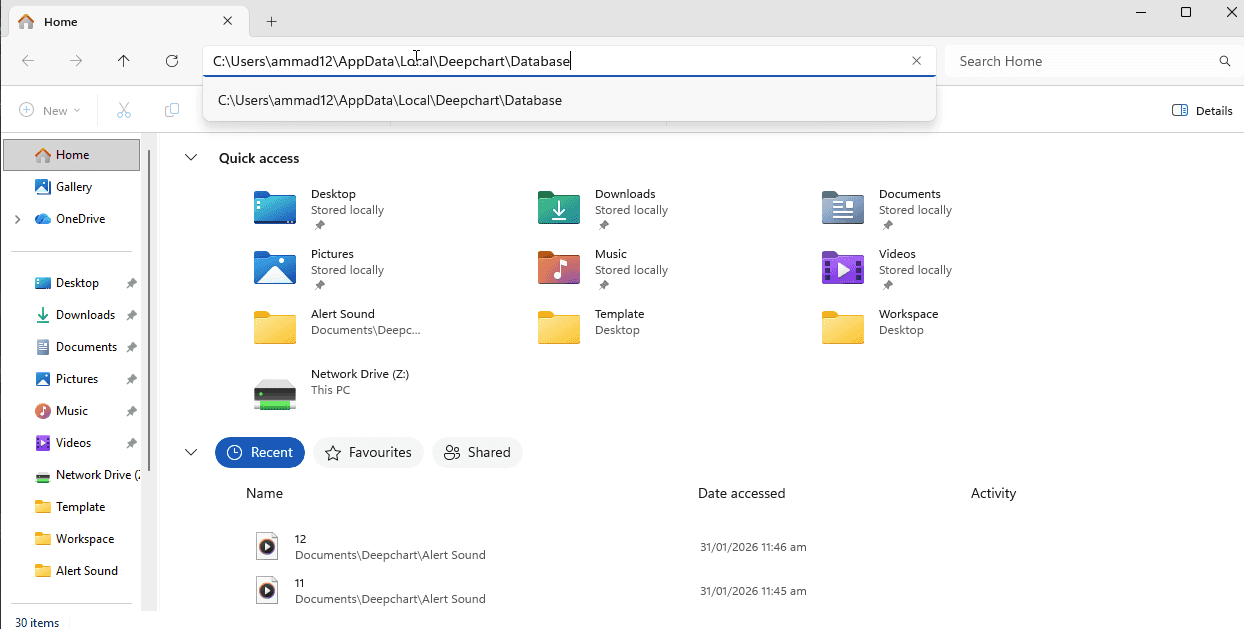
Paste the path into the address bar
Locate the folder for the affected symbol
Delete only that symbol’s folder
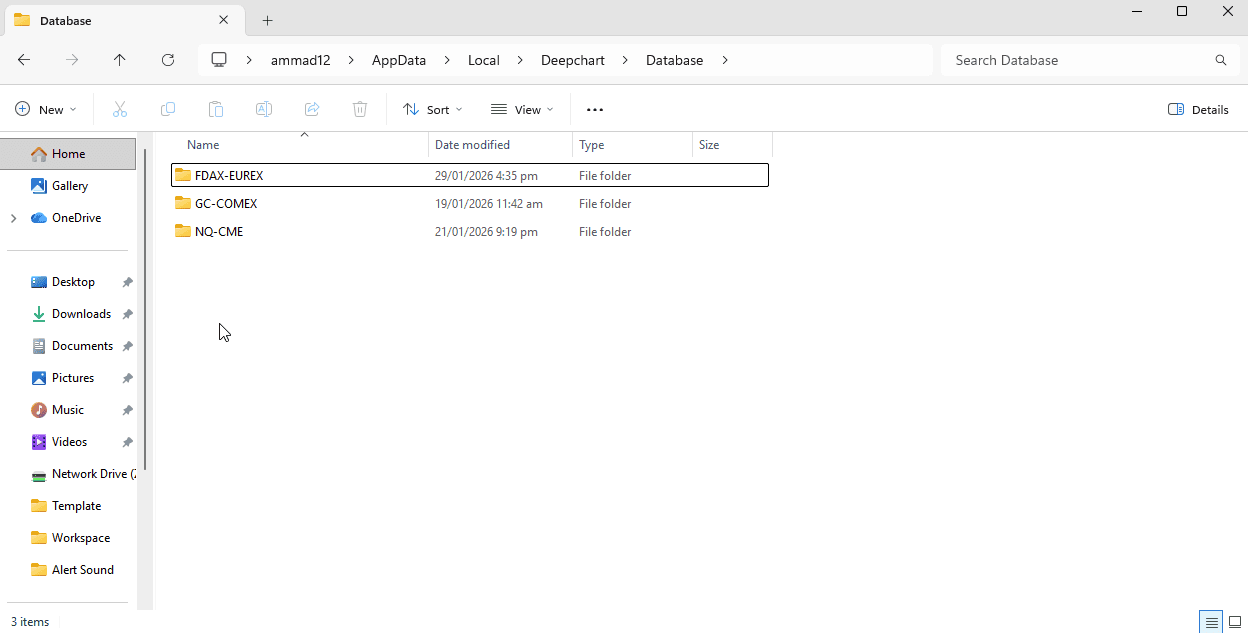
⚠️ Do not delete other symbol folders unless needed.
Final Step
Restart DeepCharts
Open the chart again
✅ The platform will recreate the folder and download fresh data.
Important Notes
Always restart the platform after deleting data folders
Failing to restart may result in file-path errors
This process does not affect your account or subscription
