Updated:
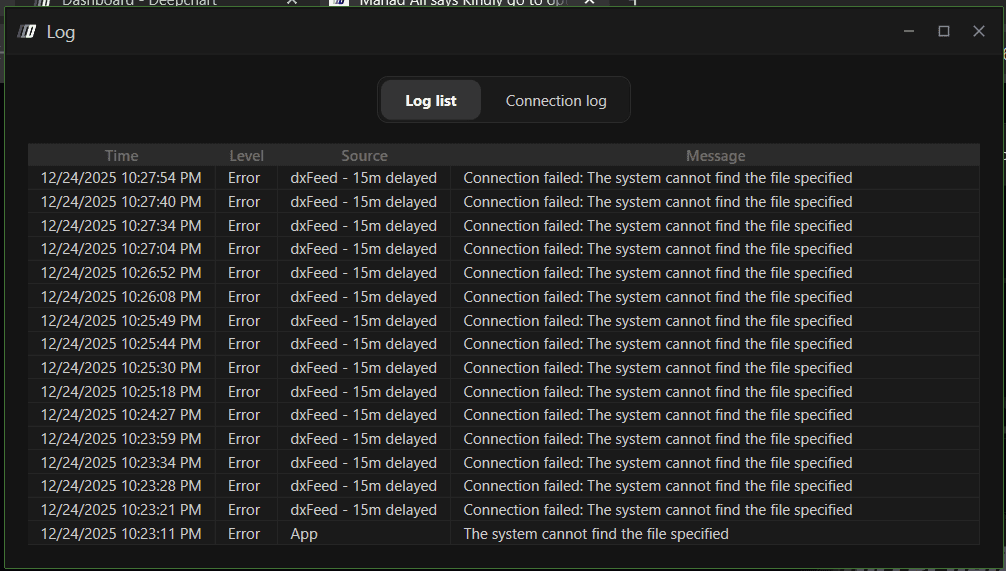
Overview
This error occurs when DeepChart is unable to locate or run the Volumetrica Bridge, which is a required background component for the platform to function correctly.
When DeepChart is installed, it automatically creates a folder named Volumetrica Bridge at the following path:
When DeepChart is running normally, you should see Volumetrica Bridge running in the background (as shown in the image below).
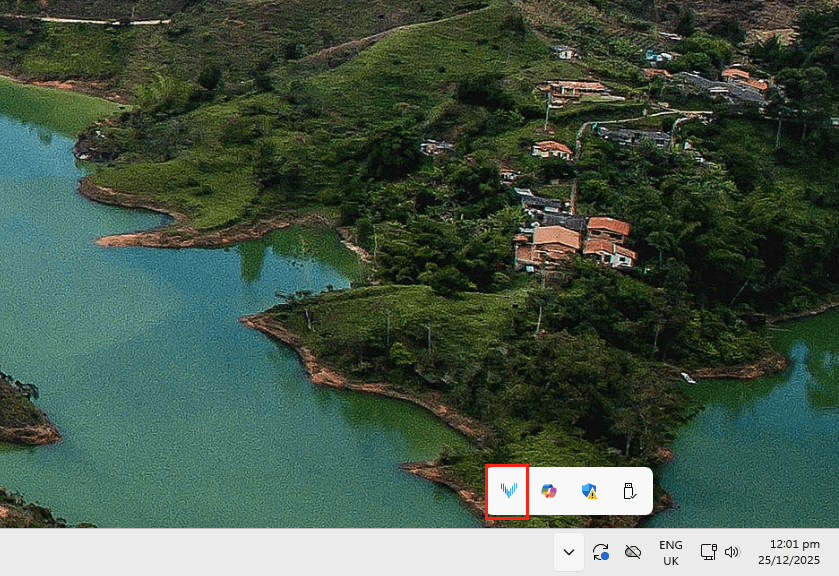
If you encounter this error, it means the Bridge is missing or not running properly.

Possible Causes
There are two common reasons for this issue:
The Volumetrica Bridge folder was not created during installation
An antivirus program (commonly McAfee) has blocked or quarantined the Bridge
Each cause and its solution are explained below.
Cause 1: Volumetrica Bridge Folder Is Missing
Description
The installer may fail to create the required Volumetrica Bridge folder at:
Without this folder and executable, DeepChart cannot establish the required connection.
Solution
Close DeepChart
Locate and open the DeepChart Installer (.exe) that you originally used to install the platform
Select Repair
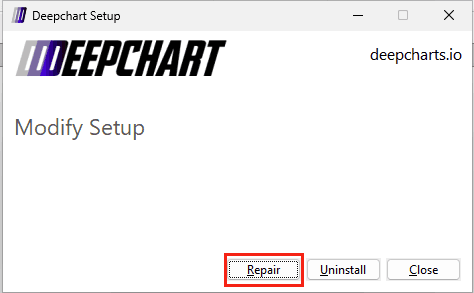
Allow the repair process to complete (this will recreate the missing Bridge files)
Launch DeepChart again
✅ In most cases, the error will be resolved after this step.
If the issue persists, proceed to Cause 2 below.
Cause 2: Antivirus Is Blocking Volumetrica Bridge (McAfee)
Description
Some antivirus programs—especially McAfee—may incorrectly flag VolumetricaBridge.exe and quarantine it, preventing it from running.
Solution: Restore and Whitelist Volumetrica Bridge in McAfee
Step 1: Close DeepChart
Make sure DeepChart is completely closed before proceeding.
Step 2: Open McAfee Antivirus
Launch the McAfee application.
Step 3: Open Quarantined Items
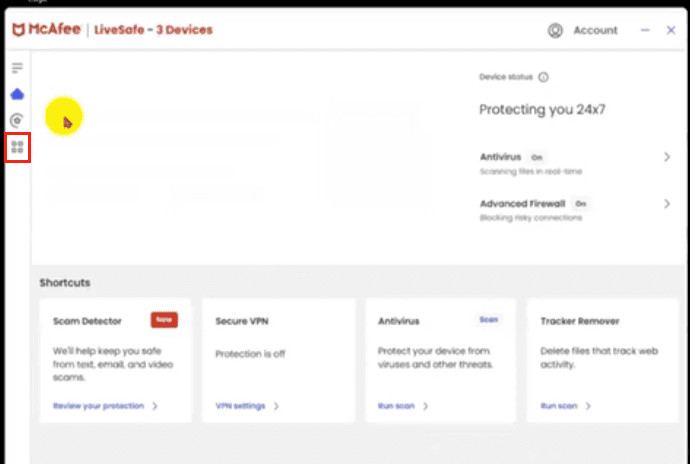
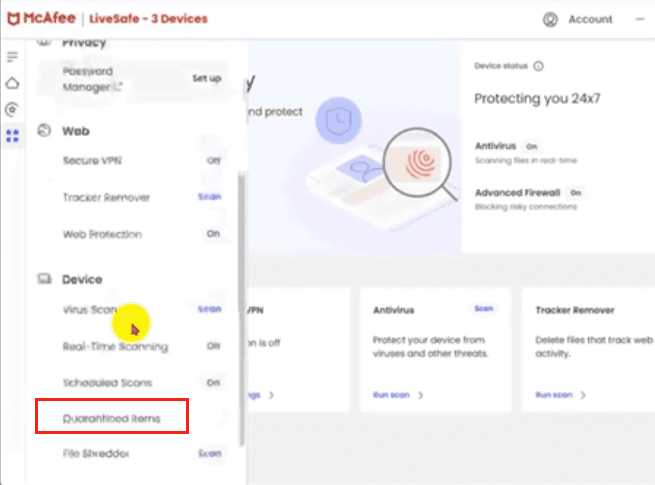
Go to Menu
Select Quarantined Items
Step 4: Restore Volumetrica Bridge
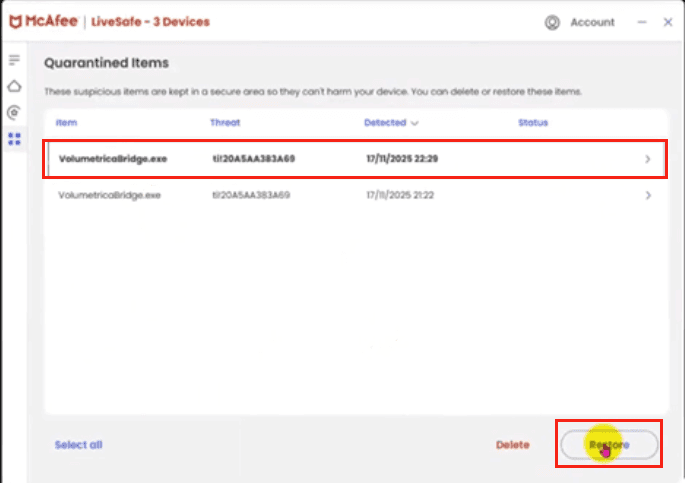
Locate
VolumetricaBridge.exeClick Restore
Confirm by selecting Yes, Restore
Step 5: Add Bridge to Real-Time Scanning Exclusions
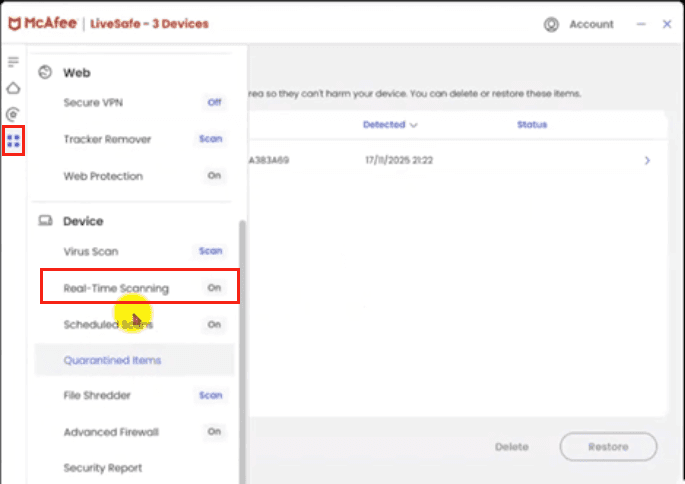
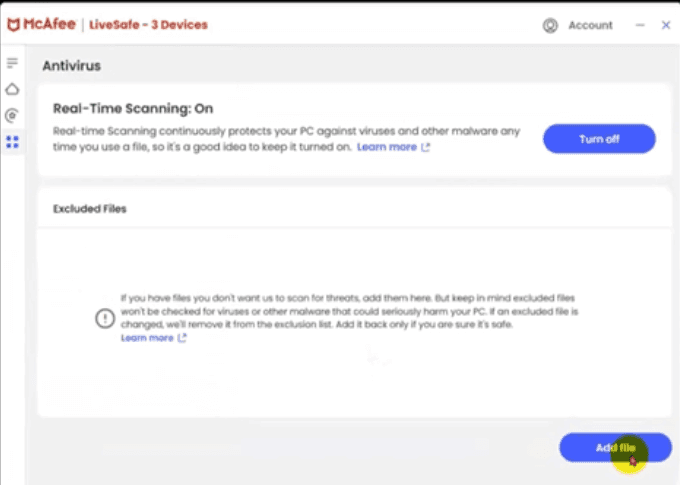
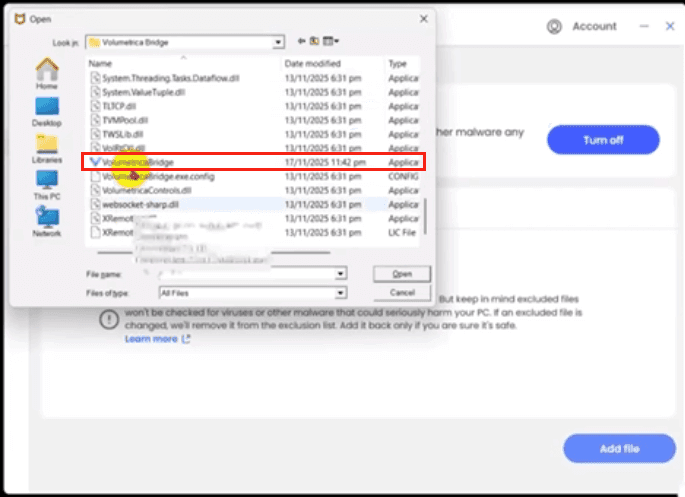
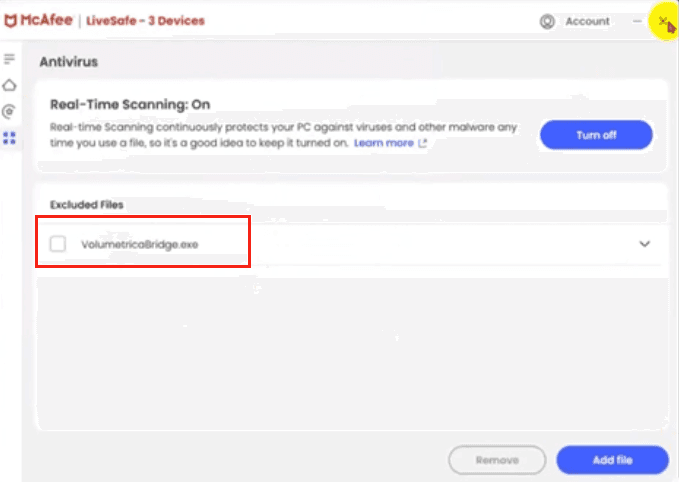
Go to Menu again
Open Real-Time Scanning
Click Add File
Browse to:
Select
VolumetricaBridge.exeClick Open
This ensures McAfee will no longer block the Bridge in the future.
Final Step
Close McAfee
Launch DeepChart again
✅ The error “Connection Failed: The system cannot find the file specified” should now be resolved.
Notes / Prevention Tips
Always install DeepChart using the official installer
Avoid force-closing the installer during setup
If using antivirus software, ensure Volumetrica Bridge is whitelisted
