Option Dynamic Walls is a proprietary DeepChart indicator that plots a band on your chart, showing the trend direction of price based on whether price is above, below, or inside the band.
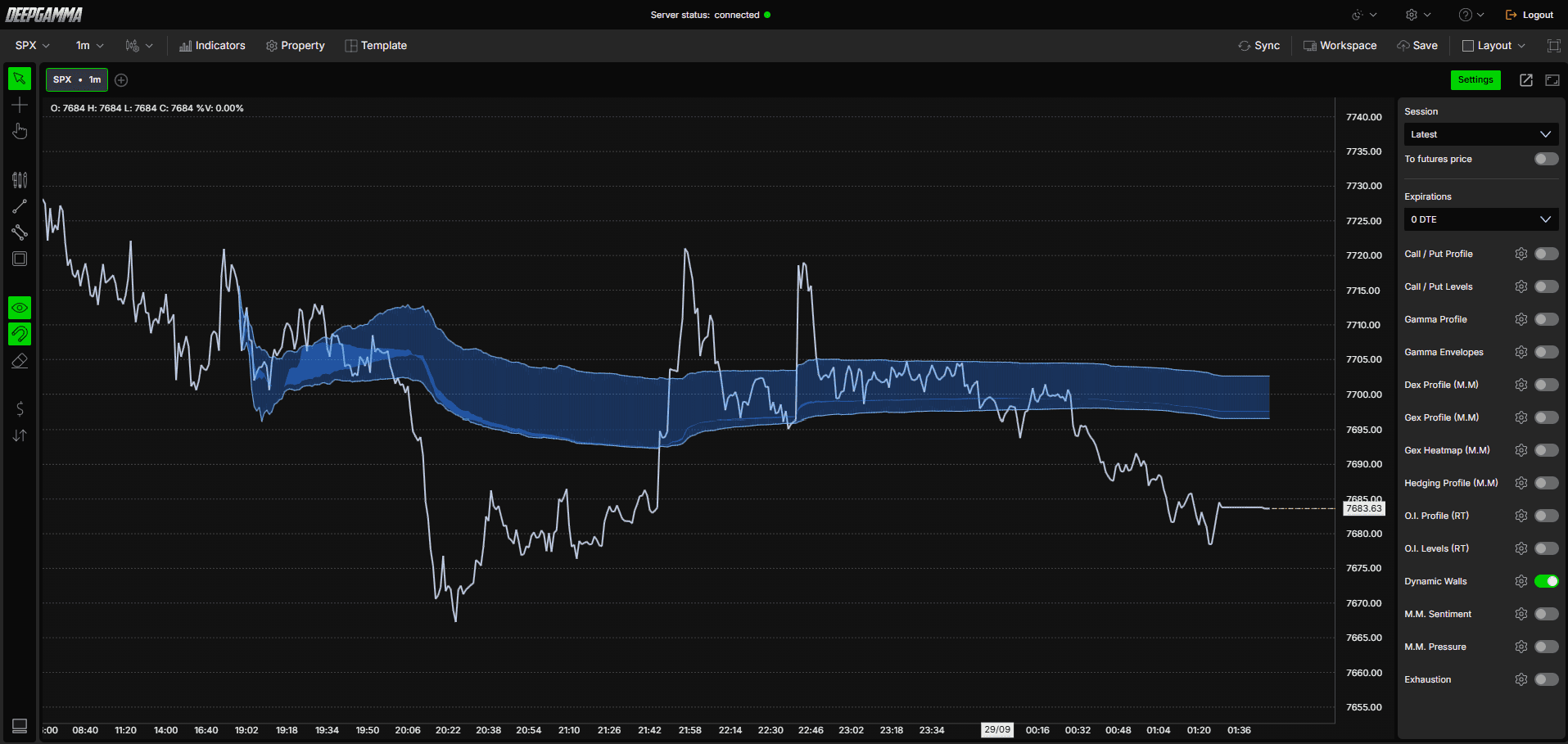
Note: Option Dynamic Walls uses CBOE data and shows values on SPX charts only.

How to Add Option Dynamic Walls
Open an SPX chart in DeepGamma Web
Click Indicators in the Menu Bar
Click the green Add indicator button at the bottom of the panel
Open the Options (Cboe) tab and search for Option Dynamic Walls
The indicator is added to your chart and appears in the Indicators panel
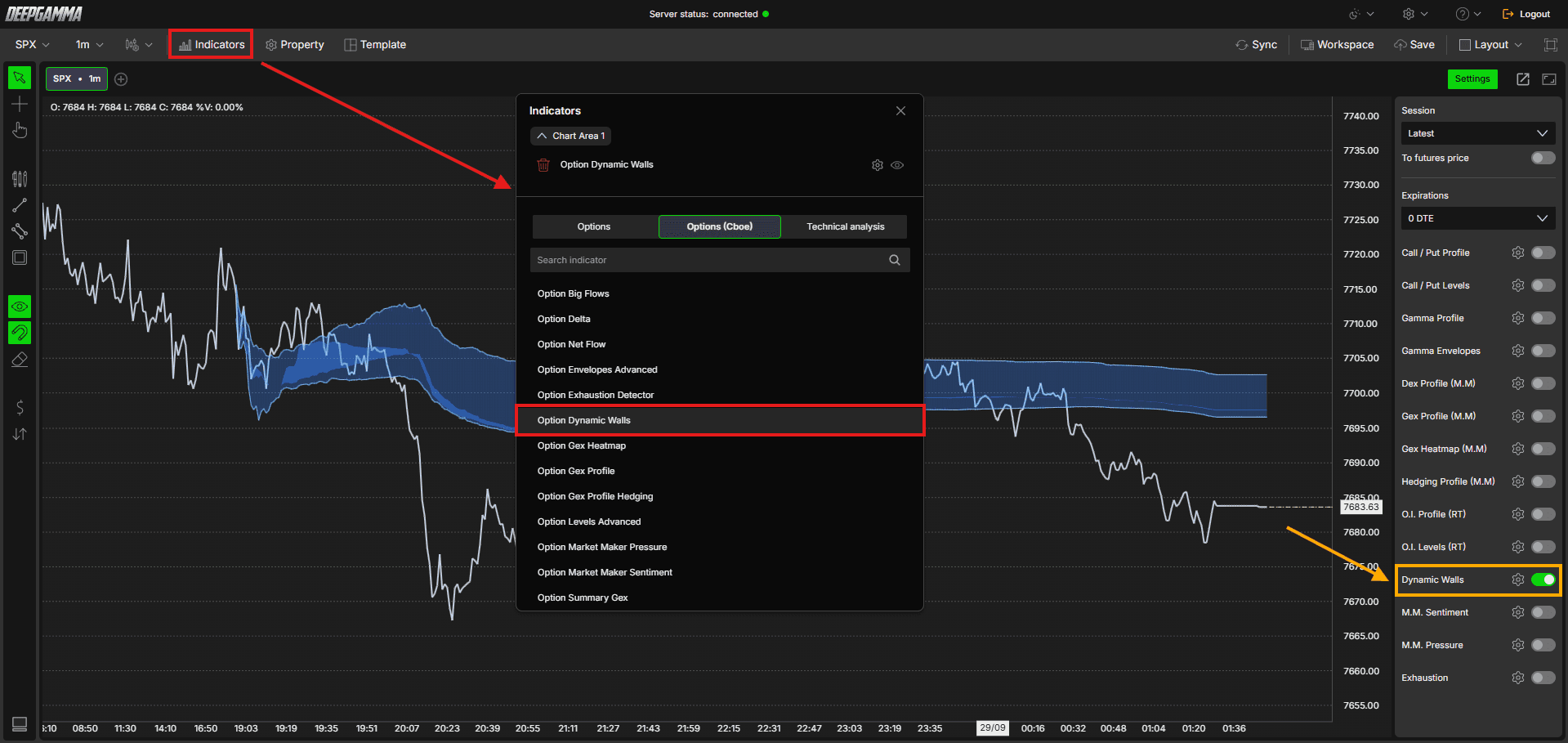
You can also turn it on or off from Dynamic Walls in the Settings quick bar.
Understanding the Indicator
Walls - The main band, shown by default in blue. Price above the band, below it, or inside it gives you a different read on the current trend direction
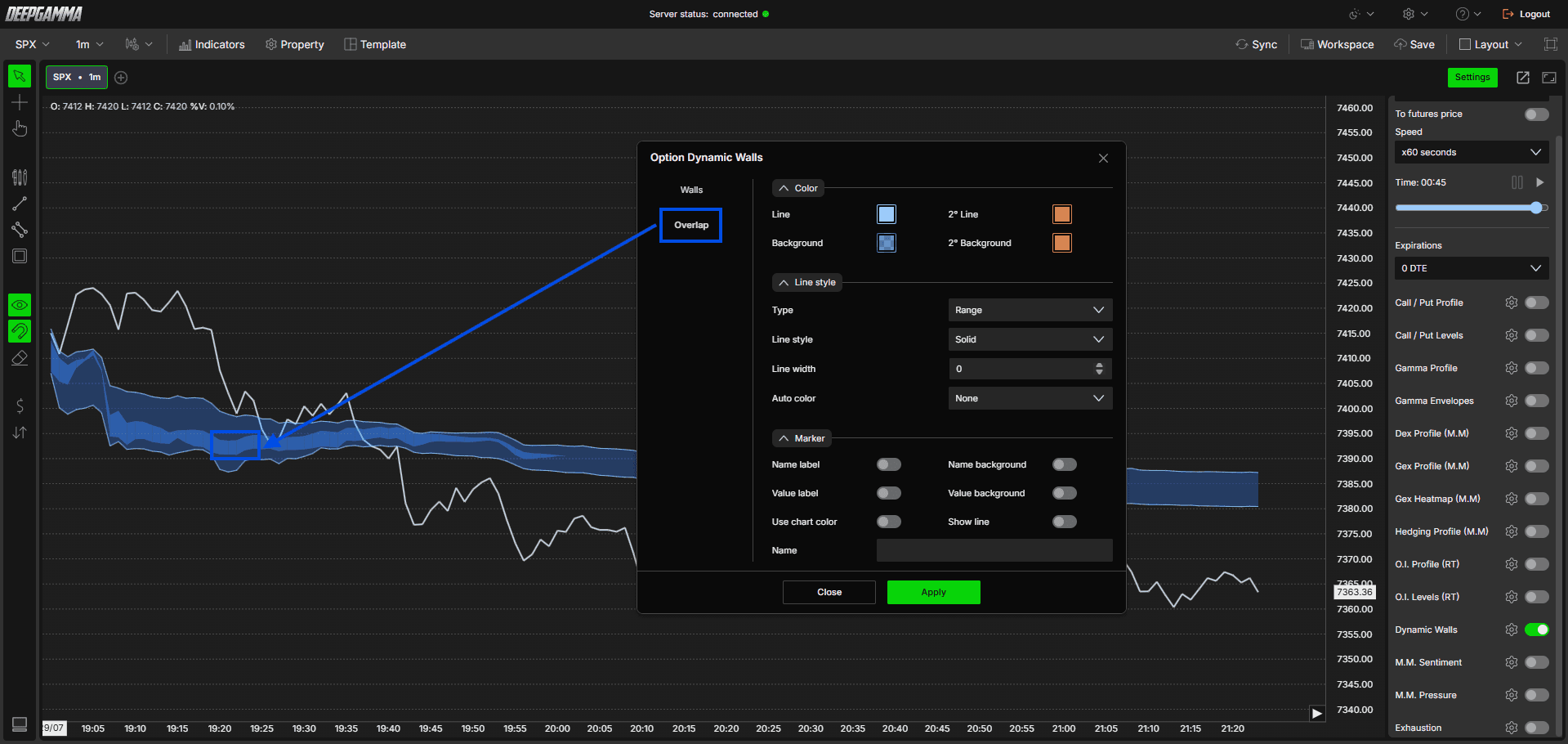
Overlap - A secondary band that appears alongside Walls, shown when a higher filter is applied

Settings
The indicator has two tabs, Walls and Overlap, with the same settings in each.
Walls
Color
Line - Set the color of the band’s edge line. Default is light blue
2° Line - Set a second color for the line. Default is red
Background - Set the color that fills the band. Default is blue
2° Background - Set a second color for the fill. Default is red
Line style
Type - Choose how the band is displayed. Options available:
Hidden
Range (default)
Line style - Choose the style of the edge line. Options available:
Solid (default)
Dash
Dot
Dash dot
Dash dot dot
Line width - Set the thickness of the edge line. Default is 1
Auto color - Set how the band changes color. Options available:
None (default)
Slope
+/-
Marker
Name label - Show the name of the band. Default is disabled
Value label - Show the current value on the price axis. Default is disabled
Use chart color - Use the chart color for the marker. Default is disabled
Name background - Show a background behind the name. Default is disabled
Value background - Show a background behind the value. Default is disabled
Show line - Show a line from the marker across the chart. Default is disabled
Name - Set the name of the band. Default is empty

Overlap
Color
Line - Set the color of the overlap area’s edge line. Default is light blue
2° Line - Set a second color for the line. Default is red
Background - Set the color that fills the overlap area. Default is blue
2° Background - Set a second color for the fill. Default is red
Line style
Type - Choose how the overlap area is displayed. Options available:
Hidden
Range (default)
Line style - Choose the style of the edge line. Options available:
Solid (default)
Dash
Dot
Dash dot
Dash dot dot
Line width - Set the thickness of the edge line. Default is 0, so no edge line is shown
Auto color - Set how the area changes color. Options available:
None (default)
Slope
+/-
Marker
Name label - Show the name of the area. Default is disabled
Value label - Show the current value on the price axis. Default is disabled
Use chart color - Use the chart color for the marker. Default is disabled
Name background - Show a background behind the name. Default is disabled
Value background - Show a background behind the value. Default is disabled
Show line - Show a line from the marker across the chart. Default is disabled
Name - Set the name of the area. Default is empty
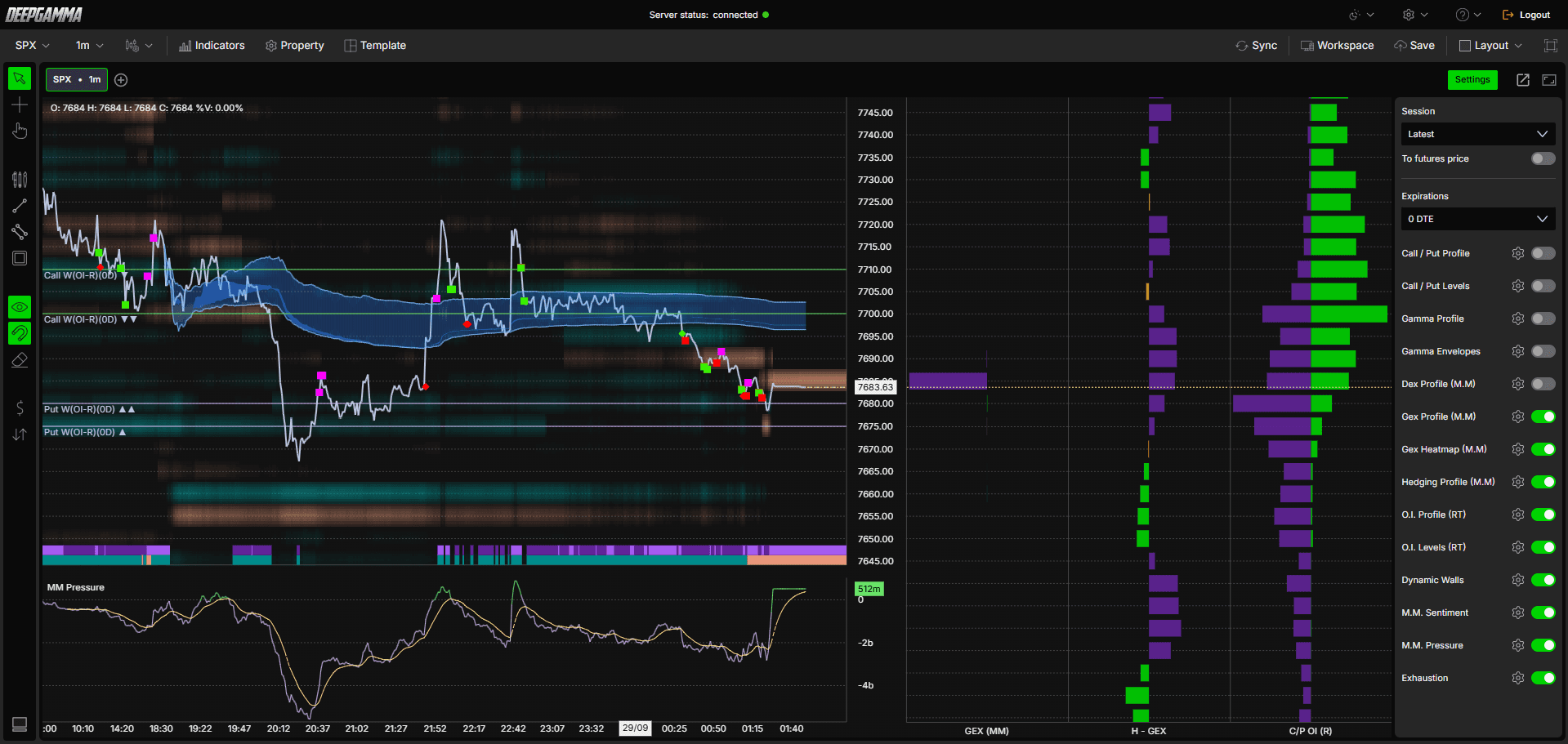
Example - How to Use Option Dynamic Walls
Price inside the band - When price is inside the band, it can point to a more neutral or ranging trend
Price above the band - Price sustaining above the band can point to an upward trend direction
Price below the band - Price sustaining below the band can point to a downward trend direction
Price breaking away from the band - When price moves sharply away from the band, it is outside its usual range. Watch how it behaves before it returns
Price returning to the band - After a move away, price can return and the band adjusts to sit around it again
Use the band as a reference area, and watch how price behaves when it moves into or away from it, rather than expecting a fixed reaction
Combine it with your other levels, such as O.I. Levels (RT) or Gex Profile (M.M), to see where they line up with the band
Confirm what happens at the band with order flow. The band does not always hold price inside it, so check a footprint chart or Option Big Flows for what is actually happening there
Any Questions?
Our support team is available 24/7 and ready to help you with any question.
When reaching out, please include:
Screenshot (if any)
Briefly describe the assistance or support you require
DeepCharts Live Support - Chat with our agents directly using the live chat box on www.deepcharts.com, or click here for 24/7 Live Chat for immediate access.
Email Support - Reach us at support@deepcharts.com - please note that email responses may take a little longer than a live support chat.
