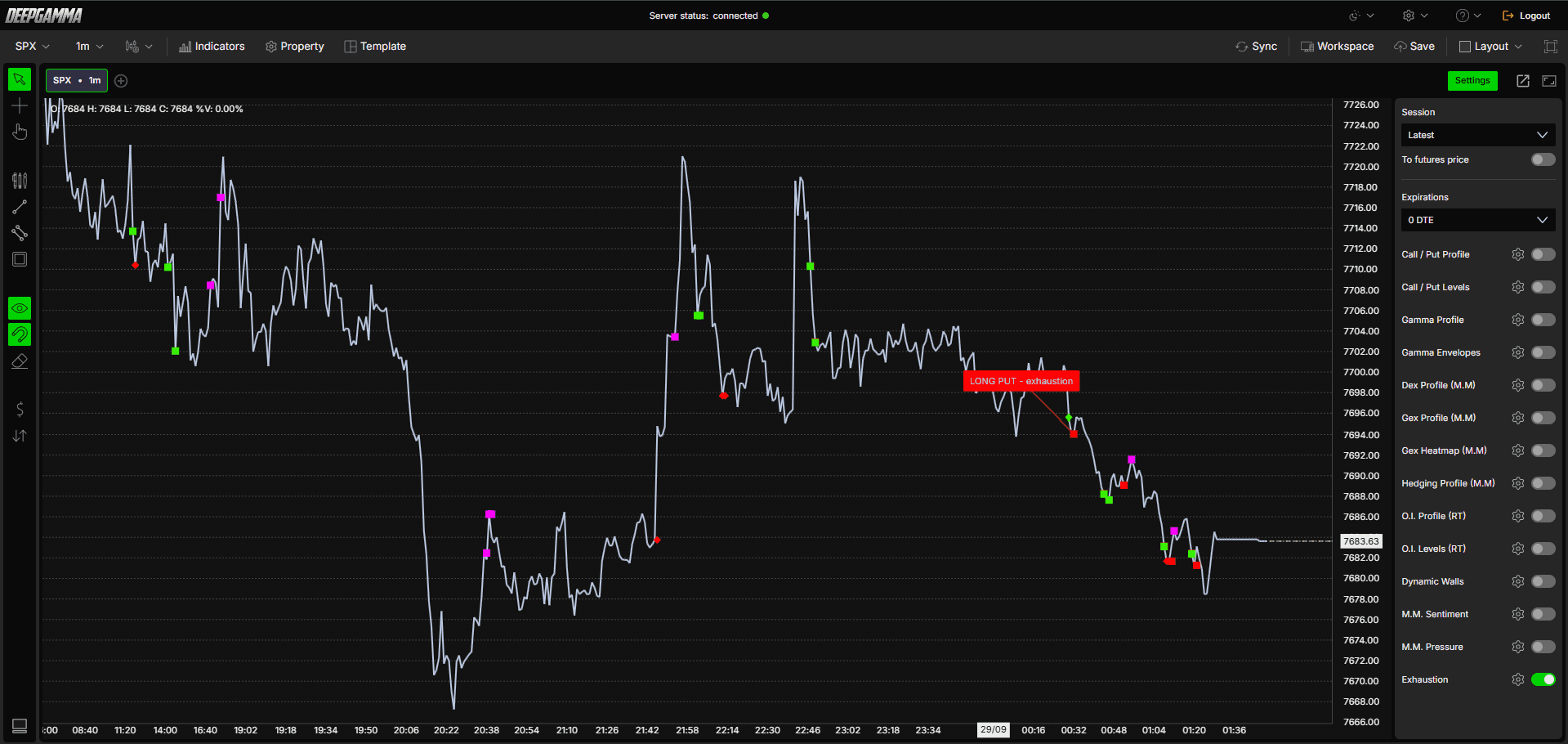
Option Exhaustion Detector plots markers on your chart where price may be showing signs of exhaustion. Each marker names the side and the action, for example LONG PUT - exhaustion or SHORT CALL - exhaustion.
Note: Option Exhaustion Detector uses CBOE data and shows values on SPX charts only.

How to Add Option Exhaustion Detector
Open an SPX chart in DeepGamma Web
Click Indicators in the Menu Bar
Click the green Add indicator button at the bottom of the panel
Open the Options (Cboe) tab and search for Option Exhaustion Detector
The indicator is added to your chart and appears in the Indicators panel

You can also turn it on or off from Exhaustion in the Settings quick bar.
Understanding the Markers
Each marker is a square, with a label showing the side and the action when you hover over it or when it connects to a line.
Call buy - Default color is cyan
Call sell - Default color is magenta
Put buy - Default color is red
Put sell - Default color is green
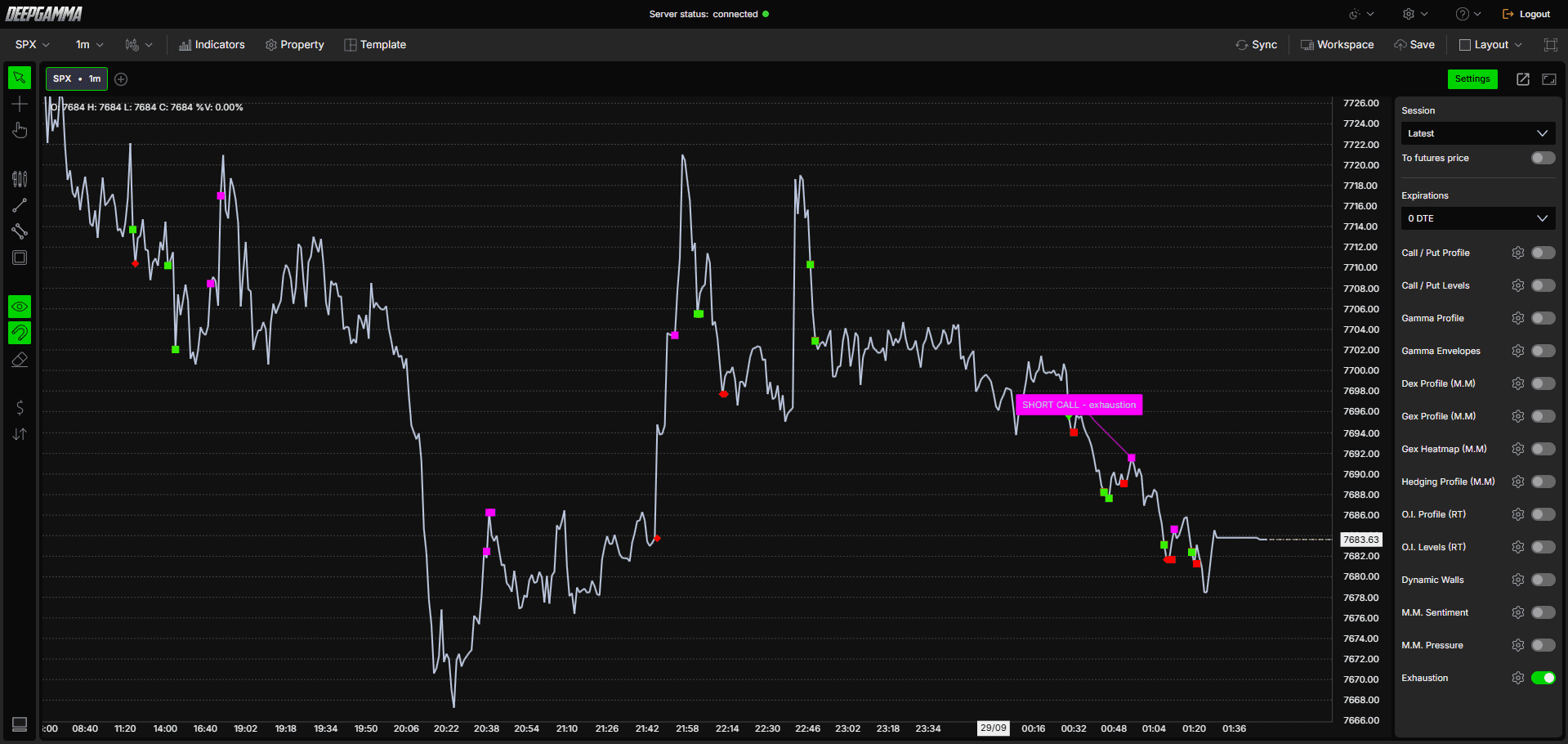
Each marker is a point where a move may be running out of strength, which could lead to a reversal. It is a point to look at more closely, and not a guarantee.
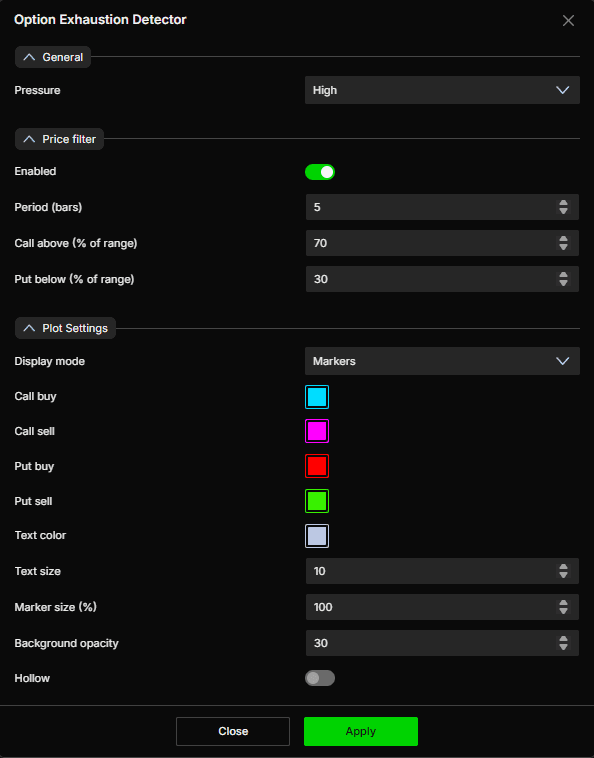
Settings
General
Pressure - Set how many markers appear. Options available:
Low
Medium
High (default)
Strong
A lower setting shows more markers, and a stronger setting shows fewer, keeping only the more significant ones.
Price filter
Enabled - Turn the price filter on or off. Default is enabled
Period (bars) - Set the number of bars used for the filter. Default is 5
Call above (% of range) - Set the percentage of the range above which a call marker can appear. Default is 70
Put below (% of range) - Set the percentage of the range below which a put marker can appear. Default is 30
Plot Settings
Display mode - Choose how the markers are shown. Options available:
Markers (default) - Shows the exhaustion points as markers on the chart
Background - Colors the chart background at the exhaustion points instead of showing markers
Call buy - Set the color for the call buy marker. Default is cyan
Call sell - Set the color for the call sell marker. Default is magenta
Put buy - Set the color for the put buy marker. Default is red
Put sell - Set the color for the put sell marker. Default is green
Text color - Set the color of the marker label text. Default is light gray-blue
Text size - Set the font size of the marker label. Default is 10
Marker size (%) - Set the size of the markers. Default is 100
Background opacity - Set the transparency of the marker label background. Default is 30
Hollow - When enabled, the markers are shown as hollow. Default is disabled
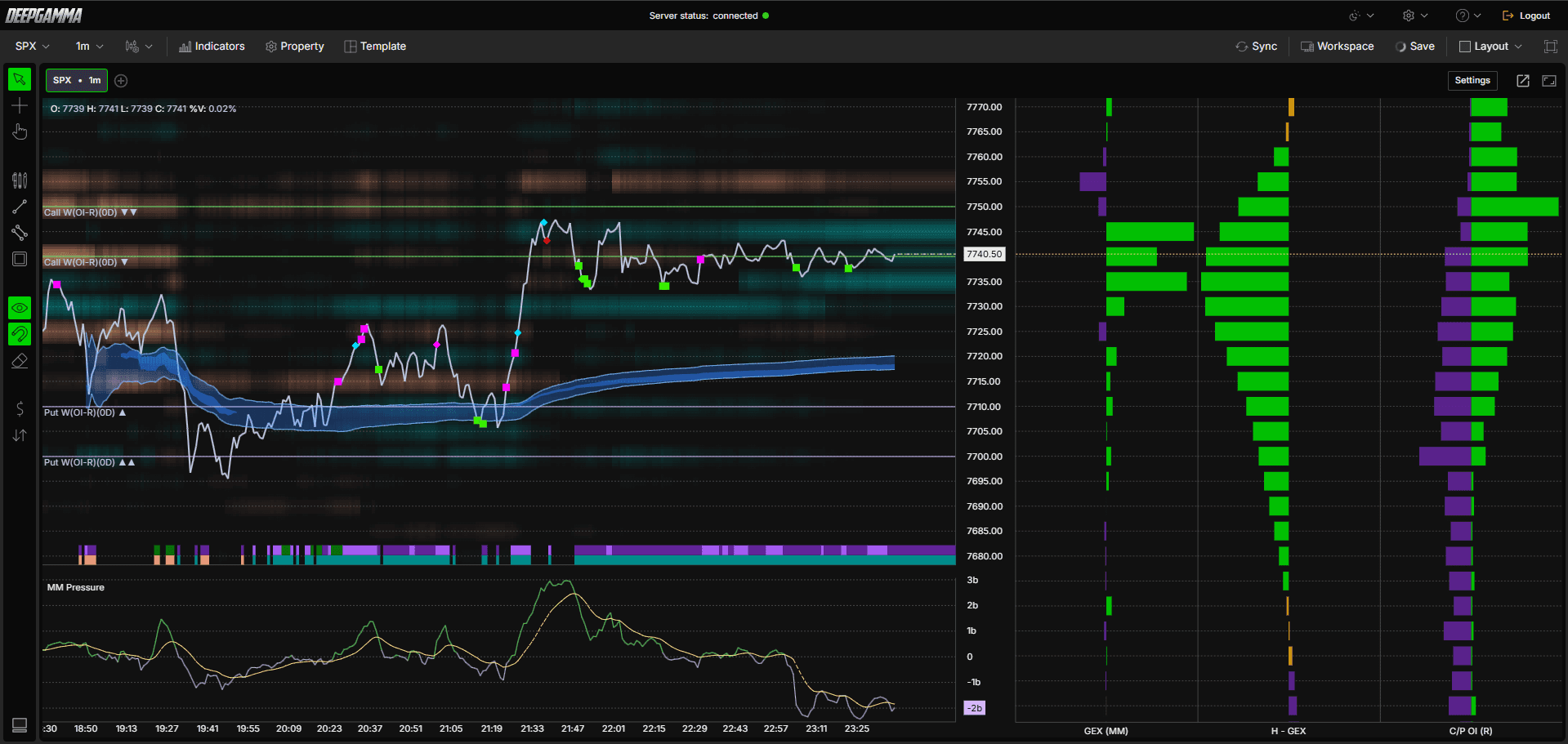
Example - How to Use Option Exhaustion Detector
Read the exhaustion markers alongside price action, and note whether they appear as price is pushing up or down
Check the H - GEX profile at the same strikes as a marker. When a marker lines up with a large bar, dealer positioning is also concentrated there
Watch MM Pressure at the same time. A sharp move in the pressure line around a marker can add weight to it
Use O.I. Levels (RT) alongside the markers, and see whether a marker is appearing near one of your Call or Put levels
Confirm at the marker with a footprint chart or Option Big Flows to see whether the move is actually slowing, since markers show a point to look at more closely and not a guaranteed reversal
Any Questions?
Our support team is available 24/7 and ready to help you with any question.
When reaching out, please include:
Screenshot (if any)
Briefly describe the assistance or support you require
DeepCharts Live Support - Chat with our agents directly using the live chat box on www.deepcharts.com, or click here for 24/7 Live Chat for immediate access.
Email Support - Reach us at support@deepcharts.com - please note that email responses may take a little longer than a live support chat.
