Updated:
L'indicatore Deep Trades ti consente di visualizzare in tempo reale ordini di mercato di grandi dimensioni e aggressivi. Evidenzia una significativa attività di acquisto e vendita direttamente sul grafico, aiutandoti a identificare la partecipazione istituzionale, livelli di prezzo ad alto impatto e una forte intenzionalità direzionale.
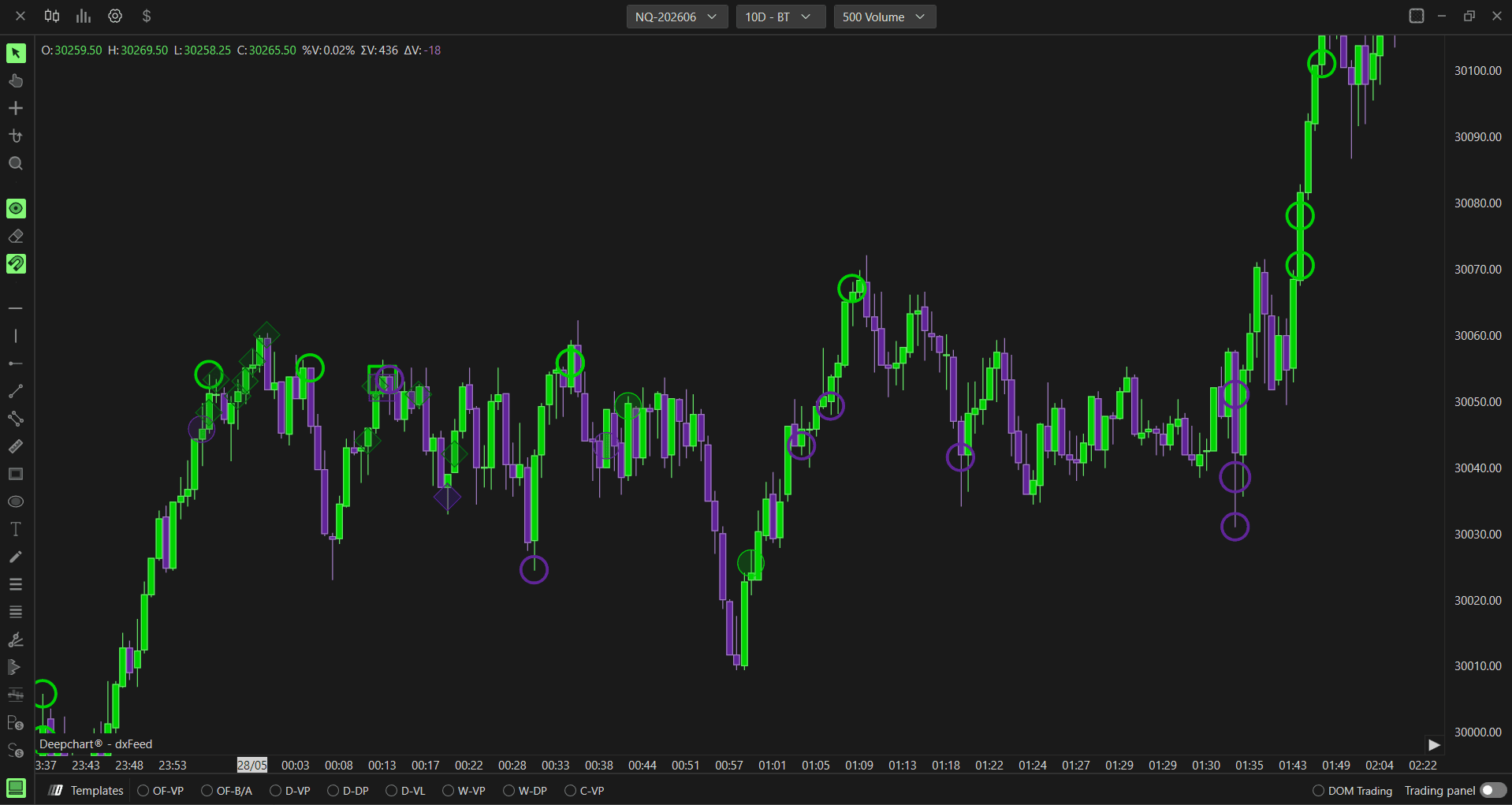
Nota: Deep Trades richiede un feed dati di Livello 2 con MBO abilitato. È inoltre necessario impostare il Source Type su MBO nelle impostazioni della sorgente (Source Settings). Per ulteriori dettagli, consulta l'articolo Configuring MBO / MBP Data Source.
Se desideri utilizzare la versione precedente di questo indicatore, aggiungi invece l'indicatore Big Trades.

In cosa differisce Deep Trades da Big Trades
L'indicatore originale Big Trades era semplice: mostrava sul grafico, tramite delle bolle, dove venivano eseguiti i grandi ordini aggressivi, filtrati in base a una soglia minima di volume. Rispondeva a una sola domanda: dove è avvenuto un grande trade?
Il nuovo Deep Trades fa un passo avanti rispondendo a una seconda domanda, ancora più importante: cosa c'era dall'altra parte di quel trade?
Ecco cosa è cambiato:
Big Trades mostra le bolle ovunque sia stato eseguito un grosso ordine, indipendentemente dalla liquidità passiva presente in quel punto.
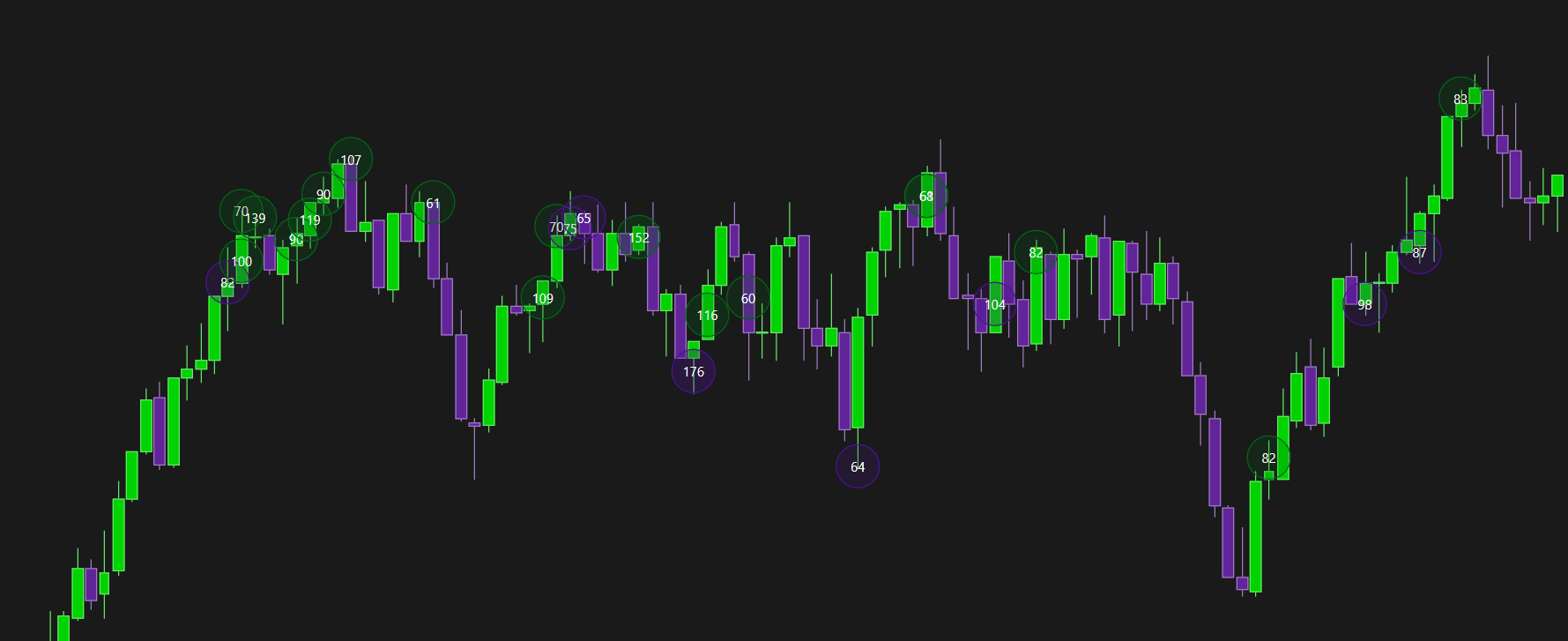
Deep Trades collega l'ordine aggressivo alla liquidità passiva con cui ha interagito e utilizza quattro indicatori distinti (Quadrato, Cerchio Pieno, Cerchio Vuoto, Rombo) per dirti esattamente che tipo di interazione ha avuto luogo.
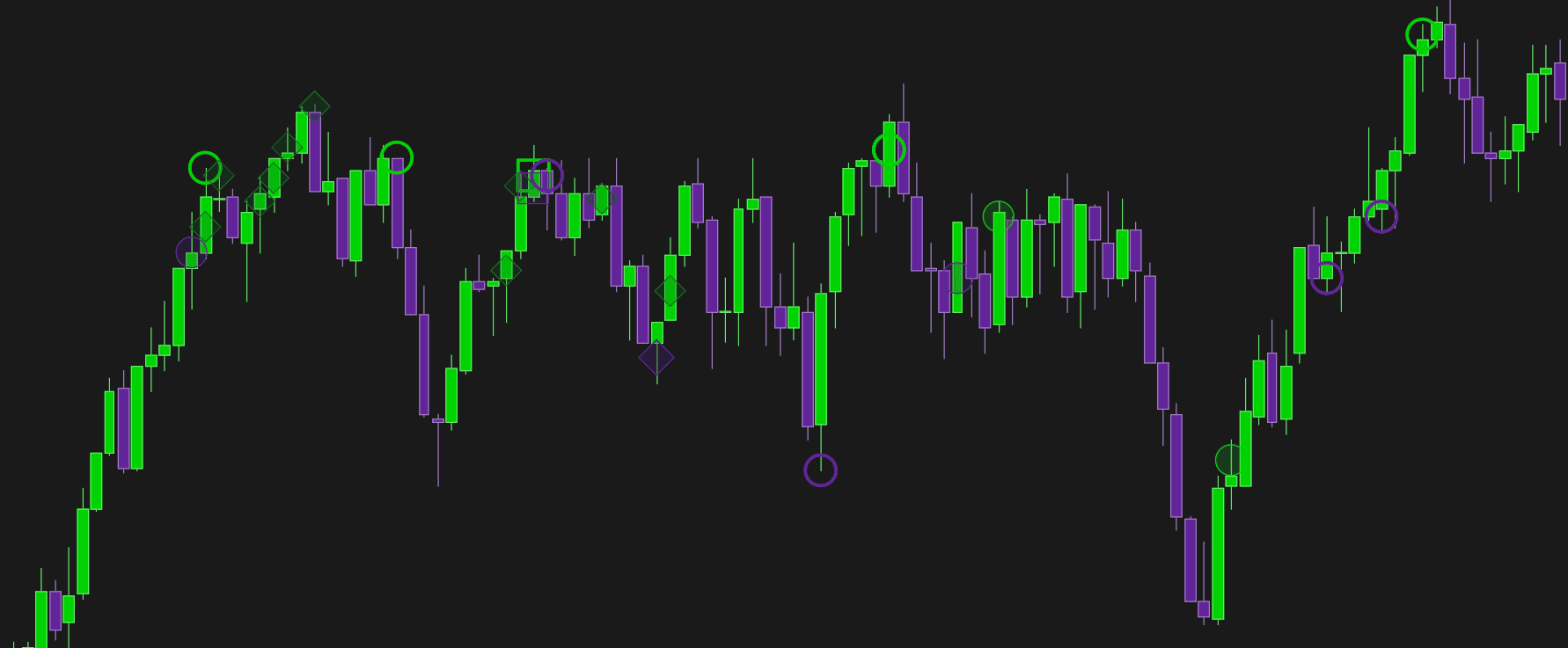
Questo significa che, invece di sapere semplicemente che un grande trade è avvenuto qui, ora sai:
C'era un grande ordine passivo ad assorbirlo?
Si è trattato di un unico grande ordine aggressivo o di molti piccoli ordini combinati?
Un grande ordine aggressivo si è scontrato direttamente con un grande ordine passivo?
Deep Trades richiede inoltre dati MBO, che sono proprio ciò che rende possibile questo livello di dettaglio. Big Trades funziona con dati standard. Deep Trades va più a fondo utilizzando informazioni a livello di ordine per far corrispondere le due parti di ogni esecuzione.
Perché dovresti usare Deep Trades
La maggior parte dei trader osserva il prezzo e il volume, ma vede solo cosa è successo, non perché. Deep Trades ti offre il perché.
Individua l'attività istituzionale con maggiore precisione: l'indicatore a forma di Rombo segnala specificamente quando un grande ordine aggressivo ha incontrato un grande ordine passivo. Spesso è qui che le istituzioni difendono un livello o accumulano una posizione.
Comprendi la qualità dei trade: un Cerchio Pieno ti dice che è avvenuto un grande trade con dimensioni significative. Un Rombo indica che si è scontrato direttamente con un grande ordine limit (resting order). Si tratta di situazioni di mercato molto diverse.
Evita falsi segnali: un grande trade composto da molte piccole quantità (Cerchio Vuoto) è molto diverso da uno composto da grandi quantità (Cerchio Pieno). Senza Deep Trades, entrambi sembrerebbero uguali su un grafico dei volumi standard.
Migliore contesto sui livelli chiave: quando il prezzo si avvicina a un livello di supporto o resistenza e vedi apparire i simboli a Rombo, significa che i grandi operatori stanno difendendo attivamente quel livello con ordini passivi, un segnale molto più forte del solo volume.
In breve, se fai sul serio con l'analisi dell'order flow, Deep Trades ti offre un livello di dettaglio che Big Trades semplicemente non può fornire.
Cosa significano gli indicatori
L'indicatore Deep Trades utilizza i dati MBO (Market By Order) per classificare ogni grande trade e identificare esattamente con cosa ha interagito dall'altra parte. Ecco perché i dati MBO sono necessari: senza di essi, è impossibile distinguere i diversi tipi di esecuzione o sapere se un grande ordine ha colpito la liquidità passiva, era costituito da piccoli ordini o si è scontrato direttamente con un ordine inserito a book.
Ogni marcatore sul grafico rappresenta un diverso tipo di interazione:
Quadrato: viene visualizzato quando un grande ordine colpisce un grosso ordine passivo inserito a book. L'esecuzione è avvenuta direttamente contro una liquidità passiva significativa presente nel book.
Cerchio Vuoto: viene visualizzato quando un grande trade è composto da quantità singole più piccole sommate insieme. Il trade era complessivamente di grandi dimensioni ma generato da molti piccoli ordini.
Cerchio Pieno: viene visualizzato quando un grande trade è composto da grandi quantità singole. Il trade era di grandi dimensioni ed è stato eseguito con size significative in una singola o in poche esecuzioni.
Rombo: viene visualizzato quando un grande trade aggressivo colpisce direttamente un grande ordine passivo a book. Questo è il marcatore più significativo: mostra un confronto diretto tra un grande ordine aggressivo e un grande ordine passivo posizionato a quel livello.
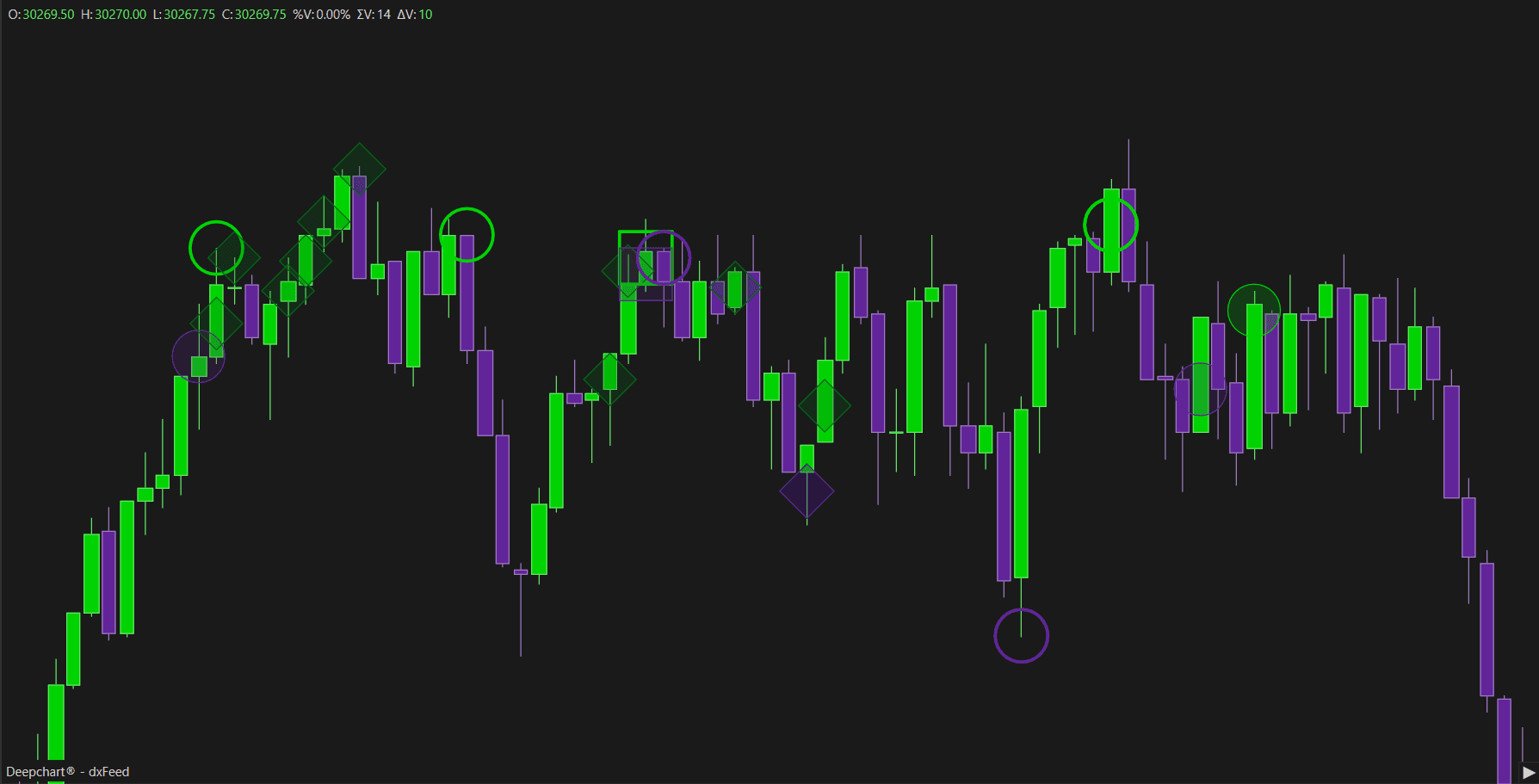
Come configurare Deep Trades
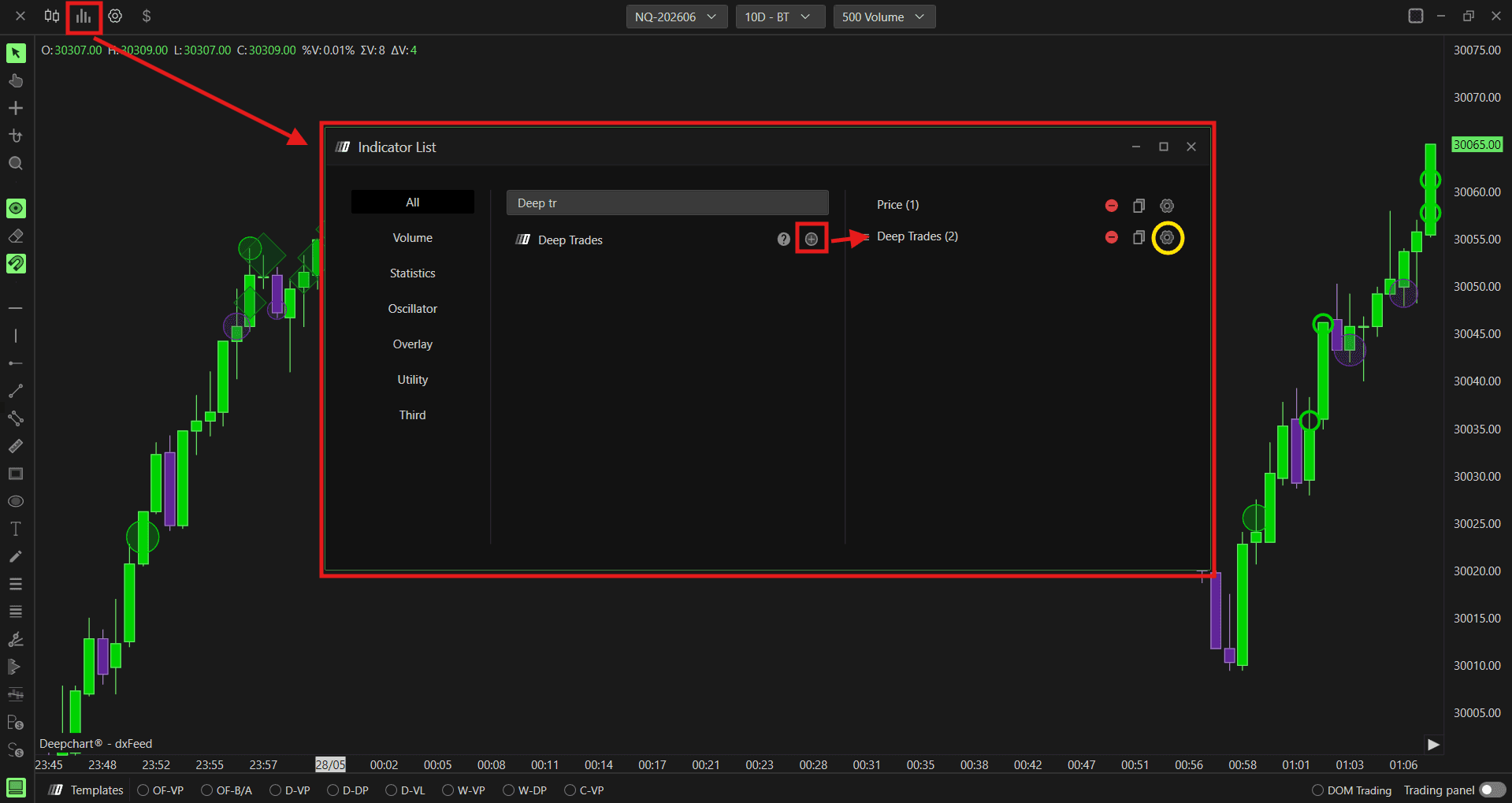
Segui questi passaggi per aggiungere l'indicatore al tuo grafico:
Fai clic sull'icona degli Indicatori nella barra degli strumenti del grafico
Trova Deep Trades nell'elenco e fai clic su + per aggiungerlo
Fai clic sull'icona delle impostazioni dell'indicatore per aprire la finestra di configurazione
Impostazioni Dati
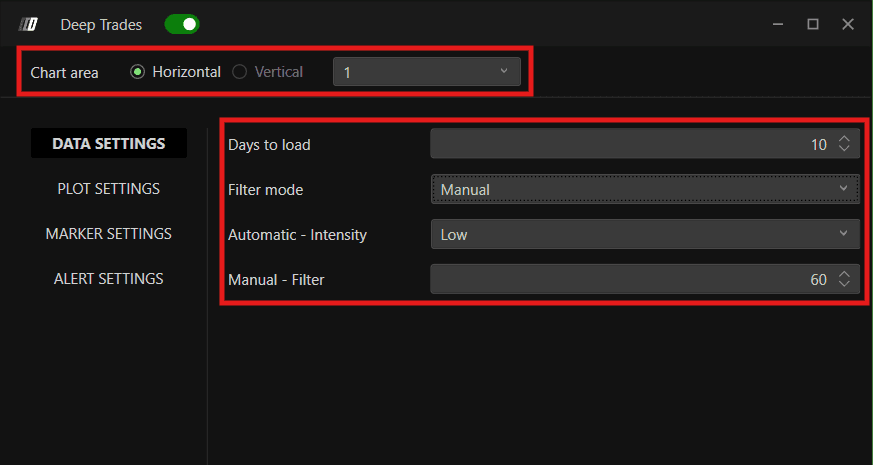
Chart Area
Definisce la modalità di visualizzazione del pannello dell'indicatore. Puoi scegliere tra:
Orizzontale: il pannello viene visualizzato in orizzontale
Verticale: il pannello viene visualizzato in verticale
È inoltre possibile impostare il numero del pannello per organizzare più pannelli degli indicatori.
Giorni da Caricare (Days to Load)
Definisce quanti giorni storici di dati relativi ai grandi trade vengono caricati sul grafico. Ad esempio, impostando questo valore su 10 si caricano gli ultimi 10 giorni di dati.
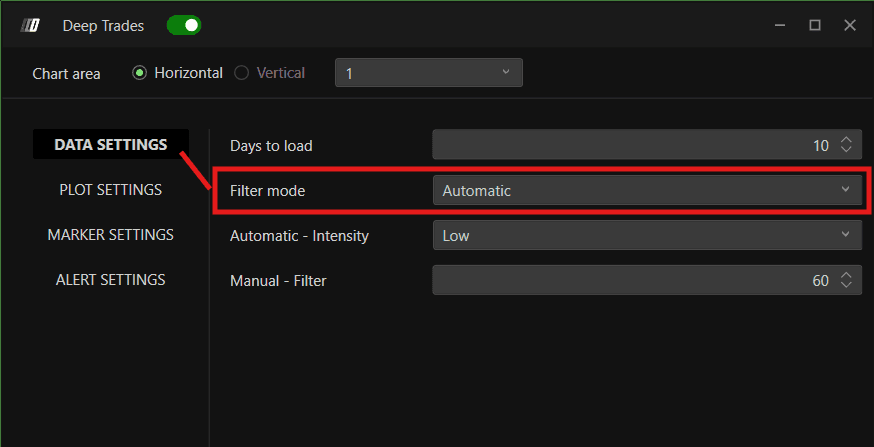
Modalità Filtro (Filter Mode)
Definisce il modo in cui i grandi trade vengono filtrati e visualizzati. Puoi scegliere tra:
Manuale: imposti manualmente la soglia minima della dimensione dei trade utilizzando il campo Manual Filter. Ad esempio, impostando Manual Filter su 30, sul grafico compariranno solo i trade di 30 o più contratti. Questo aiuta a eliminare il rumore di fondo e a concentrarsi solo sulle operazioni significative ad alto volume.
Automatico: utilizza l'algoritmo Big Trades Analysis per determinare automaticamente le soglie ottimali per il tuo strumento. Quando è selezionata la modalità Automatico, utilizza l'impostazione Automatic Intensity al posto del filtro manuale.
Automatico - Intensità
Quando la Modalità Filtro è impostata su Automatico, questa opzione definisce il livello di sensibilità utilizzato dall'algoritmo Big Trades Analysis. Puoi scegliere tra:
Basso: cattura una gamma più ampia di grandi trade, inclusi quelli di dimensioni moderate
Medio: un'impostazione bilanciata che filtra i trade di dimensioni significativamente grandi
Forte: si concentra solo sui trade più grandi e significativi
Manuale - Filtro
Quando la Modalità Filtro è impostata su Manuale, questa opzione stabilisce la dimensione minima del trade richiesta affinché lo stesso appaia sul grafico.
Impostazioni di Tracciamento (Plot Settings)
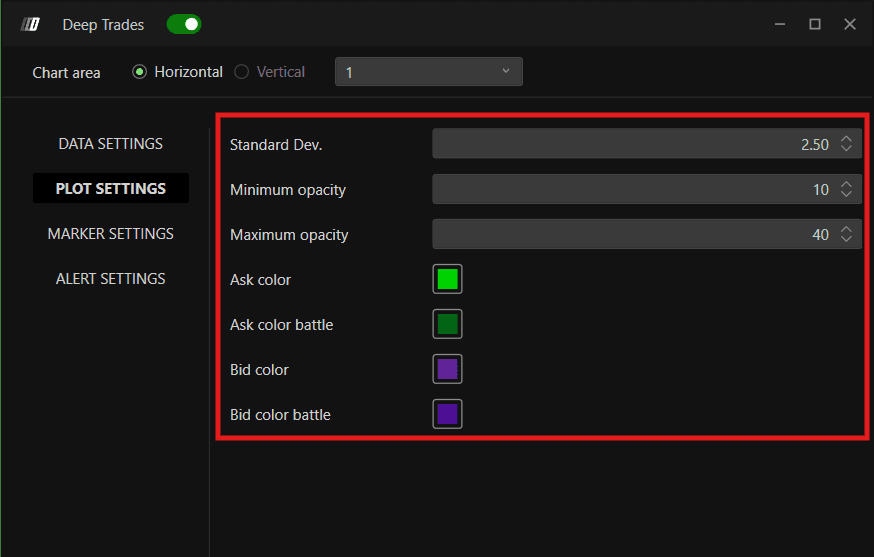
Standard Dev.
Controlla il modo in care le dimensioni degli indicatori vengono scalate tra l'intervallo di dimensione minima e massima. Si consiglia di mantenere questo parametro sul valore predefinito.
Opacità Minima
Imposta il livello di opacità più basso per gli indicatori. Un'opacità inferiore rende i marcatori più piccoli o meno significativi più trasparenti sul grafico.
Opacità Massima
Imposta il livello di opacità più alto per gli indicatori. I trade più significativi appariranno con un'opacità maggiore e risalteranno più chiaramente.
Colore Ask
Imposta il colore per gli indicatori che rappresentano i compratori aggressivi - trade eseguiti sul lato Ask.
Colore Ask Battle
Imposta il colore per gli indicatori sul lato Ask che sono associati a una liquidità passiva significativa - il tipo di interazione Rombo sul lato Ask.
Colore Bid
Imposta il colore per gli indicatori che rappresentano i venditori aggressivi - trade eseguiti sul lato Bid.
Colore Bid Battle
Imposta il colore per gli indicatori sul lato Bid che sono associati a una liquidità passiva significativa - il tipo di interazione Rombo sul lato Bid.
Impostazioni degli Indicatori (Marker Settings)
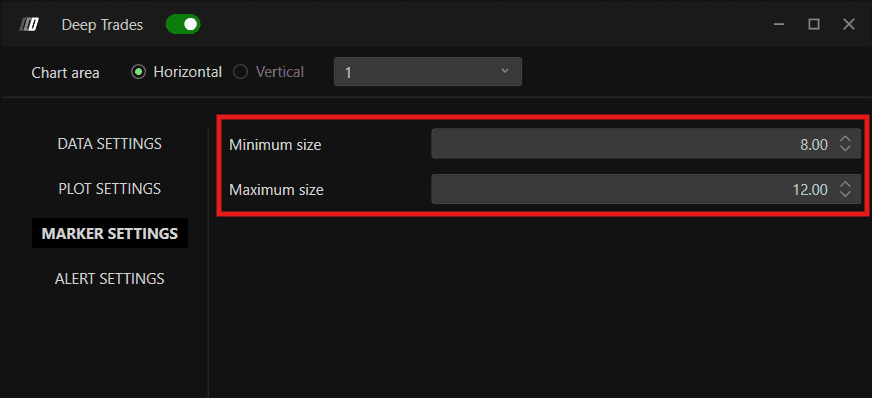
Dimensione Minima
Imposta la dimensione più piccola con cui un indicatore può apparire sul grafico. I trade nella fascia inferiore del range di volume verranno visualizzati con questa dimensione.
Dimensione Massima
Imposta la dimensione più grande con cui un indicatore può apparire sul grafico. I trade più significativi verranno visualizzati con questa dimensione.
Impostazioni Allarmi
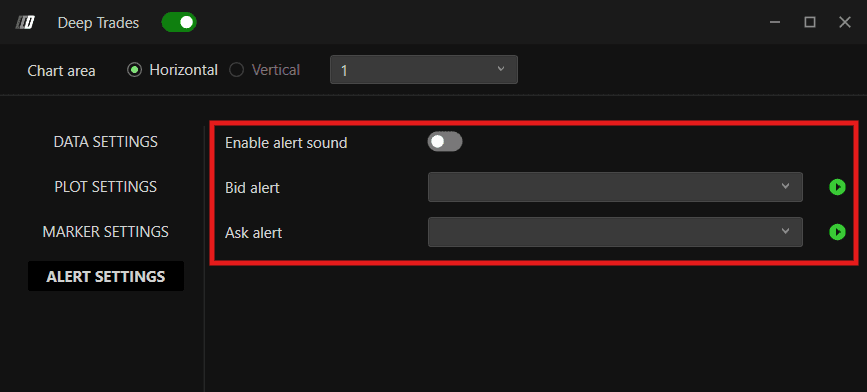
Abilita Suono Allarme
Attiva gli allarmi sonori quando sul grafico viene rilevato un grande trade che soddisfa i criteri di filtro.
Allarme Bid
Consente di selezionare il suono di allarme da riprodurre quando viene rilevato un trade significativo sul lato Bid - ovvero un venditore aggressivo che colpisce il mercato.
Allarme Ask
Consente di selezionare il suono di allarme da riprodurre quando viene rilevato un trade significativo sul lato Ask - ovvero un compratore aggressivo che colpisce il mercato.
Big Trades Analysis
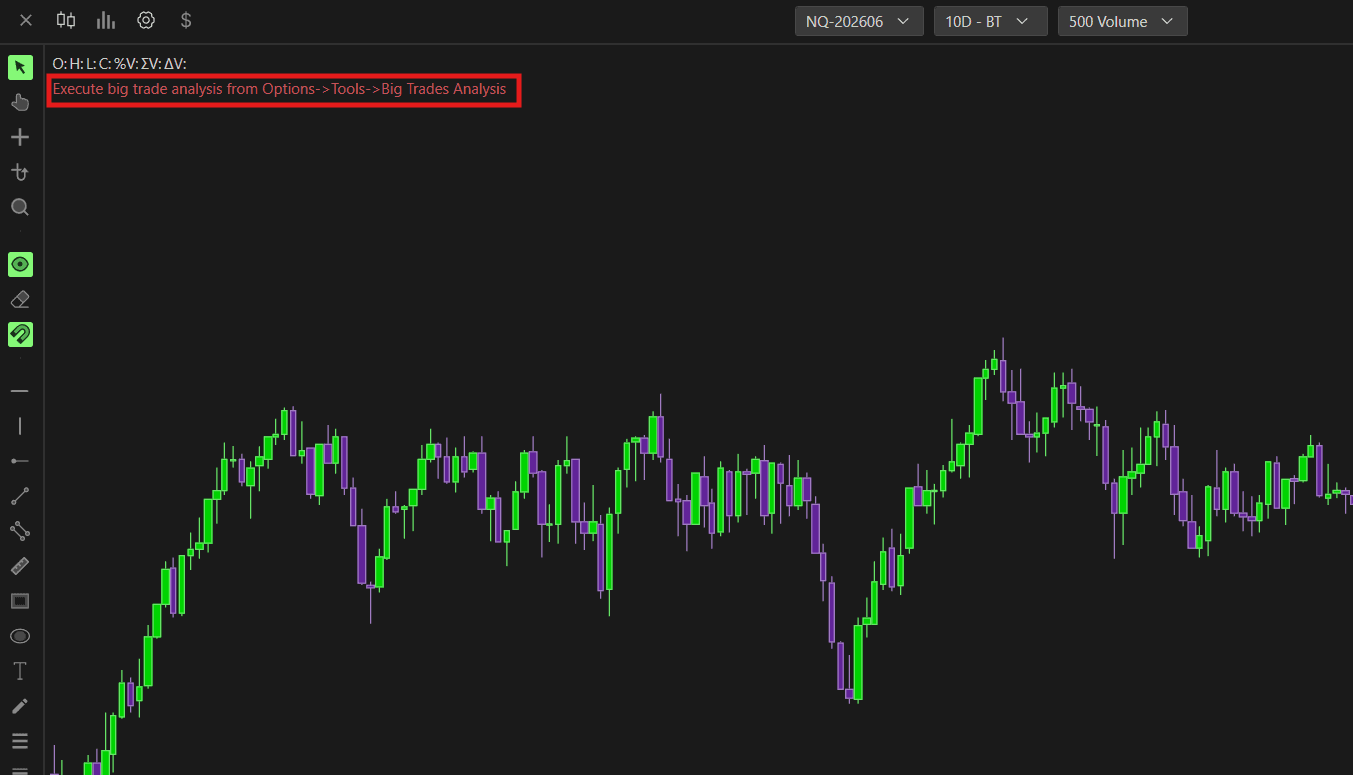
Big Trades Analysis è un algoritmo di DeepCharts che calcola automaticamente le soglie ottimali dei grandi trade per il tuo specifico strumento, in base al comportamento del prezzo e alla sua volatilità. In questo modo si eliminano i tentativi empirici nella configurazione manuale dei filtri.
Note Importanti
L'analisi deve essere eseguita solo una volta alla settimana o una volta al mese, non ogni volta che si apre la piattaforma.
I risultati vengono salvati automaticamente una volta completata l'analisi.
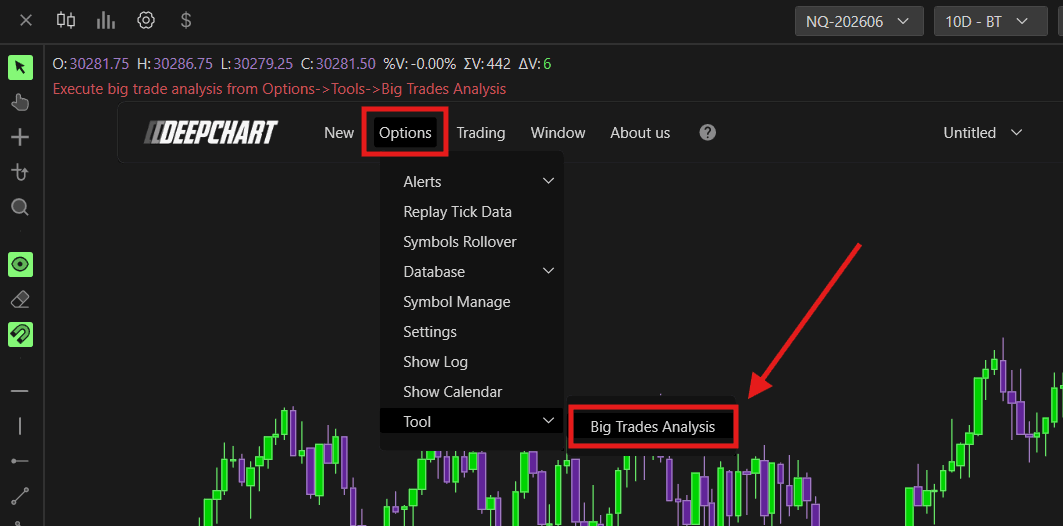
Come eseguire la Big Trades Analysis
Applica l'indicatore Deep Trades al tuo grafico
Apri le impostazioni dell'indicatore
Imposta la Modalità Filtro (Filter Mode) su Automatico
Imposta il livello di Intensità Automatica (Low, Medium, o Strong) in base a quanto selettivo desideri che sia il filtro
Salva le impostazioni
Vai su Options → Tools → Big Trades Analysis
Seleziona lo strumento su cui desideri eseguirla
Avvia l'analisi
Se i risultati non appaiono immediatamente, ricarica o riavvia il grafico
Una volta completata l'analisi, l'indicatore applicherà automaticamente le soglie ottimizzate al tuo grafico da quel momento in poi.
Hai ancora problemi?
Il nostro team di supporto è disponibile 24 ore su 24, 7 giorni su 7, ed è pronto ad aiutarti con qualsiasi problema tu possa riscontrare.
Quando ci contatti, includi:
Uno screenshot del problema
Una breve descrizione di ciò che stavi cercando di fare
Ticket di supporto (risposta più rapida) Visita il sito www.deepcharts.com e crea un ticket di supporto direttamente sul nostro sito web.
Supporto via Email Scrivici a support@deepcharts.com — tieni presente che le risposte via email potrebbero richiedere un po' più di tempo rispetto a un ticket di supporto.
