Updated:
Strategie OCO (Order-Cancel-Order)
Le strategie OCO ti permettono di associare due ordini di uscita a un ordine principale:
Ordine limite per una possibile uscita in profitto
Ordine stop per una possibile uscita in perdita
Una volta eseguito uno degli ordini di uscita, l’altro ordine viene annullato automaticamente.

Abilita la strategia OCO
Per abilitare le strategie OCO:
Apri il Pannello di Trading.
Abilita la casella di controllo strategie OCO.
Seleziona la modalità che desideri usare.
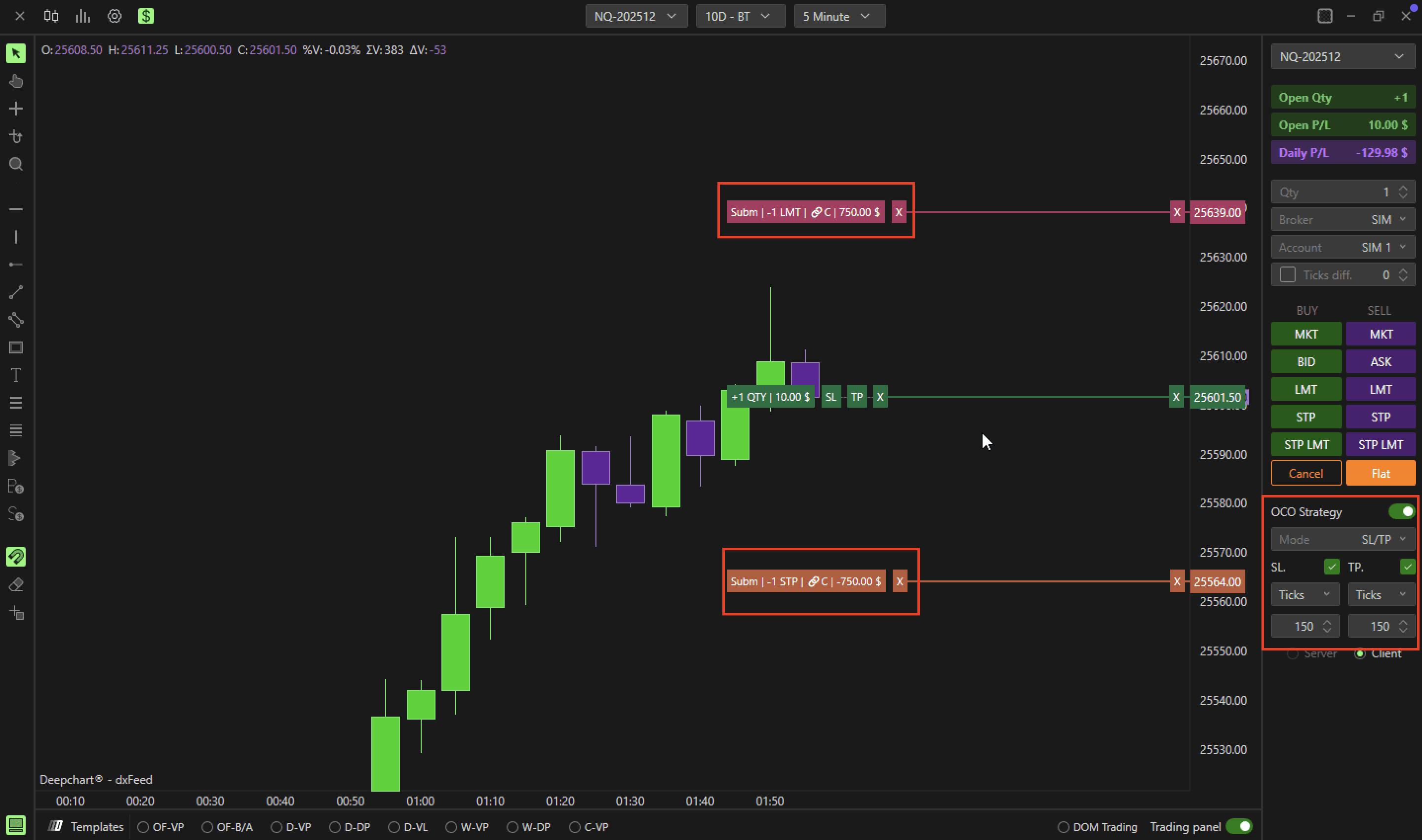
Modalità SL/TP
La modalità SL/TP ti permette di inserire rapidamente singoli ordini OCO di Stop Loss e Prezzo obiettivo:
Imposta i Tick/Denaro in SL Tick/Denaro e TP Tick/Denaro.
Abilita i tick per attivare gli ordini.
Questa modalità è ideale per strategie di uscita semplici, su un singolo contratto.
Modalità Multi
La modalità Multi consente strategie OCO più complesse, come:
Uscite su più contratti
Spostare lo stop a pareggio
Creazione di una strategia OCO Multi:
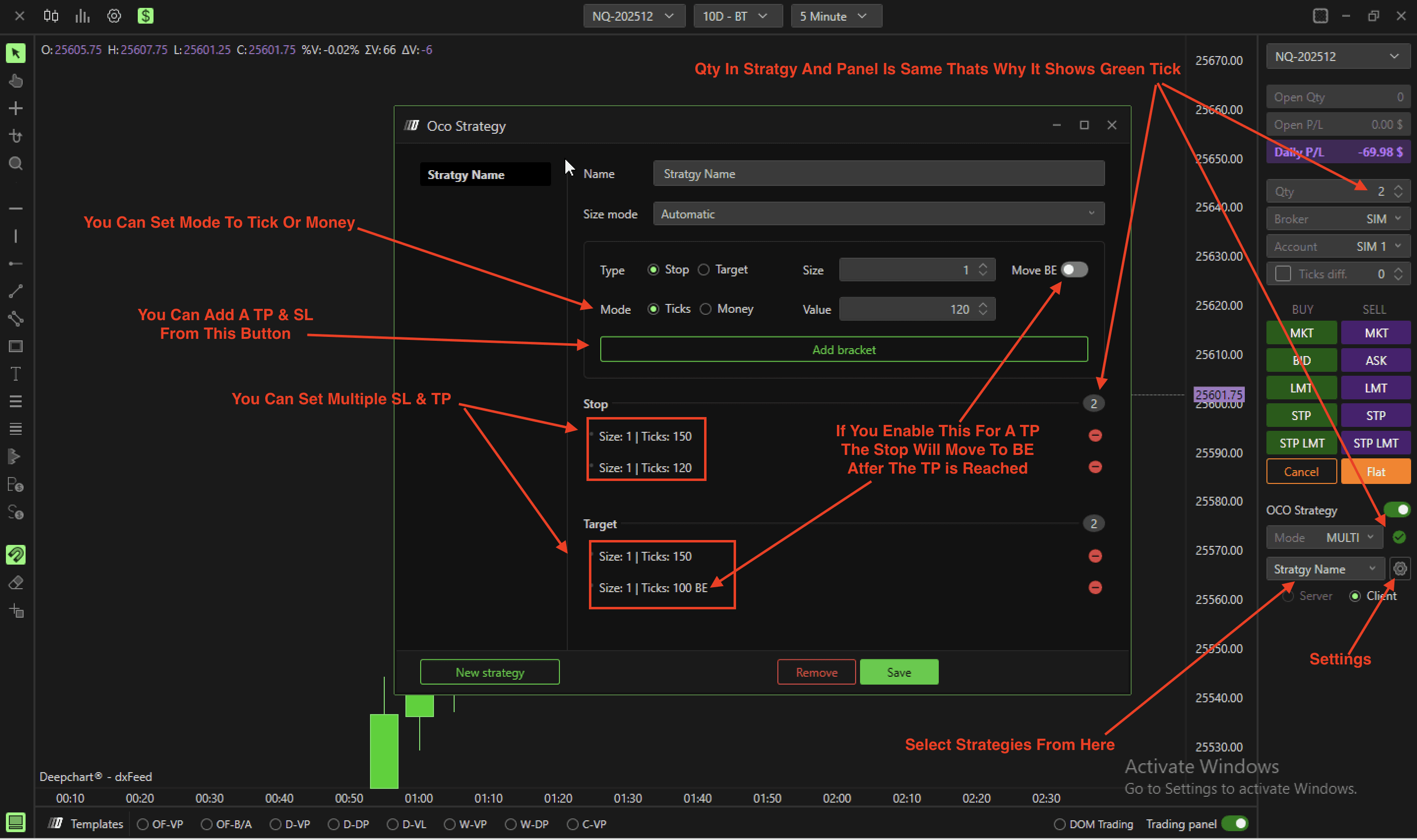
Fai clic sull’icona Impostazioni → Nuova strategia.
Aggiungi più ordini Stop e Target:
Seleziona Stop, definisci quantità e tick, quindi fai clic su Aggiungi bracket
Ripeti per gli ordini Target
Per spostare uno stop a pareggio dopo aver raggiunto un target, abilita Sposta BE
Assegna un nome alla strategia e fai clic su Salva
Selezione della strategia:
Usa il menu a discesa nel pannello
Se la quantità inserita corrisponde alla strategia OCO, appare un segno di spunta verde; altrimenti viene mostrato un avviso rosso
Esempio:
Strategia da 3 contratti
1 uscita Stop a 12 tick
3 uscite Target a 8, 12 e 20 tick
Lo stop si sposta a pareggio dopo il Target 2
Server / Client
Determina se la strategia OCO è gestita lato server o lato client.
Server
Gli ordini sono gestiti e archiviati sul server del broker
Resta attiva anche se il computer del trader si spegne
Attualmente supportata da Rithmic e DXFeed
Puoi collegare due strategie OCO in modo che l’esecuzione di una annulli l’altra:
Dopo aver inserito gli ordini, fai clic su Collega ordini in attesa
Client
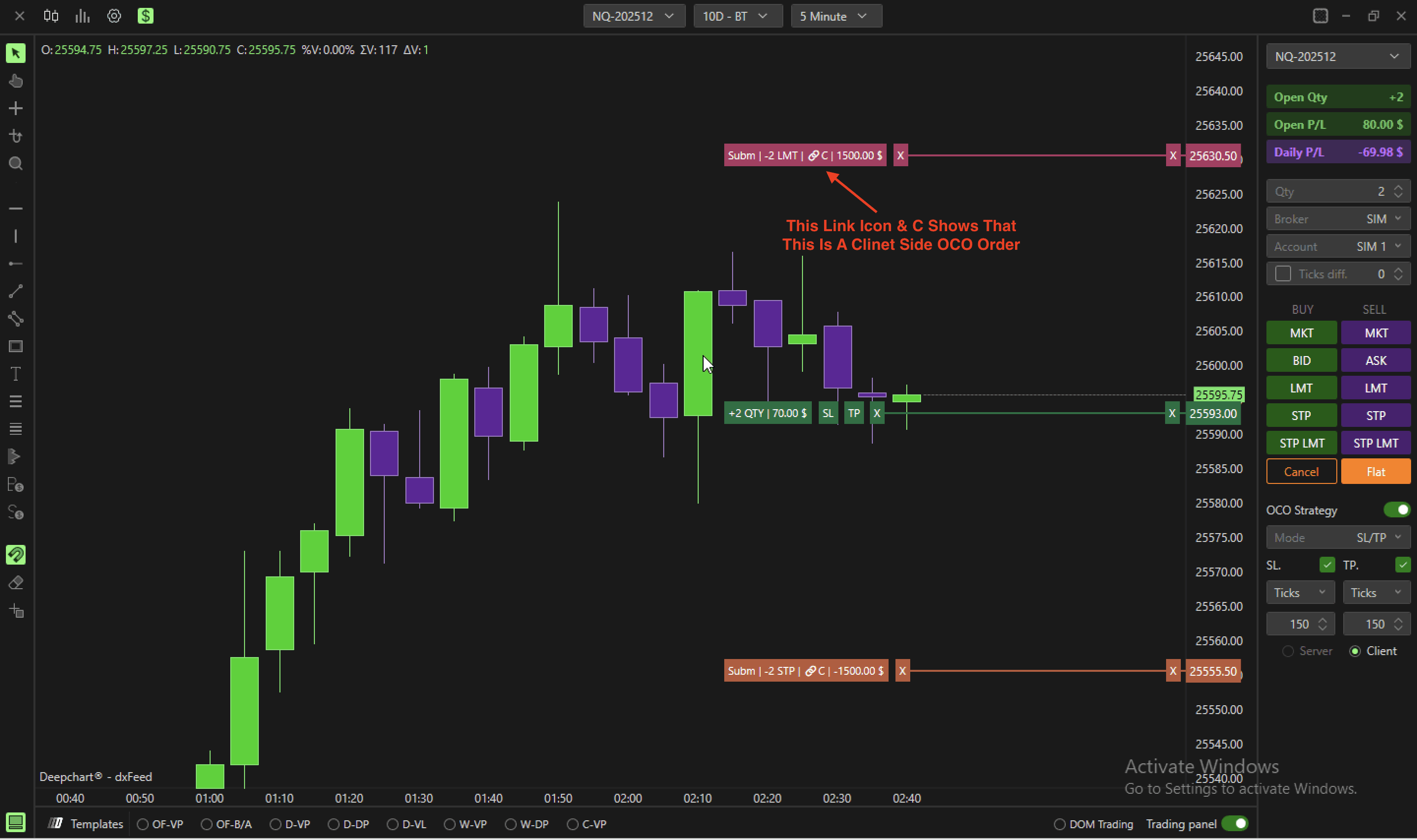
Gli ordini sono gestiti localmente sul computer del trader
Richiede che la piattaforma e la connessione Internet siano attive
Creazione rapida di OCO da posizioni aperte
Anche senza abilitare le strategie OCO:
Ogni posizione di mercato aperta ha riquadri Stop Loss (SL) e Prezzo obiettivo (TP)
Clic sinistro su SL o TP per creare rapidamente gli ordini di uscita
Puoi collegarli tra loro per formare una strategia OCO
