Updated:
Funzionalità e impostazioni di trading
Abilita il trading
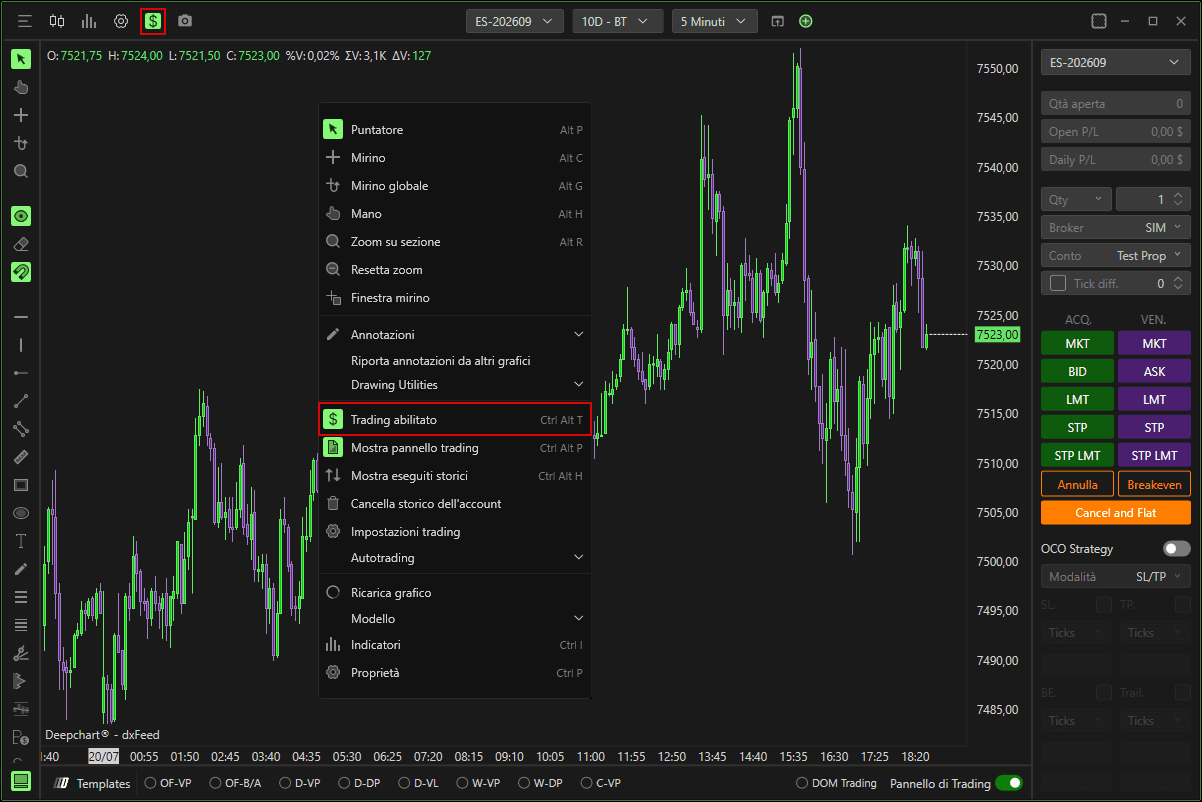
Per abilitare il trading direttamente da un grafico:
Fai clic sull'icona del dollaro nell'angolo in alto a sinistra del grafico, oppure
Fai clic con il tasto destro in qualsiasi punto del grafico e seleziona Trading abilitato.
Mostra pannello di trading
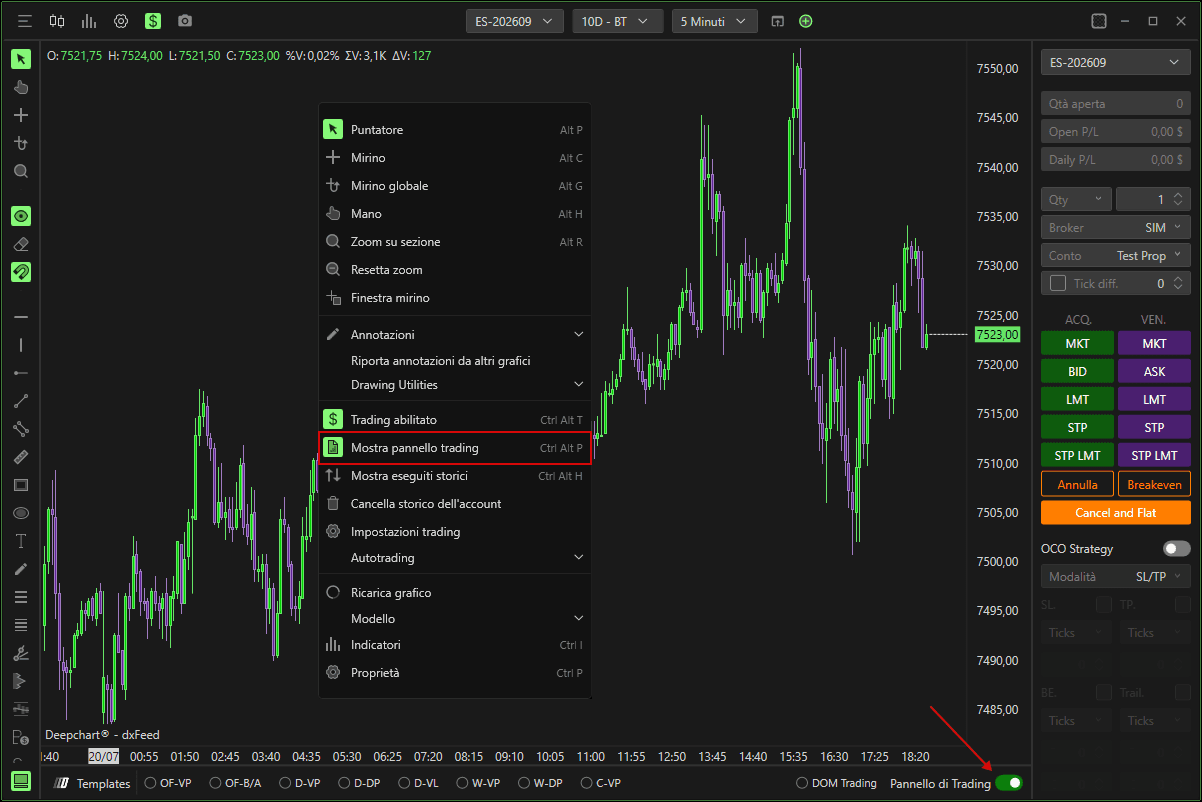
Per visualizzare il pannello di trading:
Attiva la casella di controllo Mostra pannello di trading in basso a destra del grafico, oppure
Fai clic con il tasto destro in qualsiasi punto del grafico e seleziona Mostra pannello di trading.
Pannello di trading
Trading incrociato Mini / Micro
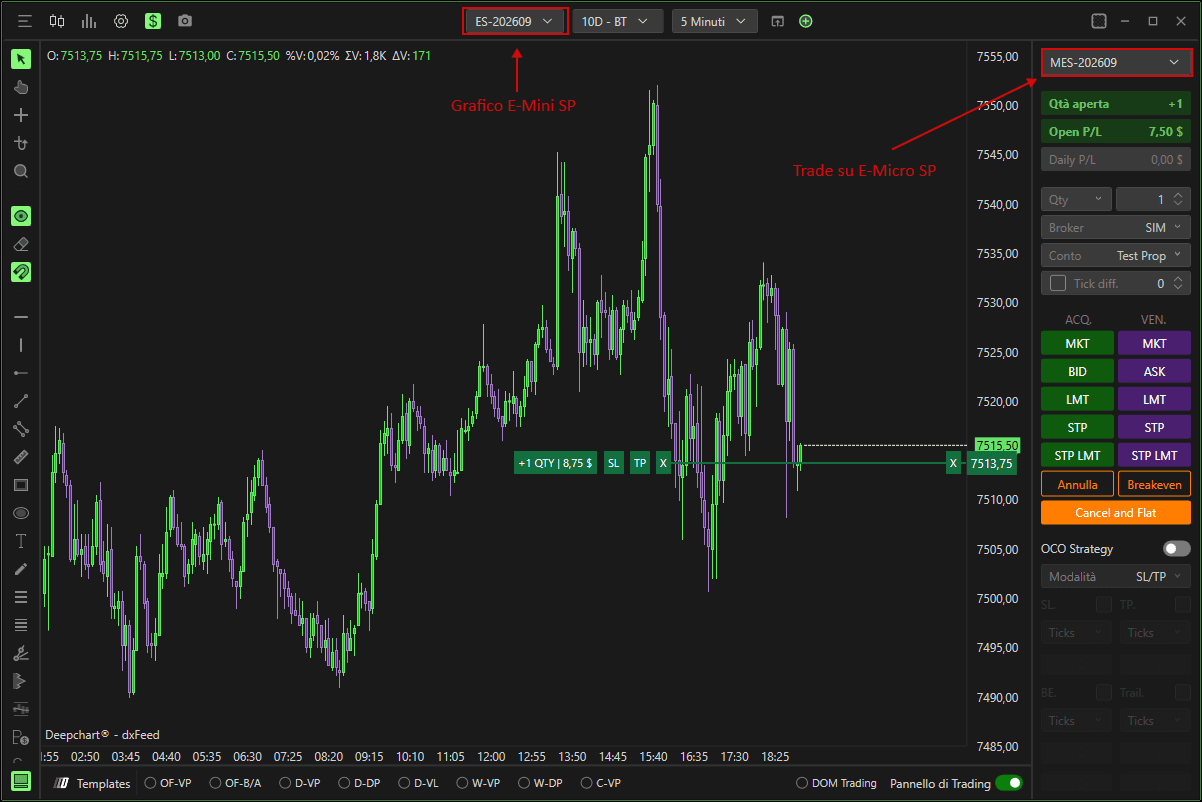
Nella parte superiore del Pannello di trading, puoi scegliere lo strumento che vuoi tradare.
DeepChart ti consente di visualizzare i dati dei futures Mini mentre fai trading sui contratti Micro, rendendo superfluo aprire più grafici.
Ricorda: per eseguire un'analisi volumetrica accurata, monitora sempre il contratto futures principale.
Il pannello mostra anche:
Qtà aperta: numero di contratti o azioni attualmente aperti.
P/L aperto: profitto/perdita della posizione attiva.
P/L giornaliero: P/L totale per lo strumento selezionato.
Pulsanti di trading
MKT
Inserisce un ordine a mercato (buy o sell).
BID / ASK
Inserisce ordini limite a:
Best Bid
Best Ask
LMT
Inserisce un ordine limite personalizzato:
Buy limit sotto il mercato
Sell limit sopra il mercato
STP
Inserisce un ordine stop, che attiva un ordine a mercato quando viene eseguito:
Buy stop sopra il mercato
Sell stop sotto il mercato
STP LMT
Inserisce un ordine stop-limit, che attiva un ordine limite invece di un ordine a mercato.
Utile per evitare lo slippage, con il rischio che non venga eseguito.
Annulla
Annulla tutti gli ordini in sospeso.
FLAT
Chiude la posizione aperta e annulla tutti gli ordini in sospeso.
Interazione con gli ordini
Fai clic con il tasto sinistro per spostare gli ordini limite o stop.
Fai clic con il tasto destro per annullarli.
Qtà / Broker / Conto
Seleziona:
Quantità di trading
Broker
Conto con cui eseguire
Differenza tick
Quando è abilitata, consente di inserire ordini Bid/Ask a una distanza fissa di tick dal mercato.
Esempio:
Se impostato su 300, facendo clic su Bid verrà inserito un Buy Limit 300 tick sotto il prezzo attuale invece che al Best Bid.
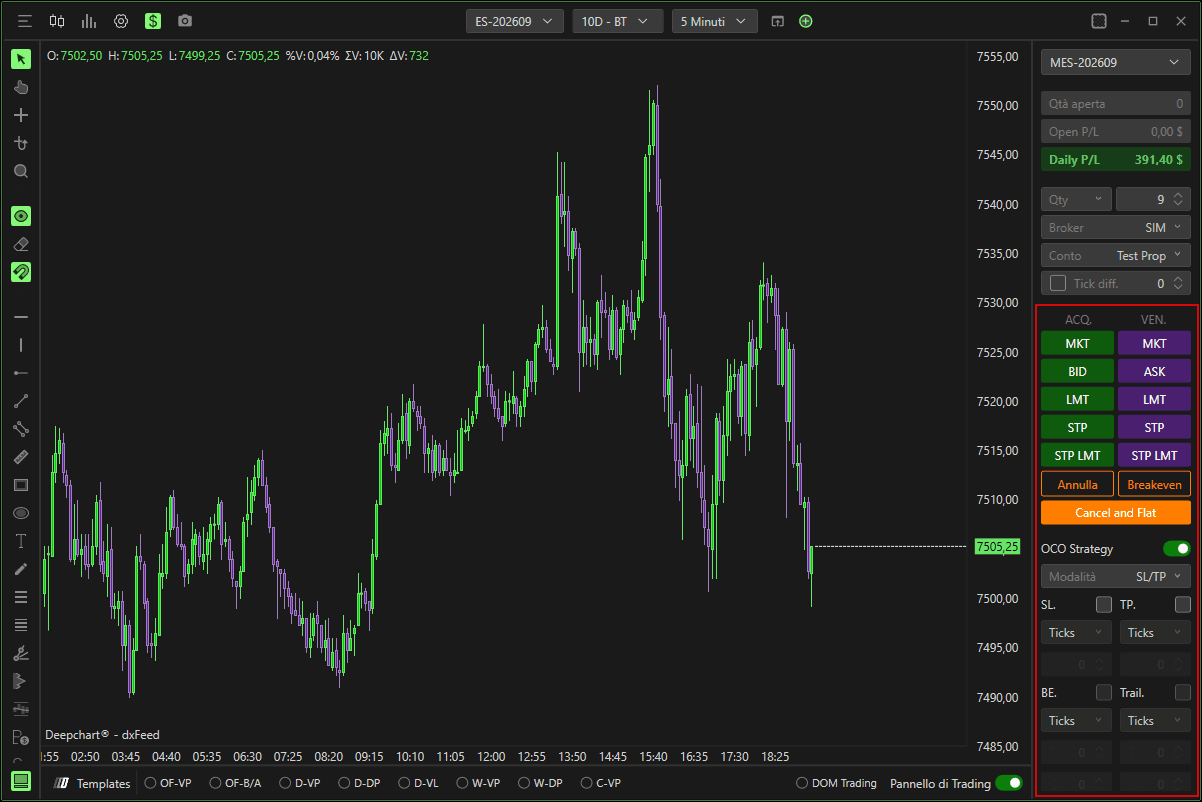
Strategia OCO
Abilita OCO (Order-Cancel-Order) per collegare automaticamente un ordine limite di target profit e un ordine stop loss al trade principale.
Quando uno viene eseguito, l'altro viene annullato automaticamente.
(Vedi la spiegazione dettagliata nella sezione Strategia OCO.)

Mostra esecuzioni storiche
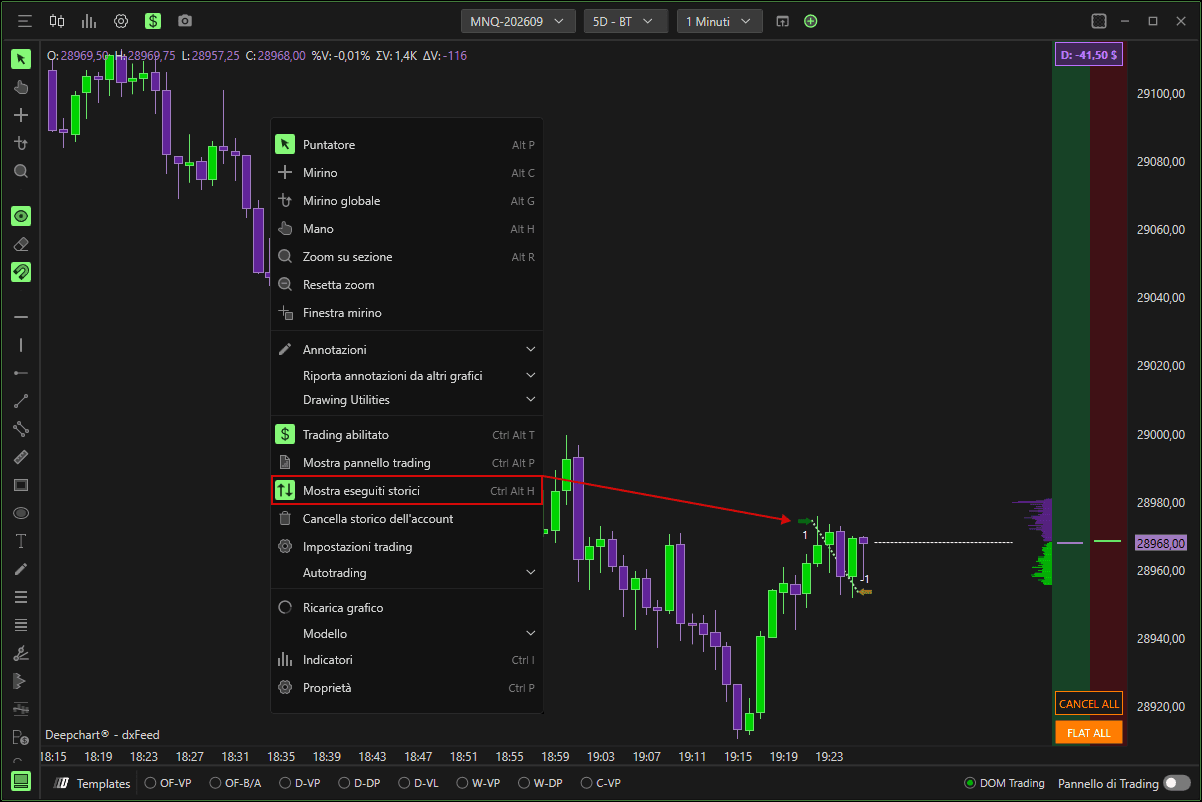
Per visualizzare le esecuzioni storiche sul grafico:
Fai clic sull'icona Impostazioni.
Attiva Mostra esecuzioni storiche.
Impostazioni di trading
Si trova sotto l'icona Impostazioni → Impostazioni di trading.
Qui puoi personalizzare:
Visualizzazione degli ordini
Dimensione del testo
Colori
…e altro ancora.
Chart DOM
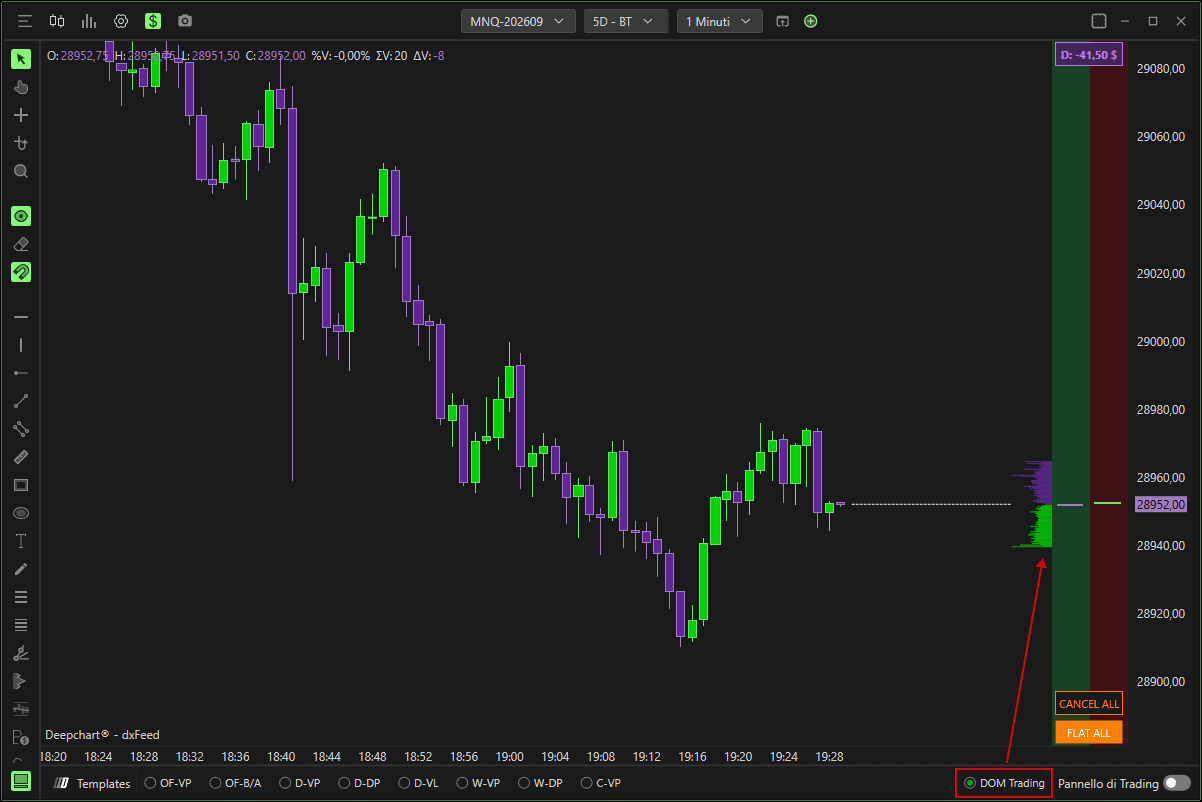
Per abilitare il Chart DOM:
Fai clic su DOM Trading in basso a destra e apri il menu a discesa.
Trading sul grafico
Abilita trading sul grafico
Attiva Abilita trading sul grafico per abilitare l'inserimento degli ordini dal grafico.
Larghezza del trading sul grafico
Definisce la larghezza delle colonne del Chart DOM.
Ordini di acquisto
Fai clic con il tasto sinistro sotto l'ultimo prezzo → Buy Limit (predefinito)
Fai clic con il tasto sinistro sopra l'ultimo prezzo → Buy Stop (predefinito)
Fai clic con il tasto destro sotto l'ultimo prezzo → Buy Market (predefinito)
Fai clic con il tasto destro sopra l'ultimo prezzo → Buy Market (predefinito)
Ordini di vendita
Fai clic con il tasto sinistro sopra l'ultimo prezzo → Sell Limit (predefinito)
Fai clic con il tasto sinistro sotto l'ultimo prezzo → Sell Stop (predefinito)
Fai clic con il tasto destro sopra l'ultimo prezzo → Sell Market (predefinito)
Fai clic con il tasto destro sotto l'ultimo prezzo → Sell Market (predefinito)
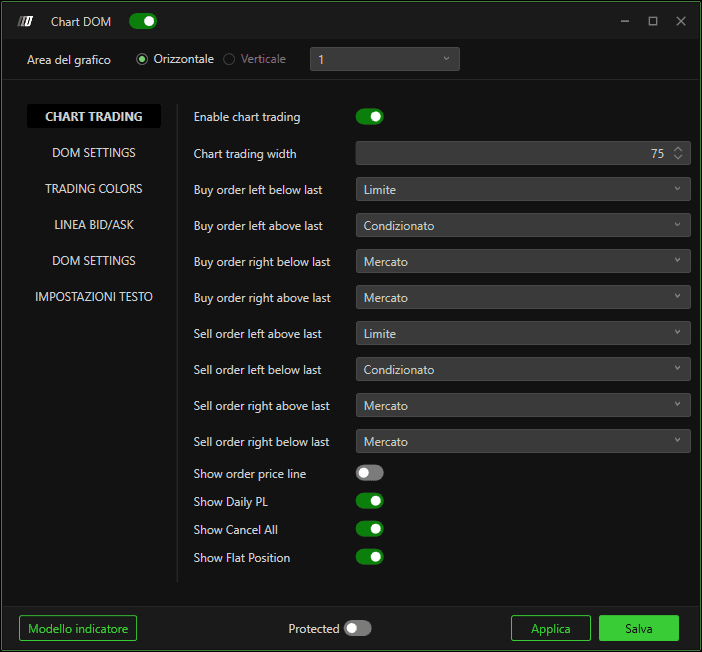
Colori di trading
Personalizza i colori delle colonne del Chart DOM.
Linea Bid/Ask
Abilita o disabilita la linea Bid/Ask.
Impostazioni DOM
Mostra il Depth of Market e personalizzane i colori.
Impostazioni testo
Abilita il testo sul grafico e modificane colore e aspetto.