Indicatori avanzati
Updated:
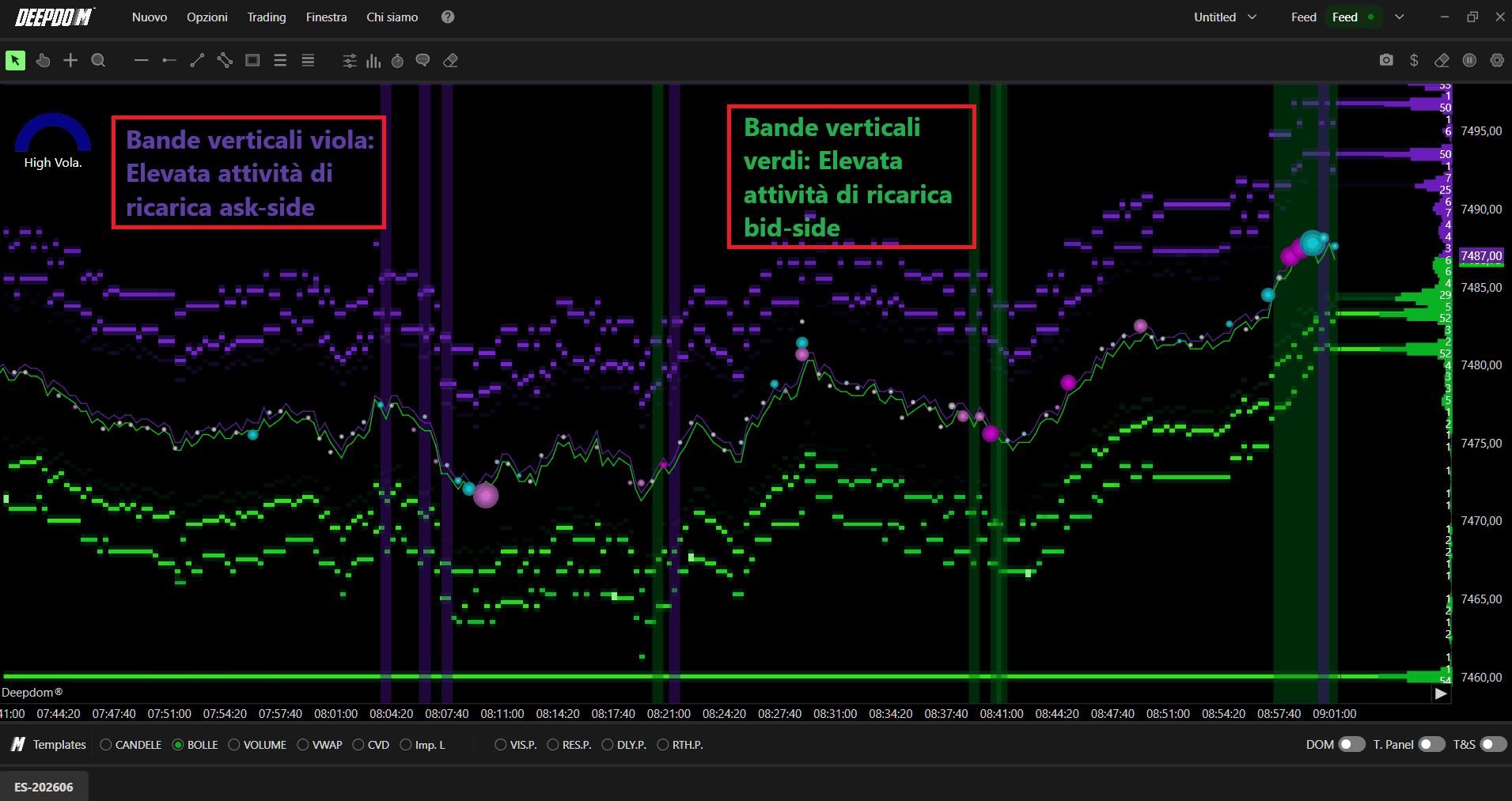
Deep Reload (Fresh Liquidity Detector) analizza il book d'ordine in tempo reale per individuare i momenti in cui nuova liquidità passiva appare improvvisamente vicino al prezzo corrente. Invece di monitorare ogni singolo aggiornamento di Livello 2, visualizzerai chiare bande orizzontali che mostrano dove è stata appena aggiunta nuova size sul bid (potenziale supporto) o sull'ask (potenziale resistenza), aiutandoti a capire quando partecipanti di maggiori dimensioni intervengono per difendere un livello o favorire un breakout.
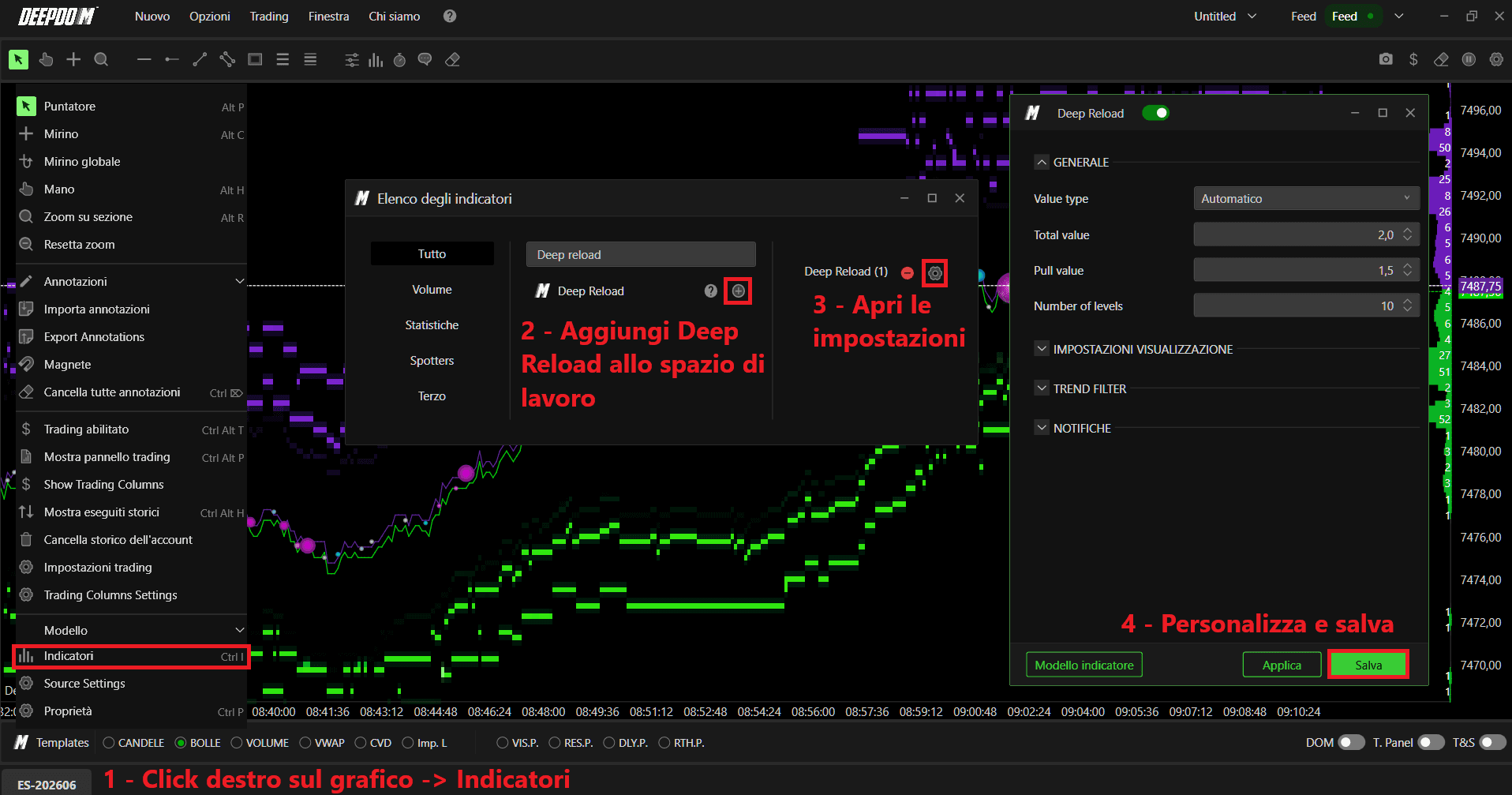
Come aggiungere l'indicatore Deep Reload
Click destro sul grafico
Cerca il nome dell'indicatore nell'apposita barra
Clicca su "+" per aggiungere l'indicatore allo spazio di lavoro
Clicca sull'icona dell'ingranaggio per aprire il relativo pannello impostazioni
Personalizza i parametri e convalida con salva
1. Concetto: Nuova Liquidità Passiva
La liquidità passiva (resting liquidity) è il volume visibile presente nel book d'ordine a ciascun livello di prezzo. Quando un trader istituzionale o un algoritmo decide di entrare in azione, spesso aggiunge size vicino al prezzo corrente anziché inseguire il movimento. Deep Reload si concentra su questi inserimenti: rileva quando una quantità significativa di nuovo volume appare improvvisamente in una fascia ristretta di prezzi intorno all'inside market.
Questa nuova liquidità può fungere da cuscinetto (bid che si accumulano sotto il prezzo per sostenerlo) o da soffitto (ask che si accumulano sopra il prezzo per rallentare o invertire un rally). In molti casi questo comportamento è legato a ordini iceberg o suddivisi (sliced), in cui viene mostrata solo una parte della size reale alla volta, ma il trader continua ad aggiungere nuovamente liquidità nella stessa area.
L'obiettivo di Deep Reload non è mostrare tutte le variazioni del book, bensì evidenziare solo quei ricarichi (reload) che superano le soglie di size da te impostate, in modo che le aree importanti rimangano visibili anche quando il grafico è rimpicciolito.

2. Impostazioni Generali
2.1 Tipo di Valore (Value Type)
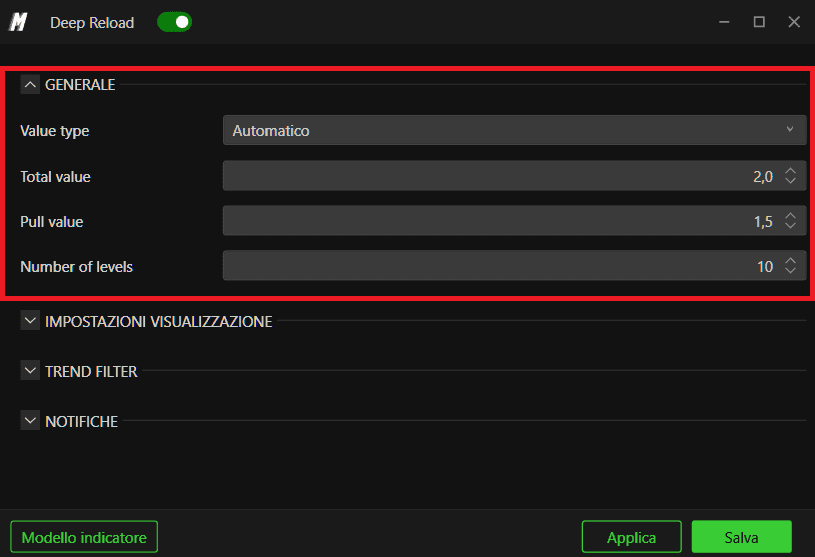
Il Tipo di valore controlla il modo in cui Deep Reload seleziona le soglie di size che definiscono un segnale:
Automatic – le soglie derivano dalle condizioni attuali del book d'ordine, adattandosi alla profondità e alla volatilità tipiche di ciascuno strumento.
Manual – consente di specificare manualmente i valori numerici per il Total value e il Pull value.
2.2 Valore Totale (Total Value)
Il Valore totale definisce quanto nuovo volume deve apparire in un'area di prezzo prima che venga tracciata una banda di Deep Reload. L'indicatore somma tutti gli inserimenti idonei in quell'area in un breve lasso di tempo; la zona viene tracciata solo quando il totale supera questa soglia.
Utilizza valori più alti su mercati molto liquidi (ES, NQ) e valori più bassi su strumenti più sottili, in modo che i segnali rappresentino una nuova liquidità davvero significativa per quel determinato strumento.
2.3 Valore di Pull (Pull Value)
Il Valore di pull è la size minima che deve essere rimossa o modificata dal book in un singolo evento affinché Deep Reload consideri la sequenza come un ricarico intenzionale anziché rumore casuale. Le micro-cancellazioni inferiori a questo valore vengono ignorate.
All'atto pratico, molti pattern di reload comportano una combinazione di volume rimosso (pulled) e poi rapidamente reinserito agli stessi livelli o a quelli adiacenti. Il valore di pull aiuta l'algoritmo a distinguere queste sequenze dalle normali fluttuazioni del book.
2.4 Numero di Livelli (Number of Levels)
Il Numero di livelli indica a Deep Reload l'ampiezza della fascia intorno al prezzo da monitorare. Ad esempio, impostando un valore pari a 10, l'indicatore traccia la nuova liquidità sui primi 10 bid e sui primi 10 ask, raggruppando gli eventi idonei in un'unica zona quando si verificano all'interno di quella finestra.
Valori più bassi focalizzano il rilevatore molto vicino all'inside market; valori più elevati acquisiscono una liquidità più profonda che può essere comunque rilevante quando si fa trading con stop più ampi.
3. Impostazioni del Grafico (Plot Settings)
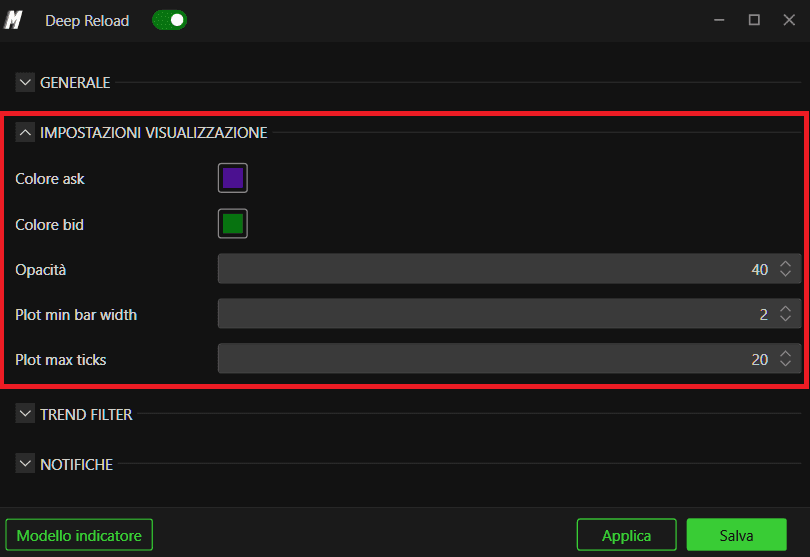
La sezione Plot Settings definisce l'aspetto visivo sul grafico delle zone di nuova liquidità.
3.1 Colore Ask / Bid
Scegli colori distinti per le zone di ricarico Ask e Bid. Per impostazione predefinita, DeepDom utilizza il viola per la nuova liquidità sul lato ask (potenziale resistenza) e il verde per la nuova liquidità sul lato bid (potenziale supporto).
3.2 Opacità (Opacity)
L'Opacità imposta la trasparenza delle bande orizzontali. Un'opacità inferiore le rende discrete se sul grafico sono già presenti molti indicatori sovrapposti; un'opacità superiore evidenzia i reload come livelli decisionali primari.
3.3 Larghezza Minima della Barra (Plot Min Bar Width)
La Larghezza minima barra impone una larghezza orizzontale minima in modo che ciascuna banda rimanga ben visibile anche quando si rimpicciolisce il grafico.
3.4 Massimo Ticks del Grafico (Plot Max Ticks)
Il Numero massimo di tick limita l'altezza verticale di ciascuna zona in tick di prezzo. Quando viene rilevata nuova liquidità su diversi livelli adiacenti, Deep Reload li raggruppa in un'unica banda fino a questo intervallo massimo, consentendo di visualizzare l'intera area difesa a colpo d'occhio.
4. Filtro di Trend (Trend Filter)

Il Filtro di trend opzionale limita i segnali a quelli che si allineano con un trend a breve termine su un periodo di lookback configurabile.
Abilita filtro di trend – attiva o disattiva questo comportamento.
Lookback filtro di trend (minuti) – imposta quanti minuti della recente price action utilizzare per stimare la direzione del trend (ad es. tramite una media mobile o un confronto VWAP).
Con il filtro abilitato, puoi scegliere di concentrarti solo sulla nuova liquidità che supporta il bias attuale (ad esempio, ricarichi sul bid in un movimento rialzista, ricarichi sull'ask in un movimento ribassista) ignorando le bande contro-trend.
5. Notifiche
L'utente ha la possibilità di configurare le noltifiche relative ai segnali generati dall'indicatore
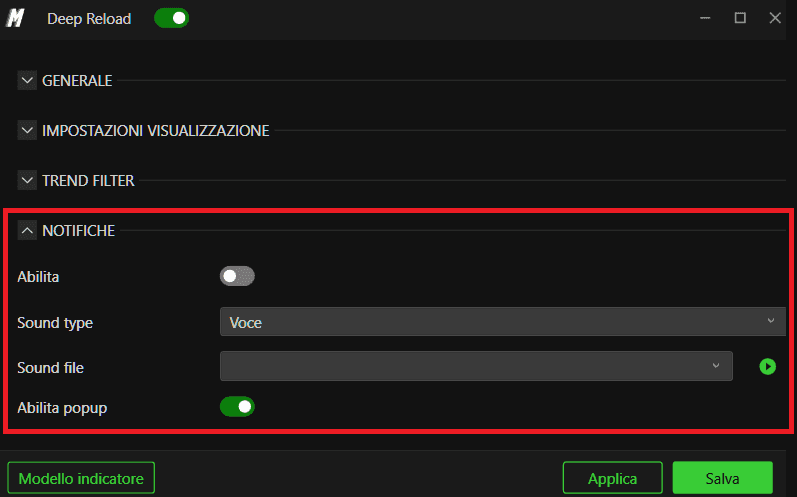
6. Applicazioni Pratiche di Trading
6.1 Individuare Livelli Difesi
Quando Deep Reload traccia ripetute bande verdi appena sotto il prezzo, suggerisce che i buyer si stanno inserendo con nuova liquidità passiva per difendere quell'area. Molti trader utilizzano queste zone come livelli di riferimento per ingressi long con rischio ridotto (stop loss stretto) appena oltre la banda.
6.2 Rilevare l'Assorbimento Vicino ai Massimi o Minimi
Le bande viola che si formano intorno ai massimi recenti indicano nuova liquidità sull'ask che assorbe i buyer aggressivi. Se il prezzo fatica a superare il livello nonostante un forte flusso in acquisto, ciò può segnalare una potenziale esaurimento della spinta e una possibile inversione.
6.3 Supportare i Breakout
Nei breakout, le bande che si formano dietro al movimento (bid che si ricaricano appena sotto una rottura rialzista o ask che si ricaricano appena sopra una rottura ribassista) mostrano che gli operatori di dimensioni maggiori stanno contribuendo a sostenere il nuovo range anziché contrastarlo. Queste zone diventano spesso utili per ingressi su ritracciamento (pullback).
7. Best Practice
Ottimizza per singolo strumento: inizia con il tipo di valore Automatico, osserva la frequenza tipica delle bande, quindi passa alle soglie manuali se hai bisogno di un numero maggiore o minore di segnali.
Combinalo con altri strumenti DeepDom: allinea le zone di Deep Reload con il CVD e i Deep Trades per ottenere un quadro completo della partecipazione passiva rispetto a quella aggressiva.
Evita l'eccessivo affidamento su singole bande: considera le zone di nuova liquidità come contesto e conferma, non come segnali di trading autonomi.
Hai ancora problemi?
Il nostro team di supporto è disponibile 24 ore su 24, 7 giorni su 7, pronto ad aiutarti per qualsiasi problema riscontrato.
Quando ci contatti, includi:
Uno screenshot del problema
Una breve descrizione di ciò che stavi cercando di fare
Ticket di Supporto (Risposta più rapida) Visita www.deepcharts.com e crea un ticket di supporto direttamente sul nostro sito web.
Supporto via Email Scrivici a support@deepcharts.com — tieni presente che le risposte via email potrebbero richiedere un po' più di tempo rispetto a un ticket di supporto.
