Come fare
Updated:
Apri le impostazioni delle scorciatoie
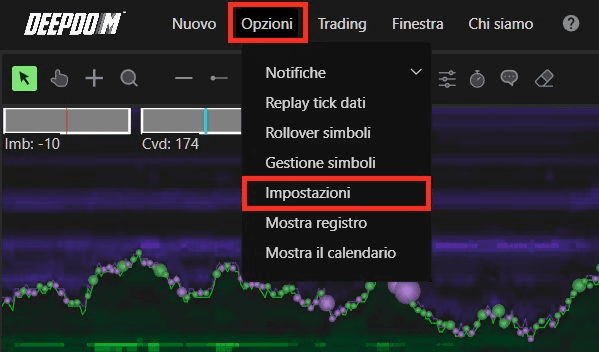
1. Apri il menu Opzioni in DeepDom.
2. Fai clic su Impostazioni.
3. Vai alla colonna Scorciatoia. Da questa finestra puoi configurare le varie scorciatoie da tastiera disponibili sulla piattaforma.

Panoramica della finestra Scorciatoie
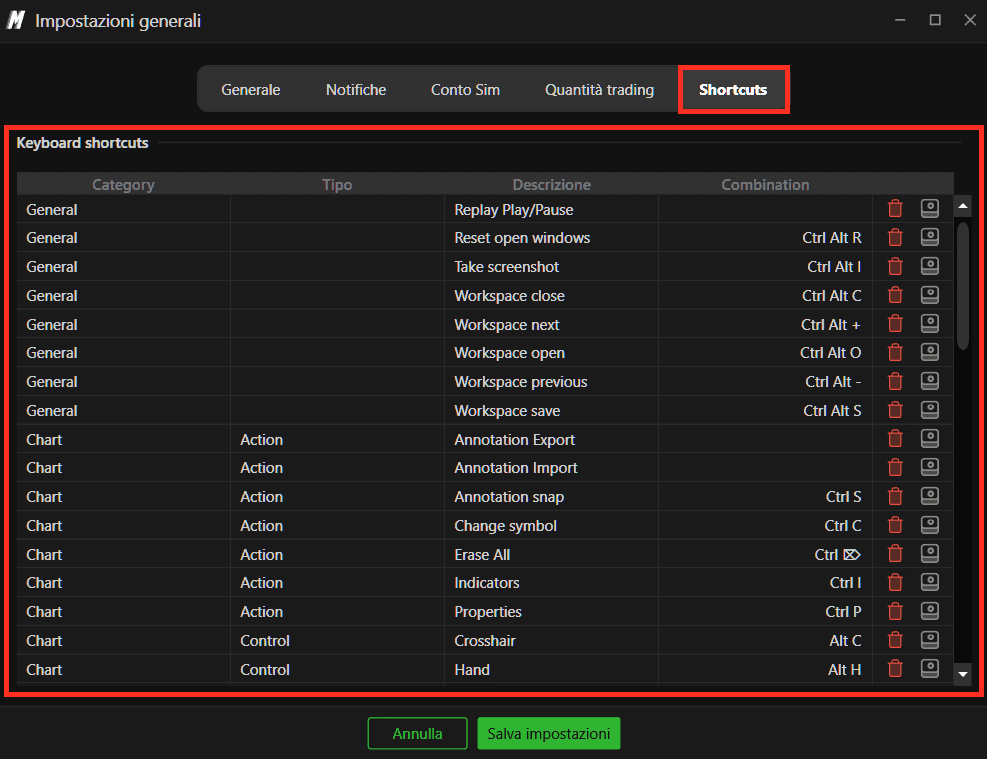
Le scorciatoie sono organizzate per Categoria e Tipo.
Categorie
Generale – funzioni globali della piattaforma.
Grafico – azioni relative ai grafici e alle visualizzazioni.
Tipi di scorciatoia
Azione – attiva azioni o comandi specifici.
Controllo – controlla la navigazione o il comportamento della piattaforma.
Disegno e annotazioni – strumenti per linee, forme e altri disegni.
Scorrimento – azioni di scorrimento orizzontale o verticale.
Trading – comandi relativi all'inserimento ordini o al trading.
La colonna Descrizione scorciatoia mostra la combinazione di tasti attualmente assegnata a ciascuna azione.
Pulsanti di configurazione
Accanto a ciascuna azione troverai i pulsanti per gestire la scorciatoia associata:
Elimina – cancella la combinazione di tasti salvata.
Registra (o Assegna) – ti consente di registrare una nuova combinazione.
Crea una nuova scorciatoia
Fai clic su Registra per l'azione che vuoi configurare.
Premi la combinazione di tasti desiderata sulla tastiera (ad esempio, Ctrl + Shift + H).
Verifica che la nuova combinazione compaia nella colonna Combinazione.
Fai clic su Salva impostazioni per salvare le nuove scorciatoie.
Le nuove scorciatoie da tastiera sono ora attive e pronte all'uso in tutto DeepDom.
Hai ancora problemi?
Il nostro team di supporto è disponibile 24/7 ed è pronto ad aiutarti con qualsiasi problema tu incontri. Quando ci contatti, includi:
Uno screenshot del problema.
Una breve descrizione di ciò che stavi cercando di fare.
Ticket di supporto (risposta più rapida): visita www.deepcharts.com e apri direttamente un ticket di supporto sul nostro sito web.
Supporto via email: puoi anche contattarci all'indirizzo support@deepcharts.com. Tieni presente che le risposte via email potrebbero richiedere un po' più di tempo rispetto a un ticket di supporto.
