Häufige Probleme
Updated:
Mögliche Ursachen für Datenlücken
Die häufigsten Gründe sind:
Verbindungsabbruch zum Datenfeed während des Plattformbetriebs.
Stromausfall, Systemabsturz oder erzwungener Neustart des PCs.
Unerwartetes Schließen von DeepDom , z. B. durch Beenden des Prozesses oder Herunterfahren von Windows, bevor alle Daten geschrieben wurden.
In diesen Fällen können Cache-Dateien beschädigt oder unvollständig sein. Die sicherste Lösung ist das Löschen des Cache-Ordners, damit DeepDom ihn beim nächsten Start neu erstellen kann.

Schritt-für-Schritt – Cache-Ordner löschen
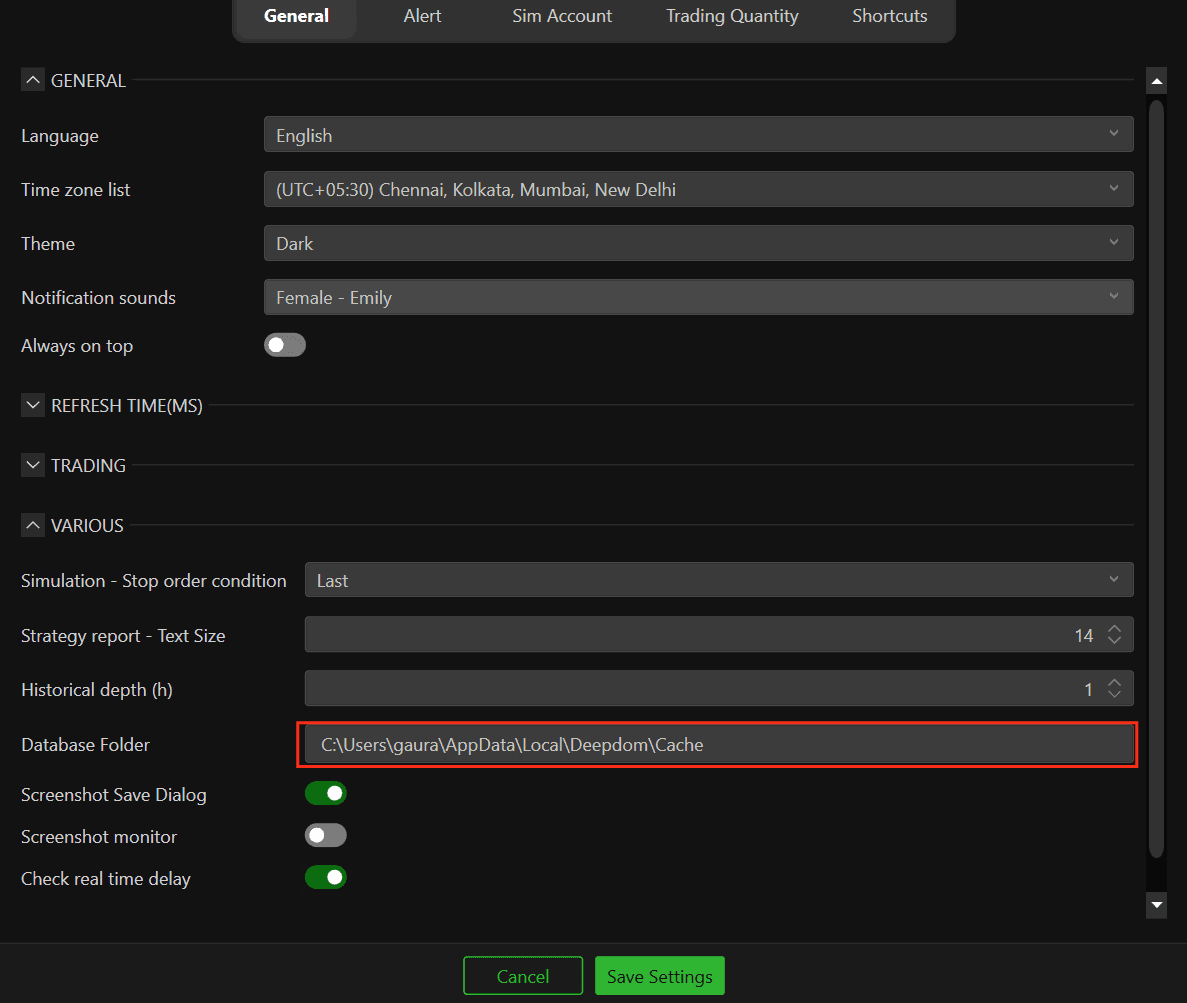
1. Datenbankpfad öffnen
1. Gehen Sie in DeepDom auf Optionen > Einstellungen > Sonstiges.
2. Suchen Sie das Feld Datenbank-Ordner.
3. Klicken Sie in das Feld und kopieren Sie den gesamten Pfad (z. B. mit Strg + C).
2. DeepDom und Datenstrom sicher schließen
1. Trennen Sie den Datendatenstrom oder Datenfeed in DeepDom, damit keine neuen Daten geschrieben werden.
2. Schließen Sie alle geöffneten Work Plans und Charts.
3. Beenden Sie DeepDom vollständig. Stellen Sie sicher, dass die Plattform nicht mehr in der Taskleiste oder im System-Tray aktiv ist.
3. Lokalen Datenbank-Ordner löschen
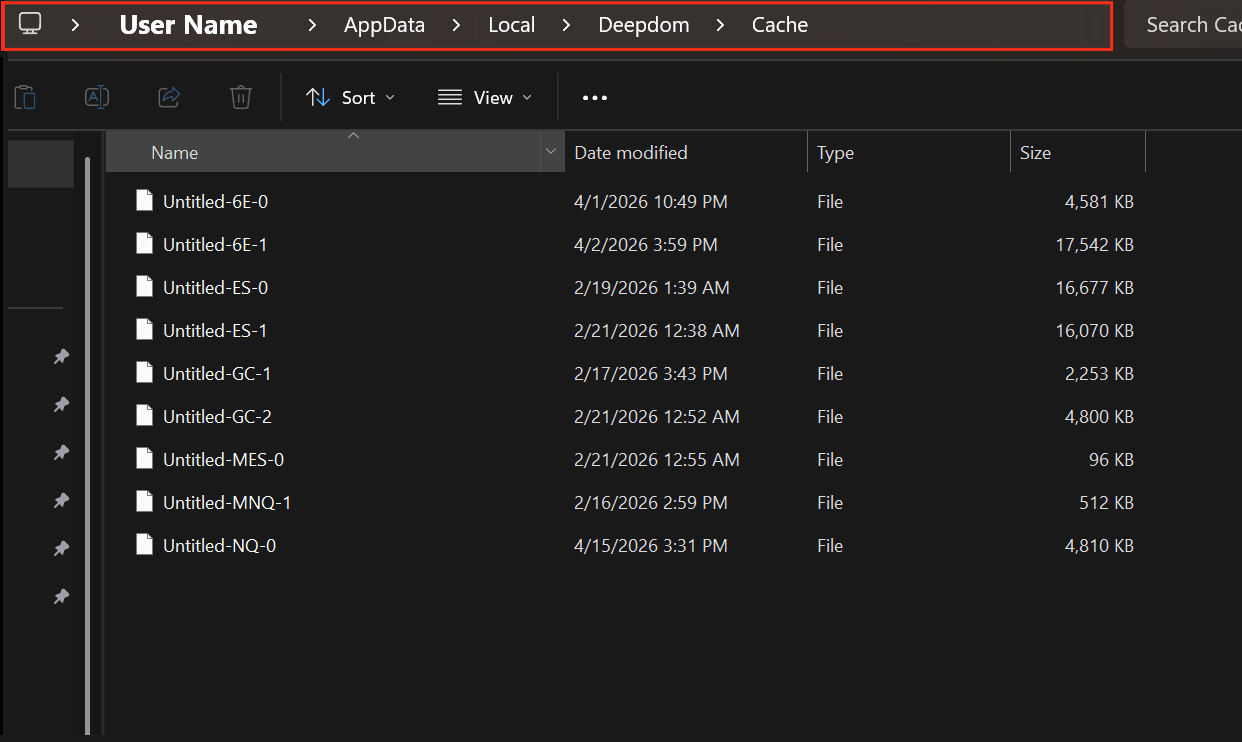
1. Öffnen Sie den Windows-Explorer.
2. Klicken Sie in die Adresszeile, fügen Sie den kopierten Pfad des Datenbank-Ordners ein und drücken Sie Enter.
3. Löschen Sie im geöffneten Ordner die beschädigten Dateien/Symbole.
4. Bestätigen Sie das Löschen im Papierkorb, falls Windows nach Admin-Rechten fragt.
Das Löschen dieser Dateien entfernt alle Cache-Daten für DeepDom, sodass beim nächsten Start eine saubere Datenbank erstellt wird.
4. DeepDom neu starten
1. Starten Sie DeepDom neu.
2. Verbinden Sie Ihren Datenstrom oder Feed wieder.
3. Öffnen Sie Ihre normalen Work Plans und Charts. DeepDom lädt die historischen Daten nun neu vom Anbieter herunter, baut die Datenbank auf und behebt die Datenlücken.
Zusätzliche Tipps
Um zukünftige Cache-Probleme zu vermeiden, trennen Sie immer zuerst den Datenfeed und beenden Sie DeepDom regulär, bevor Sie Windows herunterfahren. Beenden Sie die Anwendung nur im Notfall über den Task-Manager und achten Sie auf eine stabile Internetverbindung bei langen Sessions oder dem Abruf großer historischer Datenmengen.
Immer noch Probleme?
Unser Support-Team ist rund um die Uhr für Sie da. Bitte senden Sie uns bei Ihrer Anfrage Folgendes mit:
Einen Screenshot des Problems.
Eine kurze Beschreibung Ihrer letzten Aktion.
Support-Ticket (schnellste Antwort): Besuchen Sie www.deepcharts.com und erstellen Sie direkt auf unserer Website ein Ticket.
E-Mail-Support: Sie erreichen uns auch unter support@deepcharts.com. Bitte beachten Sie, dass die Antwort per E-Mail etwas länger dauern kann als per Ticket.
