Anleitung
Updated:
Schritt 1 – Benachrichtigungen aktivieren
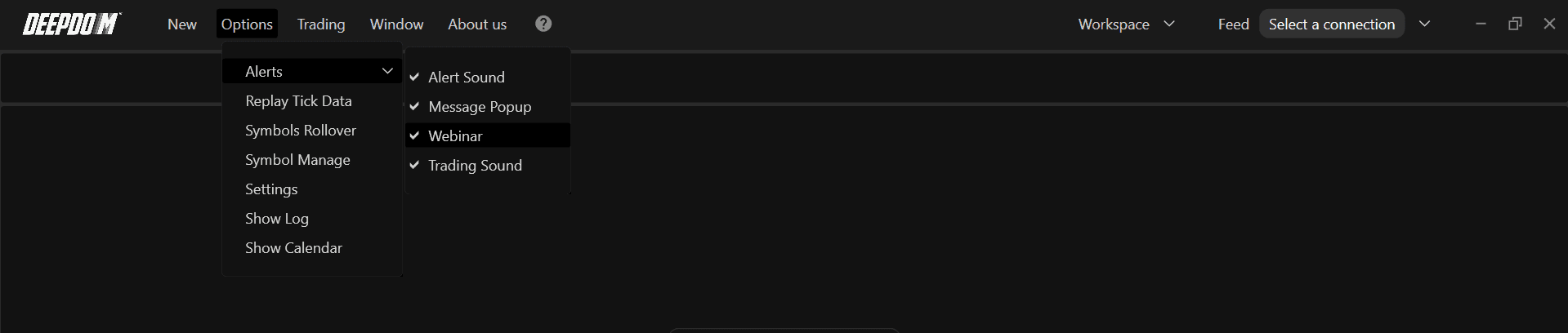
In der Hauptmenüleiste von DeepDom:
Öffnen Sie Optionen.
Klicken Sie auf Alerts.
Stellen Sie sicher, dass die Optionen für Alert-Sounds, Pop-ups, Webinare und Trading-Sounds aktiviert sind.
Dies aktiviert das globale Benachrichtigungssystem, damit später konfigurierte akustische Warnmeldungen abgespielt werden können.
Schritt 2 – Sound-Profile hinzufügen
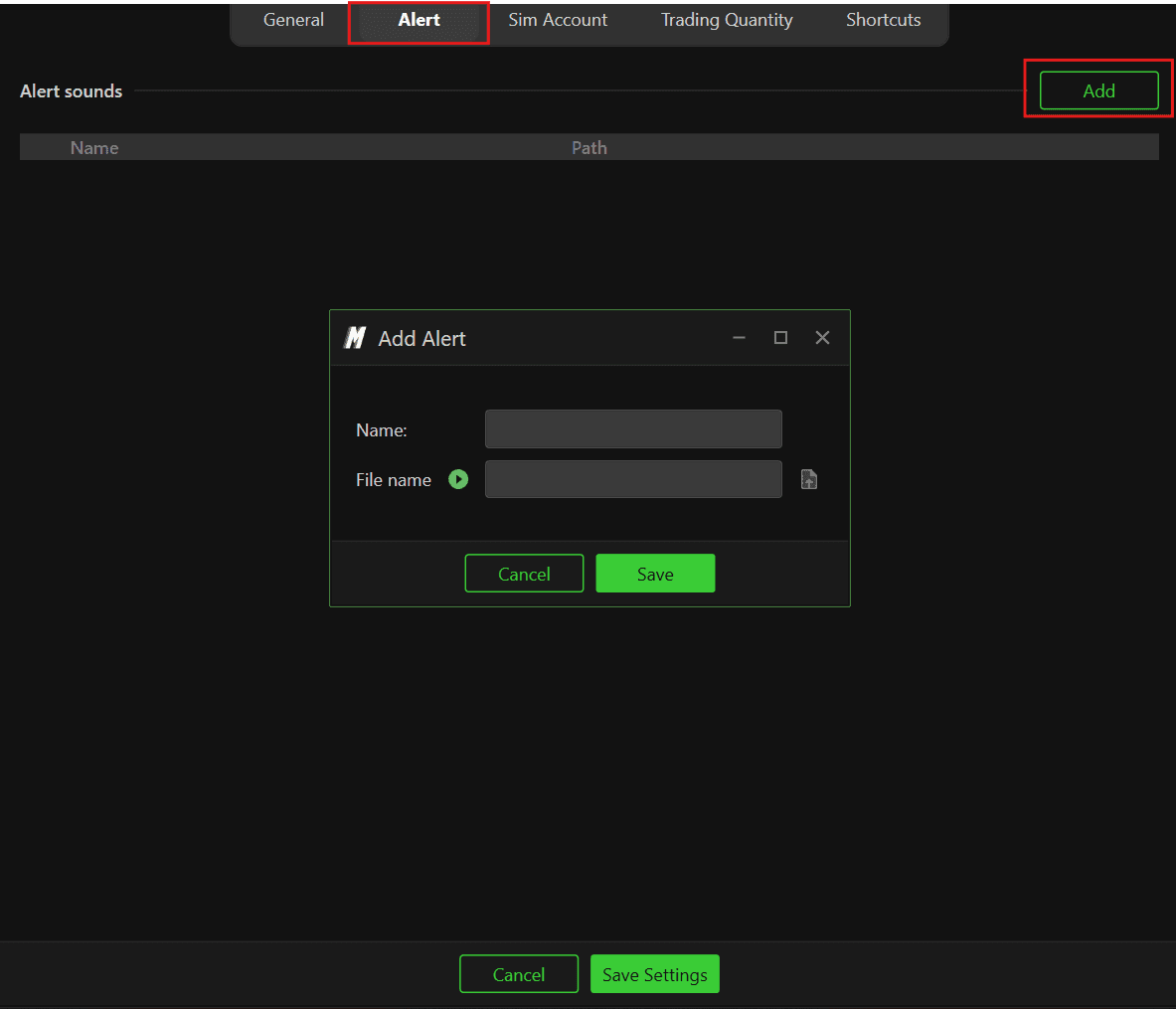
Sie können wiederverwendbare Sound-Profile erstellen – jedes mit eigenem Namen und eigener Audiodatei.
Öffnen Sie Optionen in der DeepDom-Menüleiste.
Gehen Sie zu Einstellungen und wechseln Sie in die Spalte Alerts.
Klicken Sie auf Hinzufügen, um eine neue Sound-Benachrichtigung zu erstellen.
Vergeben Sie einen eindeutigen Namen (z. B. Resistance).
Klicken Sie auf das Datei-Icon, um eine Audiodatei hochzuladen.
DeepCharts bietet Standard-Alert-Sounds im Ordner Documents\Deepdom\Alert Sound. Sie können auch eigene Audiodateien nutzen.
Wählen Sie die gewünschte Audiodatei aus.
Klicken Sie auf Öffnen, um sie zu laden, und nutzen Sie den grünen Play-Button für eine Hörprobe.
Klicken Sie auf Speichern, um die neue Sound-Benachrichtigung zu bestätigen.
Wiederholen Sie den Vorgang für weitere Sounds und klicken Sie dann auf Einstellungen speichern.
Starten Sie DeepDom neu, damit alle neu hinzugefügten Sound-Benachrichtigungen korrekt geladen werden.
Schritt 3 – Sounds mit Annotationen verknüpfen
Sobald Benachrichtigungen definiert sind, können Sie diese mit Zeichenwerkzeugen verknüpfen, sodass ein Sound ertönt, wenn der Preis mit diesen Annotationen interagiert.
Öffnen Sie einen Chart und fügen Sie die gewünschte Annotation hinzu (z. B. eine horizontale Linie auf einem Widerstandsniveau).
Wählen Sie die Annotation aus und machen Sie einen Rechtsklick darauf.
Aktivieren Sie Sound-Alerts.
Klicken Sie auf Benachrichtigungseinstellungen.
Wählen Sie eine Ihrer gespeicherten Sound-Benachrichtigungen aus der Liste (z. B. Resistance).
Optional können Sie eine benutzerdefinierte Textnachricht hinzufügen, die zusammen mit dem Sound-Alert angezeigt wird.
Schritt 4 – Sounds mit Indikatoren verknüpfen
Sie können Sound-Benachrichtigungen auch direkt an Indikatorsignale koppeln.
Öffnen Sie das Dialogfeld Indikator-Parameter (über das Indikatoren-Panel oder per Rechtsklick auf den Indikator im Chart).
Suchen Sie den Bereich Sound-Benachrichtigung.
Aktivieren Sie Sound-Benachrichtigungen.
Wählen Sie eine Benachrichtigung aus der Liste der definierten Sounds aus.
Nach diesen Schritten spielt DeepDom bei jedem Auslösen der Alert-Bedingung des Indikators den zugehörigen Sound ab und zeigt, falls konfiguriert, die Warnmeldung an.

Haben Sie noch Probleme?
Unser Support-Team ist rund um die Uhr für Sie da. Bitte geben Sie bei Ihrer Anfrage Folgendes an:
Einen Screenshot des Problems.
Eine kurze Beschreibung Ihres Vorhabens.
Support-Ticket (schnellste Antwort): Besuchen Sie www.deepcharts.com und erstellen Sie direkt auf unserer Website ein Ticket.
E-Mail-Support: Sie erreichen uns auch unter support@deepcharts.com. Bitte beachten Sie, dass Antworten per E-Mail etwas länger dauern können als über ein Support-Ticket.
Ticket.
