Comment
Updated:
Présentation du menu Feed
Utilisez l'option Select a Connection dans la barre de menu DeepDom pour choisir le flux de données à utiliser. Les connexions aux fournisseurs tiers fournissent les cotations du marché, l'historique des données et souvent le routage des ordres pour le trading réel.

Ouvrir les paramètres du Data Feed
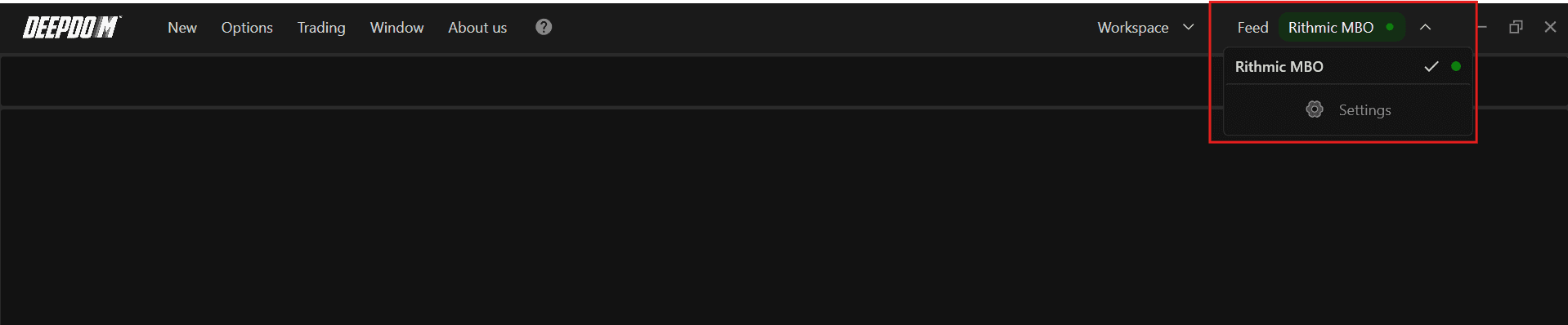
1. Dans la barre d'outils principale, ouvrez le menu Feed.
2. Cliquez sur Settings pour ouvrir la fenêtre Data Feed Settings.
Cette fenêtre est divisée en deux colonnes principales :
Connection List – affiche toutes les connexions existantes.
Connection Information – affiche les détails du flux sélectionné ou un formulaire d'accès si la connexion n'est pas encore configurée.
Ajouter une nouvelle connexion
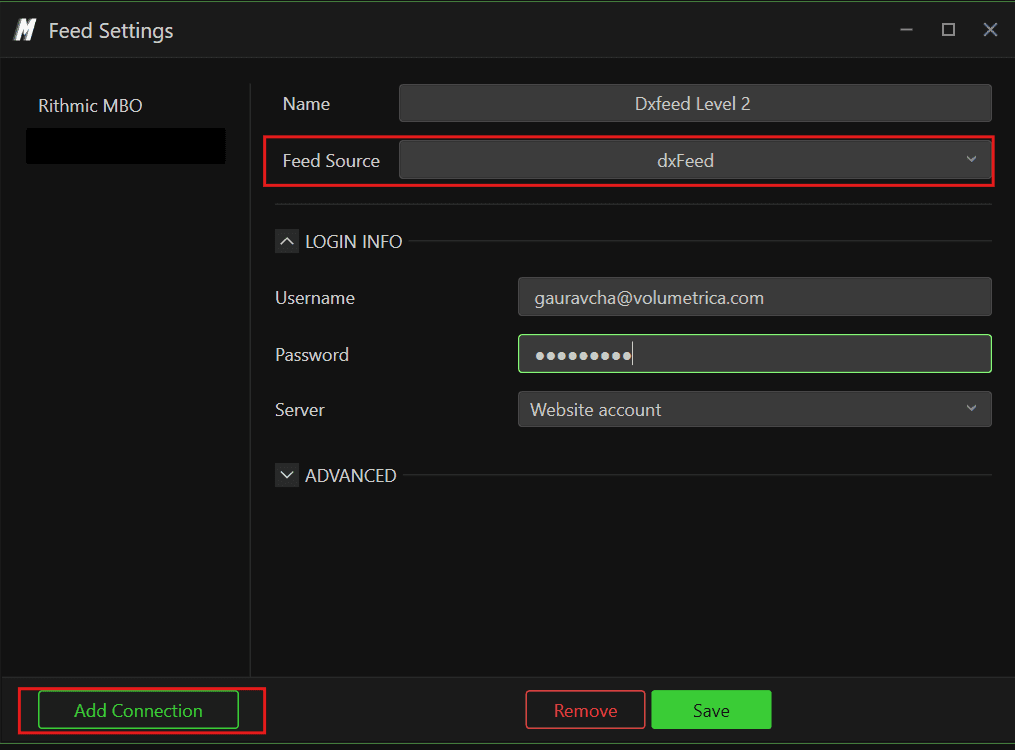
Cliquez sur Add Connection en bas de la fenêtre Data Feed Settings.
Dans le formulaire, remplissez les champs suivants :
Name – choisissez un nom descriptif (par exemple, Rithmic – Futures).
Data Source – sélectionnez le fournisseur de données ou le courtier dans la liste déroulante.
Credentials – saisissez l'identifiant et le mot de passe fournis par votre tiers.
Connect on startup – cochez cette case pour que DeepDom se connecte automatiquement à ce flux au démarrage de la plateforme.
Une fois les détails corrects, cliquez sur Save pour enregistrer la connexion. DeepDom utilisera ces identifiants pour la reconnexion automatique lors de vos prochaines sessions.
Après avoir ajouté une connexion, veillez à associer correctement les marchés et les symboles via Options > Manage Symbols pour que vos graphiques reçoivent les données du bon flux.
Formulaire d'accès aux connexions
L'affichage du formulaire varie selon l'intégration sélectionnée. Certaines connexions exigent uniquement des identifiants (mot de passe inclus), tandis que d'autres proposent des options supplémentaires : système, serveur, passerelle ou environnement (réel vs démo). Dans tous les cas, cliquez sur Save Settings ou Save pour valider et enregistrer votre configuration.
Besoin d'aide ?
Notre équipe d'assistance est disponible 24/7 pour résoudre vos problèmes. Pour toute demande, merci de fournir :
Une capture d'écran du problème rencontré.
Une description rapide de l'action tentée.
Ticket d'assistance (le plus rapide) : rendez-vous sur www.deepcharts.com pour créer un ticket directement sur notre site.
Support par e-mail : écrivez-nous à support@deepcharts.com. Veuillez noter que le délai de réponse par e-mail peut être légèrement plus long.
