Updated:
Trading Features & Settings
Enable Trading
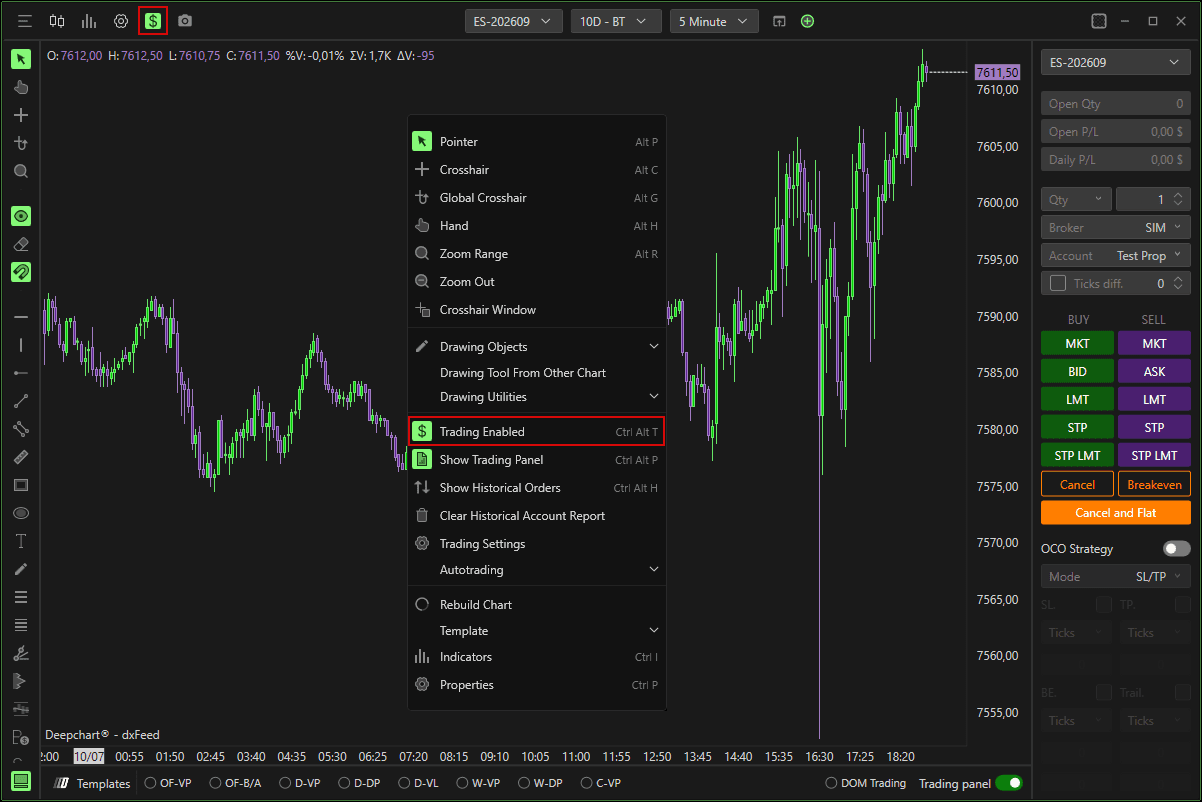
To enable trading directly from a chart:
Click the Dollar icon at the top-left corner of the chart, or
Right-click anywhere on the chart and select Trading enabled.
Show Trading Panel
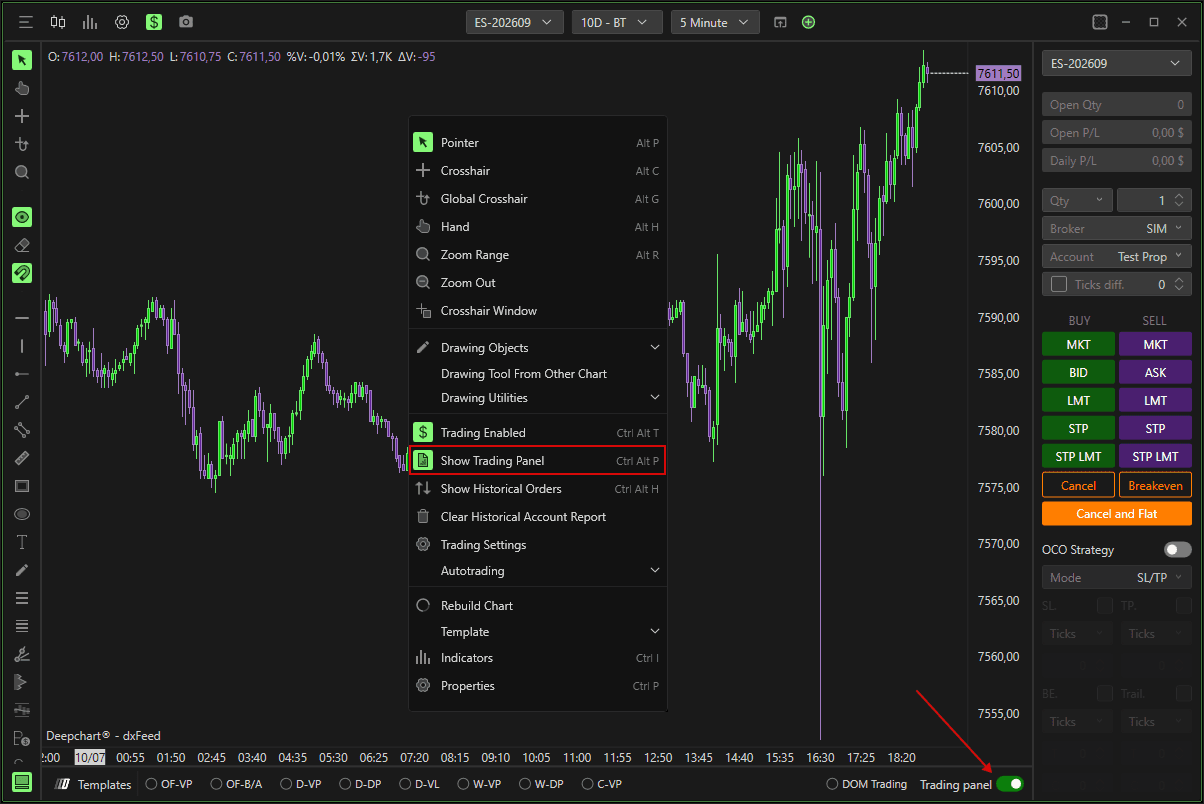
To display the trading panel:
Enable the Show Trading Panel checkbox at the bottom-right of the chart, or
Right-click anywhere on the chart and select Show trading panel.
Trading Panel
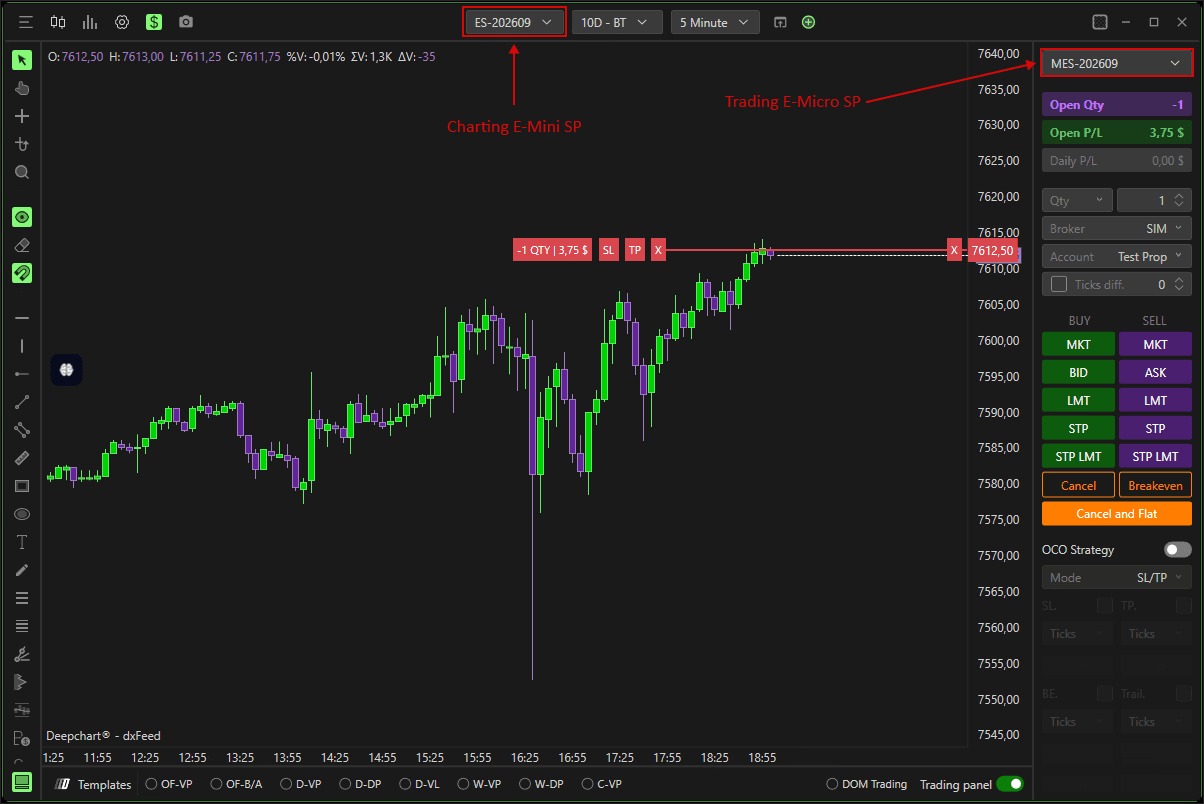
Cross Trading Mini / Micro
At the top of the Trading Panel, you can choose the instrument you want to trade.
DeepChart allows you to view Mini futures data while trading Micro contracts, making it unnecessary to open multiple charts.
Remember: to perform accurate volumetric analysis, always monitor the main futures contract.
The panel also displays:
Qty Open: Number of contracts or shares currently open.
Open P/L: Profit/Loss of the active position.
Daily P/L: Total P/L for the selected instrument.
Trading Buttons
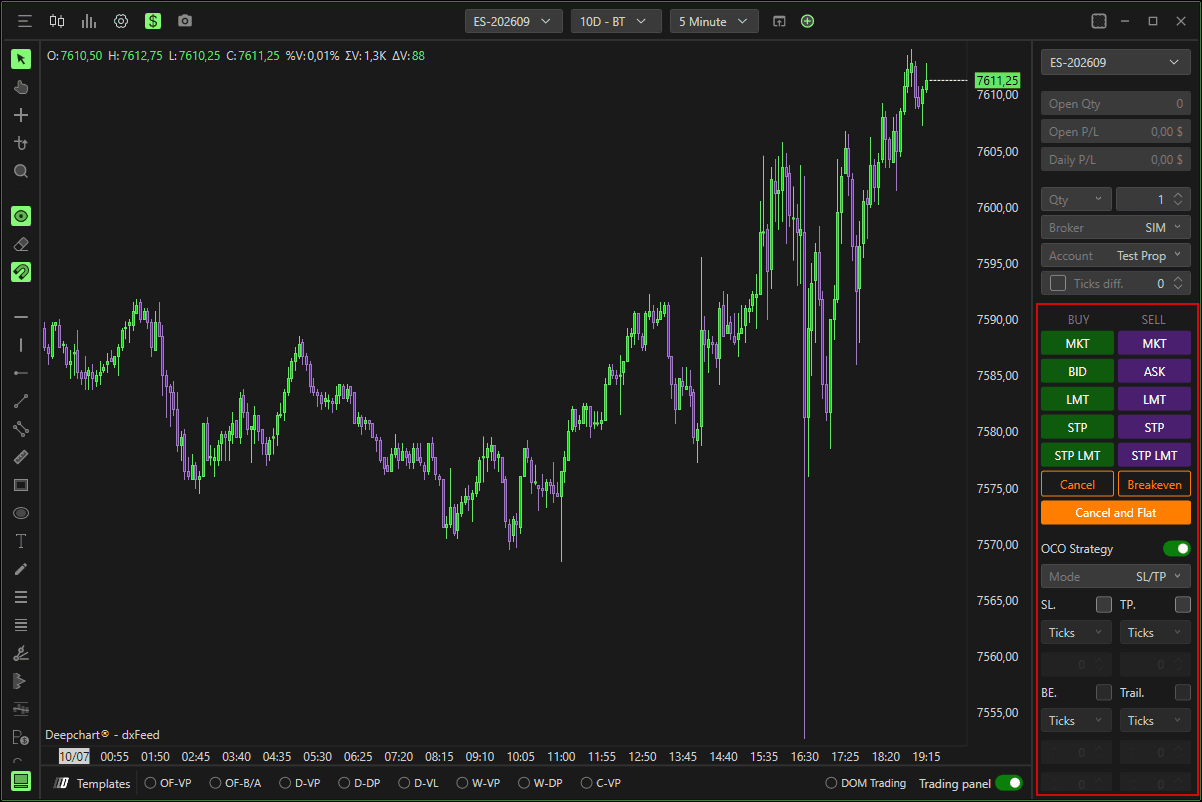
MKT
Places a market order (buy or sell).
BID / ASK
Places limit orders at:
Best Bid
Best Ask
LMT
Places a custom limit order:
Buy limit below market
Sell limit above market
STP
Places a stop order, which triggers a market order when activated:
Buy stop above market
Sell stop below market
STP LMT
Places a stop-limit order, which triggers a limit order instead of a market order.
Useful for avoiding slippage, with the risk of not being executed.
Cancel
Cancels all pending orders.
FLAT
Closes the open position and cancels all pending orders.
Order Interaction
Left-click to move limit or stop orders.
Right-click to cancel them.
Qty / Broker / Account
Select:
Trade quantity
Broker
Account to execute with
Tick Diff
When enabled, this allows placing Bid/Ask orders a fixed number of ticks away from the market.
Example:
If set to 300, clicking Bid will place a Buy Limit 300 ticks below the current price instead of at the best Bid.
OCO Strategy
Enable OCO (Order-Cancel-Order) to automatically link a profit-target limit order and a stop-loss order to the main trade.
When one executes, the other is automatically cancelled.
(See detailed explanation in the OCO Strategy section.)

Show Historical Executions
To display historical executions on the chart:
Click the Settings icon.
Enable Show historical executions.
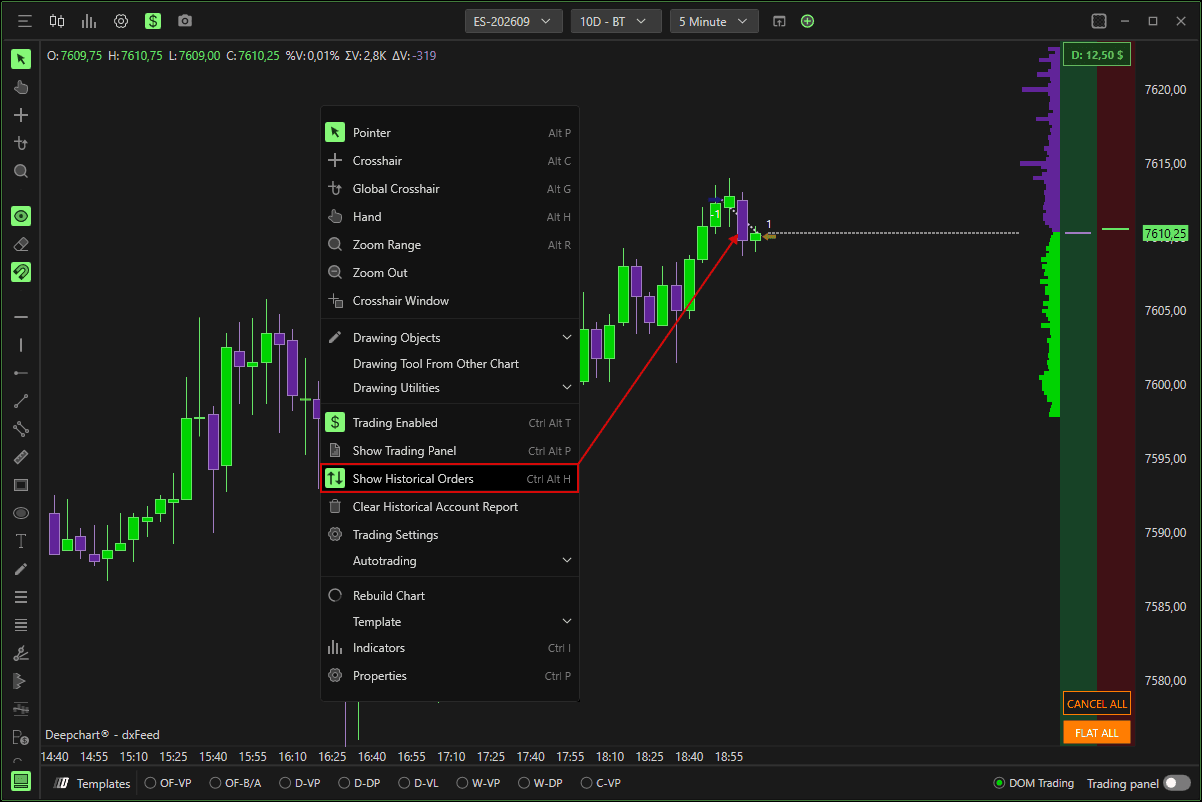
Trading Settings
Found under the Settings icon → Trading Settings.
Here you can customize:
Order display
Text size
Colors
…and more.
Chart DOM
To enable Chart DOM:
Click DOM Trading at the bottom-right and open the dropdown menu.
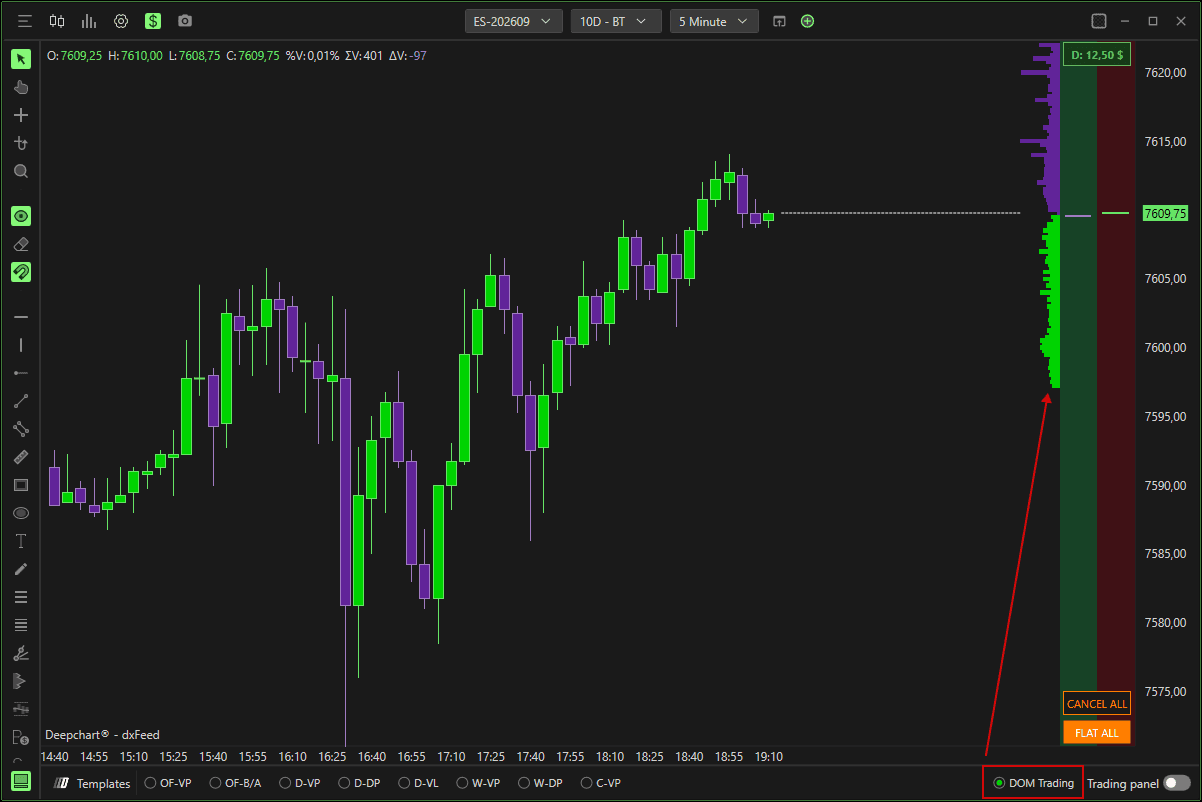
Chart Trading
Enable Chart Trading
Toggle Enable Chart Trading to activate chart-based order placement.
Chart Trading Width
Defines the width of the Chart DOM columns.
Buy Orders
Left-click below last price → Buy Limit (default)
Left-click above last price → Buy Stop (default)
Right-click below last price → Buy Market (default)
Right-click above last price → Buy Market (default)
Sell Orders
Left-click above last price → Sell Limit (default)
Left-click below last price → Sell Stop (default)
Right-click above last price → Sell Market (default)
Right-click below last price → Sell Market (default)
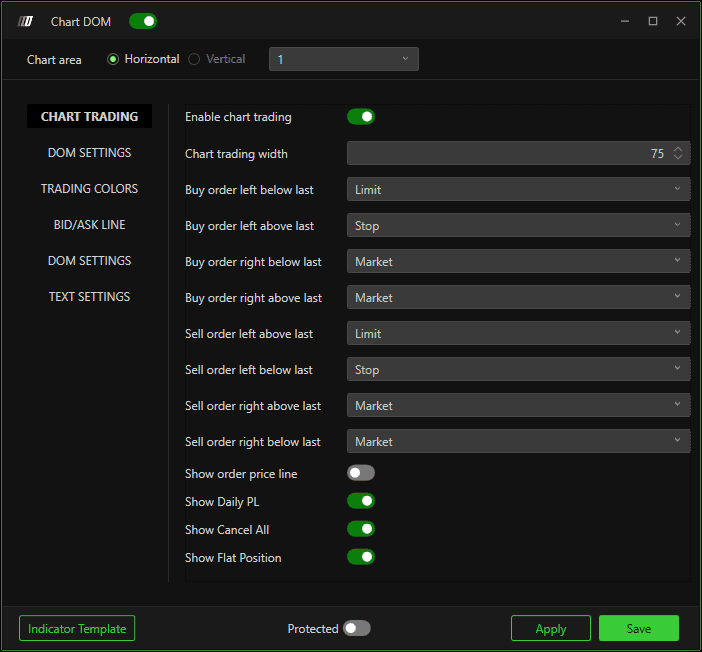
Trading Colors
Customize colors for the Chart DOM columns.
Line Bid/Ask
Enable or disable the Bid/Ask line.
DOM Settings
Show the Depth of Market and customize its colors.
Text Settings
Enable chart text and modify its color and appearance.
Trading Safety Features
DeepCharts includes order frequency protection settings to prevent accidental rapid order submission.
Location: Options >> Settings >> General >> Trading
Frequency Limitation - Max Orders Per Second
Defines how many orders may be sent per second. If the limit is exceeded:
Order submission is blocked
An error notification is displayed
Frequency Limitation - Pause Time (Seconds)
Defines how long order submission remains paused after exceeding the limit.
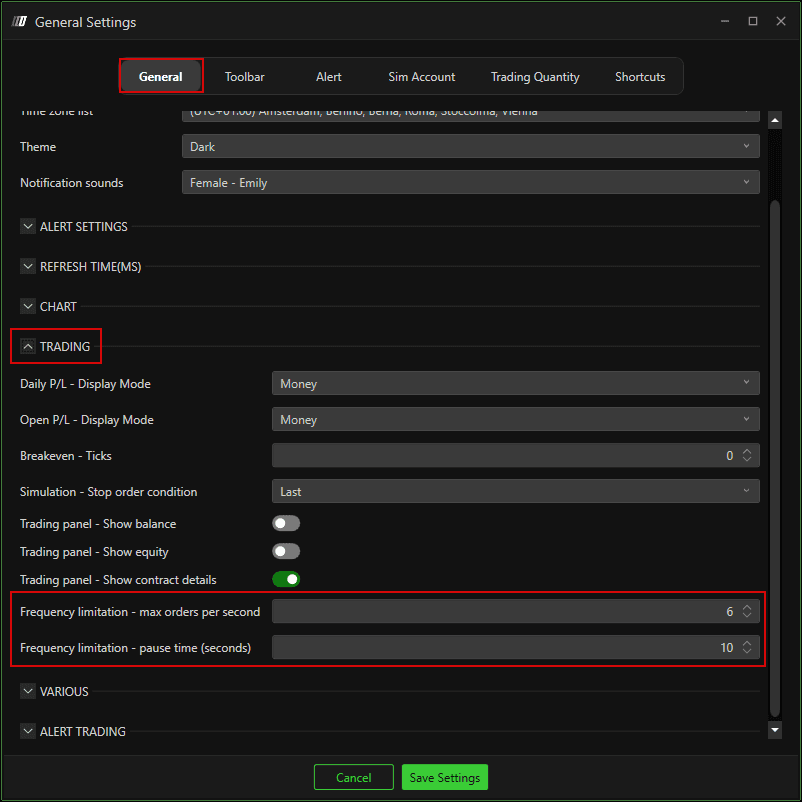
These controls provide an additional layer of protection against accidental rapid order submission.
Still Having Trouble?
Our support team is available 24/7 and ready to help you with any issue you encounter.
When reaching out, please include:
A screenshot of the issue
A brief description of what you were trying to do
Support Ticket (Fastest Response)
Visit www.deepcharts.com and create a support ticket directly on our website.
Email Support
Reach us at support@deepcharts.com - please note that email responses may take a little longer than a support ticket.
