Trading

Updated:

Feb 26, 2026

Orders Window

Orders Window

Manage and track active orders, positions, and execution history through the dedicated Orders window interface

Manage and track active orders, positions, and execution history through the dedicated Orders window interface

No headings found on page

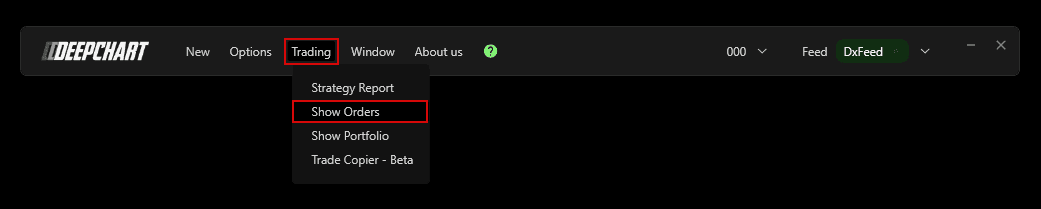
To open the Orders Window:

  1. Click on the Trading menu in DeepChart.

  2. Select Show Orders.

Overview

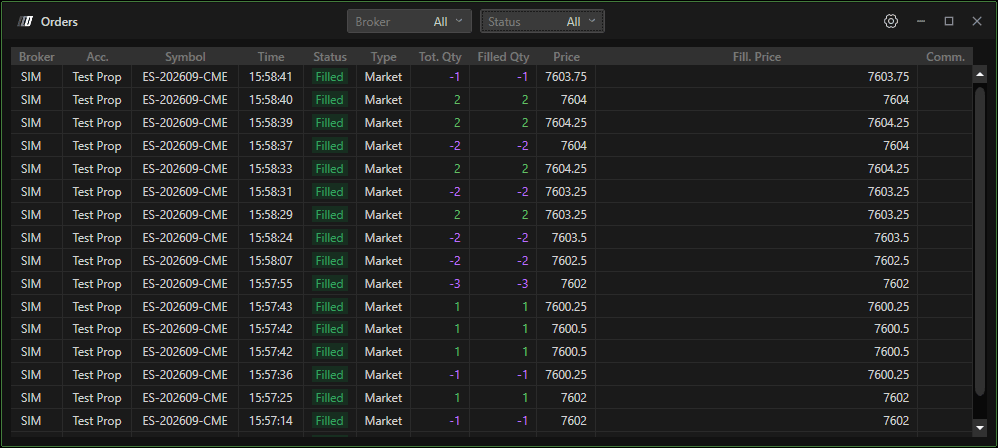
In the Orders Window, you can:

  • Choose the Broker

  • Filter orders by type: Placed, Executed, or Cancelled

  • Select All to display every order

Additional Tip

To ensure you have no pending orders at the end of your trading session:

  • In the Status section, select Submitted

  • This will show any orders that are still active and not yet filled or cancelled

This section helps you monitor all your orders and avoid leaving unintended open orders.
Tools for futures, currency & options involves substantial risk & is not appropriate for everyone. Only risk capital should be used for trading.

Testimonials appearing on this website may not be representative of other clients or customers and is not a guarantee of future performance or success.

Tools for futures, currency & options involves substantial risk & is not appropriate for everyone. Only risk capital should be used for trading. Testimonials appearing on this website may not be representative of other clients or customers and is not a guarantee of future performance or success.

Deepcharts © 2026 All right reserved

Tools for futures, currency & options involves substantial risk & is not appropriate for everyone. Only risk capital should be used for trading. Testimonials appearing on this website may not be representative of other clients or customers and is not a guarantee of future performance or success.

Deepcharts © 2026 All right reserved