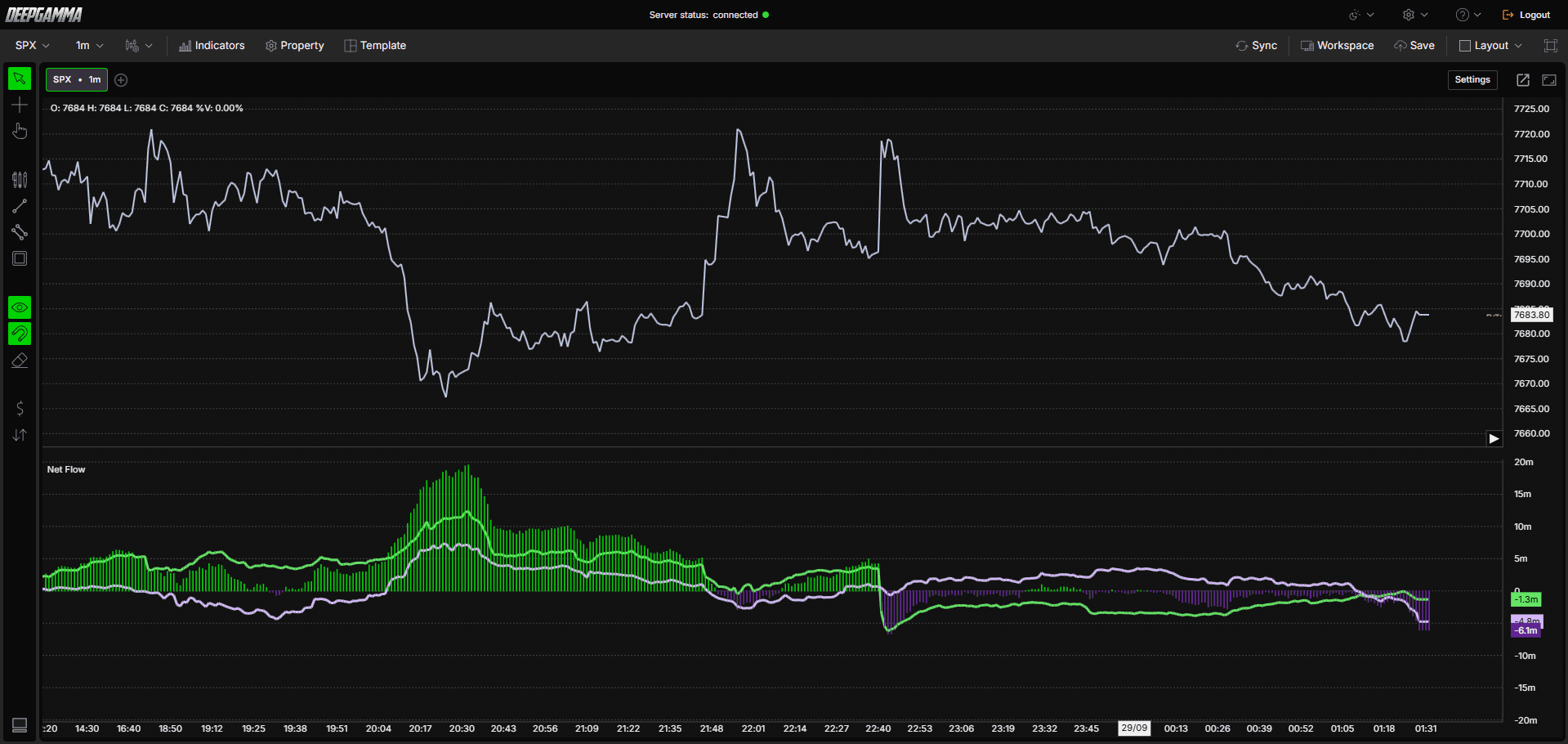
Option Net Flow shows the net options flow building up over the session, plotted as three lines: Call, Put, and the Difference between them. It gives you a running view of which side, calls or puts, is seeing more flow, and by how much, rather than a single snapshot.
Note: Option Net Flow uses CBOE data and shows values on SPX charts only.

How to Add Option Net Flow
Open an SPX chart in DeepGamma Web
Click Indicators in the Menu Bar
Click the green Add indicator button at the bottom of the panel
Open the Options (Cboe) tab and search for Option Net Flow
The indicator is added to your chart and appears in the Indicators panel

Understanding the Indicator
By default, the indicator is plotted in its own panel below the price chart, labeled Net Flow. It has three lines:
Call - The net call flow, building up over the session. Shown in green by default
Put - The net put flow, building up over the session. Shown in light purple by default
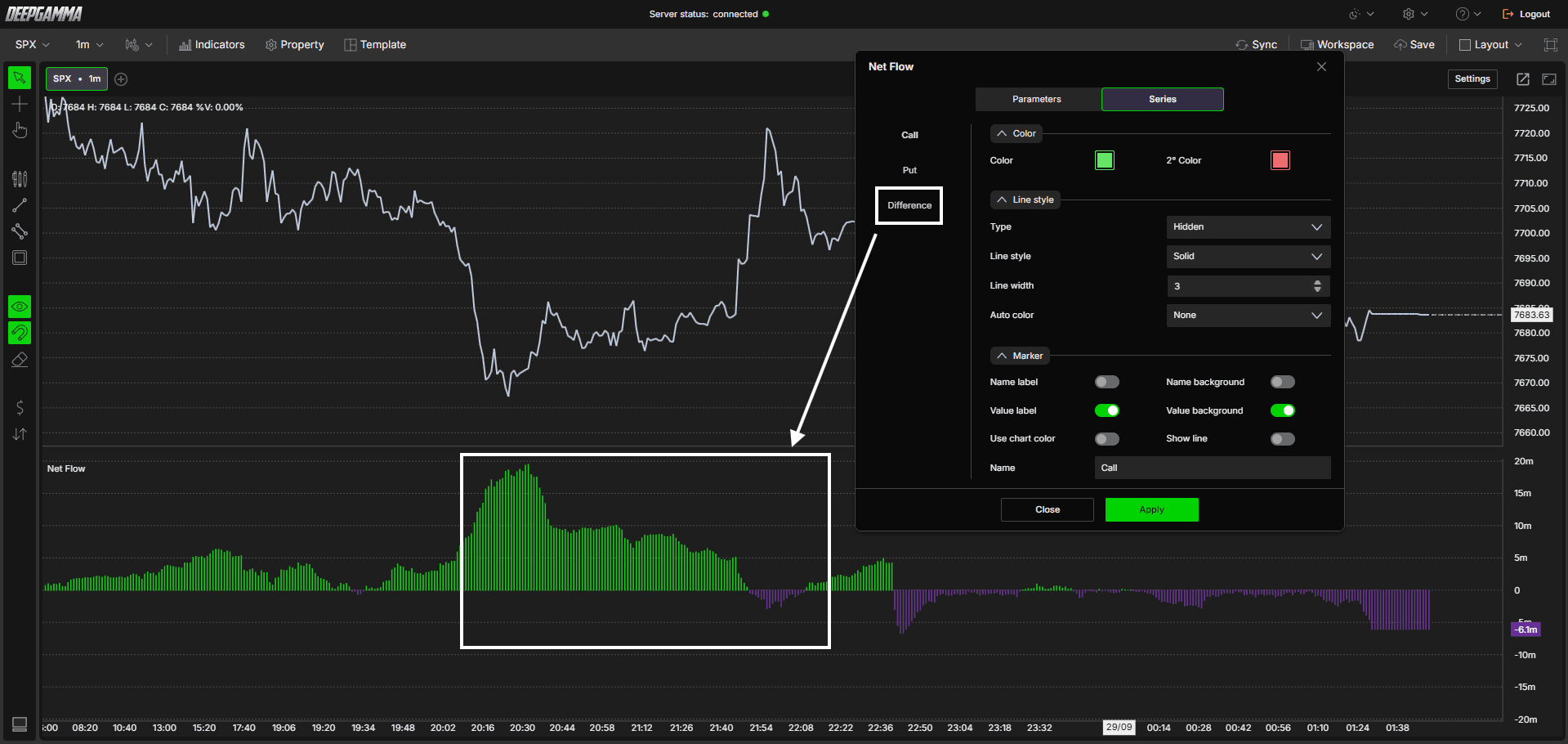
Difference - The gap between the Call and Put lines at any point in the session. Shown as bars by default, so you can see at a glance which side is pulling ahead
The Call and Put lines behave like a cumulative volume delta, so the direction they move, and how far apart they drift, matters more than the exact value.

Understanding Key Terms
Net flow - The running total of options activity on one side (calls or puts), building up as the session goes on rather than resetting bar by bar
Revert - Flips the flow from the customer side to the estimated market maker side. Since market makers are typically on the opposite side of a trade, this shows the pressure they may be carrying, similar to the Revert setting on Option Delta
Settings
The indicator has two tabs: Parameters and Series.
Parameters
General
Expiration - Filter the flow by expiration. Options available: Default, All expirations, 0 DTE, <= 1d, <= 7d, <= 31d, <= 91d. Default is Default
Value - Choose how the flow is measured. Options available:
Contracts
Premium (default)
Delta
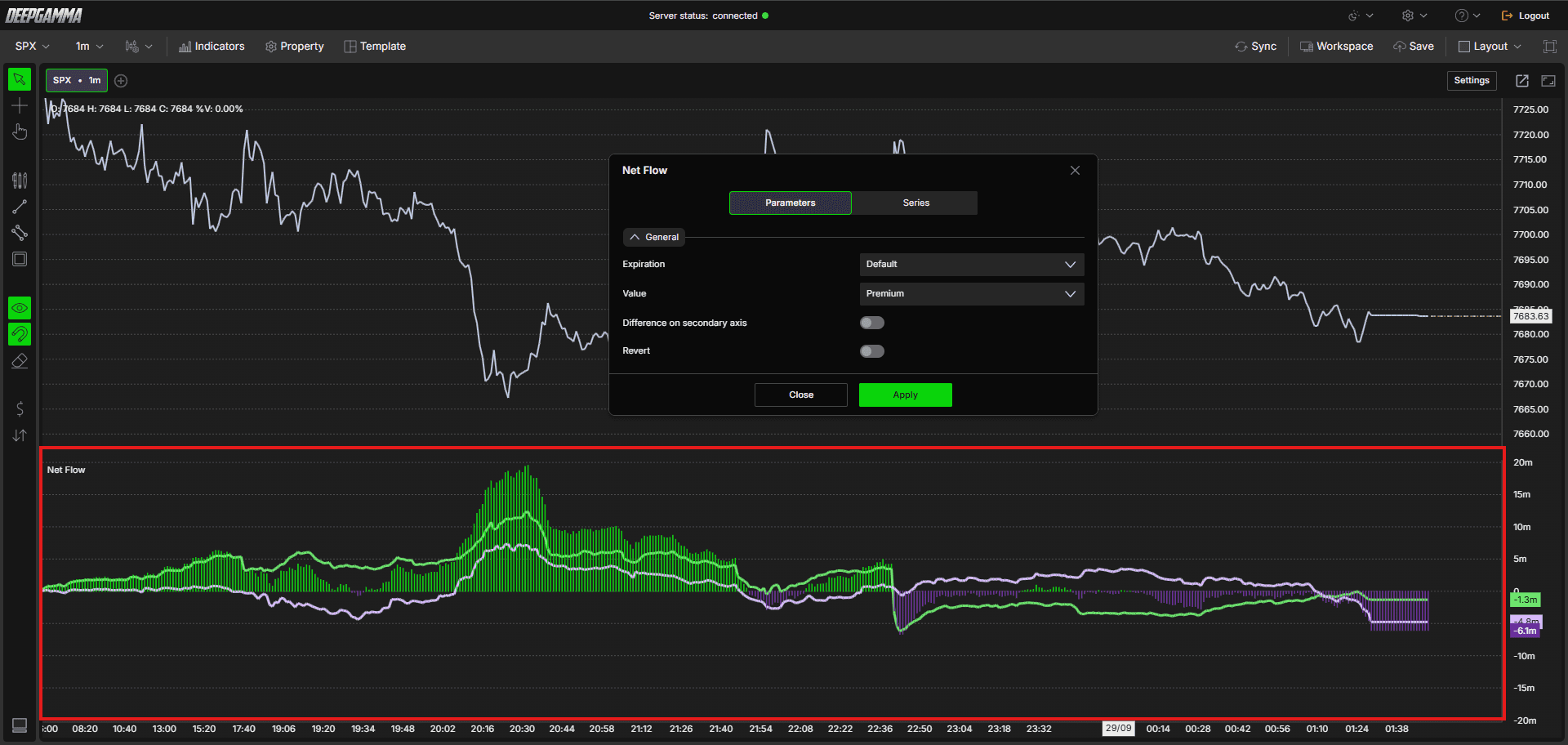
Difference on secondary axis - When enabled, the Difference line is plotted on its own axis, separate from the Call and Put lines. Default is disabled
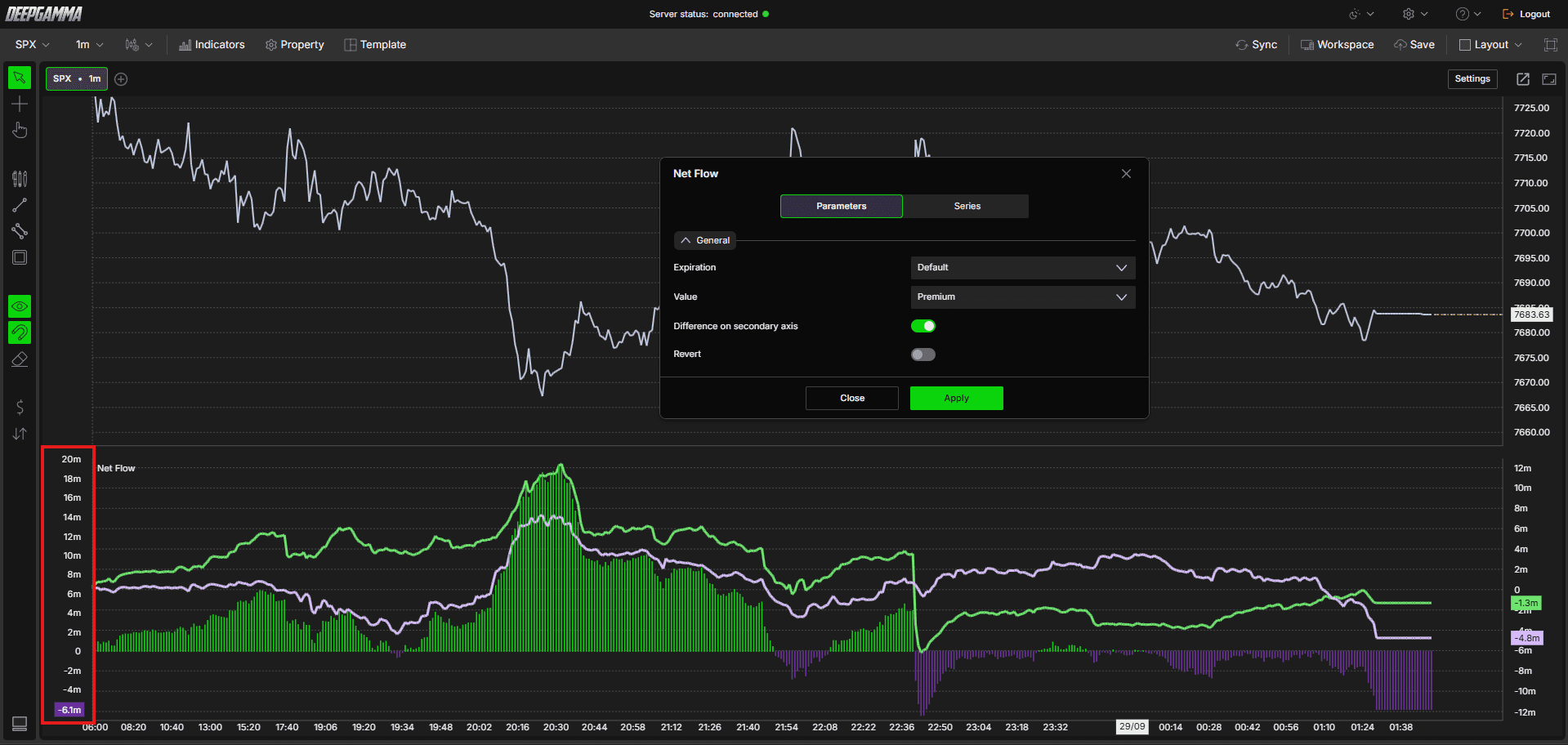
Revert - When enabled, flips the flow to show the estimated market maker side. Default is disabled
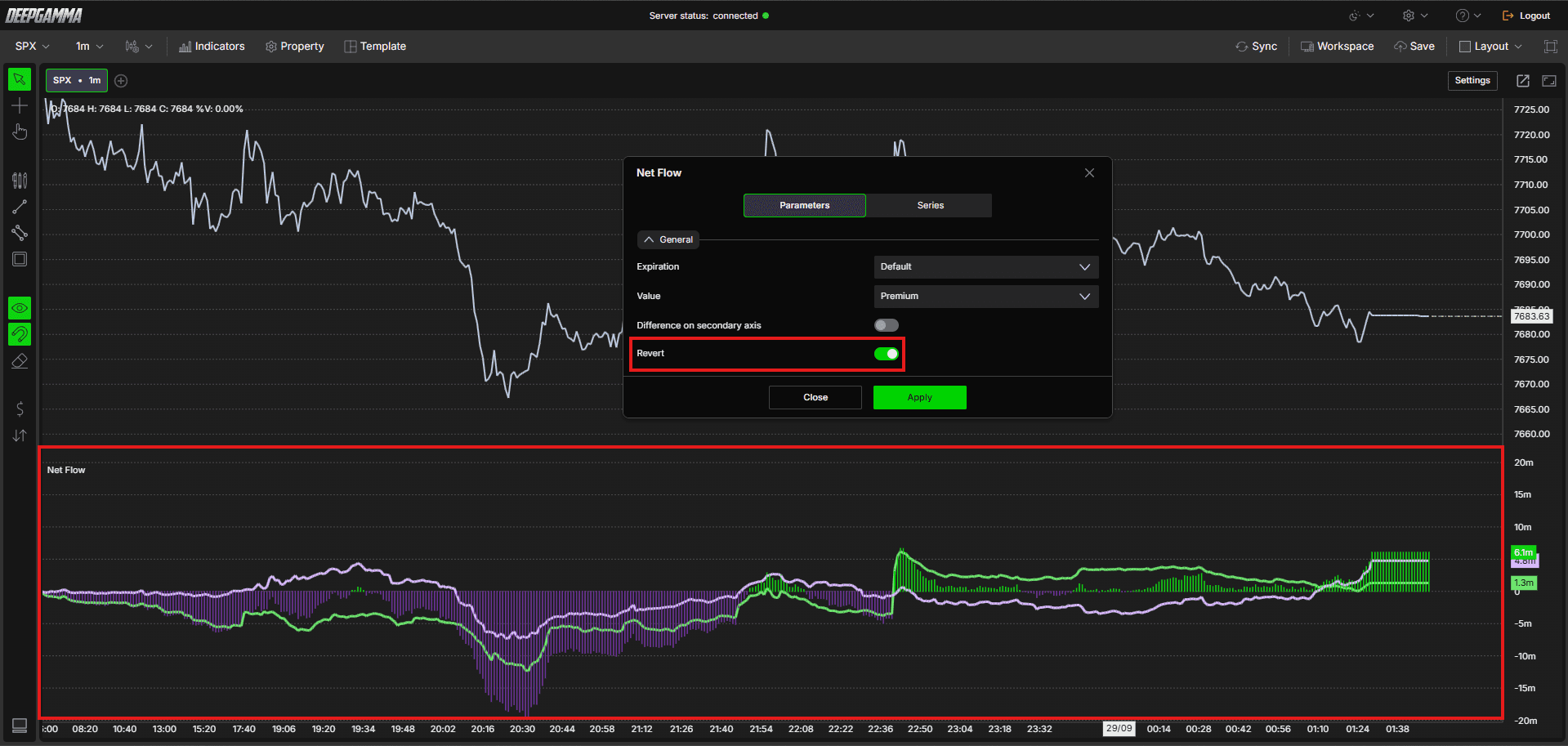
Series
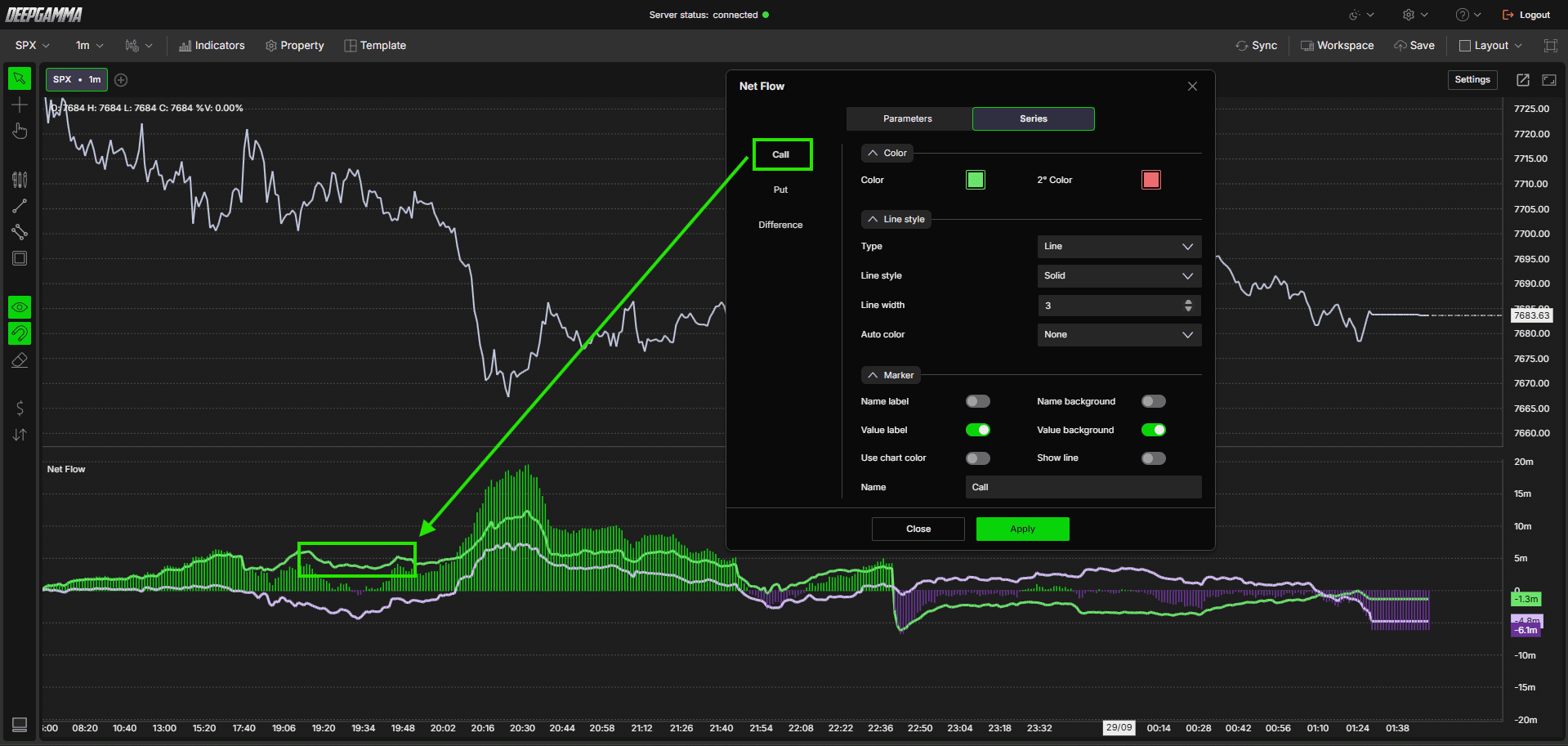
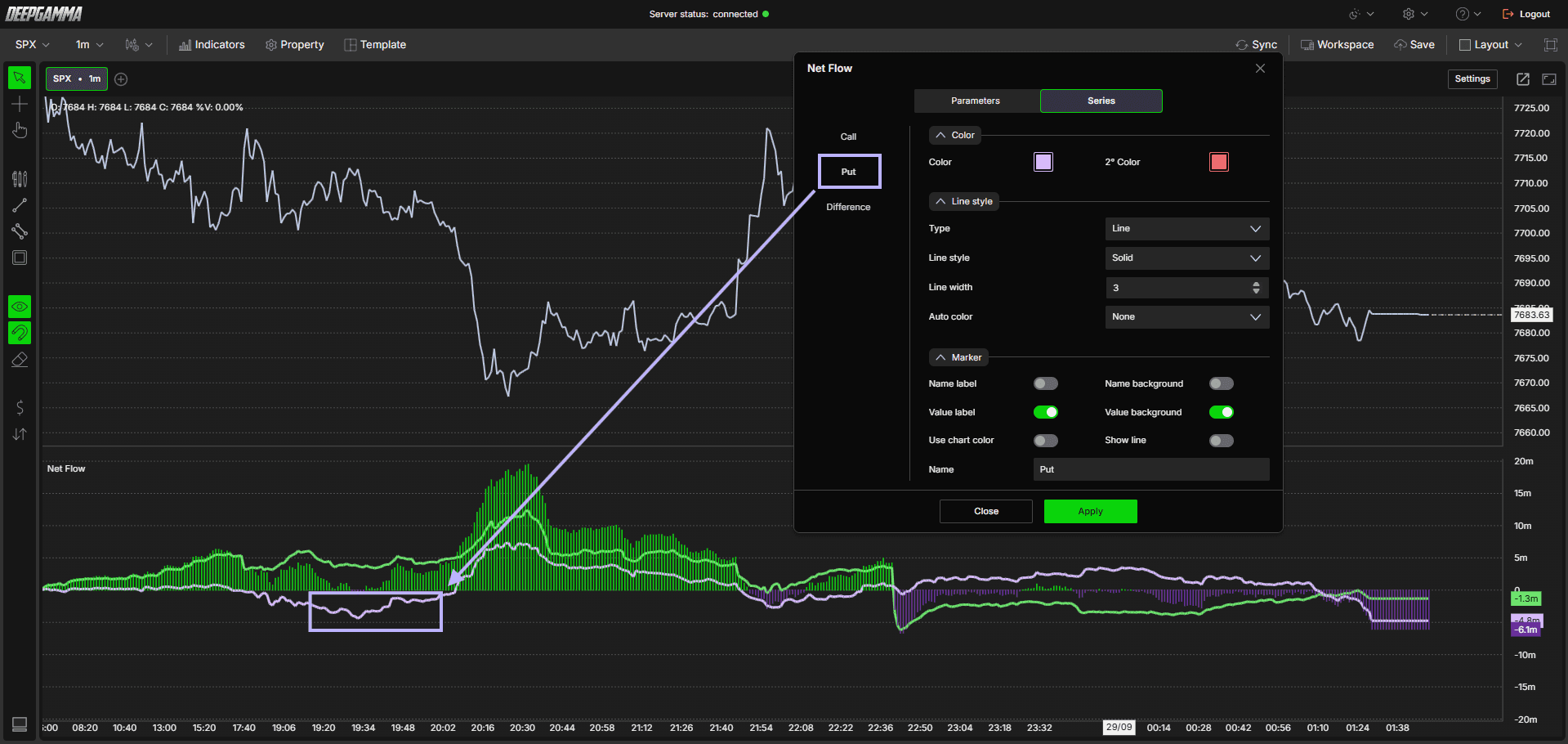
The Series tab has three sections on the left: Call, Put and Difference. Each one opens its own settings on the right, grouped under Color, Line style and Marker.
Call
Color
Color - Set the color of the line. Default is green
2° Color - Set a second color for the line. Default is red
Line style
Type - Choose how the line is displayed. Options available:
Line (default)
Hidden
Broken line
Line style - Choose the style of the line. Options available:
Solid (default)
Dash
Dot
Dash dot
Dash dot dot
Line width - Set the thickness of the line. Default is 3
Auto color - Set how the line changes color. Options available:
None (default)
Slope
+/-
Marker
Name label - Show the name of the line. Default is disabled
Value label - Show the current value of the line on the price axis. Default is enabled
Use chart color - Use the chart color for the marker. Default is disabled
Name background - Show a background behind the name. Default is disabled
Value background - Show a background behind the value. Default is enabled
Show line - Show a line from the marker across the chart. Default is disabled
Name - Set the name of the line. Default is Call
Put
Color
Color - Set the color of the line. Default is light purple
2° Color - Set a second color for the line. Default is red
Line style
Type - Choose how the line is displayed. Options available:
Line (default)
Hidden
Broken line
Line style - Choose the style of the line. Options available:
Solid (default)
Dash
Dot
Dash dot
Dash dot dot
Line width - Set the thickness of the line. Default is 3
Auto color - Set how the line changes color. Options available:
None (default)
Slope
+/-
Marker
Name label - Show the name of the line. Default is disabled
Value label - Show the current value of the line on the price axis. Default is enabled
Use chart color - Use the chart color for the marker. Default is disabled
Name background - Show a background behind the name. Default is disabled
Value background - Show a background behind the value. Default is enabled
Show line - Show a line from the marker across the chart. Default is disabled
Name - Set the name of the line. Default is Put
Difference
Color
Color - Set the color used when the difference is positive. Default is green
2° Color - Set the color used when the difference is negative. Default is light purple
Line style
Type - Choose how the difference is displayed. Options available:
Line
Bars (default)
Hidden
Broken line
Line style - Choose the style of the line. Options available:
Solid (default)
Dash
Dot
Dash dot
Dash dot dot
Line width - Set the thickness of the line or bars. Default is 1
Auto color - Set how the difference changes color. Options available:
None
Slope
+/- (default) - Uses the Color for a positive difference and the 2° Color for a negative difference
Marker
Name label - Show the name of the line. Default is disabled
Value label - Show the current value of the line on the price axis. Default is enabled
Use chart color - Use the chart color for the marker. Default is disabled
Name background - Show a background behind the name. Default is disabled
Value background - Show a background behind the value. Default is enabled
Show line - Show a line from the marker across the chart. Default is disabled
Name - Set the name of the line. Default is Diff
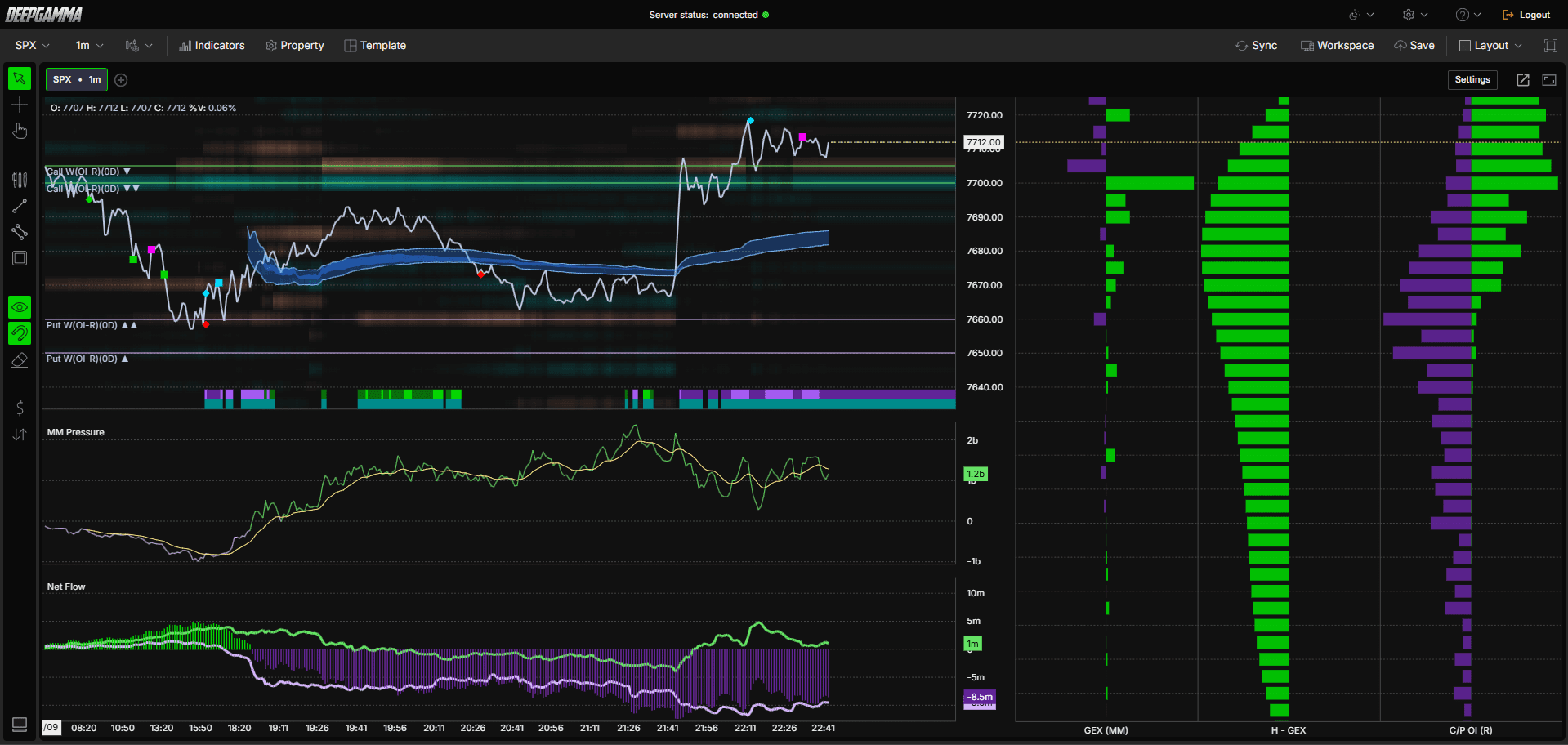
Example - How to Use Option Net Flow
Watch which way the Call and Put lines are moving during the session
Watch the Difference bars. When Call and Put pull apart, the Difference grows, showing a stronger net flow to one side
Compare the Call and Put lines with price to see whether the flow and price are moving together
Enable Revert if you want to see the flow from the estimated market maker side instead of the customer side
Use it as context alongside other tools such as Option Delta or Option Gex Profile, and confirm what the market is doing with order flow. It is a reading of conditions and does not guarantee where price will go
Any Questions?
Our support team is available 24/7 and ready to help you with any question.
When reaching out, please include:
Screenshot (if any)
Briefly describe the assistance or support you require
DeepCharts Live Support - Chat with our agents directly using the live chat box on www.deepcharts.com, or click here for 24/7 Live Chat for immediate access.
Email Support - Reach us at support@deepcharts.com - please note that email responses may take a little longer than a live support chat.
