Option Expected Move plots a dynamic price range band directly on your chart, showing the expected price movement for the session based on the implied volatility of options. The band gives you a statistically derived estimate of how far price is likely to move from its current level by the end of the session.
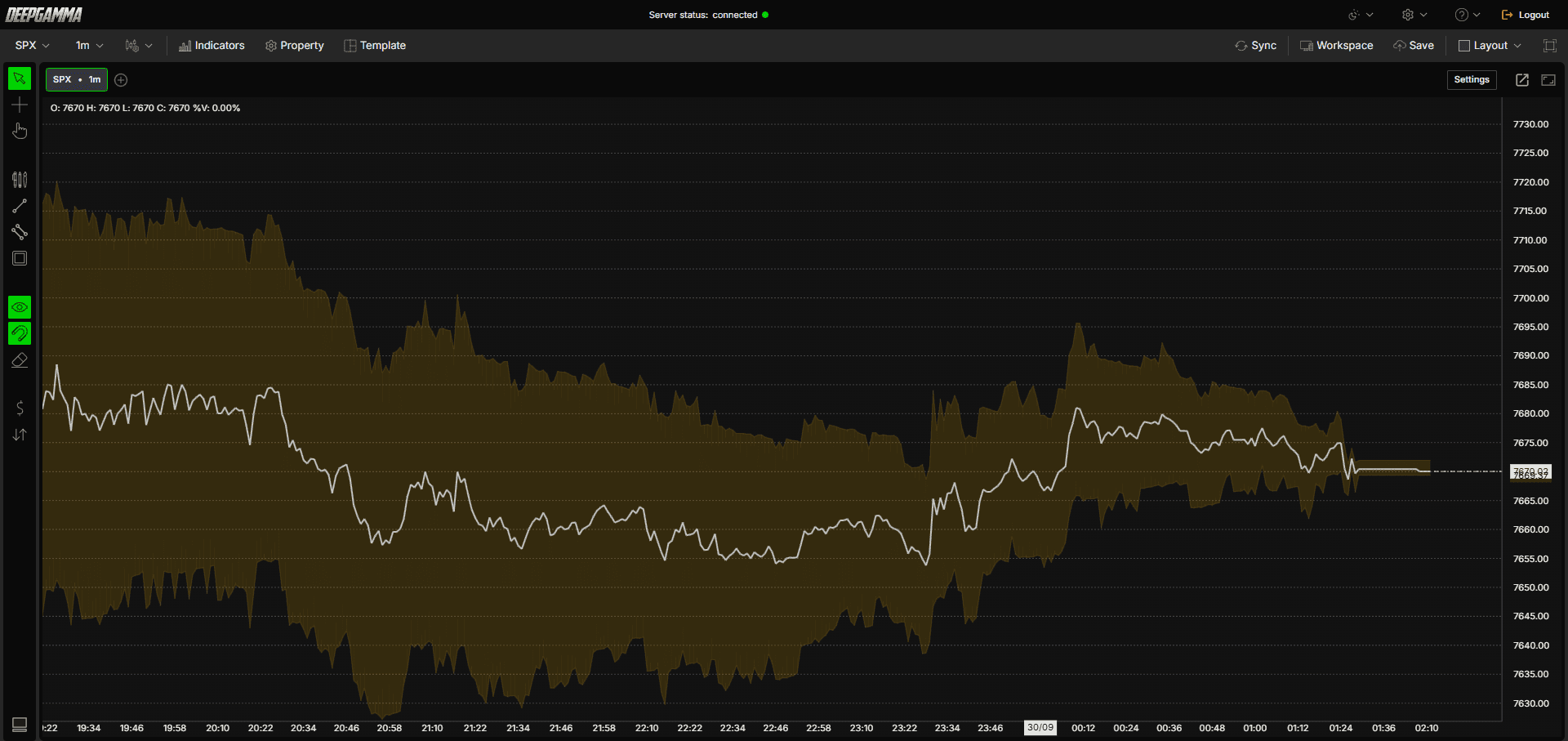
Note: Option Expected Move is available on NDX, QQQ, SPY, and SPX.

How to Add Option Expected Move
Open an NDX, QQQ, SPX or SPY chart in DeepGamma Web
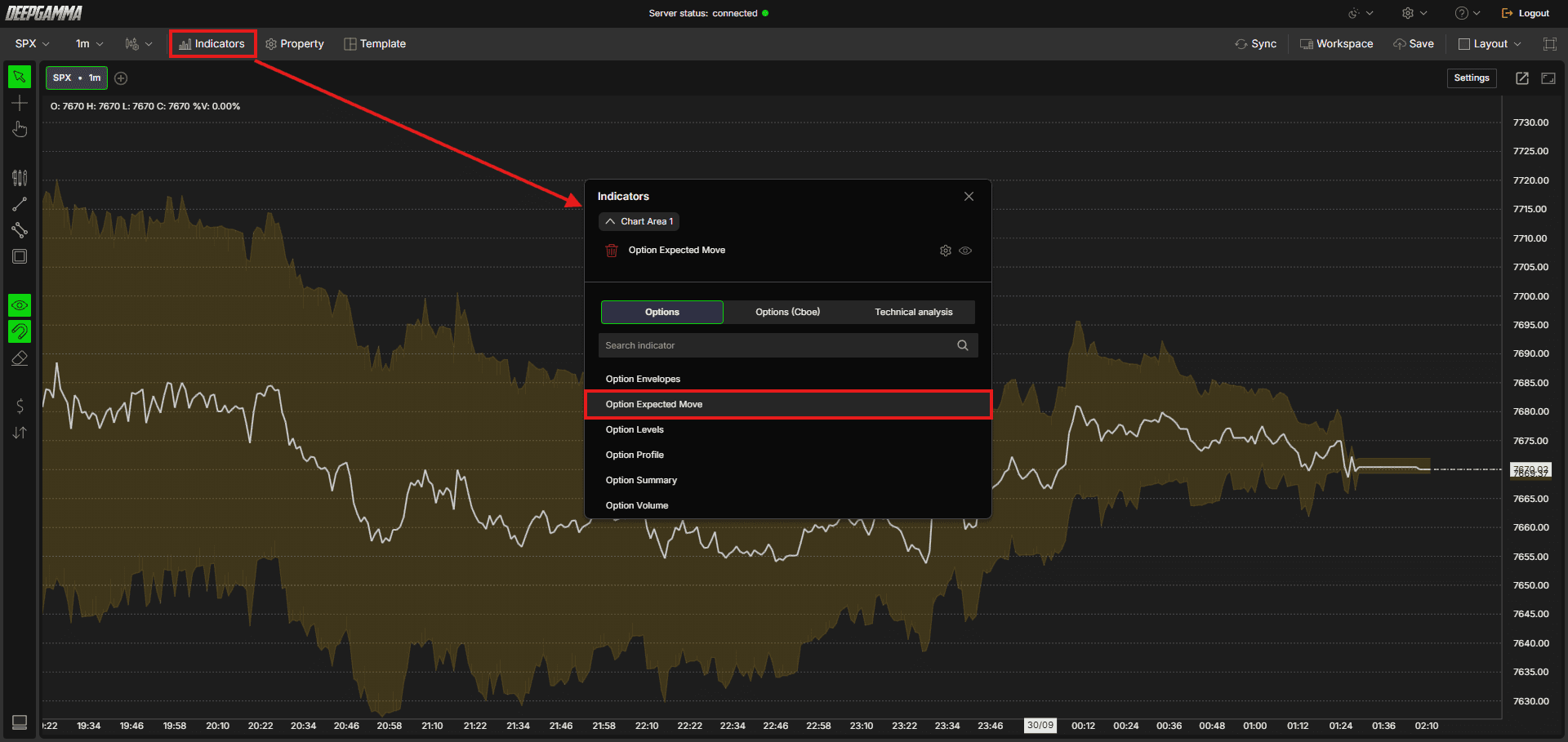
Click Indicators in the Menu Bar
Click the green Add indicator button at the bottom of the panel
Open the Options tab and search for Option Expected Move
The indicator is added to your chart and appears in the Indicators panel
Click the gear icon next to Option Expected Move to open its settings
Understanding the Band
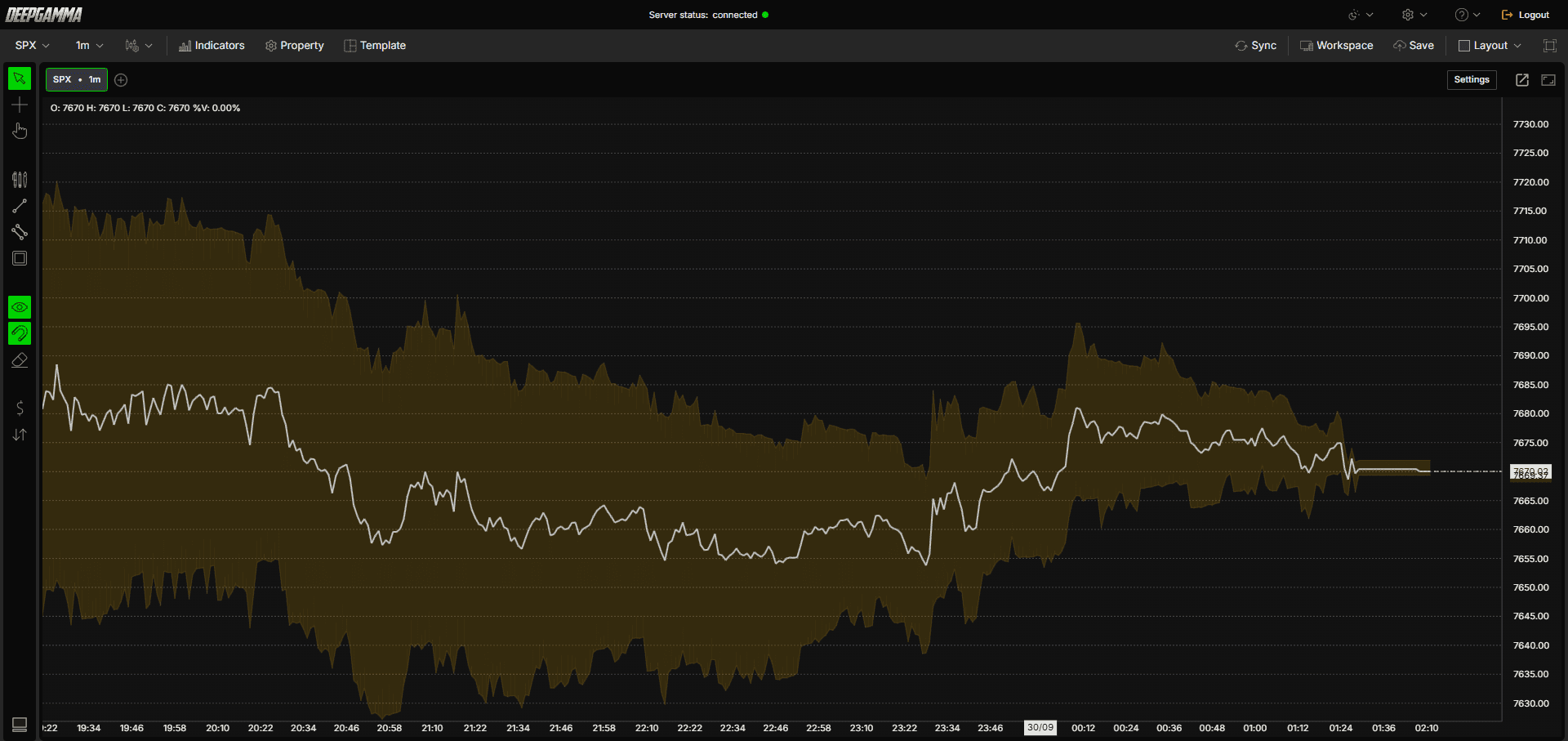
The Option Expected Move displays a shaded band on your chart with three components:
Range - The main shaded band showing the full expected price range for the session. Price is statistically expected to close within this band
Range + - The upper boundary of the expected move. This is the upper price target the market is pricing in for the session
Range - - The lower boundary of the expected move. This is the lower price target the market is pricing in for the session
Understanding Key Terms
Before choosing a value, it helps to understand a few core options concepts:
Implied Volatility - The market’s expectation of how much the underlying price will move, derived from options pricing. Higher implied volatility means the market expects larger price swings
Standard Deviation - A statistical measure of how spread out price movements are expected to be. One standard deviation covers roughly 70% of expected outcomes, while two standard deviations covers roughly 95%, giving a wider but less likely range
Settings
The settings window has two tabs: Parameters and Series. After making changes, click Apply to update the chart.
Parameters
General
Value - Choose the statistical measure used to calculate the expected move. Options available:
Normal - Uses the average implied volatility to calculate the expected range.
Use this when : you want a simpler, single estimate of the expected range without a specific probability attached1 standard deviation (default) - The range within which price has approximately a 70% probability of closing by the end of the session.
Use this when : you want the most commonly used and statistically grounded range for typical session moves2 standard deviations - A wider range within which price has approximately a 95% probability of closing by the end of the session.
Use this when : you want a broader view of extreme potential moves, useful for identifying outlier scenarios
Interval - Choose the timeframe for which the expected move is calculated. Options available:
Daily (default) - Calculates the expected move for the full trading session.
Use this when : you want a target range for the full session30 minutes - Calculates the expected move for a rolling 30 minute window.
Use this when : you want a shorter term intraday target rather than a full session range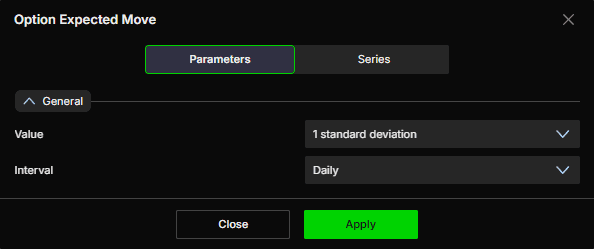
Series
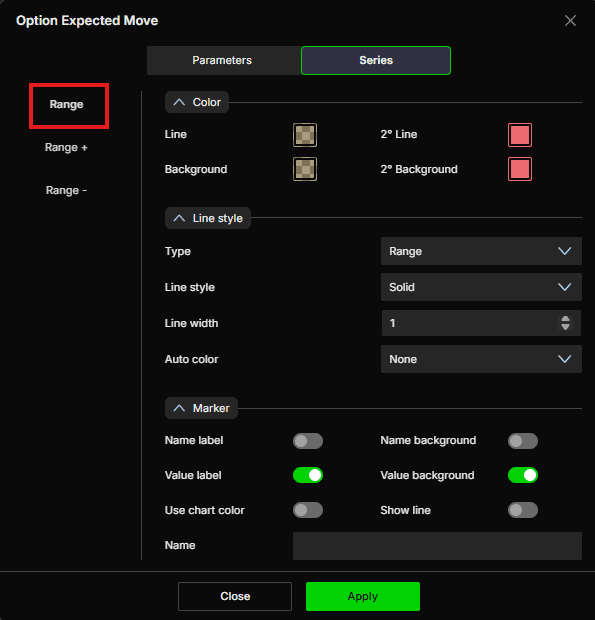
Select a series on the left (Range, Range + or Range -) to set up how it looks on the chart.
Range
Color
Line - Set the color of the range band border line
2° Line - Set a secondary line color
Background - Set the color of the shaded band background
2° Background - Set a secondary background color
Line style
Type - Choose between Hidden or Range. Default is Range
Line style - Choose between Solid or Dash. Default is Solid
Line width - Set the thickness of the line. Default is 1
Auto color - Options available: None, Slope, +/-. Default is None
Marker
Name label - Show or hide the series name label. Default is disabled
Name background - Show or hide the background behind the name label. Default is disabled
Value label - Show or hide the value label. Default is enabled
Value background - Show or hide the background behind the value label. Default is enabled
Use chart color - When enabled, the marker uses the chart color. Default is disabled
Show line - When enabled, the current level is extended as a line to the right edge of the chart, so you can see where the level sits ahead of price. Default is disabled
Name - Set a custom label for this series
Range +
Color
Color - Set the color for the upper boundary line. Default is green
2° Color - Set a secondary color. Default is red
Line style
Type - Choose between Line, Hidden, or Broken line. Default is Hidden
Line style - Choose between Solid or Dash. Default is Solid
Line width - Set the thickness of the line. Default is 1
Auto color - Options available: None, Slope, +/-. Default is None
Marker
Name label - Show or hide the series name label. Default is disabled
Name background - Show or hide the background behind the name label. Default is disabled
Value label - Show or hide the value label. Default is enabled
Value background - Show or hide the background behind the value label. Default is enabled
Use chart color - When enabled, the marker uses the chart color. Default is disabled
Show line - When enabled, the current level is extended as a line to the right edge of the chart, so you can see where the level sits ahead of price. Default is disabled
Name - Set a custom label for this series. Default label is 0DTE R+

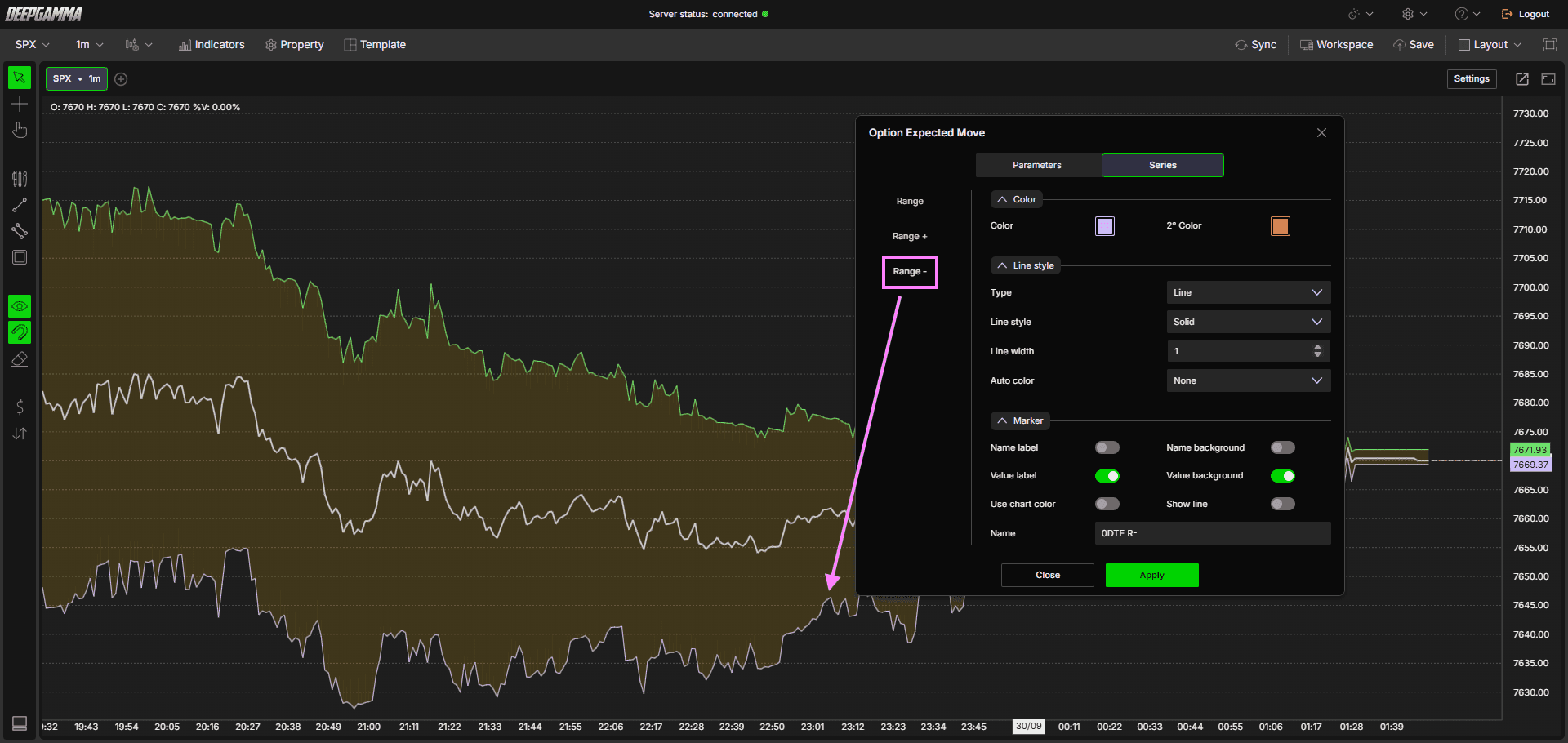
Range -
Color
Color - Set the color for the lower boundary line. Default is purple
2° Color - Set a secondary color. Default is red
Line style
Type - Choose between Line, Hidden, or Broken line. Default is Hidden
Line style - Choose between Solid or Dash. Default is Solid
Line width - Set the thickness of the line. Default is 1
Auto color - Options available: None, Slope, +/-. Default is None
Marker
Name label - Show or hide the series name label. Default is disabled
Name background - Show or hide the background behind the name label. Default is disabled
Value label - Show or hide the value label. Default is enabled
Value background - Show or hide the background behind the value label. Default is enabled
Use chart color - When enabled, the marker uses the chart color. Default is disabled
Show line - When enabled, the current level is extended as a line to the right edge of the chart, so you can see where the level sits ahead of price. Default is disabled
Name - Set a custom label for this series. Default label is 0DTE R-
Example - How to Use Option Expected Move
Once added to your chart, you will see a shaded band plotted directly on the price chart. Here is a simple way to use it:
Price inside the band - When price is trading within the expected move band, it is behaving within the range the options market has priced in. Moves inside the band are considered normal for the session
Price approaching the upper boundary (Range +) - When price is pushing into the upper boundary, it is reaching the limit of what the options market expected. This can act as a potential target for long trades or a warning level to be cautious about chasing breakouts
Price approaching the lower boundary (Range -) - Similarly, when price is pushing into the lower boundary, it is reaching the downside limit. This can act as a potential target for short trades or a support area to watch for reversals
Price breaking outside the band - When price moves outside the expected range, it signals an unusually large move that the options market did not fully price in. These moves can be significant and often indicate a strong directional day
Tip: Use the expected move band in combination with your GEX levels and key price structure to identify high probability trade targets for the session.
Any Questions?
Our support team is available 24/7 and ready to help you with any question.
When reaching out, please include:
Screenshot (if any)
Briefly describe the assistance or support you require
DeepCharts Live Support - Chat with our agents directly using the live chat box on www.deepcharts.com, or click here for 24/7 Live Chat for immediate access.
Email Support - Reach us at support@deepcharts.com - please note that email responses may take a little longer than a live support chat.
