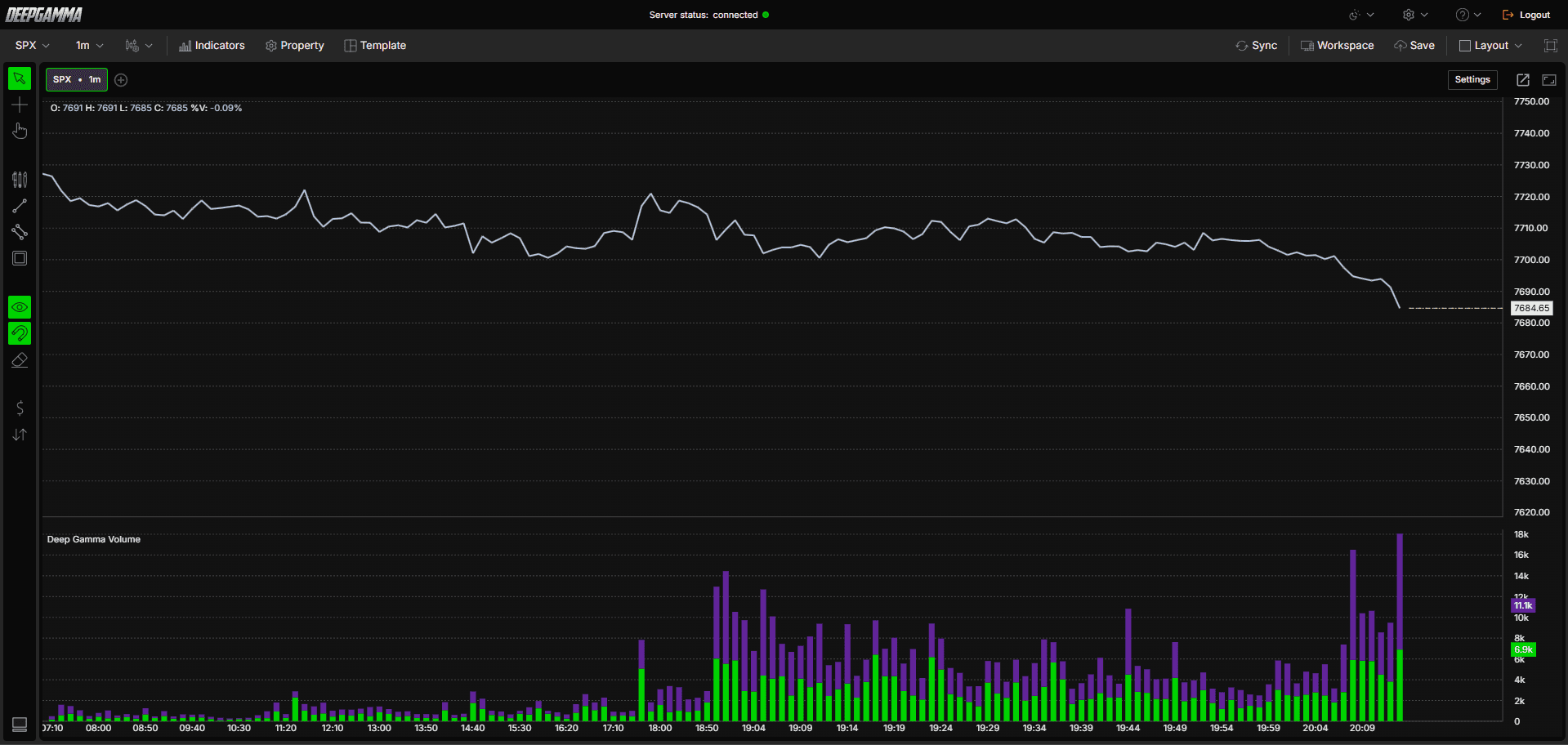
Option Volume displays call and put options volume as a stacked bar chart below your price chart, showing the total contracts or premium traded for calls and puts over time. It gives you a real time read on how much options activity is taking place and whether call side or put side flow is dominant.

How to Add Option Volume
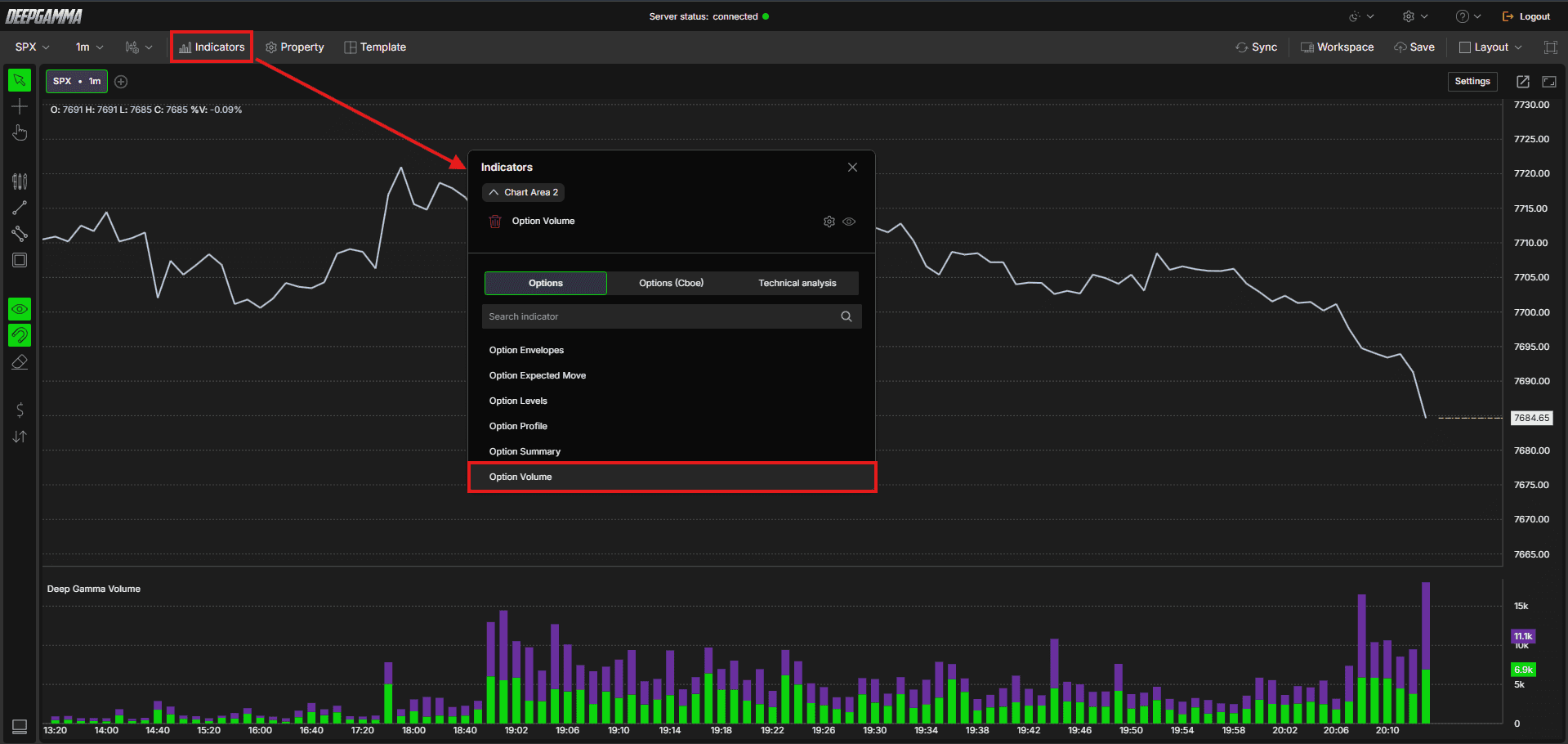
Open an NDX, QQQ, SPX or SPY chart in DeepGamma Web
Click Indicators in the Menu Bar
Click the green Add indicator button at the bottom of the panel
Open the Options tab and search for Option Volume
The indicator is added to your chart and appears in the Indicators panel
Click the gear icon next to Option Volume to open its settings
Understanding Key Terms
Before choosing a value type, it helps to understand a few core options concepts:
Call - An option that gives the buyer the right to buy the underlying at a set price. Traders buy calls when they expect price to go up
Put - An option that gives the buyer the right to sell the underlying at a set price. Traders buy puts when they expect price to go down
Contracts - The number of individual option contracts traded, regardless of their price
Premium - The total dollar value paid for the options traded, calculated as contract price multiplied by volume
Expiration - The date an option contract becomes void. Options with different expirations can behave very differently, which is why filtering by expiration matters
Settings
The settings window has two tabs: Parameters and Series. After making changes, click Apply to update the chart.
Parameters
General
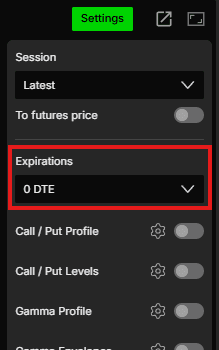
Expiration - Filter the volume by expiration. Options available: Default, 0 DTE, <= 1d, <= 7d, <= 31d, <= 91d, All expirations
Note: When Expiration is set to Default, it uses the expiration selected under Expirations in the Settings quick bar.
Value - Choose how volume is measured. Options available:
Contracts (default) - Displays the raw number of option contracts traded.
Use this when : you want a simple count of trading activity, regardless of pricePremium - Displays volume in terms of total dollar premium traded.
Use this when : you want to weigh volume by dollar value, since a small number of expensive contracts can matter more than a large number of cheap onesFuture contracts - Displays volume converted into equivalent futures contracts.
Use this when : you want to compare options volume directly against futures volume on the same chart
Series
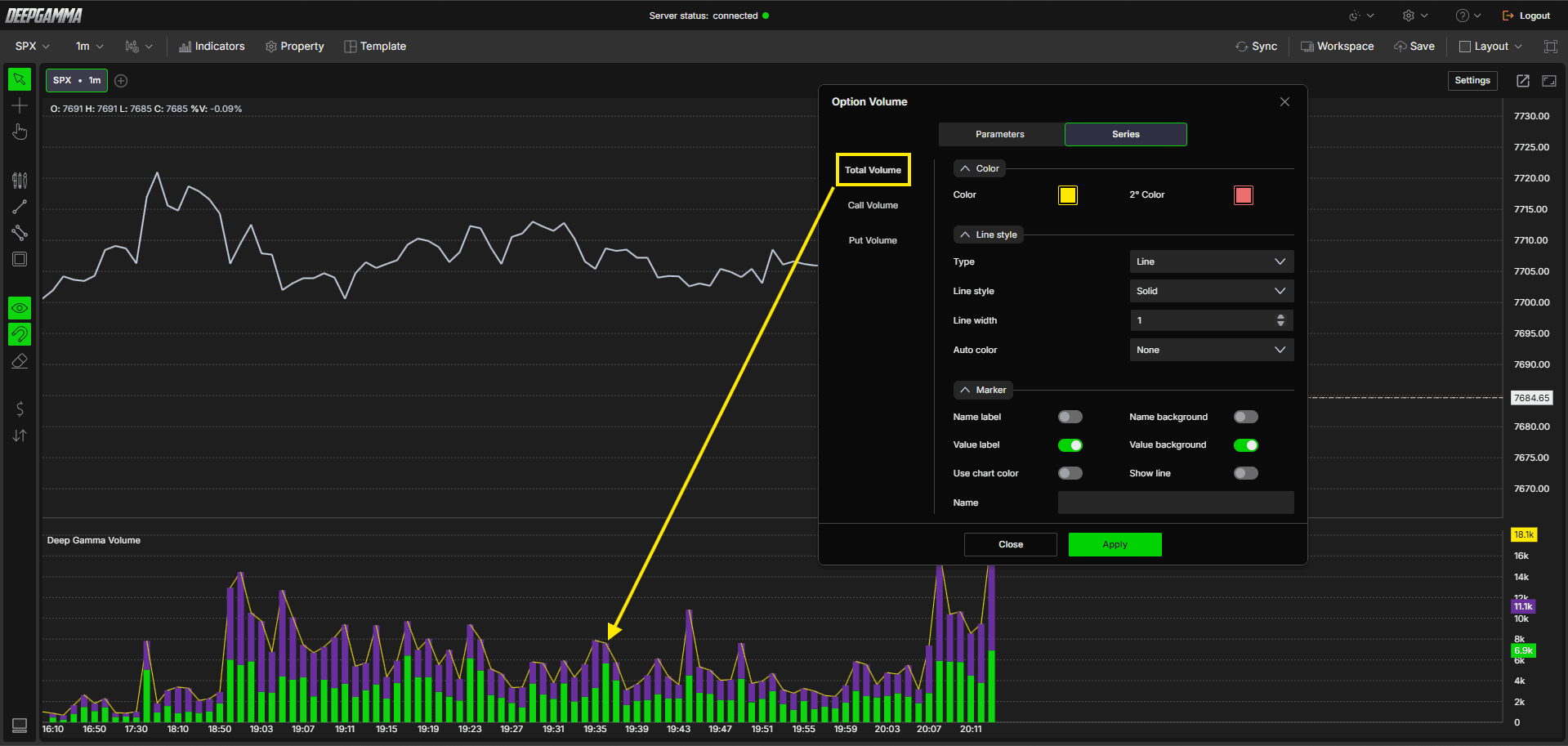
Select a series on the left (Total Volume, Call Volume or Put Volume) to set up how it looks on the chart.
Total Volume
Color
Color - Set the color for the total volume series
2° Color - Set a secondary color. Default is red
Line style
Type - Choose between Hidden or Line. Default is Hidden
Line style - Choose between Solid or Dash. Default is Solid
Line width - Set the thickness of the line. Default is 1
Auto color - Options available: None, Slope, +/-. Default is None
Marker
Name label - Show or hide the series name label. Default is disabled
Name background - Show or hide the background behind the name label. Default is disabled
Value label - Show or hide the value label. Default is enabled
Value background - Show or hide the background behind the value label. Default is enabled
Use chart color - When enabled, the marker uses the chart color. Default is disabled
Show line - When enabled, the current value is extended as a line to the right edge of the chart. Default is disabled
Name - Set a custom label for this series
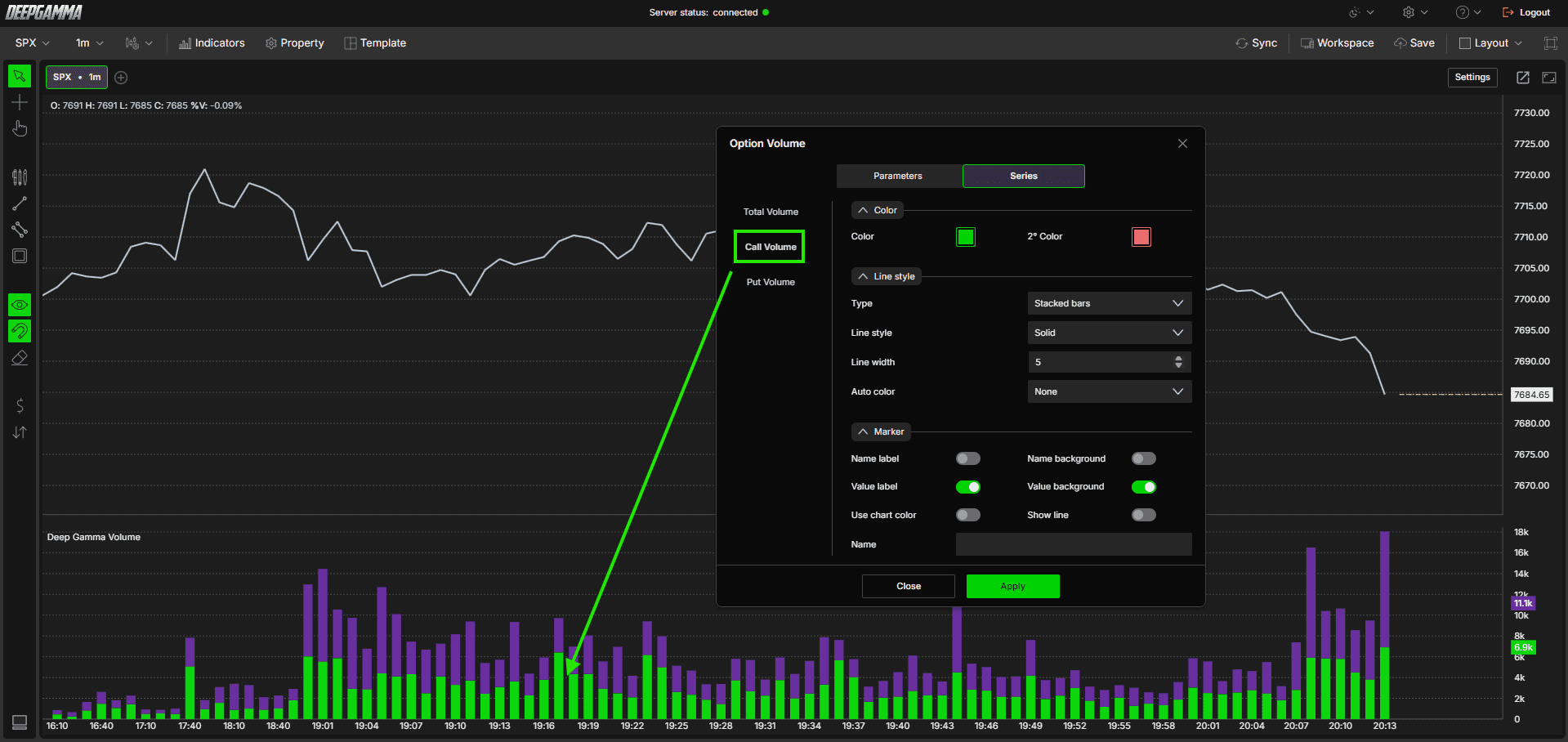
Call Volume
Color
Color - Set the color for call volume bars. Default is green
2° Color - Set a secondary color. Default is red
Line style
Type - Choose how the series is drawn. Default is Stacked bars
Line style - Choose between Solid or Dash. Default is Solid
Line width - Set the thickness of the bars. Default is 5
Auto color - Options available: None, Slope, +/-. Default is None
Marker
Name label - Show or hide the series name label. Default is disabled
Name background - Show or hide the background behind the name label. Default is disabled
Value label - Show or hide the value label. Default is enabled
Value background - Show or hide the background behind the value label. Default is enabled
Use chart color - When enabled, the marker uses the chart color. Default is disabled
Show line - When enabled, the current value is extended as a line to the right edge of the chart. Default is disabled
Name - Set a custom label for this series
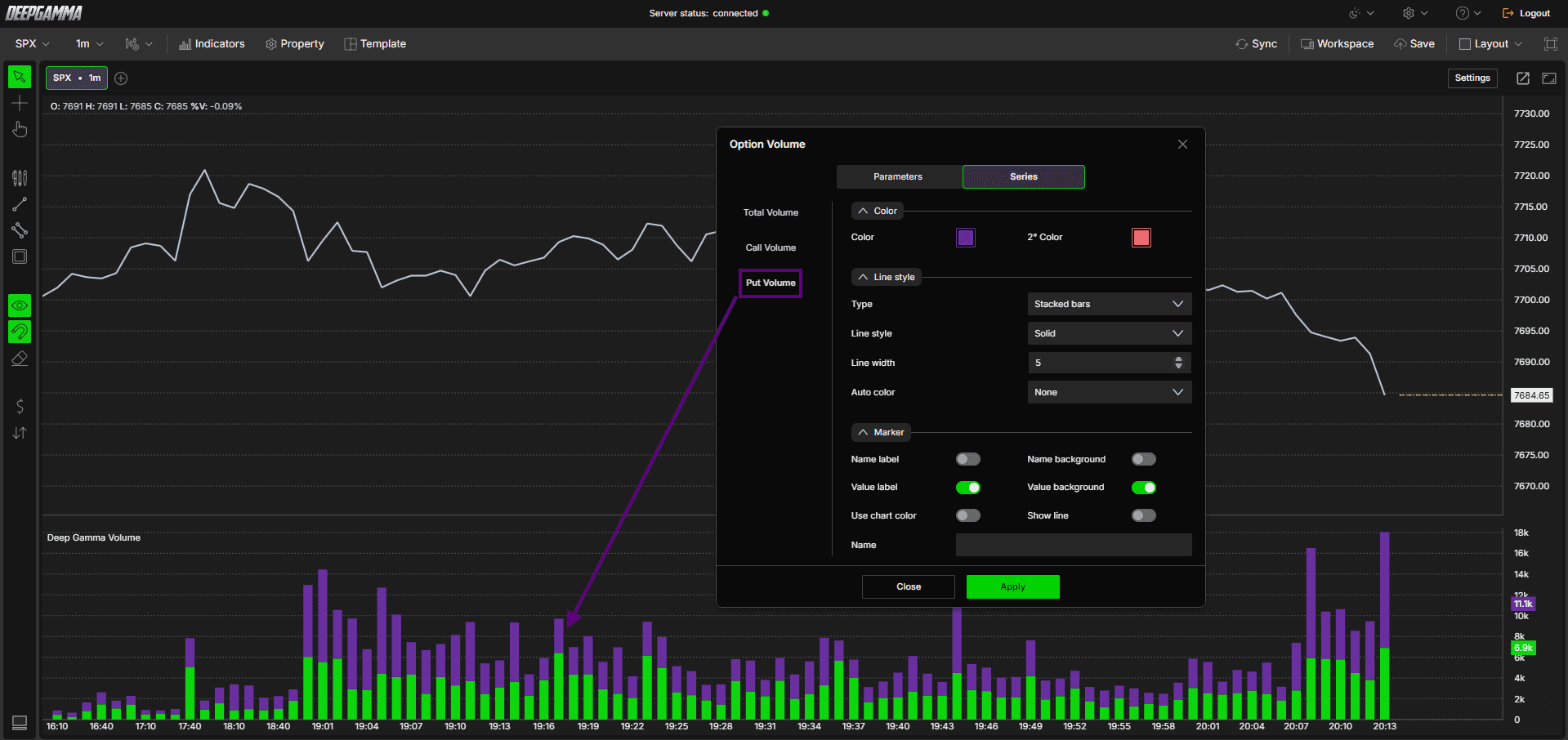
Put Volume
Color
Color - Set the color for put volume bars. Default is purple
2° Color - Set a secondary color. Default is red
Line style
Type - Choose how the series is drawn. Default is Stacked bars
Line style - Choose between Solid or Dash. Default is Solid
Line width - Set the thickness of the bars. Default is 5
Auto color - Options available: None, Slope, +/-. Default is None
Marker
Name label - Show or hide the series name label. Default is disabled
Name background - Show or hide the background behind the name label. Default is disabled
Value label - Show or hide the value label. Default is enabled
Value background - Show or hide the background behind the value label. Default is enabled
Use chart color - When enabled, the marker uses the chart color. Default is disabled
Show line - When enabled, the current value is extended as a line to the right edge of the chart. Default is disabled
Name - Set a custom label for this series
Example - How to Use Option Volume
Once added to your chart, you will see stacked green and purple bars plotted below the price chart. Here is a simple way to use it:
A tall bar with mostly green indicates a session or period with heavy call buying, which can signal bullish positioning
A tall bar with mostly purple indicates heavy put buying, which can signal bearish positioning or hedging activity
Sudden spikes in total volume can highlight moments of significant options activity, often around news events or key price levels
Switching the Value setting to Premium can help you spot moments where large dollar amounts are being committed, even if the contract count looks small
Any Questions?
Our support team is available 24/7 and ready to help you with any question.
When reaching out, please include:
Screenshot (if any)
Briefly describe the assistance or support you require
DeepCharts Live Support - Chat with our agents directly using the live chat box on www.deepcharts.com, or click here for 24/7 Live Chat for immediate access.
Email Support - Reach us at support@deepcharts.com - please note that email responses may take a little longer than a live support chat.
