Option Profile displays a visual profile of options activity directly on your chart, showing where the most call and put volume or gamma volume is concentrated across different strike prices. Think of it like a volume profile but for options. It helps you identify the key call and put walls where significant options positioning exists, giving you a structural view of where the market may find support or resistance.

Note: Option Profile is available on NDX, QQQ, SPY, and SPX.

How to Add Option Profile
Open an NDX, QQQ, SPX or SPY chart in DeepGamma Web
Click Indicators in the Menu Bar
Click the green Add indicator button at the bottom of the panel
Open the Options tab and search for Option Profile
The indicator is added to your chart and appears in the Indicators panel
Click the gear icon next to Option Profile to open its settings
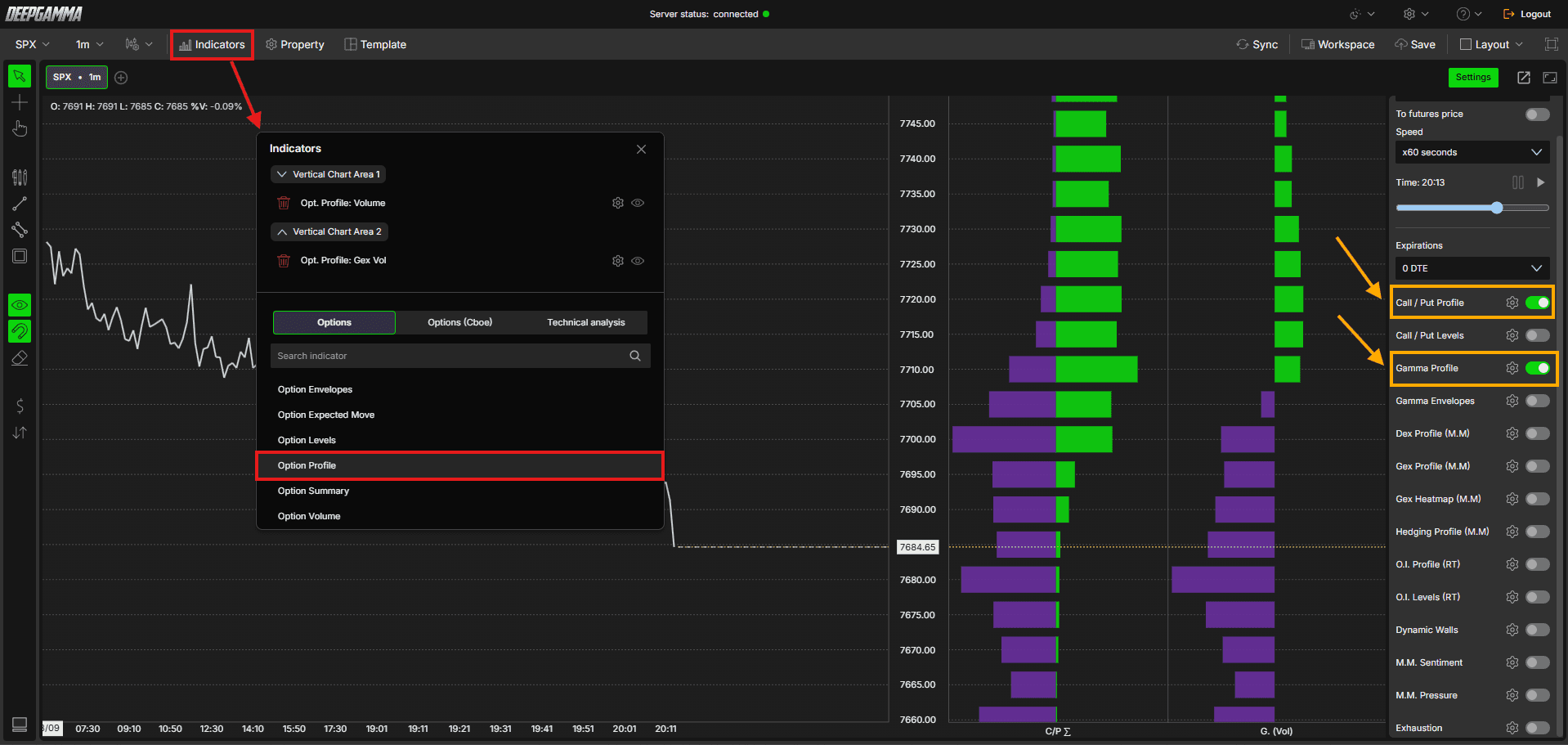
You can also turn it on or off from Gamma Profile or Call / Put Profile in the Settings quick bar. Both add Option Profile, each with a different data source: Gamma Profile uses Gamma (call - put) and Call / Put Profile uses Call / put ∑. The gear icon next to each toggle opens the same settings.
Understanding the Profile
The Option Profile displays two sides:
Green bars (left side) - Call side activity at each strike, based on your selected data source. A large concentration of green bars at a strike indicates a significant call wall, an area where price may face resistance as it moves up
Purple bars (right side) - Put side activity at each strike, based on your selected data source. A large concentration of purple bars at a strike indicates a significant put wall, an area where price may find support as it moves down
The values shown depend on which data source you have selected, ranging from raw contract volume to gamma-weighted exposure to end of day open interest. See the Data Source setting below for details on each option.
Understanding Key Terms
Before choosing a data source, it helps to understand a few core options concepts:
Call - An option that gives the buyer the right to buy the underlying at a set price. Traders buy calls when they expect price to go up
Put - An option that gives the buyer the right to sell the underlying at a set price. Traders buy puts when they expect price to go down
Gamma - A measure of how much an option’s delta changes as price moves. High gamma means dealers need to hedge more aggressively as price approaches a strike, which is why gamma concentrations often act as support or resistance
GEX (Gamma Exposure) - An estimate of the gamma exposure dealers are carrying at a given strike, combining volume with the gamma greek to show where dealer hedging pressure is likely to be strongest
OI (Open Interest) - The total number of option contracts currently open and not yet closed or expired
EOD (End of Day) - Data based on the official open interest figures published at the close of the previous trading session, rather than live intraday activity
Settings
The settings window is organized into sections. Scroll down to see them all. After making changes, click Apply to update the chart.
General
Data Source - Choose how the profile is calculated. Options available:
Gamma (call - put) (default) - Calculates the profile as net gamma exposure, showing call gamma minus put gamma at each strike, using the standard assumption that market makers are long calls and short puts.
Use this when : you want a gamma-weighted read on positioning and market regime, similar to what you would use to read Option EnvelopesCall / put ∑ - Displays raw call and put options volume at each strike, showing where the most contracts are concentrated.
Use this when : you want a simple read on where the most contracts are trading, regardless of gamma weightingCall ∑ - put ∑ - Displays the net difference between call and put volume at each strike.
Use this when : you want to spot directional skew in raw contract activity, without factoring in gammaCall / put OI (eod) - Displays the profile based on end of day open interest data for calls and puts.
Use this when : you want a structural view of standing positions from the previous session’s close, rather than live intraday trading activityGamma (call OI-E - put OI-E) - Calculates the profile based on the difference between call and put end of day open interest, multiplied by the gamma greek. This gives a gamma-weighted read on standing positions rather than live volume.
Use this when : you want a gamma-weighted view of dealer exposure based on standing open interest instead of current session trading activity
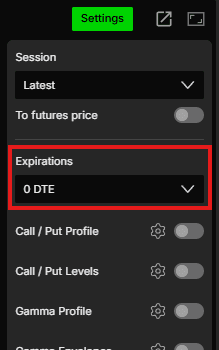
Expiration - Filter the profile by expiration. Options available: Default, 0 DTE, <= 1d, <= 7d, <= 31d, <= 91d, All expirations
Note: When Expiration is set to Default, it uses the expiration selected under Expirations in the Settings quick bar.
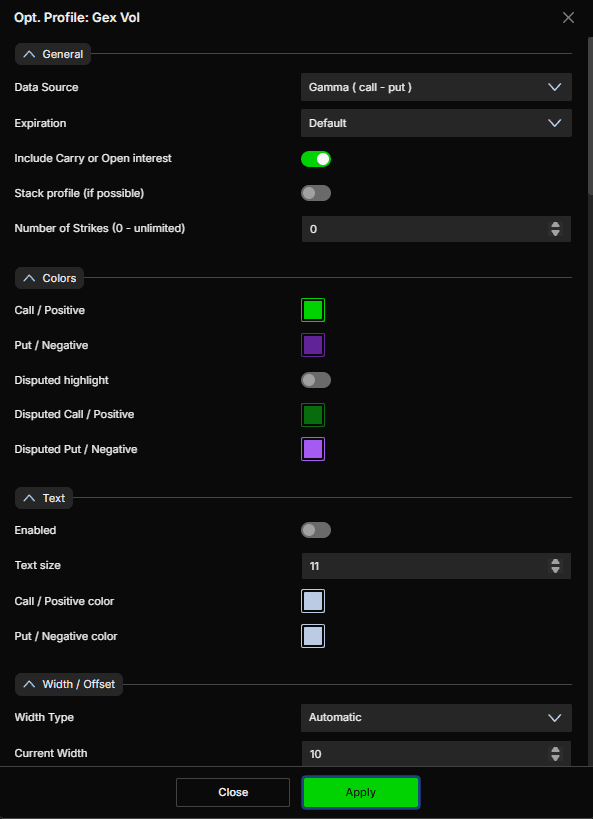
Include Carry or Open interest - When enabled, includes open interest carried over from previous sessions in the calculation, giving you a broader view of total positioning. When disabled, only current session data is considered. Default is enabled
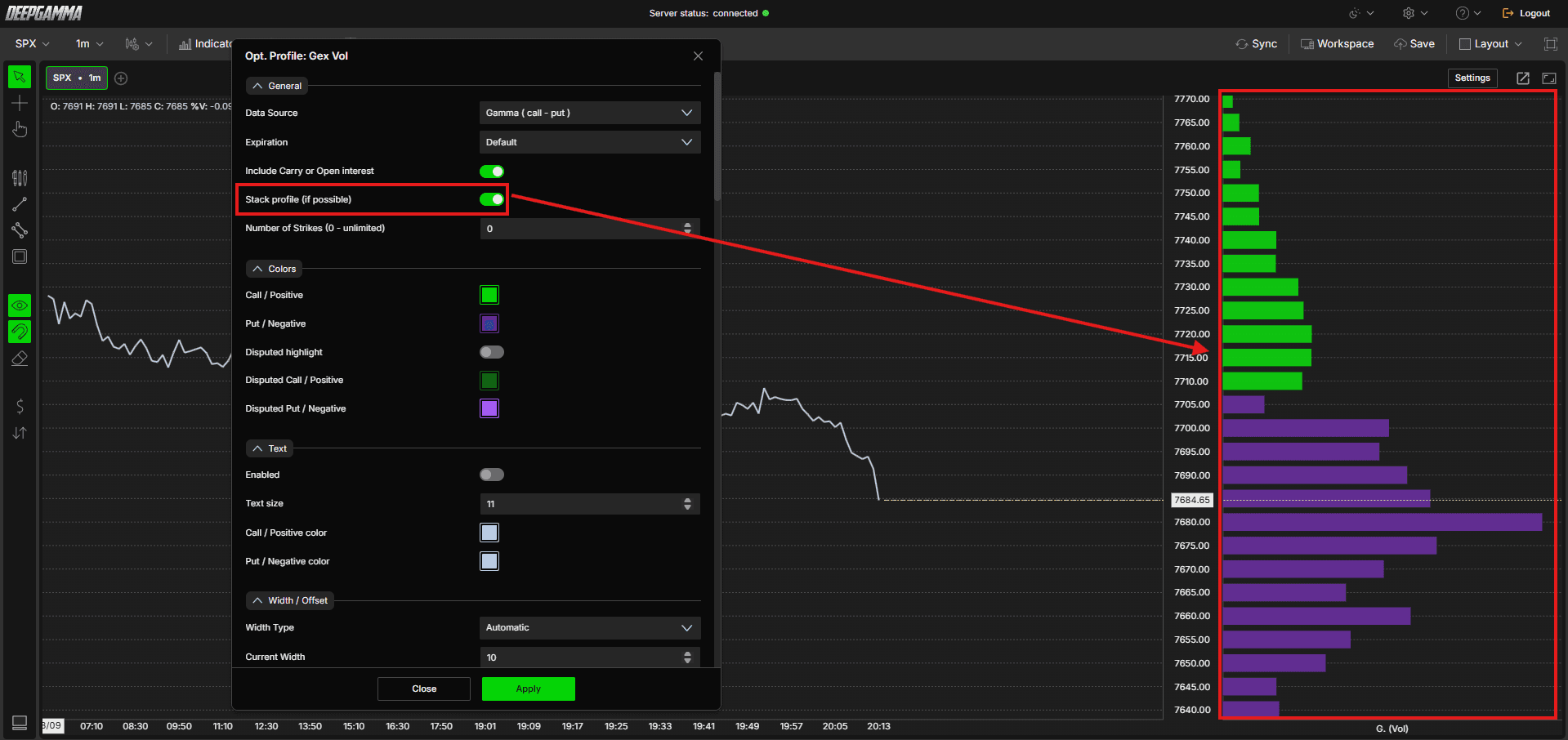
Stack profile (if possible) - When enabled, the call and put profiles are stacked together side by side for a combined view. When disabled, the call and put profiles are displayed separately. Default is disabled
Number of Strikes (0 - unlimited) - Sets how many strikes out from the current price to include in the profile. A value of 0 includes an unlimited number of strikes. Default is 0
Stack Profile Example
Colors
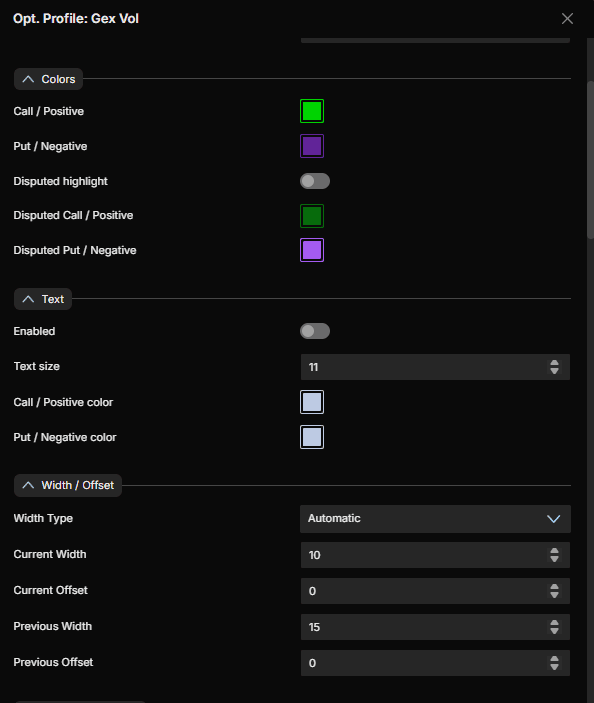
Call / Positive - Set the color for the call side. Default is green
Put / Negative - Set the color for the put side. Default is purple
Disputed highlight - When enabled, highlights strikes where the data is disputed or overlapping between call and put activity. Default is disabled
Disputed Call / Positive - Set the highlight color for disputed strikes on the call side. Default is dark green
Disputed Put / Negative - Set the highlight color for disputed strikes on the put side. Default is light purple
Text
Enabled - Show or hide text labels on the profile. Default is disabled
Text size - Set the font size for the text labels. Default is 11
Call / Positive color - Set the text color for call side labels. Default is light gray-blue
Put / Negative color - Set the text color for put side labels. Default is light gray-blue
Width / Offset
Width Type - Choose how the profile width is calculated. Options available:
Automatic (default) - DeepGamma automatically sets the profile width based on the current chart view
Percentual period - Sets the width as a percentage of the visible chart period
Window width - Sets the width based on the current visible window
Fixed bars - Sets a fixed number of bars for the profile width
Current Width - Set the width of the current session profile. Default is 10
Current Offset - Set the horizontal offset of the current session profile. Default is 0
Previous Width - Set the width of previous session profiles. Default is 15
Previous Offset - Set the horizontal offset of previous session profiles. Default is 0
Visual Appearance
Number Of Profile - Set how many session profiles are displayed on the chart. Default is 5
Opacity - Set the opacity of the profile bars. Default is 90
Border Width - Set the border width of the profile bars. Default is 1
Show Above Bars - When enabled, the profile is displayed on top of the price bars. Default is disabled
Visual Style - Choose between Solid or Hollow profile bars. Default is Solid
Align to the right - When enabled, aligns the profile to the right side of the chart. Default is disabled
Always Visible - When enabled, keeps the profile visible even when scrolling outside its range. Default is disabled
Sizing
The Sizing section controls how multiple profile values are displayed when overlapping them on the same chart. It lets you stack call, put, or gamma data side by side to save space rather than adding separate profile instances.
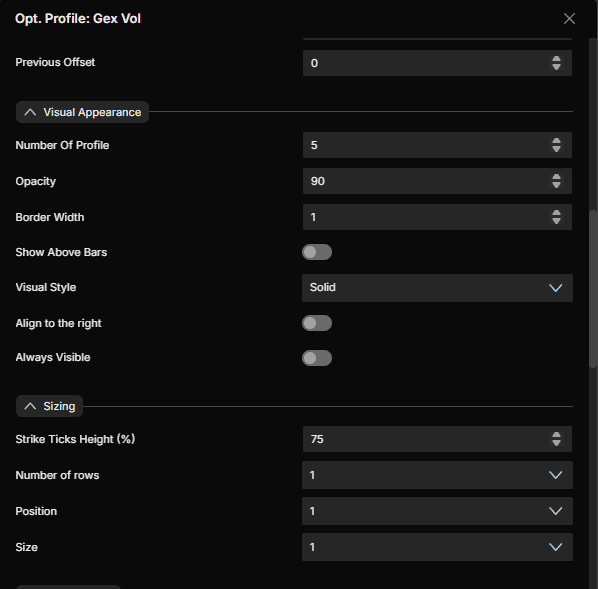
Strike Ticks Height (%) - Set the height of each strike’s bar as a percentage, controlling how thick or thin the individual strike ticks appear on the profile. Default is 75
Number of rows - Set how many rows of strike data are displayed when overlapping multiple profile values. Default is 1
Position - Set which row position this profile value occupies when multiple values are stacked. Default is 1
Size - Set the relative size of this profile value’s row when multiple values are stacked. Default is 1
Peak positive
Enable - Show or hide the positive peak highlight. Default is disabled
Highlight - When enabled, highlights the bar with the highest call concentration on the profile. Default is disabled
Highlight Color - Set the highlight color. Default is dark green
Show Line - When enabled, draws a horizontal line at the peak call level. Default is enabled
Line Color - Set the line color. Default is green
Line Width - Set the line width. Default is 1
Line Style - Choose between Solid, Dash, Dot, Dash dot, or Dash dot dot. Default is Dash
Peak negative
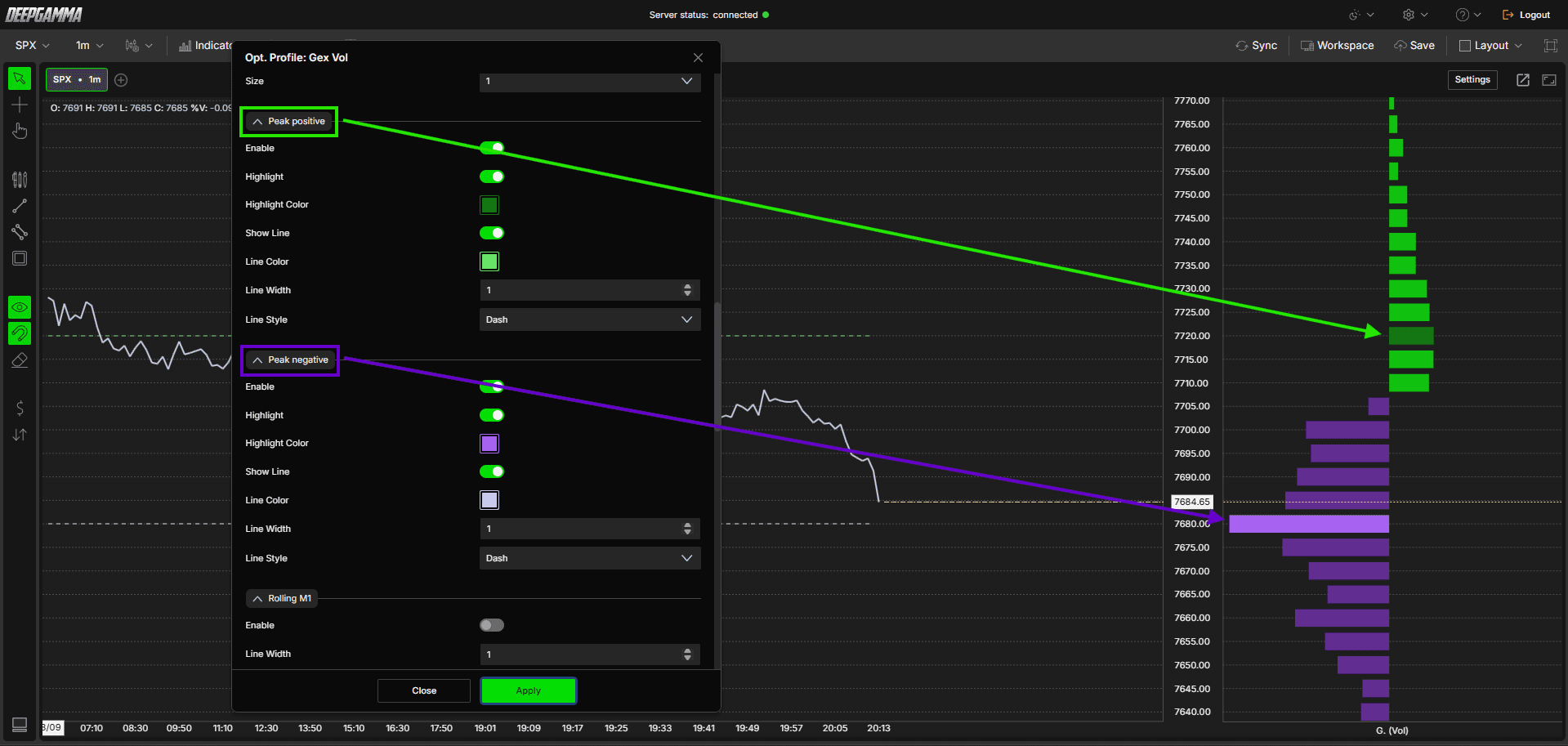
Enable - Show or hide the negative peak highlight. Default is disabled
Highlight - When enabled, highlights the bar with the highest put concentration on the profile. Default is disabled
Highlight Color - Set the highlight color. Default is purple
Show Line - When enabled, draws a horizontal line at the peak put level. Default is enabled
Line Color - Set the line color. Default is light purple
Line Width - Set the line width. Default is 1
Line Style - Choose between Solid, Dash, Dot, Dash dot, or Dash dot dot. Default is Dash
The Rolling sections show how the profile looked at specific time intervals ago, plotted as lines on the current profile. This helps you see how the options positioning has shifted over time during the session. For example, you can compare where the call and put walls were 30 minutes ago versus where they are now.
Rolling M1
Enable - Show or hide the 1 minute rolling value. Default is disabled
Line Width - Set the line width. Default is 1
Line style - Choose between Solid, Dash, Dot, Dash dot, or Dash dot dot. Default is Dot
Line color - Set the color for this rolling value. Default is gray
Flip only - When enabled, only plots this rolling value when a gamma flip has occurred between the rolling snapshot and the current profile, based on the Rolling condition thresholds below. Default is disabled
Rolling M5
Enable - Show or hide the 5 minute rolling value. Default is disabled
Line Width - Set the line width. Default is 1
Line style - Choose between Solid, Dash, Dot, Dash dot, or Dash dot dot. Default is Dot
Line color - Set the color for this rolling value. Default is gray
Flip only - When enabled, only plots this rolling value when a gamma flip has occurred between the rolling snapshot and the current profile, based on the Rolling condition thresholds below. Default is disabled
Rolling M15
Enable - Show or hide the 15 minute rolling value. Default is disabled
Line Width - Set the line width. Default is 1
Line style - Choose between Solid, Dash, Dot, Dash dot, or Dash dot dot. Default is Dash
Line color - Set the color for this rolling value. Default is gray
Flip only - When enabled, only plots this rolling value when a gamma flip has occurred between the rolling snapshot and the current profile, based on the Rolling condition thresholds below. Default is disabled
Rolling M30
Enable - Show or hide the 30 minute rolling value. Default is disabled
Line Width - Set the line width. Default is 1
Line style - Choose between Solid, Dash, Dot, Dash dot, or Dash dot dot. Default is Solid
Line color - Set the color for this rolling value. Default is gray
Flip only - When enabled, only plots this rolling value when a gamma flip has occurred between the rolling snapshot and the current profile, based on the Rolling condition thresholds below. Default is disabled
Rolling condition
These settings define what counts as a gamma flip for the Flip only toggles above.
Min. % Difference - Set the minimum percentage difference between the rolling snapshot and the current profile required to count as a flip. Default is 20
Min. % of max value - Set the minimum percentage of the profile’s maximum value a strike must reach to be considered in the flip condition. Default is 20

Summary
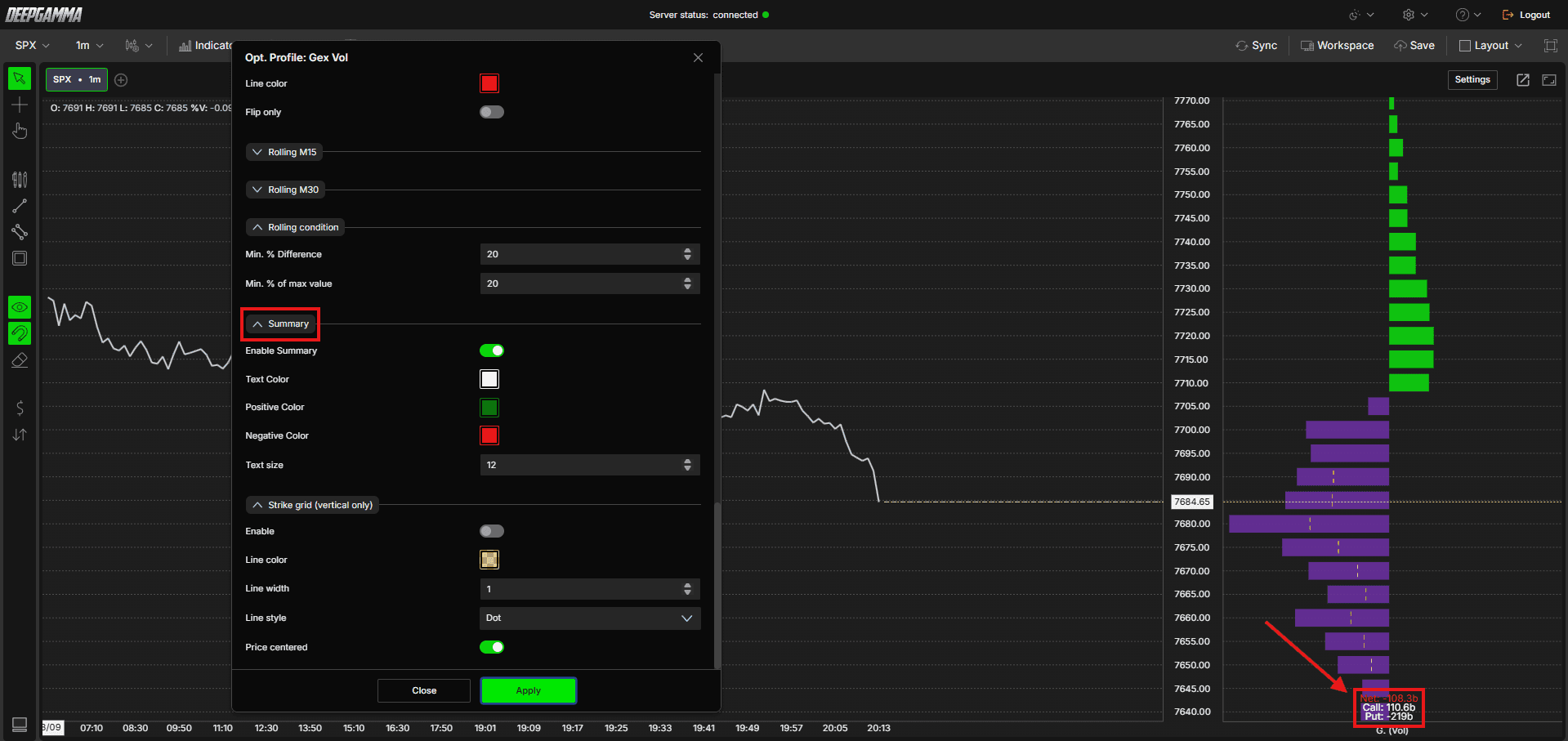
The Summary section displays a running total of the current profile values directly on the chart, based on your selected Data Source. It shows the net, call, and put totals so you can read the overall positioning at a glance without scanning the full profile.
Enable Summary - Show or hide the summary totals on the chart. Default is disabled
Text Color - Set the color for the summary text. Default is white
Positive Color - Set the color for positive (net or call) values. Default is green
Negative Color - Set the color for negative (put) values. Default is red
Text size - Set the font size for the summary text. Default is 12
The summary shows three values:
Net - The combined call and put value for the profile, shown in green if positive
Call - The total call side value based on the selected data source, for example GEX (Vol)
Put - The total put side value based on the selected data source, shown as a negative number
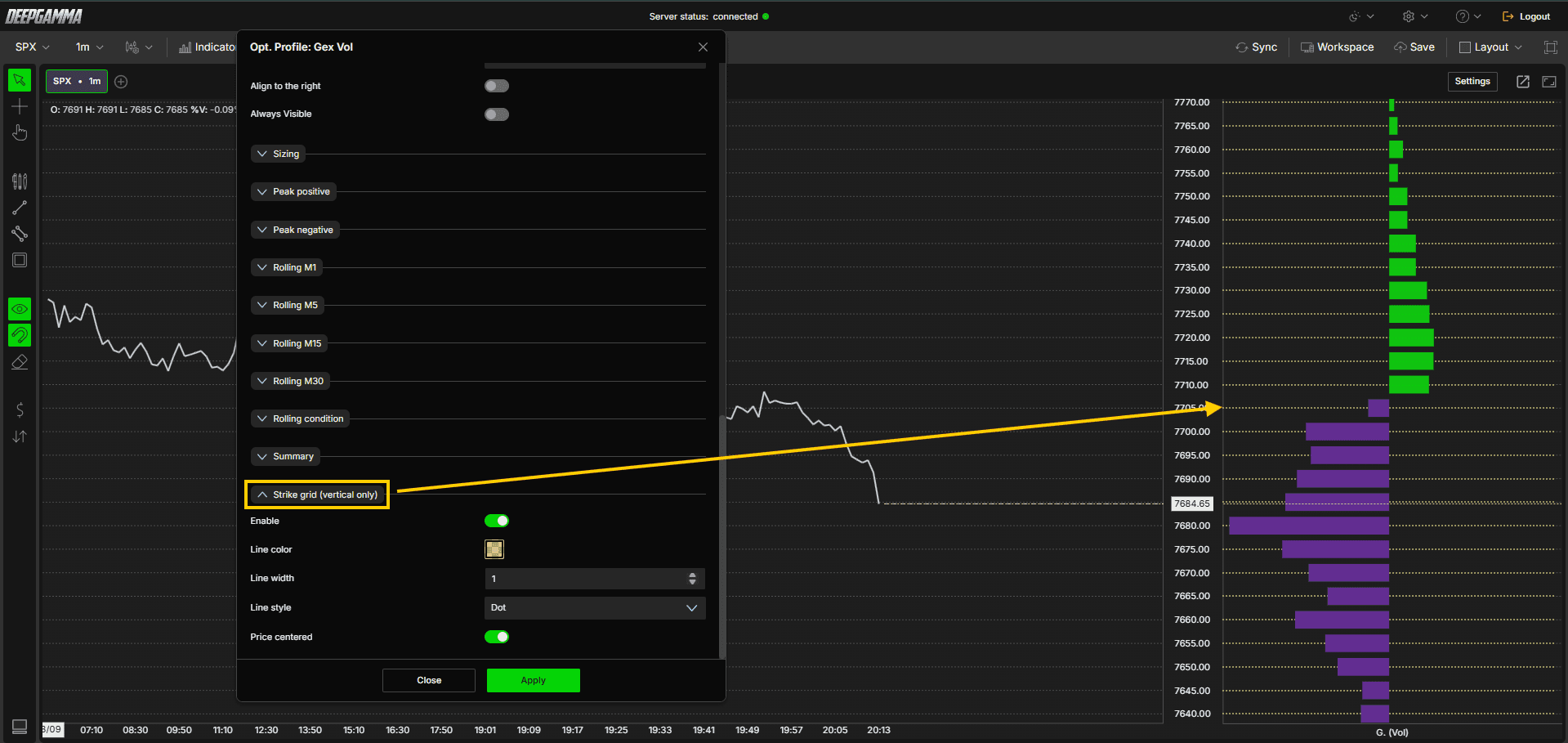
Strike grid (vertical only)
When the profile is set to a vertical chart area, this section lets you overlay a horizontal grid line at each strike price for easier visual alignment between the profile and the price axis.
Enable - Show or hide the strike grid lines. Default is disabled
Line color - Set the color of the grid lines
Line width - Set the thickness of the grid lines. Default is 1
Line style - Choose between Solid, Dash, Dot, Dash dot, or Dash dot dot. Default is Dot
Price centered - When enabled, centers the grid lines on the price axis rather than offsetting them. Default is enabled
Example - How to Use Option Profile
Looking at the chart, the Option Profile appears as a vertical panel on the right side of your chart by default. Here is a simple way to read it:
The largest green bar on the profile shows the strike with the most call activity. As price approaches this level from below, dealer hedging around this concentration can create selling pressure, though the actual reaction depends on the broader gamma regime and how price is approaching
The largest purple bar on the profile shows the strike with the most put activity. As price approaches this level from above, dealer hedging around this concentration can create buying pressure, though this also depends on context rather than being a fixed rule
When price is trading between the two, it is often in a more balanced zone, but watch how price actually reacts near each level rather than assuming a fixed outcome
Use the Peak lines (dashed green and purple horizontal lines) as quick reference levels without having to read the full profile
Any Questions?
Our support team is available 24/7 and ready to help you with any question.
When reaching out, please include:
Screenshot (if any)
Briefly describe the assistance or support you require
DeepCharts Live Support - Chat with our agents directly using the live chat box on www.deepcharts.com, or click here for 24/7 Live Chat for immediate access.
Email Support - Reach us at support@deepcharts.com - please note that email responses may take a little longer than a live support chat.
