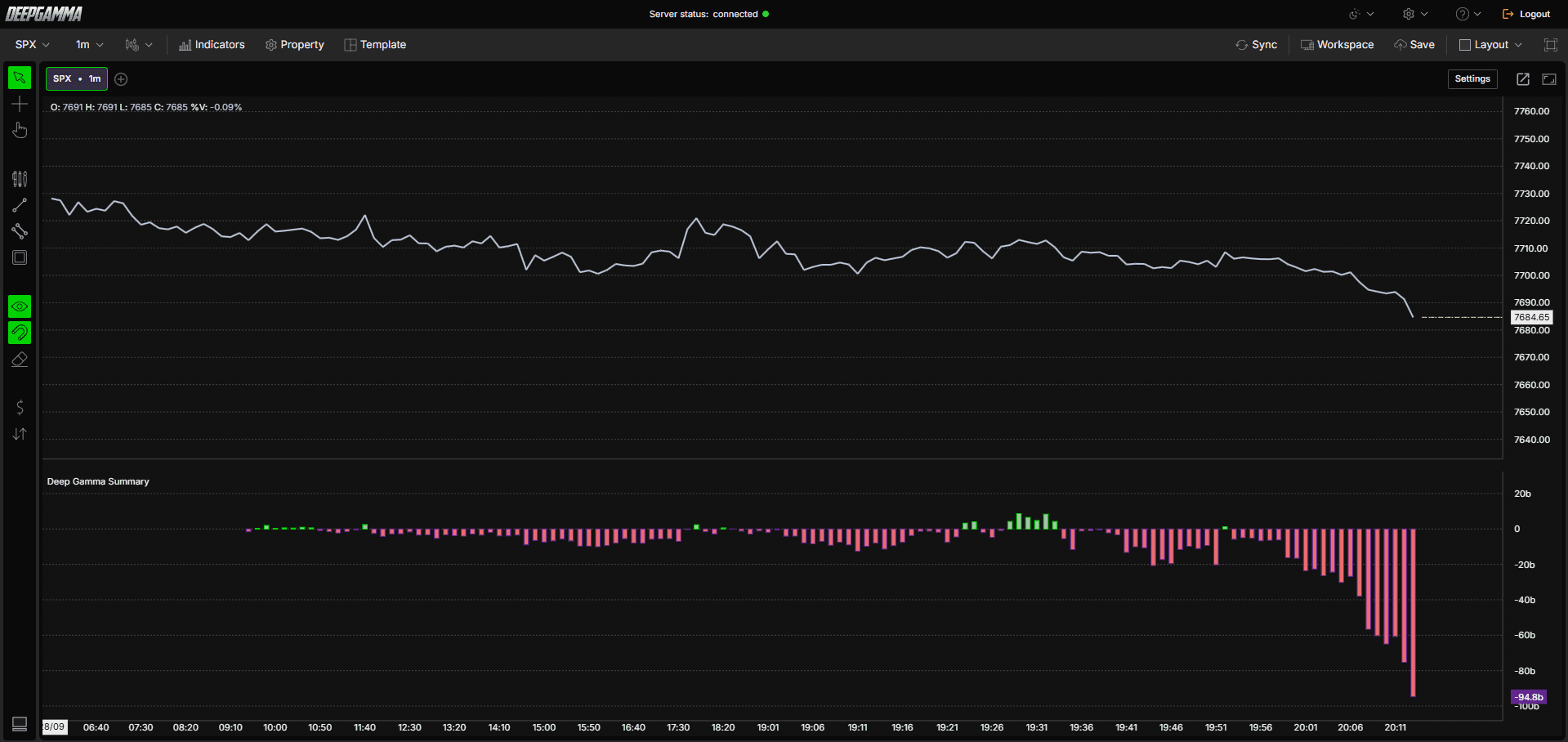
Option Summary displays the net gamma exposure (GEX) for the session as an oscillator, showing whether the market is in a positive or negative gamma regime at any given moment. It also includes an optional marker feature that colors the indicator background with the regime color, making regime shifts easy to spot at a glance.
Note: Option Summary is available on NDX, QQQ, SPY, and SPX.

How to Add Option Summary
Open an NDX, QQQ, SPX or SPY chart in DeepGamma Web
Click Indicators in the Menu Bar
Click the green Add indicator button at the bottom of the panel
Open the Options tab and search for Option Summary
The indicator is added to your chart and appears in the Indicators panel
Click the gear icon next to Option Summary to open its settings

Understanding the Indicator
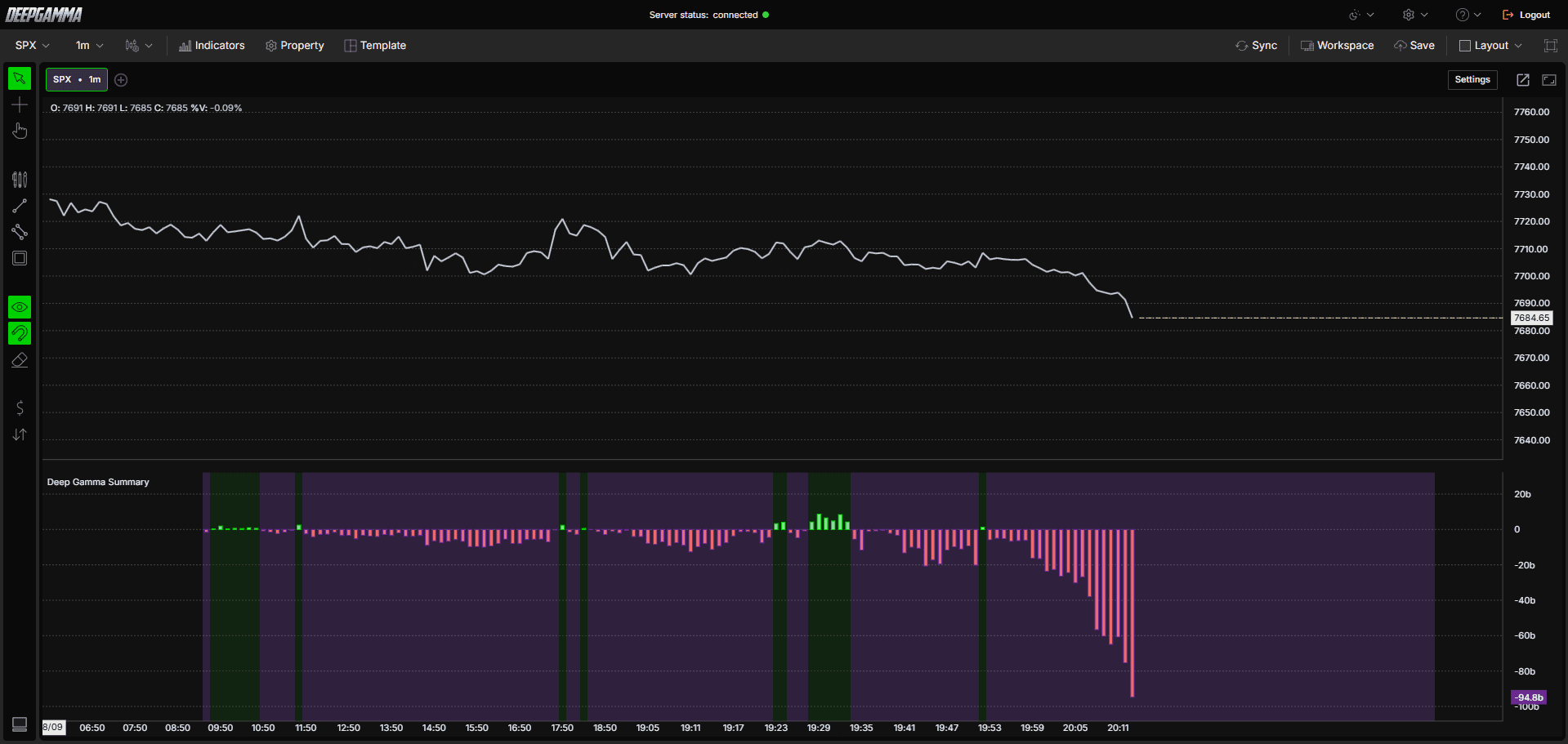
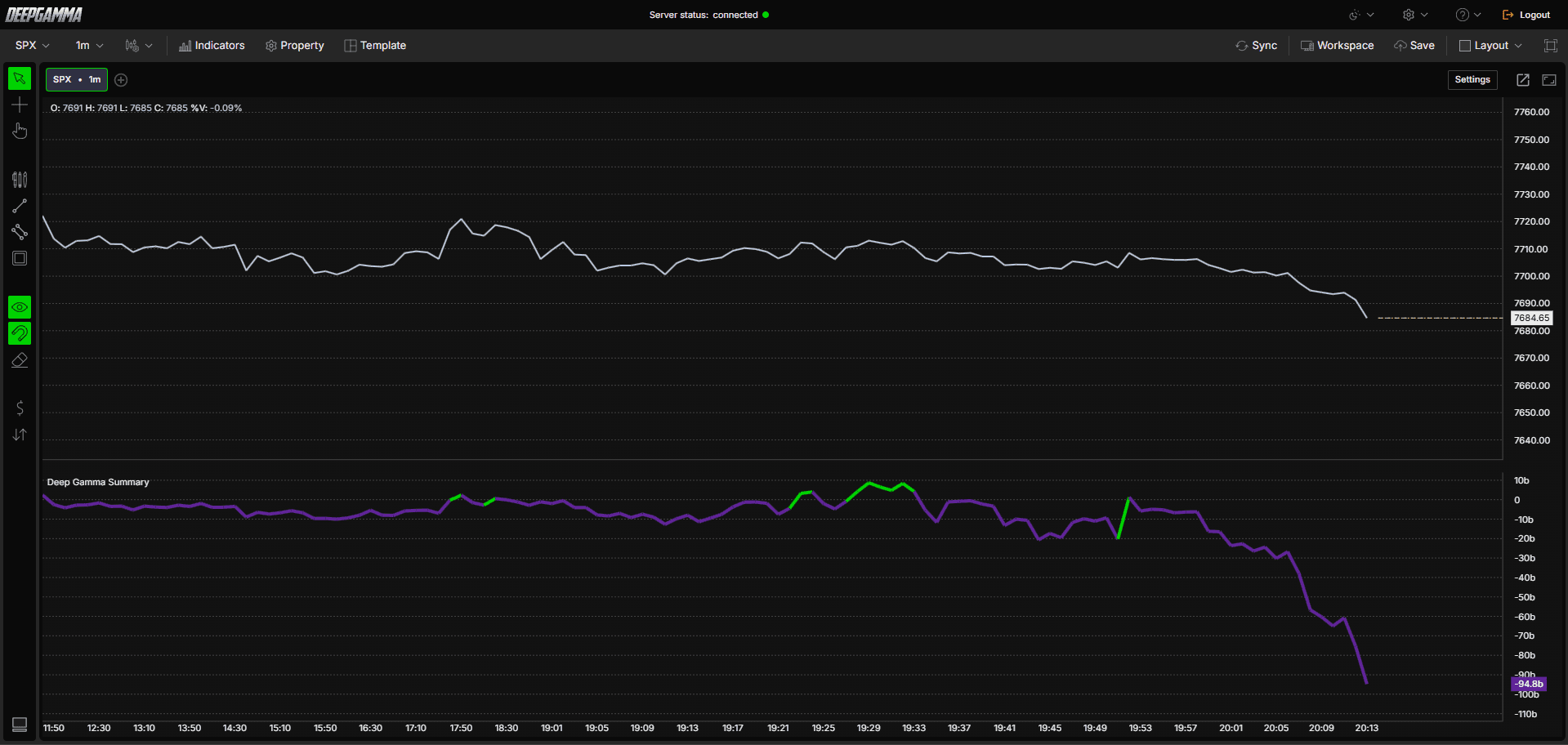
Option Summary plots a single oscillator below your price chart, showing the net gamma exposure for the session. Green bars indicate a positive gamma regime, where dealers are more likely to dampen price moves. Purple bars indicate a negative gamma regime, where dealers are more likely to amplify price moves.
If the Marker feature is enabled, the background of the indicator panel is also colored by the regime, green for positive and purple for negative, so you can read the regime at a glance without checking each bar.
Understanding Key Terms
Before choosing a data source, it helps to understand a few core options concepts:
Call - An option that gives the buyer the right to buy the underlying at a set price. Traders buy calls when they expect price to go up
Put - An option that gives the buyer the right to sell the underlying at a set price. Traders buy puts when they expect price to go down
Gamma - A measure of how much an option’s delta changes as price moves. High gamma means dealers need to hedge more aggressively as price approaches a strike, which is why gamma concentrations often act as support or resistance
GEX (Gamma Exposure) - An estimate of the gamma exposure dealers are carrying at a given strike, combining volume with the gamma greek to show where dealer hedging pressure is likely to be strongest
Settings
The settings window has two tabs: Parameters and Series. After making changes, click Apply to update the chart.
Parameters
General
Data Source - Gex (call - put) is the only data source available for Option Summary. It calculates net gamma exposure by taking call side gamma minus put side gamma at each strike, using the standard assumption that market makers are long calls and short puts. This gives you a single net value representing the overall gamma regime for the session, useful for a quick read on whether the market is in a positive or negative gamma regime without needing to look at individual strikes
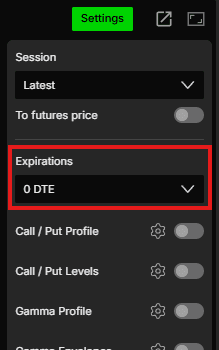
Expiration - Filter the calculation by expiration. Options available: Default, 0 DTE, <= 1d, <= 7d, <= 31d, <= 91d, All expirations
Note: When Expiration is set to Default, it uses the expiration selected under Expirations in the Settings quick bar.
Include Carry or Open interest - When enabled, includes open interest carried over from previous sessions in the calculation, giving you a broader view of total positioning. When disabled, only current session data is considered. Default is disabled
Marker
The Marker feature colors the background of the indicator panel to highlight regime shifts.
Enable - Show or hide the background color on the indicator panel. Default is disabled
Positive color - Set the background color for positive gamma regime periods. Default is dark green
Negative color - Set the background color for negative gamma regime periods. Default is purple
Value - Set the threshold value that triggers the marker to change color. Default is 0
Opacity - Set the transparency of the background color. Default is 20

Series
Color
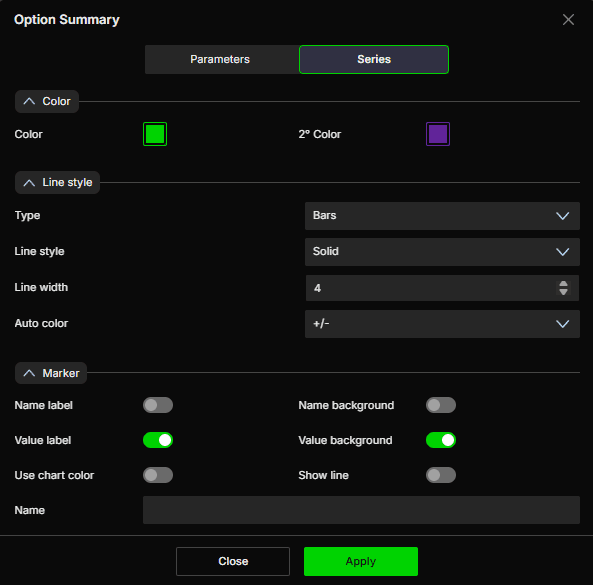
Color - Set the color for positive values. Default is green
2° Color - Set the color for negative values. Default is purple
Line style
Type - Choose between Line, Bars, or Ignore. Default is Bars
Line style - Choose between Solid or Dash. Default is Solid
Line width - Set the thickness of the bars or line. Default is 4
Auto color - Options available: None, Slope, +/-. Default is +/-
Marker
Name label - Show or hide the series name label. Default is disabled
Name background - Show or hide the background behind the name label. Default is disabled
Value label - Show or hide the value label. Default is enabled
Value background - Show or hide the background behind the value label. Default is enabled
Use chart color - When enabled, the marker uses the chart color. Default is disabled
Show line - When enabled, the current value is extended as a line to the right edge of the chart. Default is disabled
Name - Set a custom label for this series
Example - How to Use Option Summary
Once added to your chart, you will see a bar oscillator plotted below the price chart, with an optional colored background on the indicator panel if the Marker feature is enabled. Here is a simple way to use it:
When the oscillator is green and the market is in a positive gamma regime, expect price action to be more compressed. Breakouts are more likely to fade and get pulled back toward the range
When the oscillator turns purple and the market shifts into a negative gamma regime, expect more volatile and directional price action, since dealer hedging tends to amplify moves in this regime
Watch for the moment the oscillator crosses from positive to negative or vice versa. This transition often lines up with a shift in market character and can be a useful cue to adjust your trading approach for the session
Enable the Marker feature if you want the regime color to fill the indicator background, making it easier to spot regime shifts at a glance
Any Questions?
Our support team is available 24/7 and ready to help you with any question.
When reaching out, please include:
Screenshot (if any)
Briefly describe the assistance or support you require
DeepCharts Live Support - Chat with our agents directly using the live chat box on www.deepcharts.com, or click here for 24/7 Live Chat for immediate access.
Email Support - Reach us at support@deepcharts.com - please note that email responses may take a little longer than a live support chat.
