Updated:
If you are experiencing performance issues, delays, or connectivity problems on DeepCharts, running a diagnostic report and checking your RAM usage helps our support team identify and resolve the issue faster.

1. Checking RAM Usage
At the top right of the DeepCharts toolbar, you will see a RAM indicator showing your current memory usage.
The first value (e.g. 88%) shows your total system RAM usage
The value in brackets (e.g. 2%) shows DeepCharts' own memory usage

This gives you a quick overview of how your system resources are being used while the platform is running.
If your total RAM usage is consistently high, it may affect platform performance. Consider closing other applications to free up memory.
2. Running the Diagnostic Report
The Diagnostic Report collects key information about your system and network connection. This helps our support team diagnose issues without needing to guess what is happening on your end.
Steps:
In the DeepCharts toolbar, click the ? (Question Mark) icon
Select Contact Support
When prompted, select "I have a problem or delay with the platform"
The Diagnostic window will open showing:
DeepCharts version
Operating system
CPU name and usage
Total memory and memory used
Network connectivity (IPv4/IPv6)
Ping to EU and US servers
Download speeds (Global, EU, US)
Click "Click Here to Confirm" to allow the platform to collect additional connection and system information
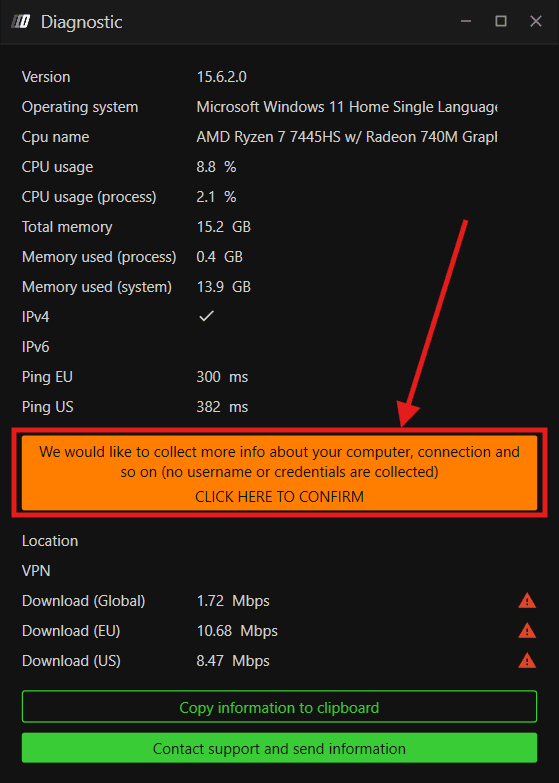
No username or credentials are collected during this process.
Once the diagnostic is complete, click Contact Support and Send Information to share it directly with our support team
3. Log Files
Log files contain a detailed record of everything happening on your platform. If you are experiencing a recurring issue, keeping your log files ready allows our team to investigate and identify the root cause accurately.
Location:
Go to My PC >> Documents >> DeepCharts >> Logs
Note: In some cases, DeepCharts may be saved in OneDrive instead of the default Documents folder, which means the file path may be different. If you are having trouble locating your log files, please reach out to our live support team at www.deepcharts.com and they will assist you in finding and collecting the correct files.
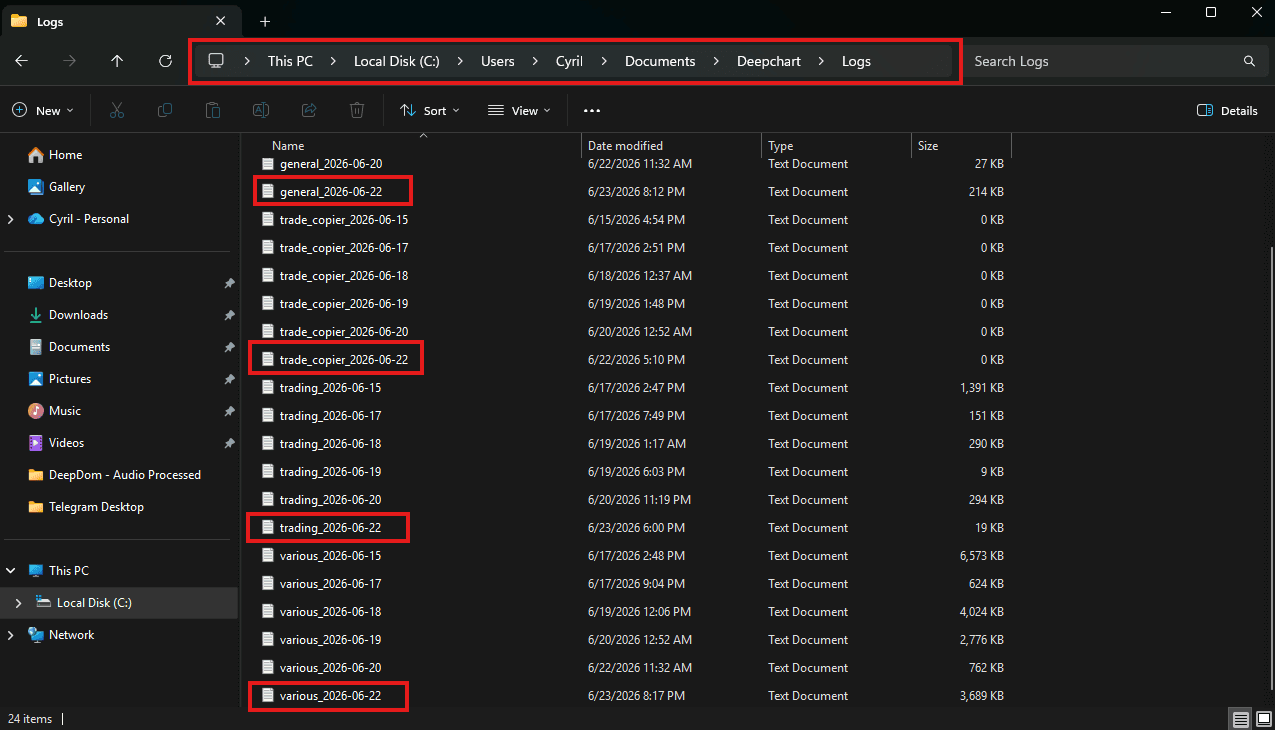
You will find four types of log files, each covering a different area of the platform:
General - Overall platform activity
Trade Copier - Trade Copier related activity
Trading - Trading activity and order execution
Various - Other platform activity
Each log file is named with the date it was generated (e.g. trading_2026-06-22). When raising a support ticket, kindly share the log files matching the date on which the issue occurred so our backend team can verify everything accurately.
Still Having Trouble?
Our support team is available 24/7 and ready to help you with any issue you encounter.
When reaching out, please include:
A screenshot of the issue
A brief description of what you were trying to do
Support Ticket (Fastest Response) Visit www.deepcharts.com and create a support ticket directly on our website.
Email Support Reach us at support@deepcharts.com - please note that email responses may take a little longer than a support ticket.
