Updated:
This method works for any prop firm that uses dxFeed Prop connectivity. Once you have your credentials, follow the steps below.

1. Get Your Credentials
Your prop firm will provide dxFeed credentials after you purchase or get funded. Check your:
Email from your prop firm
Broker Dashboard — log in and look for account credentials
You will need:
dxFeed Username
dxFeed Password
2. Check Your Connection Speed
Before adding the connection, run the Diagnostic Report to check your internet speed. This helps you decide whether to use MBO or MBP.
In the DeepChart toolbar, click the ? (Question Mark) icon
Select Contact Support
Choose “I have a problem or delay with the platform”
Review the DeepChart version, operating system, CPU and memory usage, IPv4/IPv6 connectivity, regional ping and download speeds
Click “Click Here to Confirm” to allow the platform to collect additional connection and system information
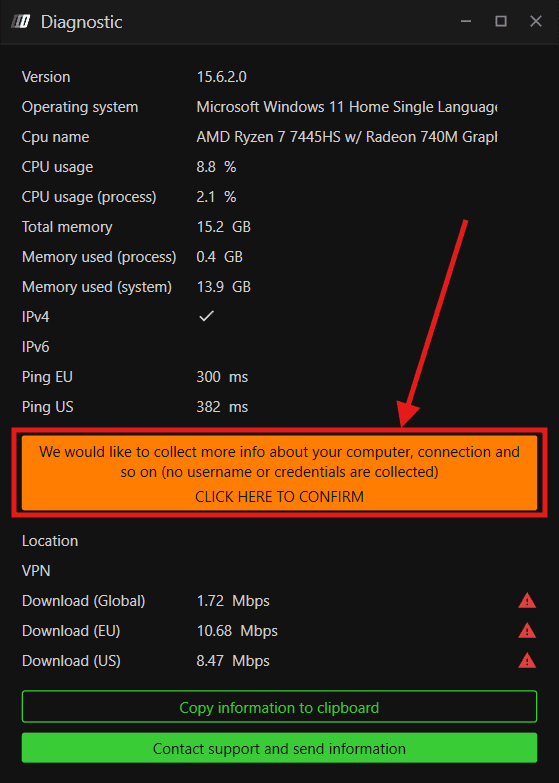
No username or credentials are collected during this process.
Based on the results:
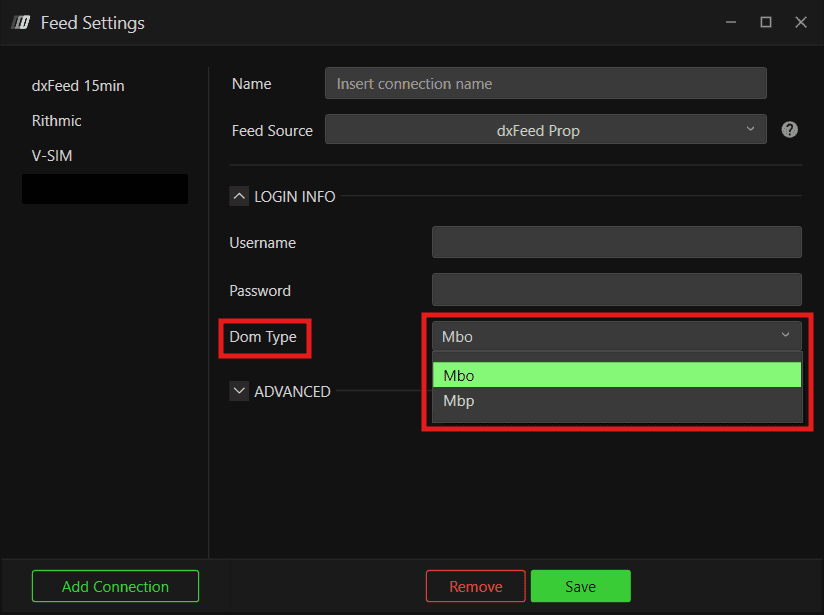
If the connection is stable and fast, select MBO in the next step
If the connection is slower or less stable, select MBP
3. Connect dxFeed Prop to DeepChart
Once you have the credentials and have checked the connection speed, add the feed inside DeepChart.
Open DeepChart and go to Feed Settings
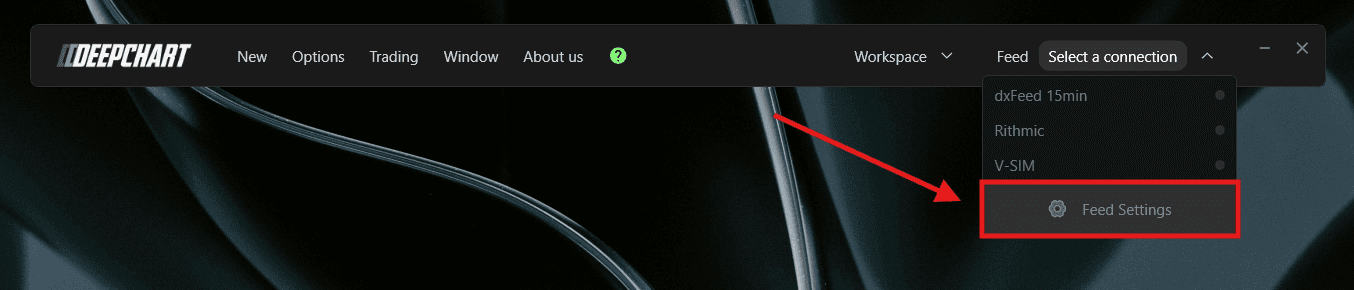
Click Add Connection
Under Feed Source, select dxFeed Prop
Enter any name for this connection
Enter the dxFeed Username and Password provided by your prop firm
Under DOM Type, select MBO for the most granular market depth on a fast and stable connection, or MBP for a lighter feed
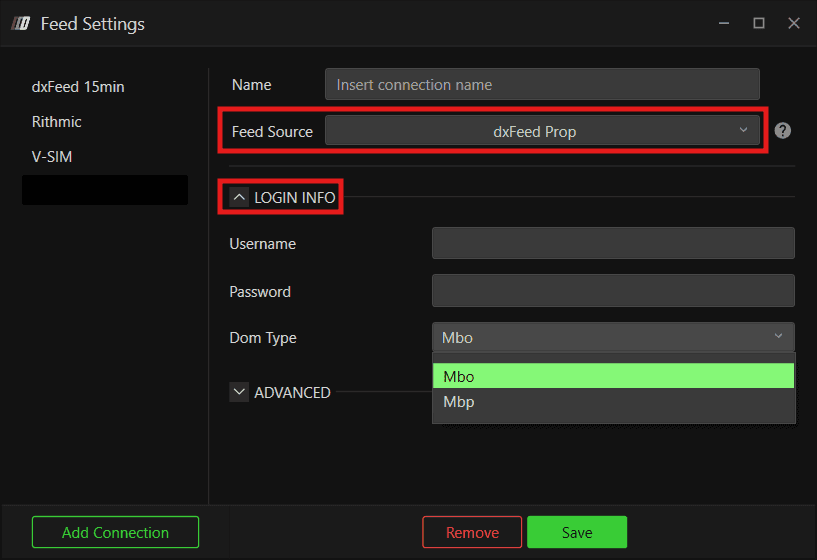
Click Save and then Connect
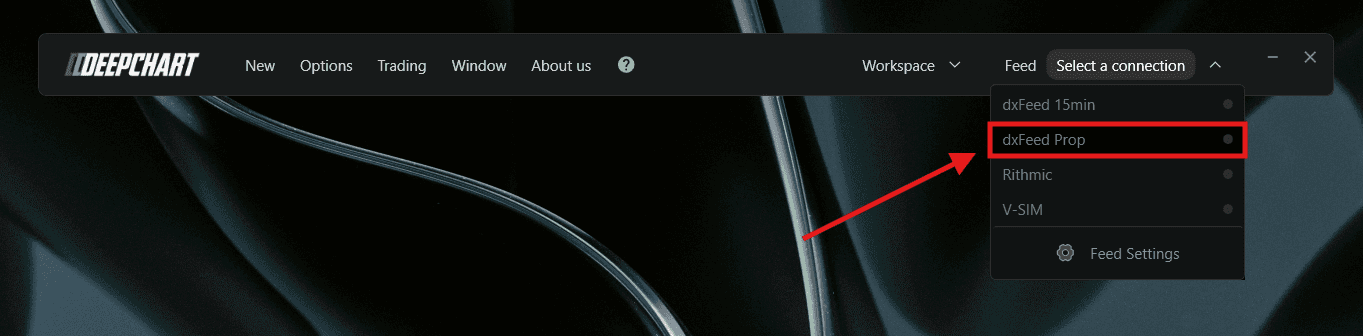
If MBO causes data delays, switch to MBP in Feed Settings and reconnect.
4. Configure Symbol Manage
Once connected, verify that the feed is linked to the correct exchanges before opening a chart.
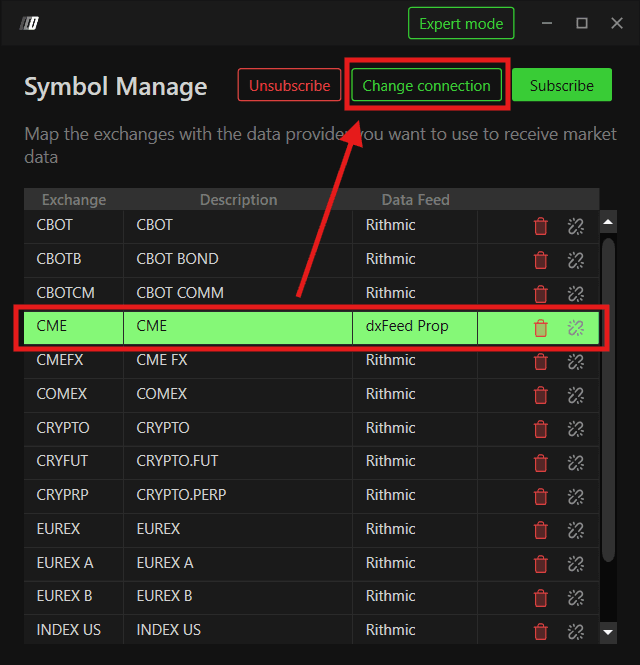
Go to Options in the top menu
Click Symbol Manage
Check that your preferred exchange is connected to the dxFeed Prop data feed
If the exchange is already listed, change its Data Feed source to your dxFeed Prop connection and press Set
If the exchange is not listed, click Subscribe, find the exchange, select the dxFeed Prop connection and press Select
Close Symbol Manage
5. Open a Price Chart
Once Symbol Manage confirms the feed is active, open a chart.
Go to New
Click Price Chart
Select an instrument such as ES or NQ
Click OK or Open — the chart will load with live data
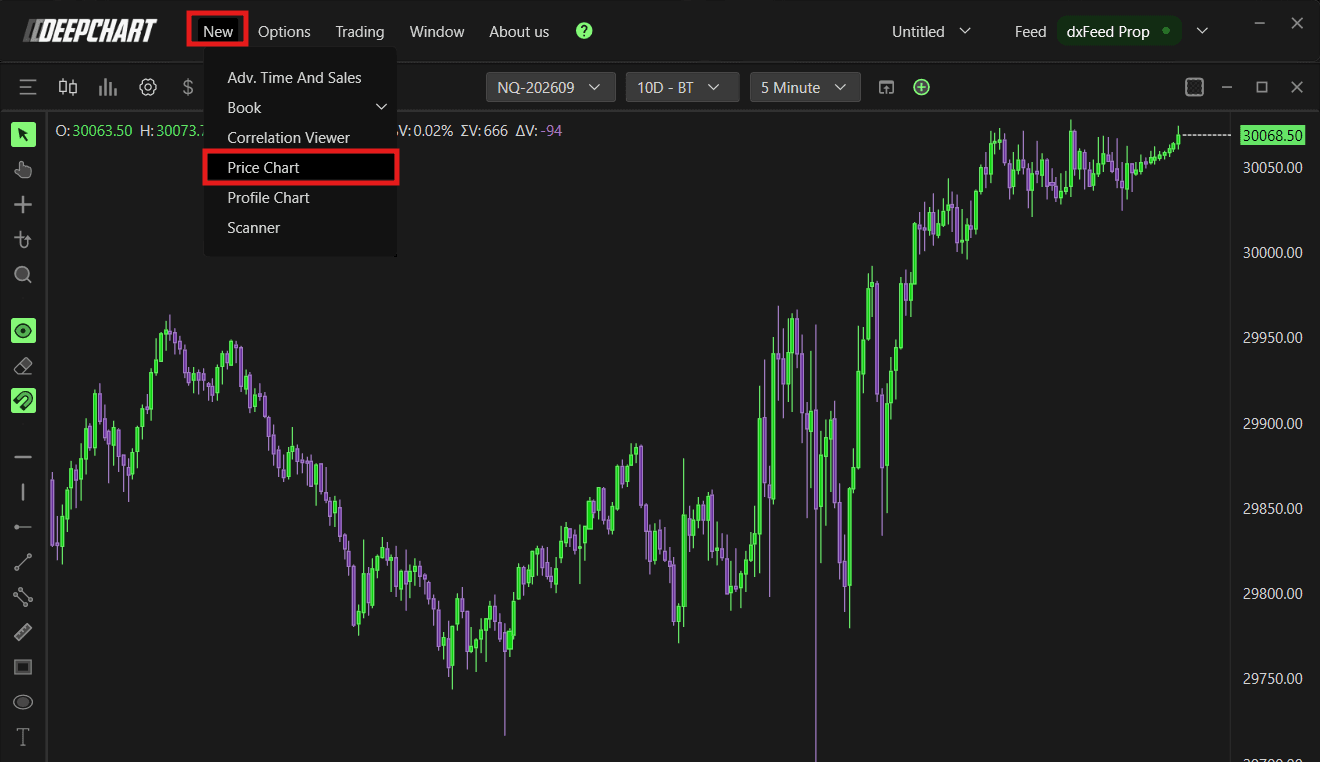
You are now live on DeepChart with your dxFeed Prop data feed.
6. Using the Same Feed on DeepChart & DeepDom
You can use the same dxFeed username and password on DeepChart and DeepDom.
DeepDom requires Level 2 data. Use MBO in both DeepChart and DeepDom Feed Settings.
Steps to Connect DeepDom
Open DeepDom and go to Feed Settings
Click Add Connection
Select dxFeed Prop
Enter the same credentials used in DeepChart
Set DOM Type to MBO
Click Save and then Connect
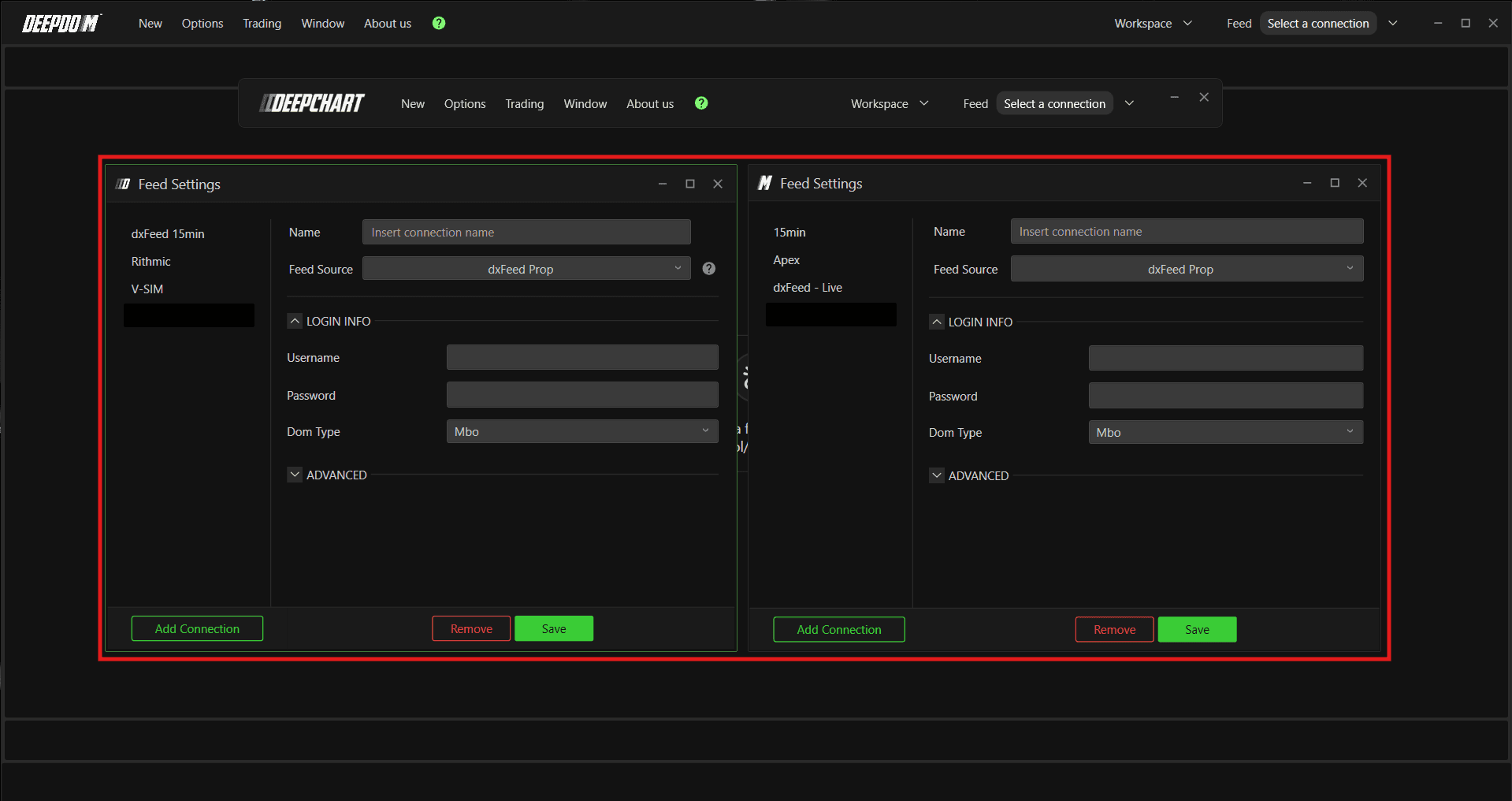
Both platforms will now run simultaneously on the same dxFeed data feed without conflicts.
Still Having Trouble?
Our support team is available 24/7 and ready to help you with any issue you encounter.
When reaching out, please include:
A screenshot of the issue
A brief description of what you were trying to do
Support Ticket (Fastest Response) Visit www.deepcharts.com and chat with our team directly on the website.
Email Support Reach us at support@deepcharts.com — please note that email responses may take a little longer than a support ticket.
