Updated:
Panoramica
Se i tuoi grafici mostrano prezzi errati, gap o smettono di aggiornarsi, eliminare i dati di mercato dall'interno dell'applicazione DeepCharts consente alla piattaforma di riscaricare automaticamente dati freschi.
Questo è il primo metodo consigliato prima di eliminare manualmente le cartelle dei dati.

Quando utilizzare questo metodo
Il grafico dei prezzi non si aggiorna
Compaiono gap o prezzi errati
Il feed è connesso ma il grafico è bloccato
Piccoli problemi di corruzione dei dati
Passaggi per eliminare i dati da DeepCharts
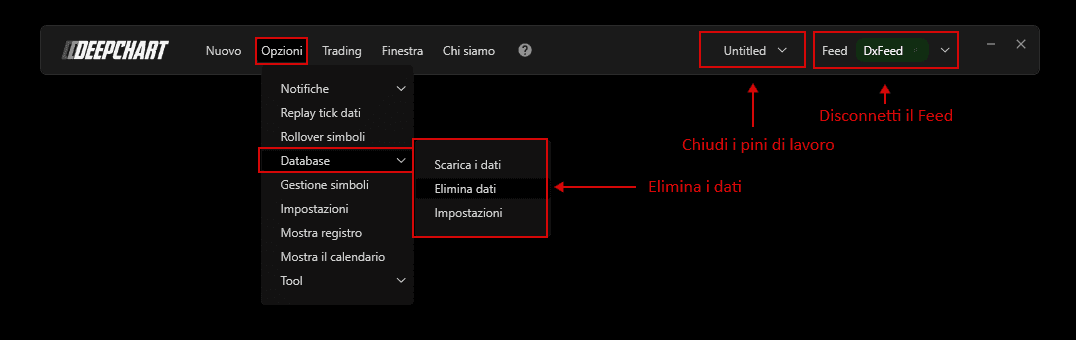
Chiudi tutti i grafici e le aree di lavoro
Disconnetti tutti i feed dei dati
Dal menu principale, vai su:
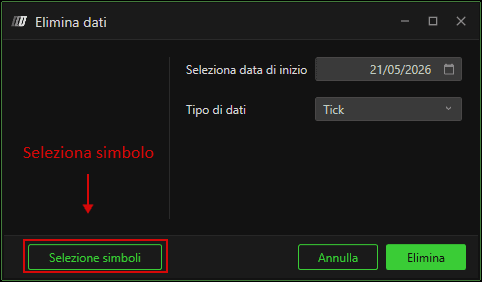
Fai clic su Seleziona simbolo
Scegli il simbolo per cui desideri eliminare i dati
Seleziona 2–3 giorni prima di oggi e seleziona il simbolo
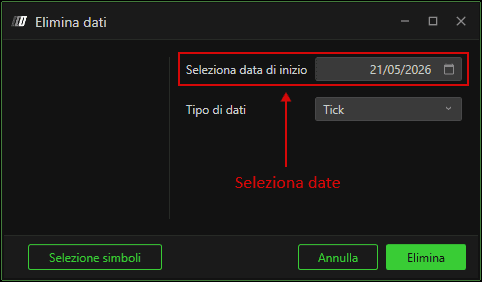
Fai clic su Elimina (Delete).
Cosa succede dopo?
Riapri il grafico
DeepCharts scaricherà automaticamente i nuovi dati
Il grafico dovrebbe aggiornarsi normalmente
Note
Questo metodo non elimina l'intero database
Sicuro da usare regolarmente
Nessun impatto sull'account o sull'abbonamento
