Cómo se hace
Updated:
Plantillas
Una Plantilla representa el conjunto completo de indicadores y configuraciones visuales aplicados a una única herramienta, como un Heatmap, Advanced DOM o la ventana de Time & Sales. Una vez guardada, la plantilla se puede cargar en múltiples ventanas similares para replicar instantáneamente el mismo diseño.
Dónde se guardan las plantillas
Por defecto, DeepDom almacena los archivos de plantilla en su carpeta Documentos, dentro de subdirectorios específicos, por ejemplo:
Heatmap: Documents/DeepDom/Template
Time & Sales: Documents/DeepDom/Time and Sales Template
Advanced DOM: Documents/DeepDom/Adv Dom Template
Puede pegar en estas carpetas cualquier archivo de plantilla que descargue de su área personal en el sitio web de Volumetric Trading y después cargarlo directamente en DeepDom.
Cargar una plantilla
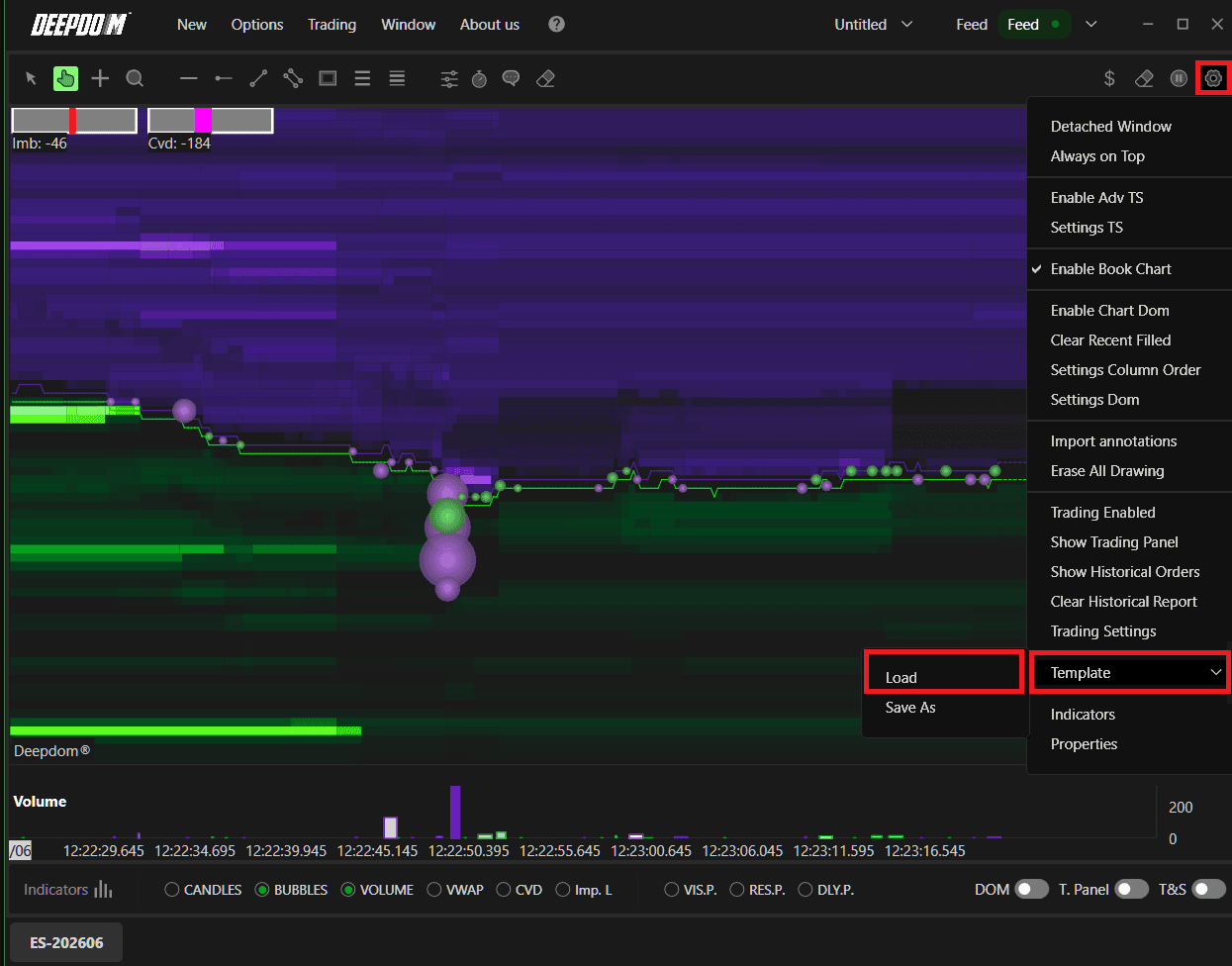
Para cargar una plantilla existente en una ventana de Heatmap, Time & Sales o Advanced DOM:
Haga clic en el icono de Configuración (engranaje) en la esquina superior derecha de la ventana de la herramienta.
Seleccione load (cargar).
Seleccione el archivo de plantilla deseado en el cuadro de diálogo.
Haga clic en Open (Abrir) para aplicarlo.
Guardar una plantilla con nombre
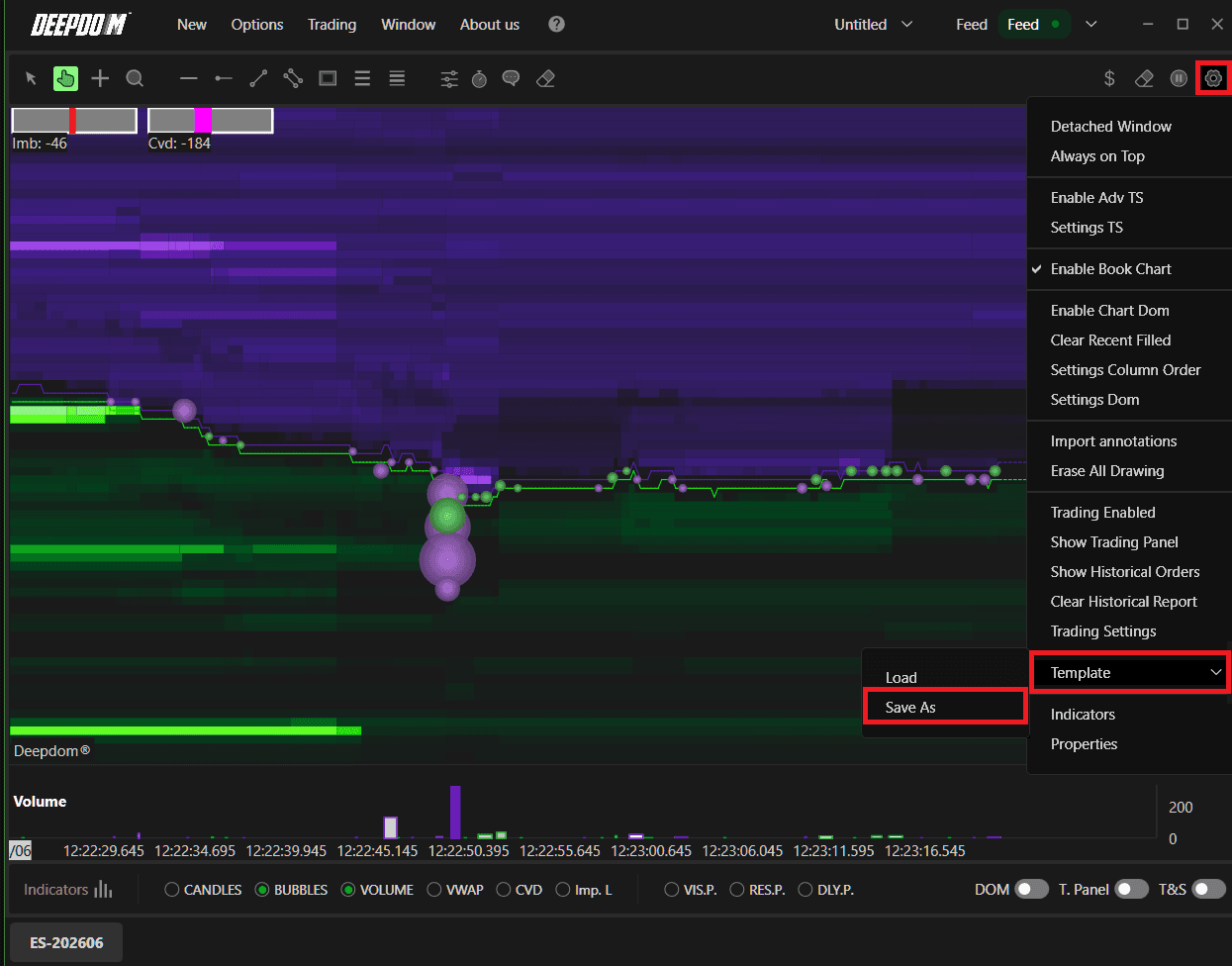
Después de personalizar una herramienta con sus indicadores y estilos preferidos, puede guardar la configuración como una nueva plantilla:
En el Heatmap u otra herramienta, haga clic en el icono de Configuración (engranaje).
Seleccione Template > Save As (Guardar como).
Introduzca un nombre de archivo descriptivo (por ejemplo, Template Volume Profile 30 Min).
Haga clic en Save (Guardar).
El mismo procedimiento se aplica a las ventanas de Time & Sales, Advanced DOM, Scanner o Correlations.

Espacios de trabajo (Planes de trabajo)
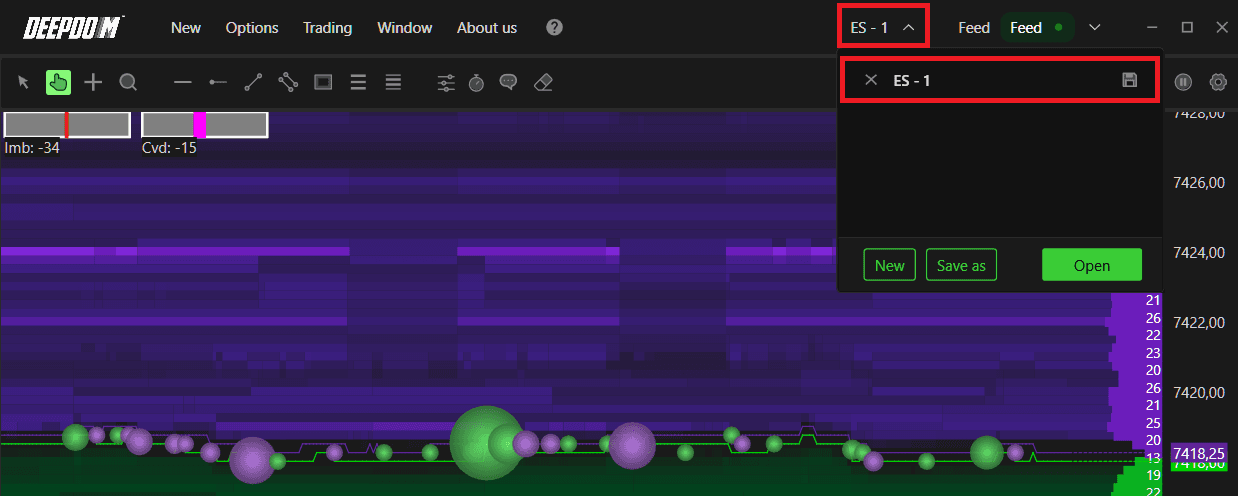
Un Espacio de trabajo (Plan de trabajo) representa la disposición completa de las ventanas de DeepDom (Heatmaps, DOMs, Time & Sales y otras herramientas) en uno o más monitores. Guardar un espacio de trabajo le permite volver a abrir el mismo diseño con un solo clic al iniciar la plataforma.
Gestión de planes de trabajo
En la ventana de Gestión de planes de trabajo puede:
Ver la lista de planes de trabajo abiertos.
Guardar la configuración actual del plan de trabajo activo.
Guardar el diseño con un nuevo nombre de plan de trabajo.
Cerrar un plan de trabajo existente.
Notas importantes
El plan de trabajo predeterminado se llama Untitled (Sin título) y debe guardarse con un nombre específico la primera vez que lo configure. Cuando quiera cerrar un plan de trabajo, utilice la sección dedicada a la Gestión de planes de trabajo y haga clic en la X junto a su nombre. No cierre cada ventana individualmente y luego guarde el plan; de lo contrario, podría guardar accidentalmente un espacio de trabajo vacío y perder sus gráficos abiertos.
Configuración de herramientas (Anotaciones personalizadas)
DeepDom le permite almacenar múltiples perfiles de configuración para las herramientas de dibujo (anotaciones) y elegir una configuración predeterminada para cada tipo de anotación.
Crear y guardar configuraciones de anotación
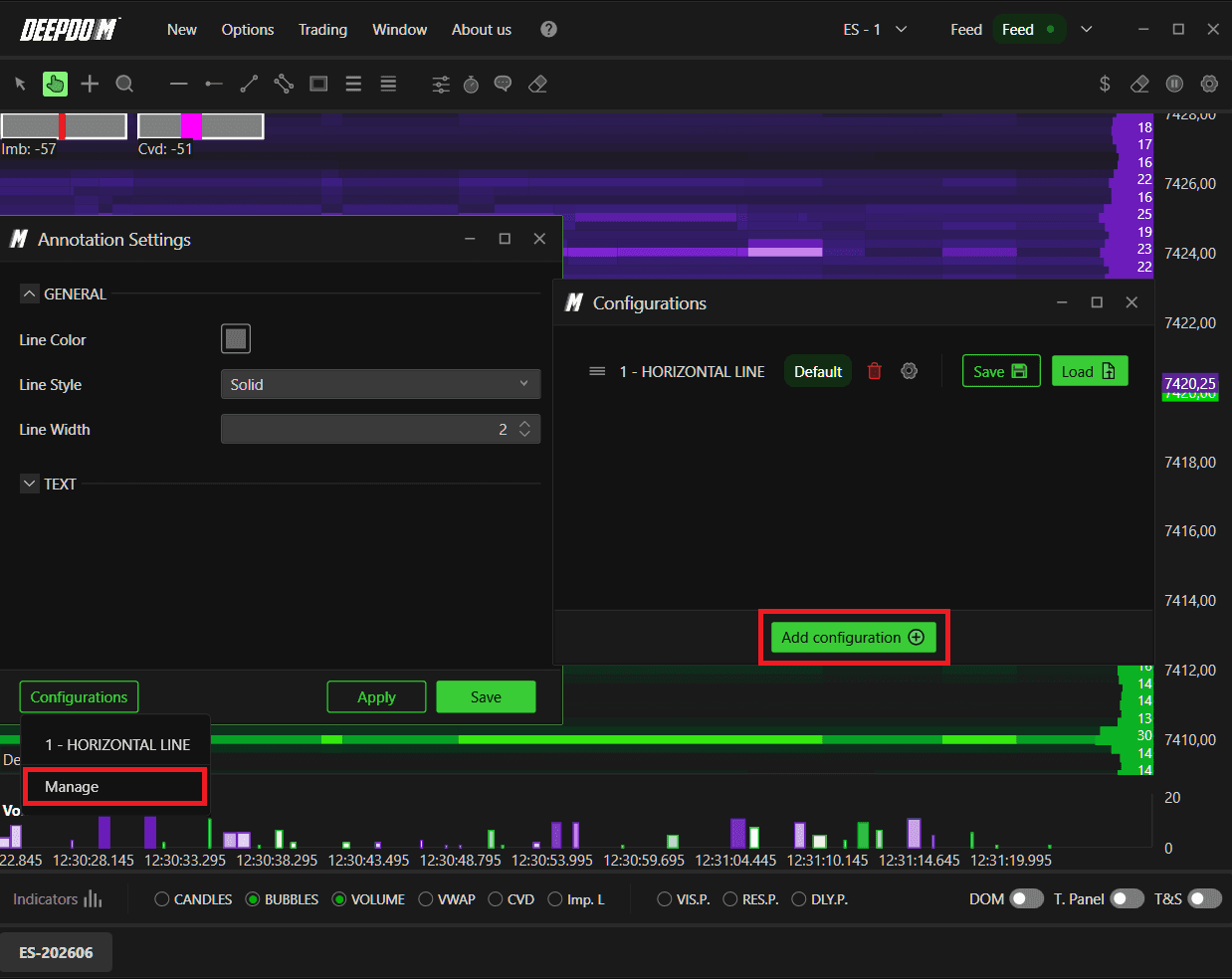
To create a custom configuration:
Dibuje una anotación en el gráfico.
Seleccione el dibujo y haga clic derecho en la esquina o punto resaltado.
Edite el estilo de línea, el color, la extensión, el texto y otras propiedades según lo desee, y aplique los cambios.
Haga clic en Configurations (Configuraciones) para ver las preconfiguraciones existentes.
Haga clic en Manage (Gestionar) y luego en Add Configuration (Añadir configuración) para guardar el estilo actual como una nueva preconfiguración.
Reordene las configuraciones guardadas para que la primera de la lista se convierta en la configuración Default (Predeterminada) que se utilizará automáticamente para las nuevas anotaciones de ese tipo.
¿Sigue teniendo problemas?
Nuestro equipo de asistencia está disponible las 24 horas, los 7 días de la semana, y listo para ayudarle con cualquier problema que encuentre. Cuando se ponga en contacto con nosotros, incluya:
Una captura de pantalla del problema.
Una breve descripción de lo que intentaba hacer.
Ticket de soporte (respuesta más rápida): visite www.deepcharts.com y cree un ticket de soporte directamente en nuestro sitio web.
Soporte por correo electrónico: también puede escribirnos a support@deepcharts.com. Tenga en cuenta que las respuestas por correo electrónico pueden tardar un poco más que un ticket de soporte.
