Cómo se hace
Updated:
Descripción general del menú de feeds
Utilice el elemento Seleccionar una conexión en la barra de menús de DeepDom para elegir con qué feed de datos desea trabajar. Las conexiones a proveedores externos suministran cotizaciones de mercado, datos históricos y, en muchos casos, enrutamiento de órdenes para operaciones en vivo.

Abrir la configuración del feed de datos
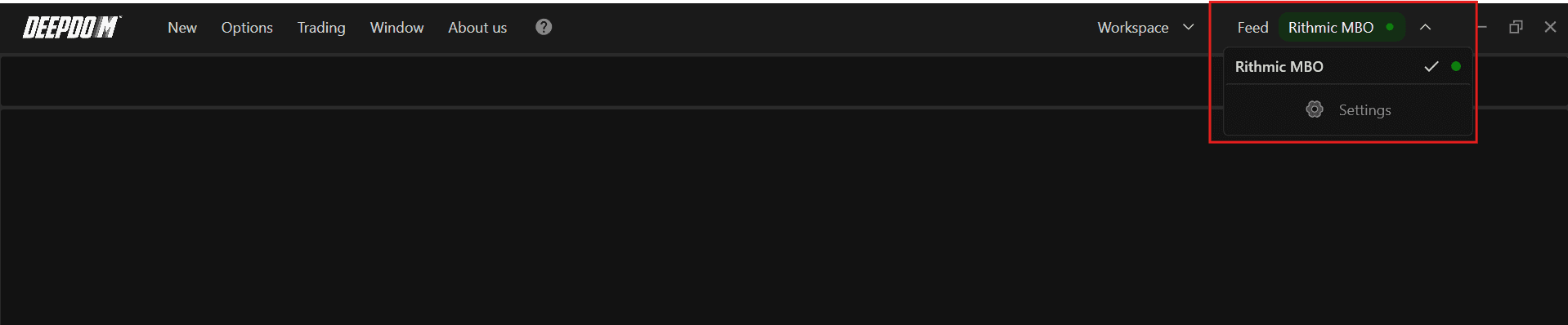
1. En la barra de herramientas principal, abra el menú Feed.
2. Haga clic en Configuración para abrir la ventana de Configuración del feed de datos.
La ventana está dividida en dos columnas principales:
Lista de conexiones – muestra todas las conexiones existentes.
Información de la conexión – muestra los detalles de la conexión seleccionada o un formulario de acceso cuando la conexión aún no está configurada.
Añadir una nueva conexión
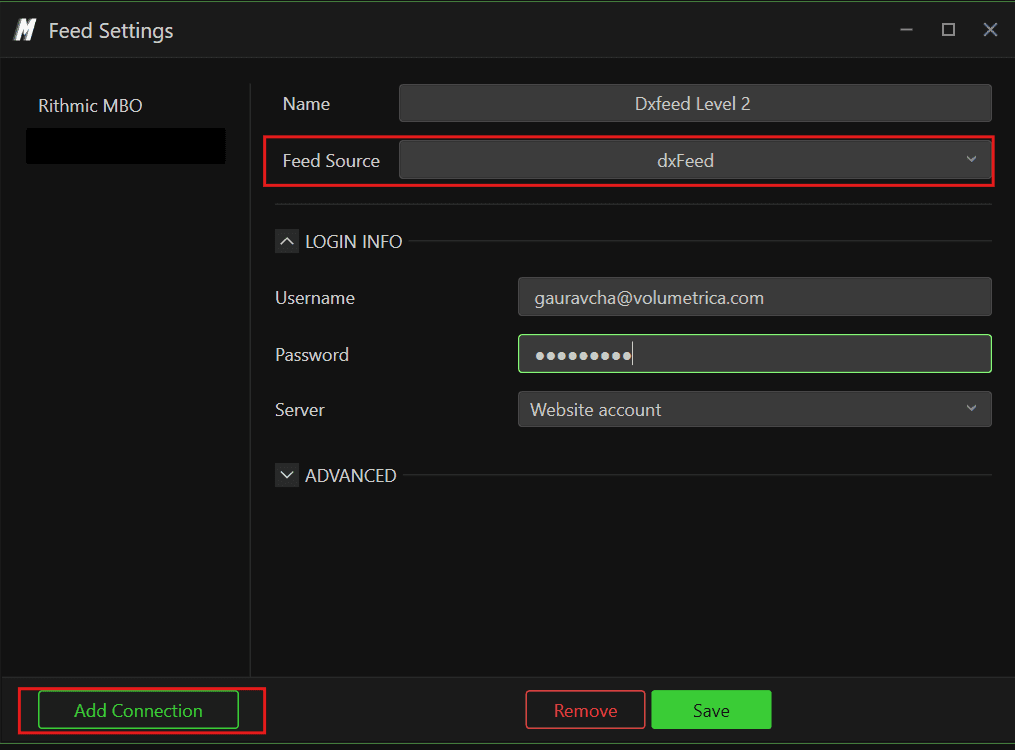
Haga clic en Añadir conexión en la parte inferior de la ventana de Configuración del feed de datos.
En el formulario de conexión, complete los siguientes campos:
Nombre – elija un nombre descriptivo para la conexión (por ejemplo, Rithmic – Futuros).
Fuente de datos – seleccione el proveedor de datos o bróker de la lista desplegable.
Credenciales – introduzca el nombre de usuario y la contraseña facilitados por su proveedor.
Conectar al iniciar – marque esta opción si desea que DeepDom se conecte automáticamente a este flujo de datos al iniciar la plataforma.
Cuando todos los datos sean correctos, haga clic en Guardar para almacenar la nueva conexión. DeepDom podrá utilizar estas credenciales para la reconexión automática y futuras sesiones.
Después de añadir una nueva conexión, recuerde asociar los mercados y símbolos correctamente a través de Opciones > Administrar símbolos para que sus gráficos reciban datos del feed deseado.
Formulario de acceso a la conexión
El diseño del formulario de acceso puede variar según la integración seleccionada. Algunas conexiones solo requieren un nombre de usuario y una contraseña, mientras que otras pueden incluir opciones de configuración adicionales como el sistema, el servidor, la pasarela o el entorno (real frente a demo). En todos los casos, utilice el botón Guardar configuración o Guardar para autenticarse y almacenar su configuración.
¿Sigue teniendo problemas?
Nuestro equipo de soporte está disponible las 24 horas del día, los 7 días de la semana, y está listo para ayudarle con cualquier problema que encuentre. Cuando se ponga en contacto con nosotros, incluya:
Una captura de pantalla del problema.
Una breve descripción de lo que estaba intentando hacer.
Ticket de soporte (respuesta más rápida): visite www.deepcharts.com y cree un ticket de soporte directamente en nuestro sitio web.
Soporte por correo electrónico: también puede ponerse en contacto con nosotros en support@deepcharts.com. Tenga en cuenta que las respuestas por correo electrónico pueden tardar un poco más que un ticket de soporte.
