Updated:
Panoramica
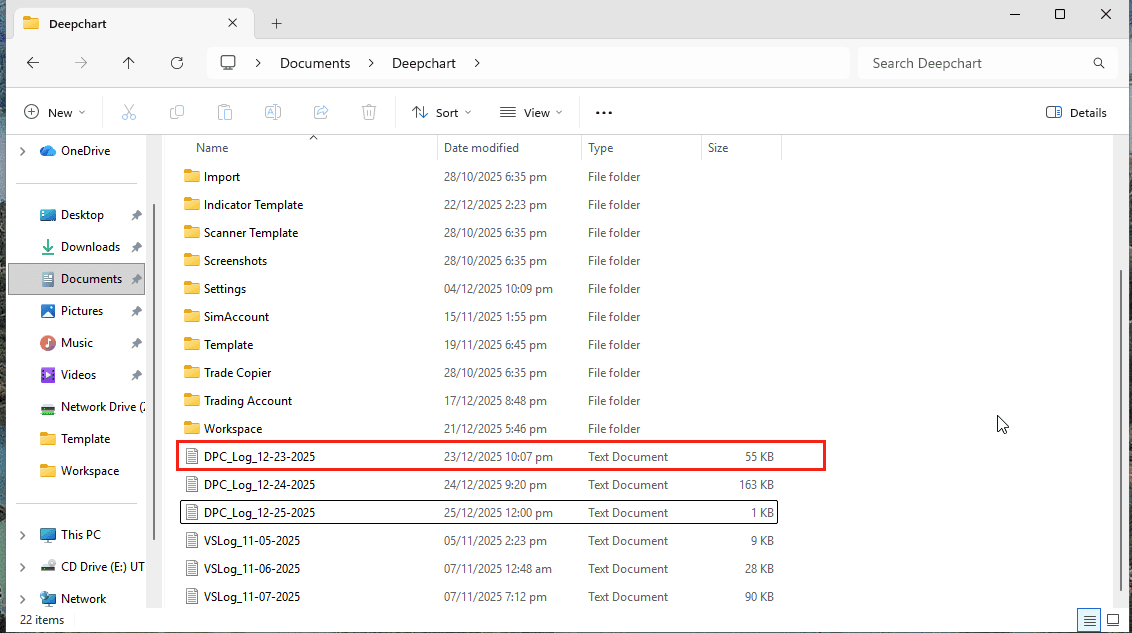
Se DeepChart si blocca quando fai clic su “Salva” nelle Impostazioni feed, la causa di solito può essere identificata controllando il file di log più recente generato dall’applicazione.
I log di crash sono archiviati in:
Cerca il file creato più di recente chiamato:
Cause comuni
Le ragioni di questo crash possono essere diverse. Le tre cause più comuni sono elencate di seguito, insieme alle relative soluzioni.

Causa 1: la lingua di sistema non è l’inglese
Descrizione
Se la lingua di sistema di Windows è impostata su una lingua diversa dall’inglese, DeepChart potrebbe non riuscire a leggere o scrivere correttamente i valori di configurazione quando salva le impostazioni del feed.
Soluzione
Cambia la lingua di visualizzazione e di sistema di Windows in inglese
Riavvia il PC
Apri DeepChart e prova di nuovo a salvare le impostazioni del feed
Se il problema persiste, passa alla soluzione successiva.
Causa 2: DeepChart non è in esecuzione con privilegi di amministratore
Descrizione
DeepChart richiede l’autorizzazione per leggere e scrivere i file di configurazione (come config.settings). Senza privilegi di amministratore, l’applicazione potrebbe bloccarsi quando tenta di salvare le impostazioni del feed.
Soluzione
Chiudi DeepChart
Vai a:
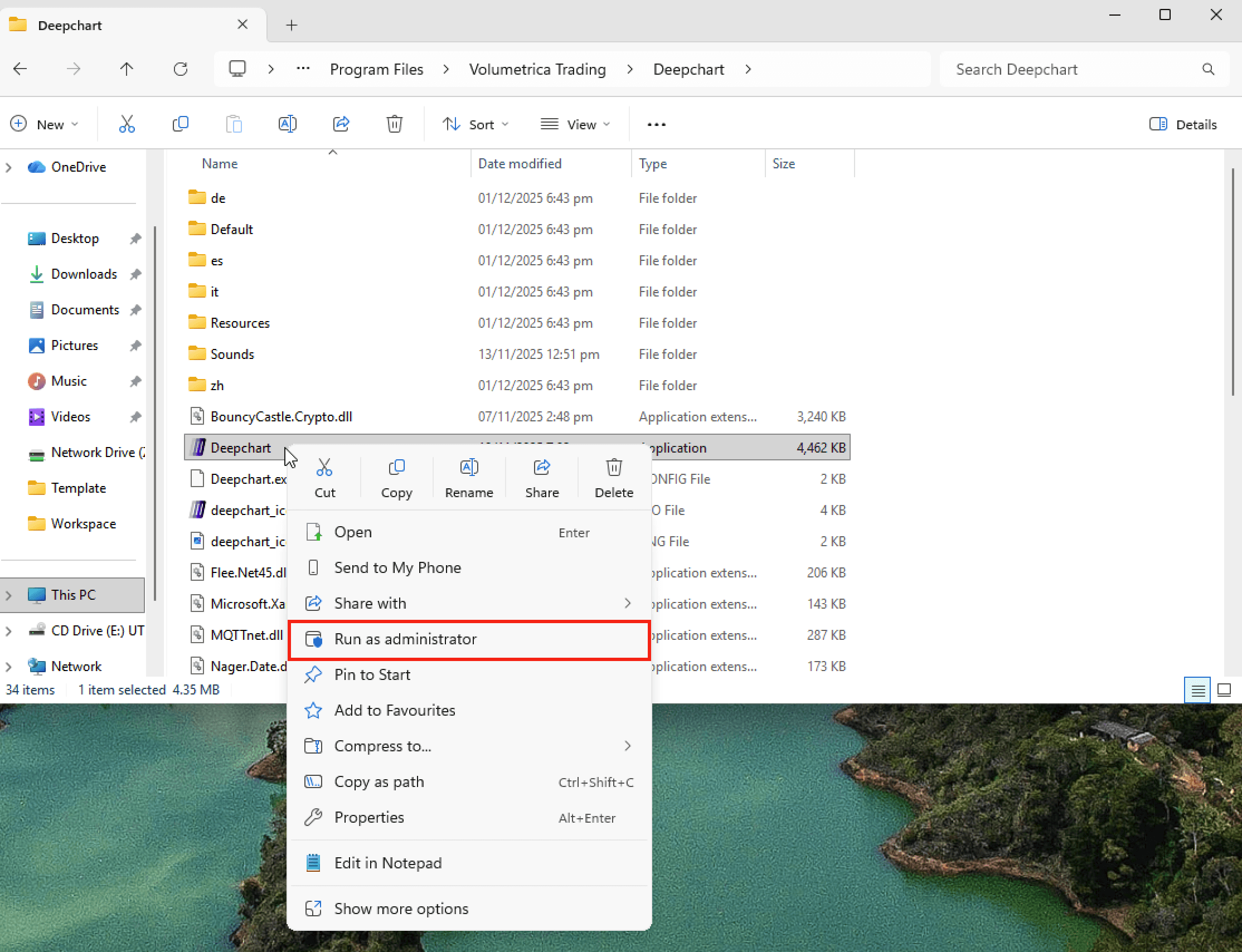
Fai clic con il pulsante destro su DeepChart.exe
Seleziona Esegui come amministratore
Riapri Impostazioni feed e fai clic su Salva
Se l’applicazione continua a bloccarsi, passa alla soluzione successiva.
Causa 3: file di configurazione corrotti (config.settings o connProp.settings)
Descrizione
Se i file di configurazione sono danneggiati, DeepChart potrebbe bloccarsi ogni volta che tenta di salvare o aggiornare le impostazioni del feed.
Soluzione: elimina la cartella AppData di DeepChart
⚠️ Questo reimposterà le impostazioni locali. Potrebbe essere necessario riconfigurare in seguito il tuo feed dati.
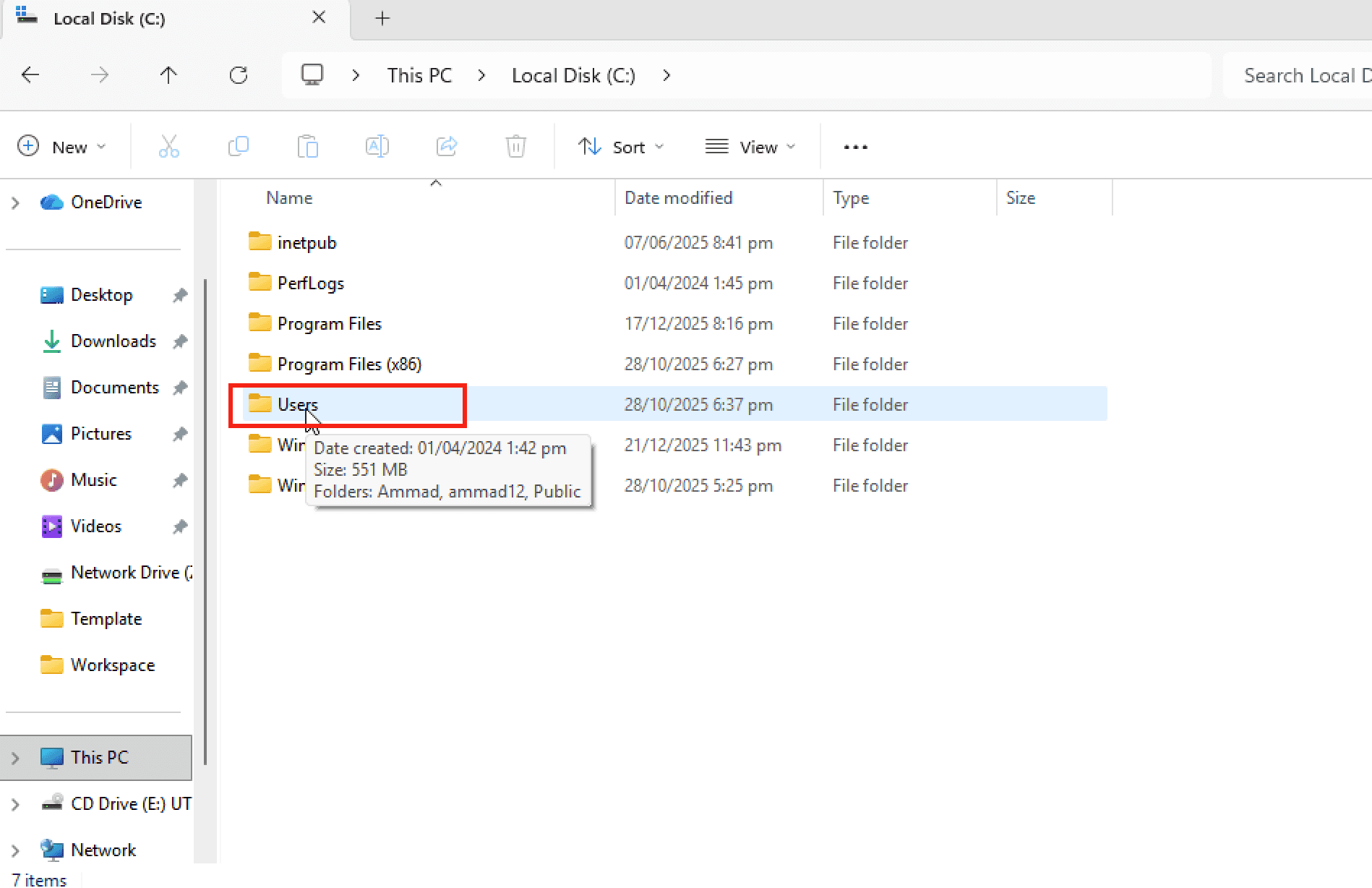
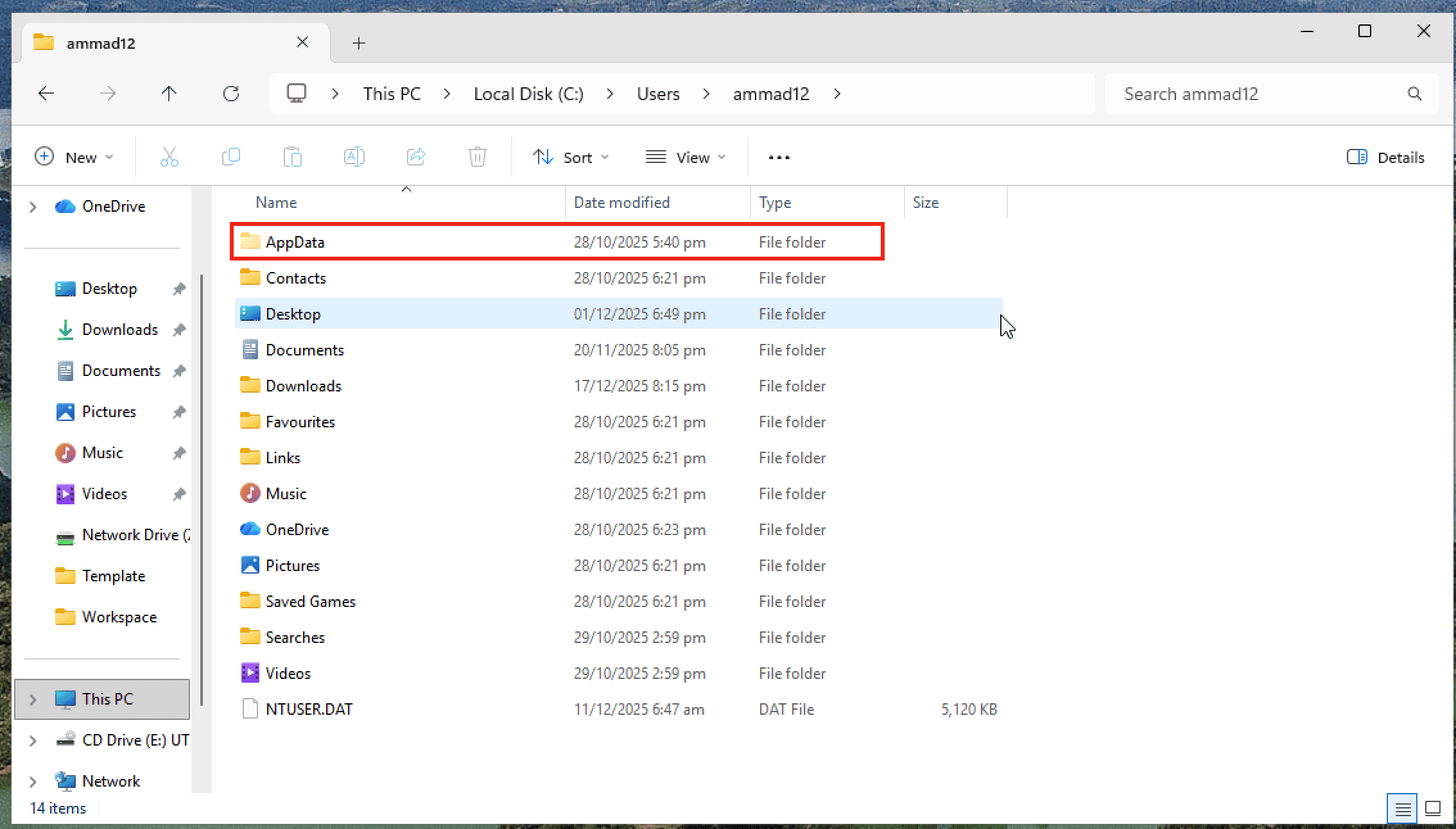
Passaggio 1: apri la cartella utente
Apri Disco locale (C:)
Apri Utenti
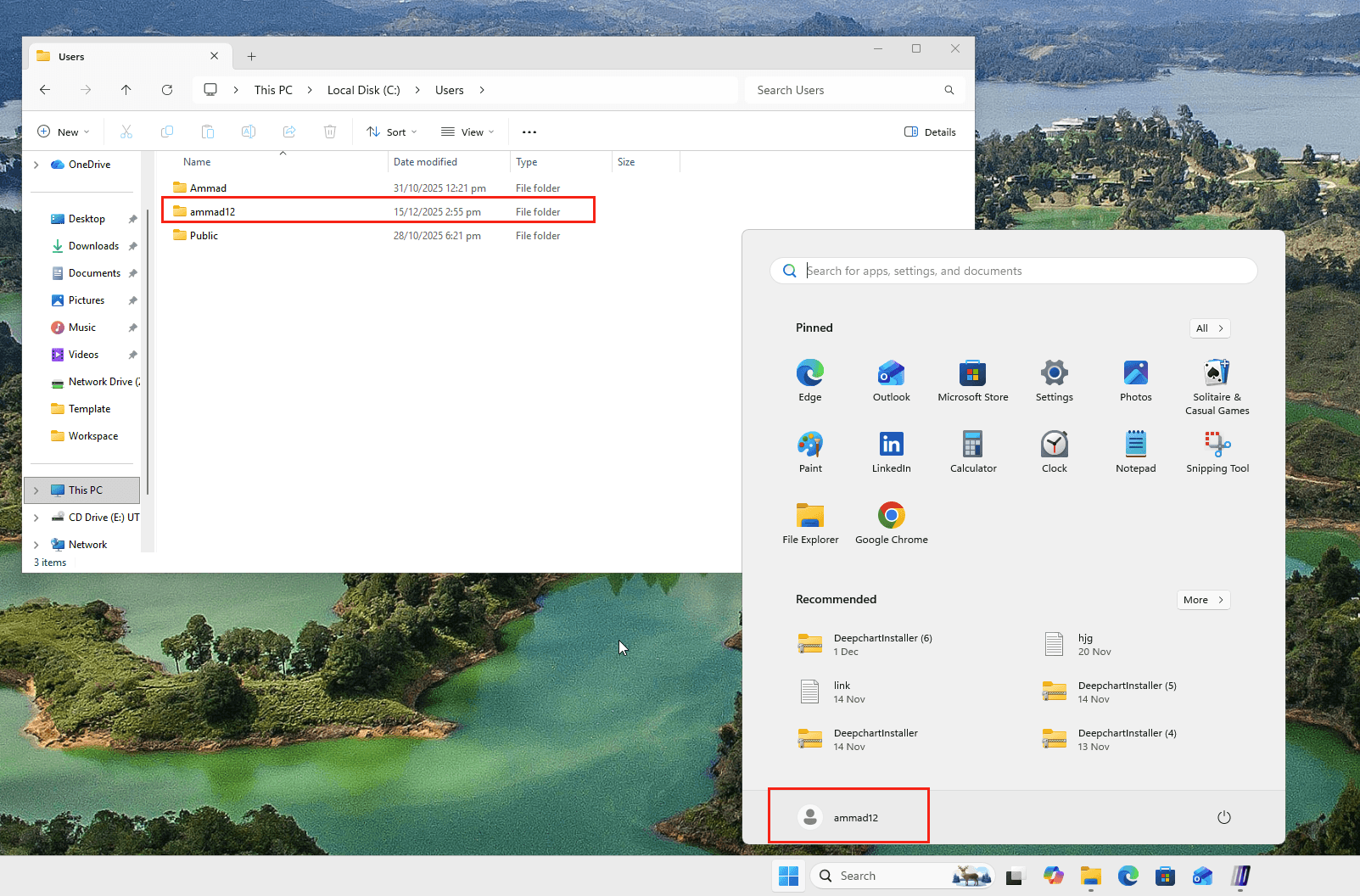
Apri la cartella dell’utente Windows con cui hai effettuato l’accesso
(Puoi confermare il nome utente dal menu Start di Windows.)
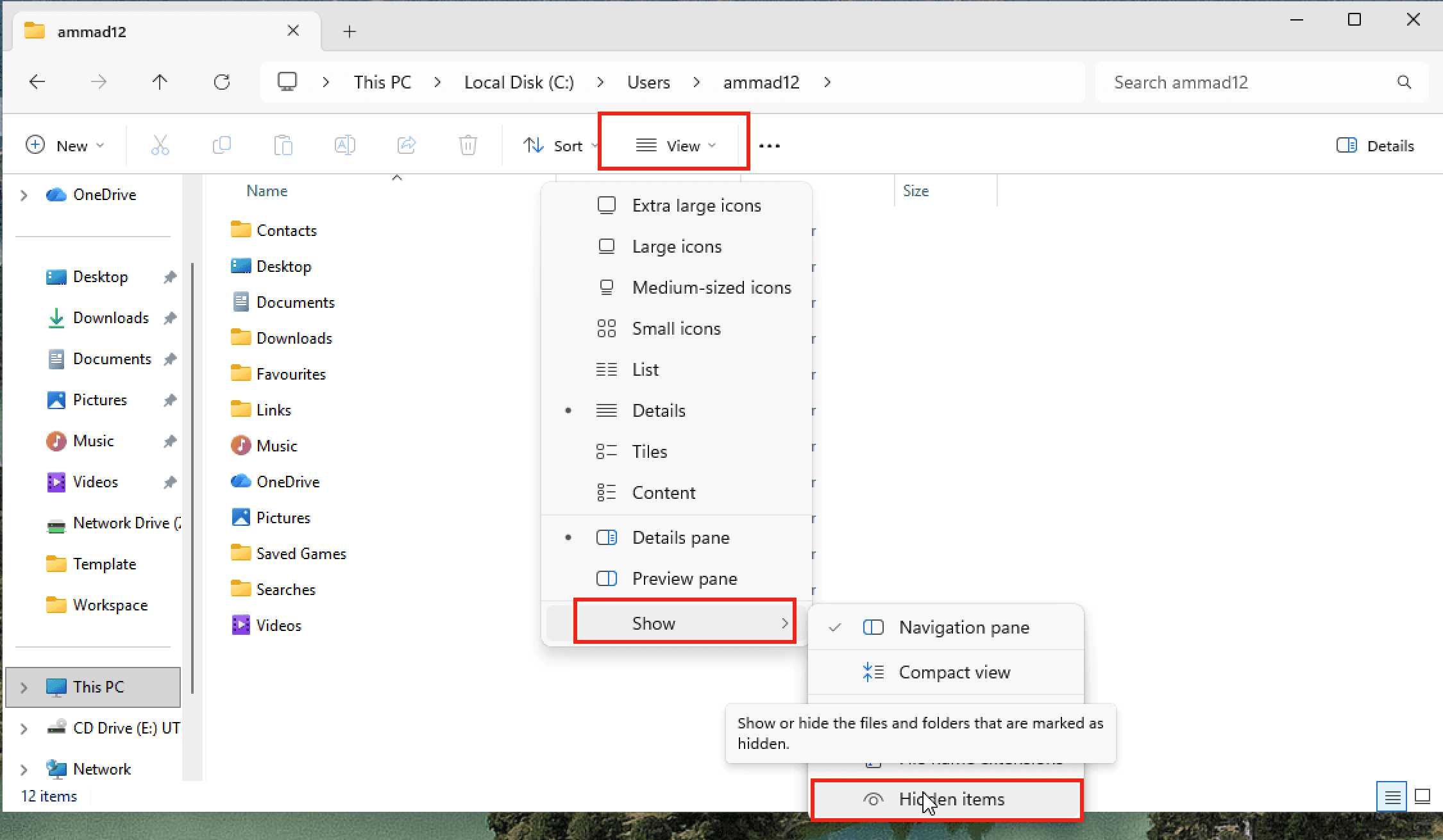
Passaggio 2: mostra le cartelle nascoste
In Esplora file, fai clic su Visualizza
Seleziona Mostra
Abilita Elementi nascosti
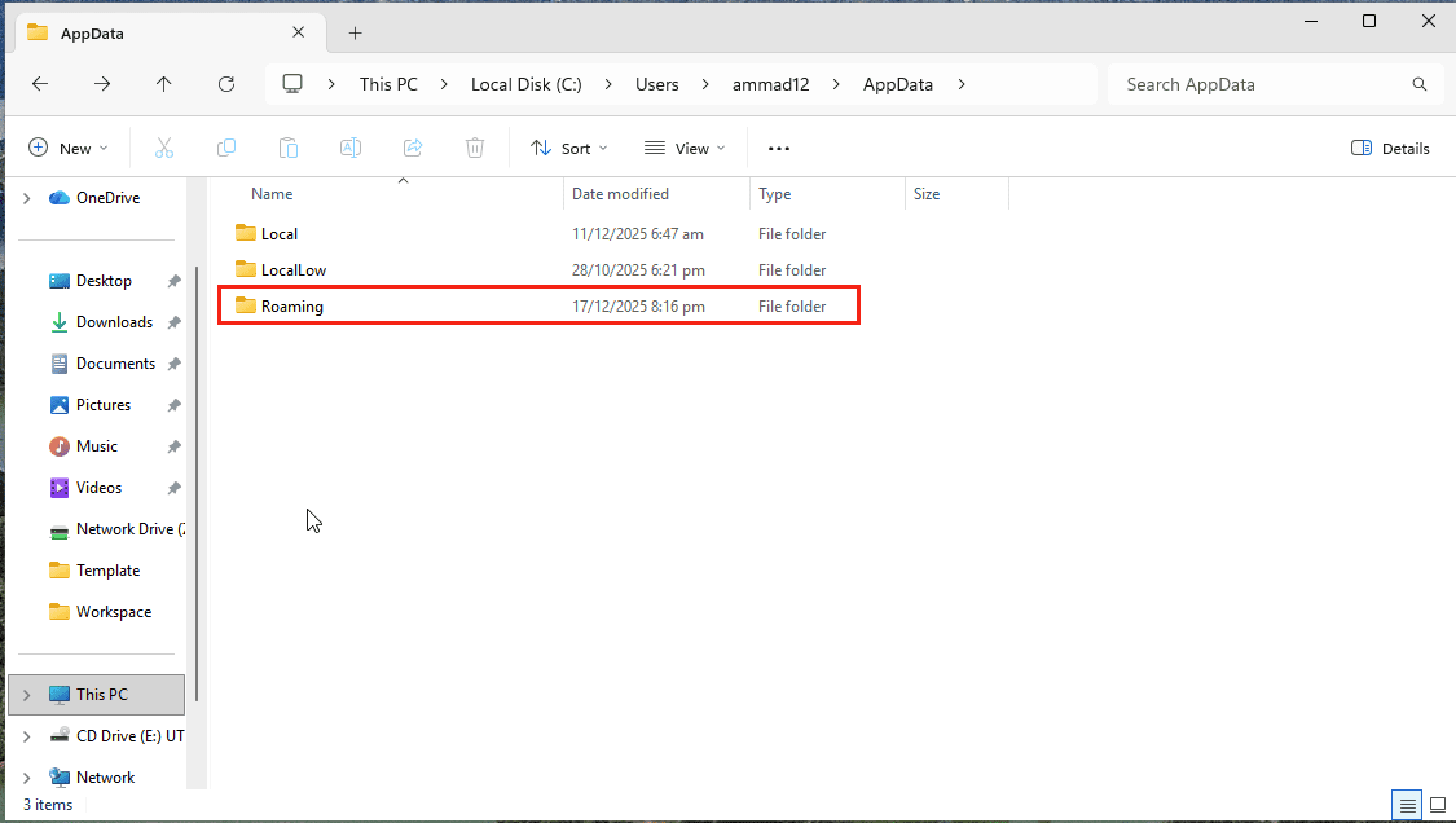
Passaggio 3: elimina la cartella AppData di DeepChart
Apri:
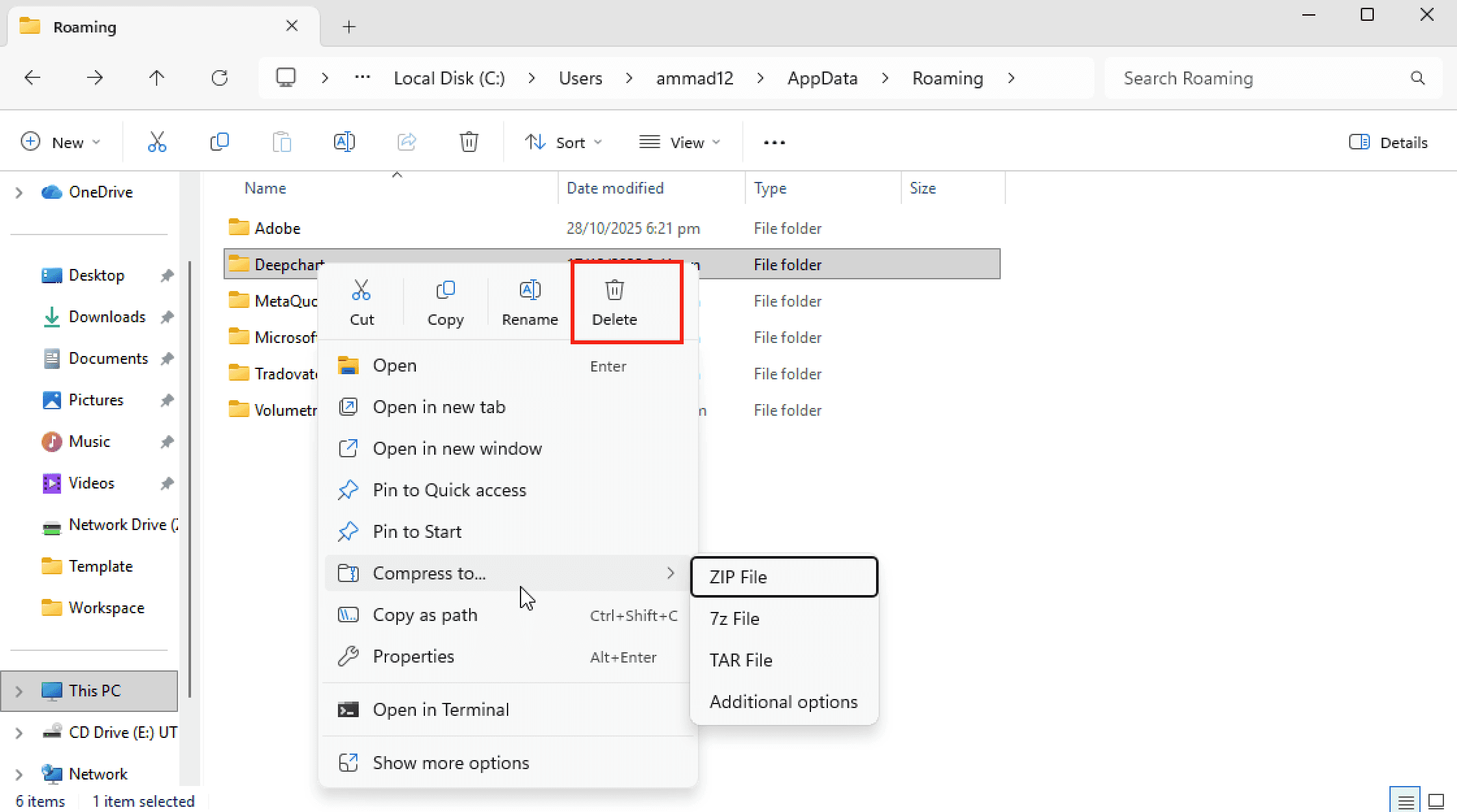
Individua la cartella Deepchart
Elimina la cartella Deepchart
Passaggio 4: riavvia DeepChart
Avvia di nuovo DeepChart (preferibilmente Esegui come amministratore)
Reinserisci le impostazioni del feed
Fai clic su Salva
✅ Il crash dovrebbe ora essere risolto.
Note aggiuntive
Controlla sempre il file più recente
DPC_Log_Date.txtper informazioni dettagliate sul crash. Se non riesci a leggere i log, contatta la linea di supporto di DeepChart e invia i log a un agente del supporto.Eseguire DeepChart come amministratore è consigliato, soprattutto alla prima configurazione
Evita di forzare la chiusura dell’app mentre stai salvando le impostazioni
